# Coding with Coding Agents & Nimbalyst
How to code with Claude Code and Codex inside Nimbalyst, a visual interface for coding agents with your files, diffs, and sessions side by side.
Nimbalyst puts a visual interface on coding agents like Claude Code and Codex, so you can run agent sessions, read their edits as diffs, and browse your files in one desktop workspace. It runs on top of Claude Code and Codex rather than replacing them. See the [Claude Code GUI page](https://nimbalyst.com/claude-code-gui/) and the [Codex GUI page](https://nimbalyst.com/codex-gui/) for what the desktop workspace adds on top.
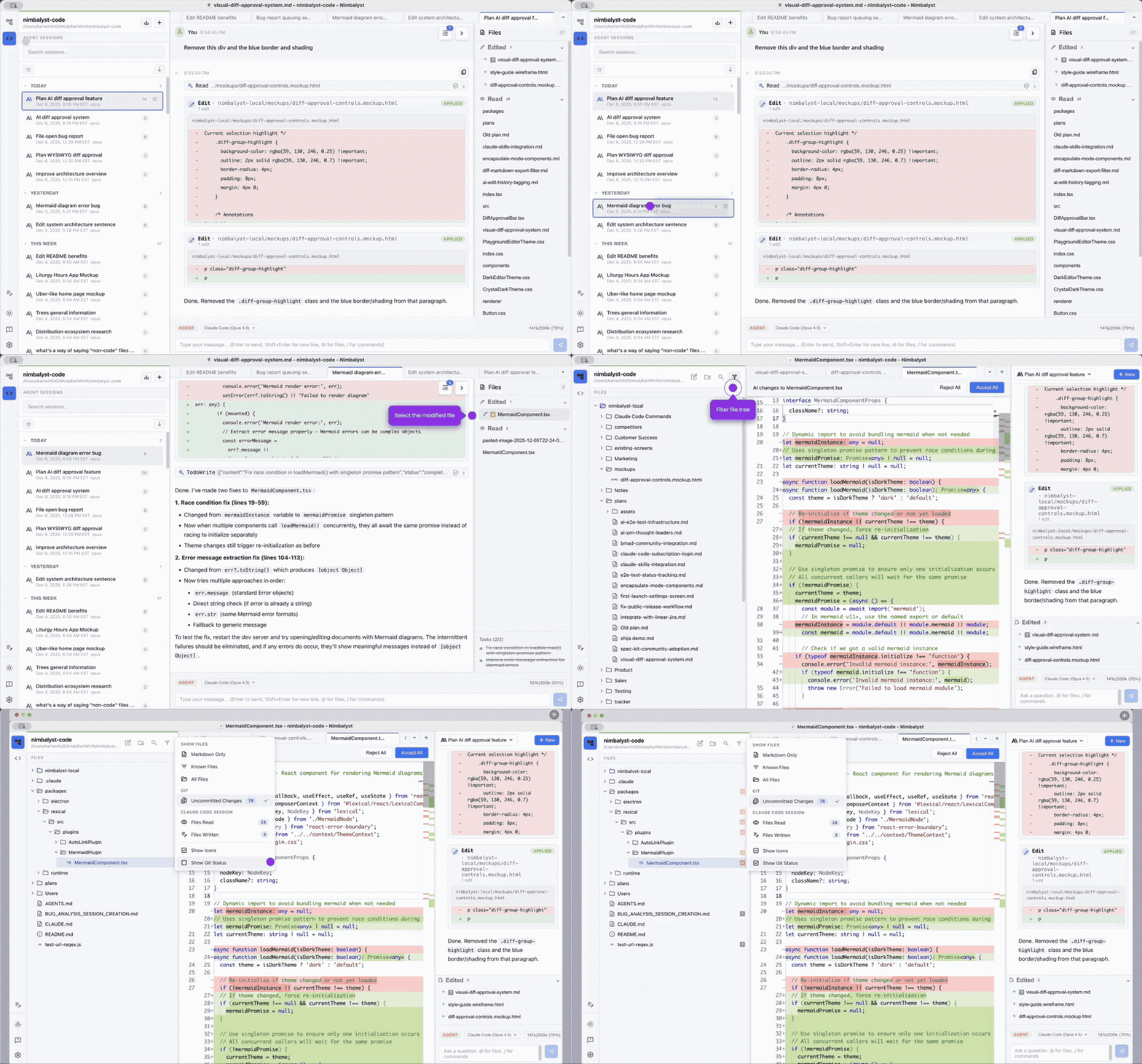
An agent session in Nimbalyst: your prompt, the agent's edits as red/green cards, and the files it touched, all in one view.
### Nimbalyst's Two Modes
**Chat Mode** is an AI sidebar for quick questions and targeted edits. Good for:
* Explaining code
* Small edits to the current document
* Quick lookups
**Agent Mode** is full-screen autonomous coding. Good for:
* Multi-file refactors
* Implementing features from a plan
* Running tests and fixing failures iteratively
* Running multiple sessions in parallel
### Code Editor with Diff Visualization
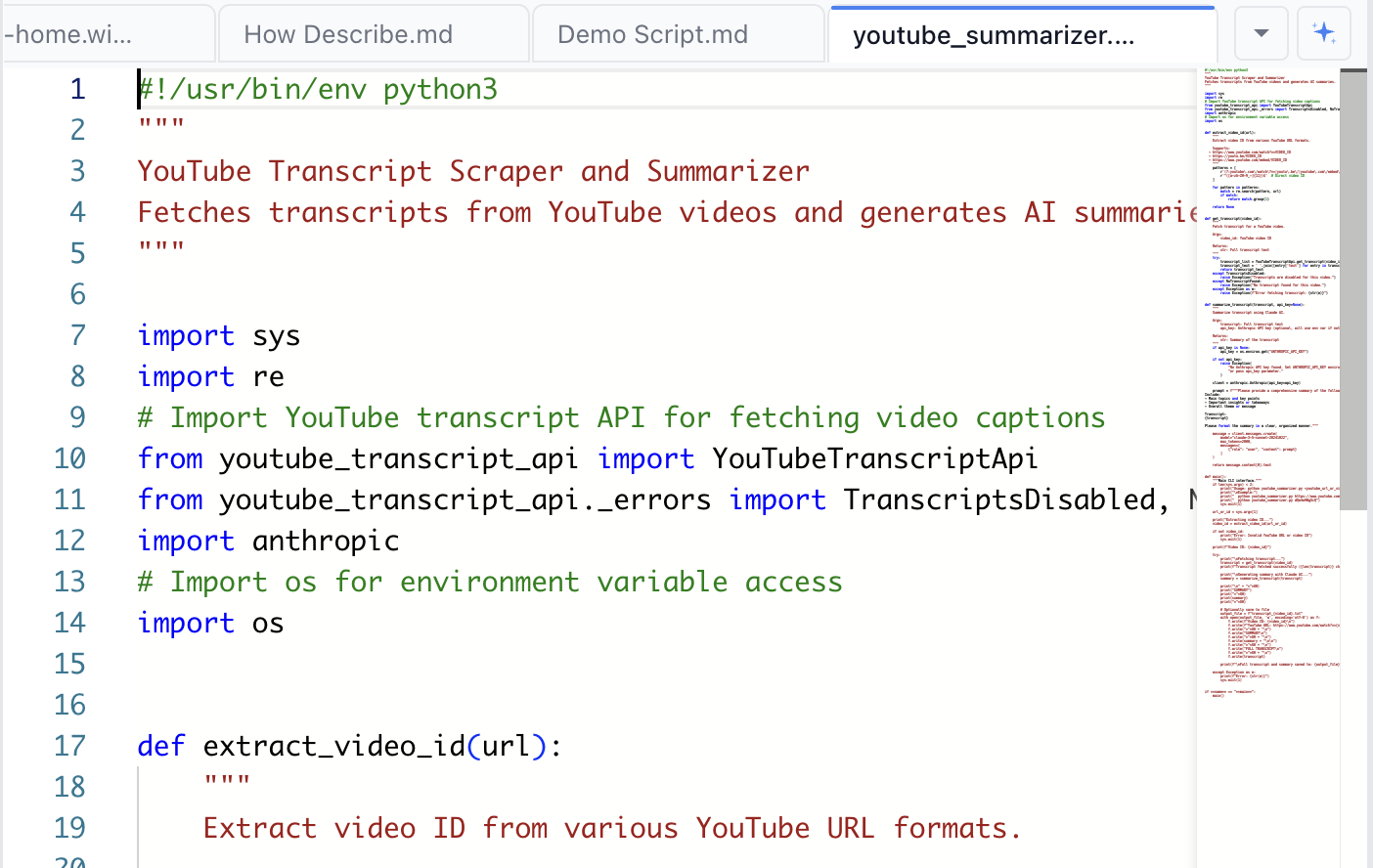
The code editor with syntax highlighting, file tabs, and a minimap for navigating longer files.
When the AI edits code or a document, changes appear inline:
* **Green background**: added content
* **Red background**: removed content, shown with strikethrough
Changes remain visible until you accept or reject them:
* **Accept All** keeps all changes
* **Reject All** reverts to the original content
### Inline Edit Cards in the Transcript
Both Claude Code's `Edit` tool and Codex's `file_change` tool render as red/green edit cards directly in the session transcript, so you can see exactly what the agent did to each file as the turn unfolds.
Edit cards work for:
* New files, rendered as a single-color "added" card
* Existing files, with red lines for removals and green for additions
* Gitignored or never-snapshotted files
* Renamed and deleted files