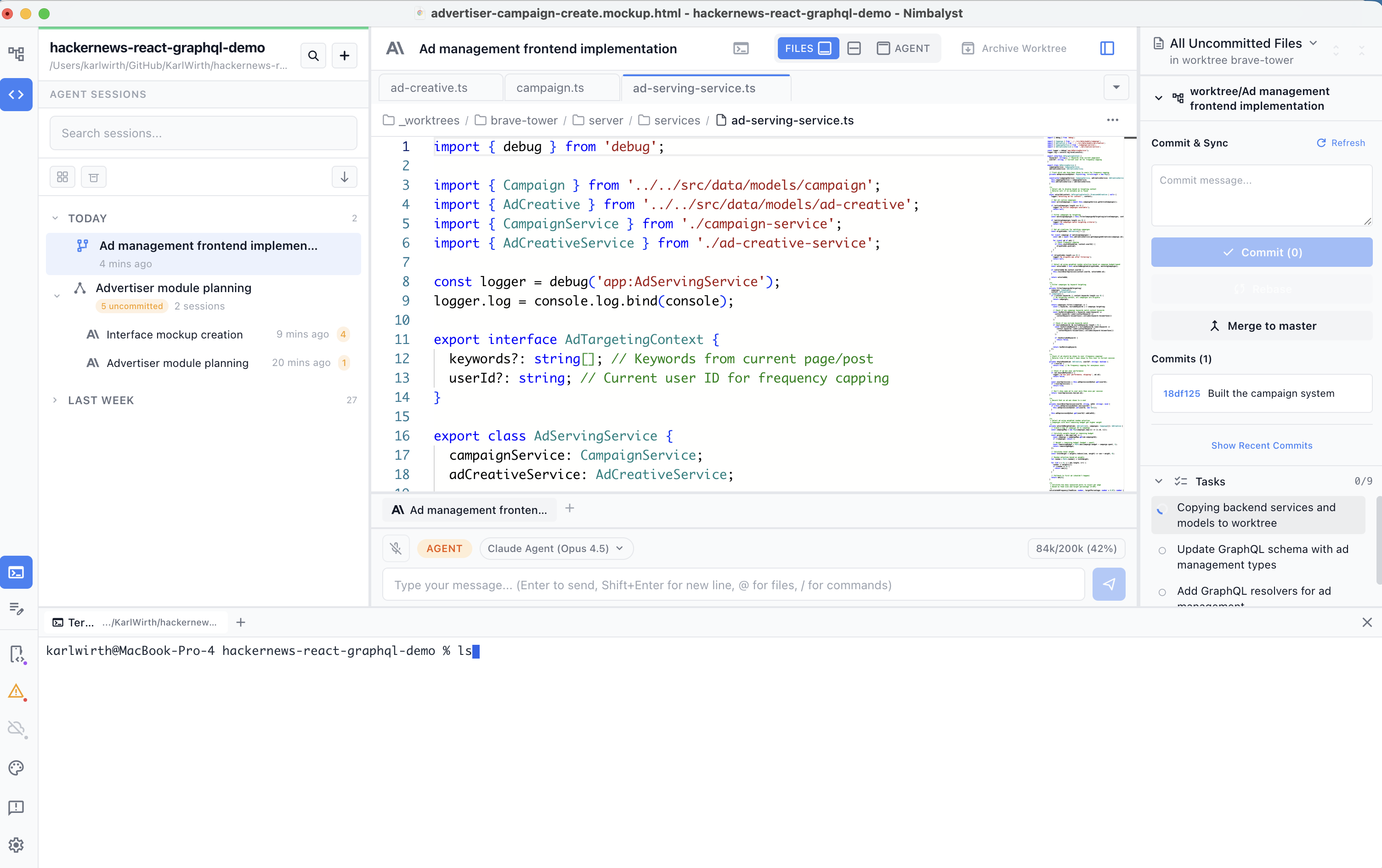
# Terminal Window
Run a Ghostty-powered terminal inside Nimbalyst. Create multiple terminal sessions in your workspace directory that survive app restarts.
Nimbalyst includes a Ghostty-powered terminal, so you can run commands in your workspace without leaving the app. You can open multiple terminal sessions, each running independently, and their output persists across app restarts. The terminal sits alongside the visual editors rather than replacing them; see the [developer tools page](https://nimbalyst.com/features/developer-tools/). The terminal requires [Developer Mode](https://nimbalyst.com/docs/developer-features/turn-on-off-developer-mode/).
The terminal panel opens along the bottom of the workspace, with a shell running in your project directory.
### Opening and Closing the Terminal
Open and close the terminal panel from the terminal icon in the left nav, or press **Ctrl+`**.
Add more terminals by clicking **+** to create a new terminal tab.
Each terminal tab is an independent shell session; click + to add another.
### Using the Terminal
Type commands and press Enter to run them. The terminal works like any standard shell:
* Run commands: `ls`, `git status`, `npm install`, and so on
* Navigate directories: `cd folder`
* Use tab completion (depends on your shell)
* Access command history with the up and down arrow keys
#### Shell Detection
Nimbalyst automatically detects and uses your system shell:
| Platform | Default Shell |
| -------- | ------------------- |
| macOS | zsh (or bash) |
| Linux | bash (or zsh, fish) |
| Windows | PowerShell (or cmd) |
#### Scrollback and History
Terminal output is preserved, up to 500KB per terminal. When you reopen a terminal session, previous output is restored, you can scroll back through it, and a new shell process starts in the same directory.
Your shell's own command history (up and down arrows) also persists across sessions. Fish shell and Windows cmd have limited history persistence.
#### Process Management
* **Running processes**: commands run until they complete or you stop them with Ctrl+C
* **Shell exit**: if the shell exits, press Enter to restart it
* **App quit**: when you close Nimbalyst, all terminal processes are stopped and scrollback is saved
### Terminals in Worktrees
Each [worktree](https://nimbalyst.com/docs/developer-features/worktrees/) has a dedicated terminal button, so you get a terminal scoped to that worktree's directory, with its own persisted scrollback.
### Tips
* Each terminal starts in your workspace folder
* Copy and paste with your normal system shortcuts (Cmd+C/Cmd+V on Mac, Ctrl+C/Ctrl+V on Windows/Linux)
* Clear the screen with `clear` or Ctrl+L
* Environment variables set during a session do not persist to new sessions