# Worktrees
Use git worktrees in Nimbalyst to run AI coding agents on several branches at once, each with its own directory, session, and diff to review.
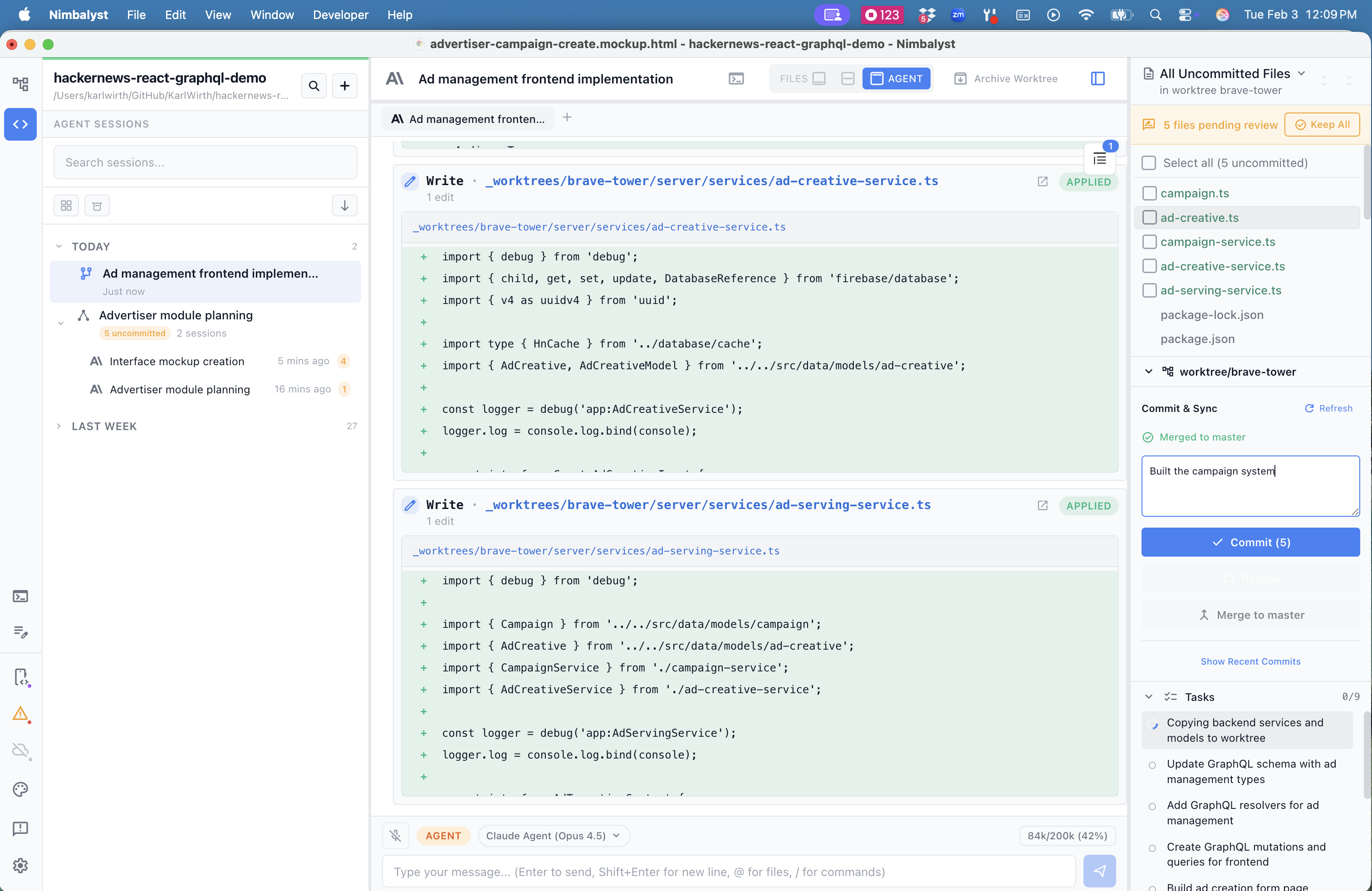
A git worktree gives an AI session its own branch and its own working directory, isolated from your main checkout. Use a worktree when you want an agent to build a feature, try an experiment, or investigate a branch without touching the code you are working in. Worktrees require [Developer Mode](https://nimbalyst.com/docs/developer-features/turn-on-off-developer-mode/) and a git repository.
For background on why worktrees matter when several agents are running at once, see the [git worktrees guide](https://nimbalyst.com/blog/git-worktrees-for-ai-coding-agents-complete-guide/).
An agent session in its own worktree: edits happen on an isolated branch, with commit and merge controls in the right panel.
### Creating a Worktree
There are three ways to start a worktree session:
1. From the menu beside **New session** in the title bar, choose **New Worktree** (**Cmd/Ctrl+Alt+W**). This starts an isolated AI session on a new branch.
2. From a Tracker item, choose the worktree action to launch an isolated session with that item linked as its context.
3. From Pull Request mode, choose **Open in Worktree** to check out the pull request branch and start a session inside it. See [Pull Request Reviews](https://nimbalyst.com/docs/developer-features/pull-request-reviews/).
### Working in a Worktree
* Each worktree has its own file system state, so changes never interfere with your main branch or with other worktrees.
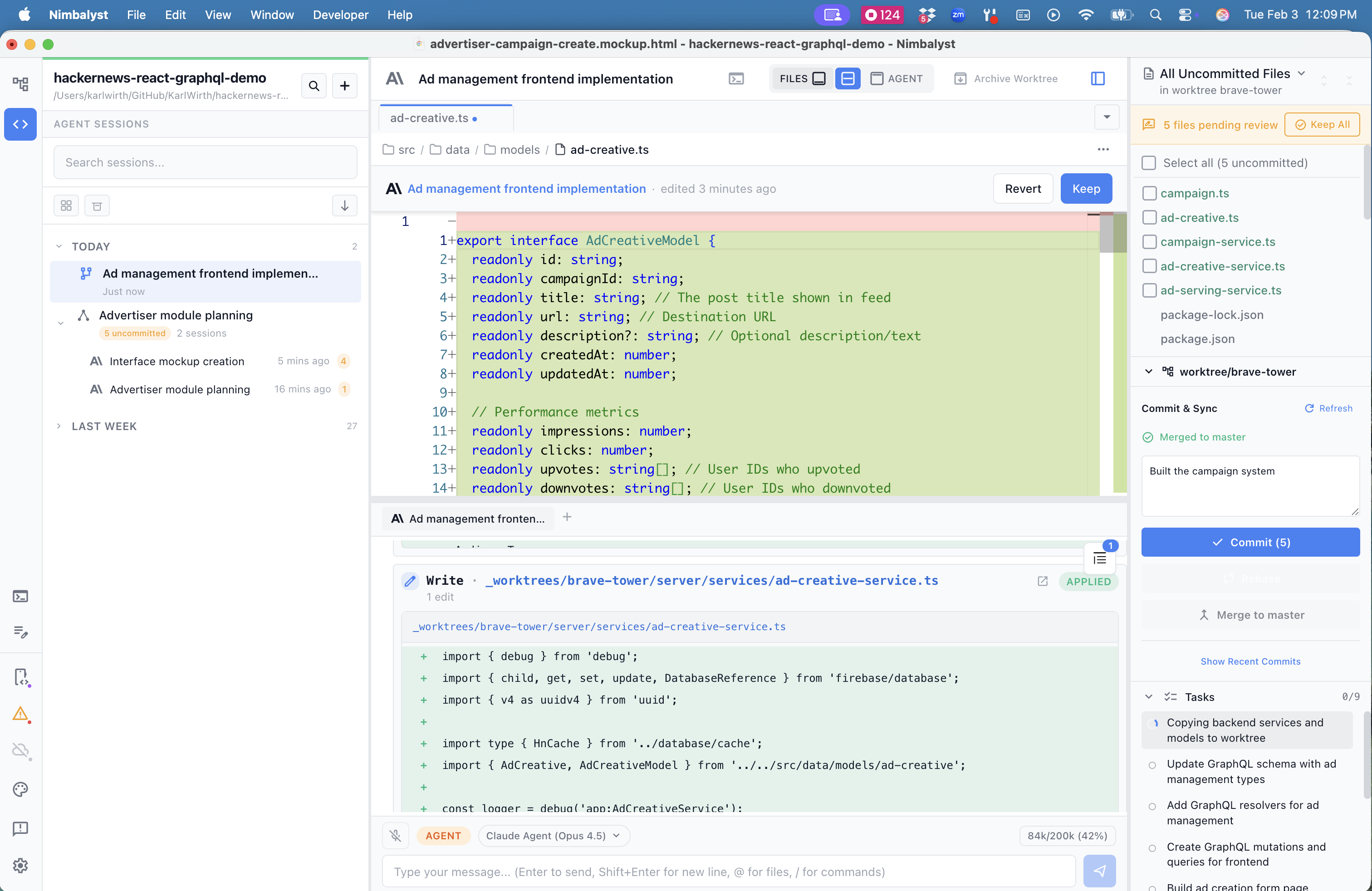
* Review the session's edits, commit them, and merge the branch back from the panel next to the session.
* Rebase a worktree even with uncommitted changes; Nimbalyst auto-stashes them for you.
* Use the worktree's terminal button to open a [terminal](https://nimbalyst.com/docs/developer-features/terminal-window/) scoped to that worktree's directory.
Reviewing a worktree session's changes: open any edited file, then keep or revert the changes before committing.
### Worktrees vs Workstreams
These are easy to mix up:
* A **workstream** groups related sessions. All of its sessions work in the same project folder on the same branch. See [Workstreams](https://nimbalyst.com/docs/session-management/workstreams/).
* A **worktree** gives a session its own git branch and folder, isolated from your main checkout.
Use a workstream to organize related sessions; use a worktree when a session's changes should stay off your main branch. A session in a worktree can also grow into a workstream, so the two combine.