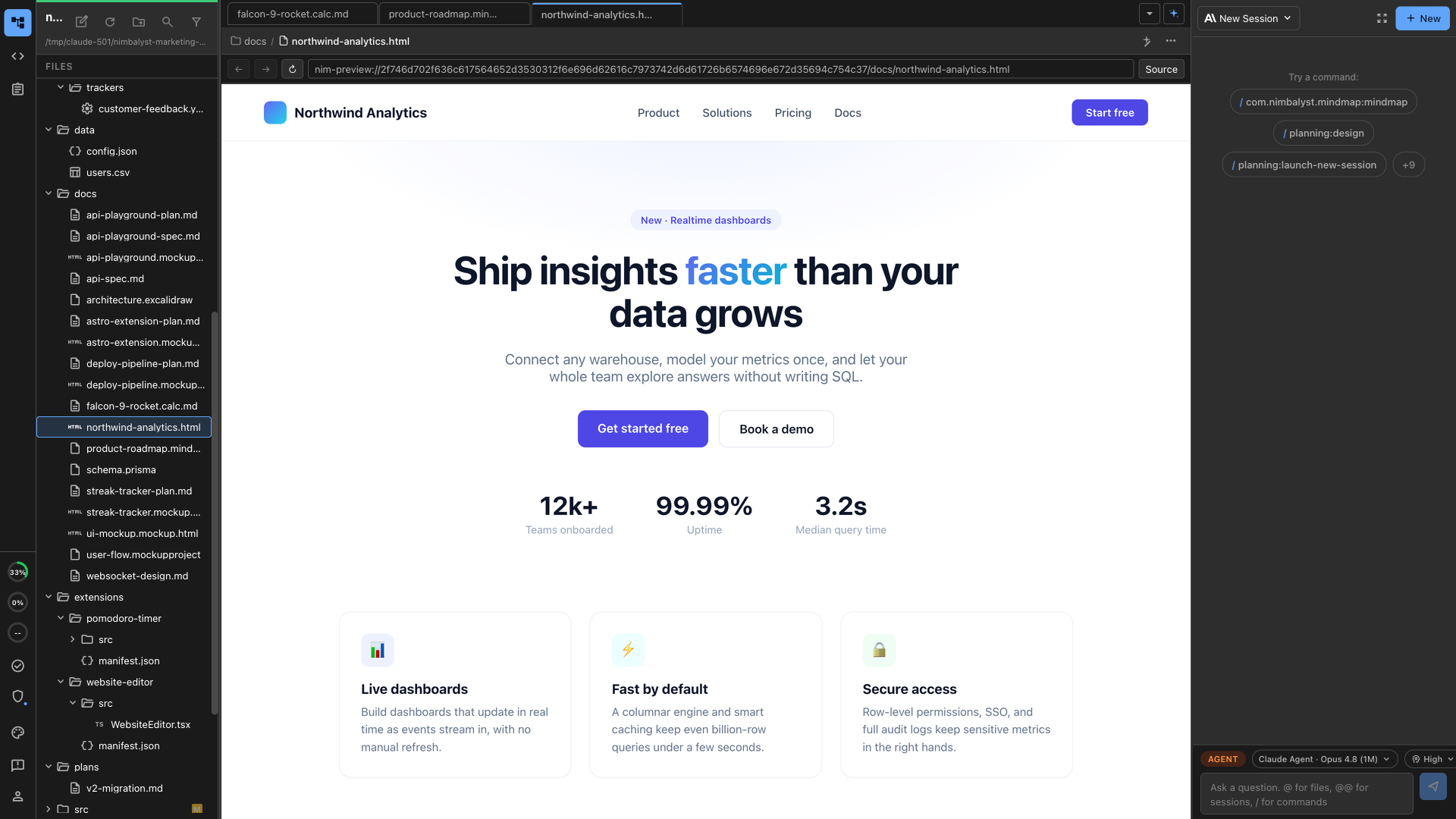
# Browser
Preview HTML files and live URLs in the built-in Chromium browser, right next to your project files and your AI coding agent conversation.
Nimbalyst includes an in-app Browser editor for previewing HTML files and live URLs without leaving your workspace. It opens pages in a real Chromium view, next to your files and agent conversation.
Use it when you want to see a generated page, review an HTML mockup, or check a live URL while Claude Code, Codex, or another agent keeps working in the same project.
The [browser extension page](https://nimbalyst.com/extensions/browser/) covers what an agent can do inside the in-app browser.
## What the Browser Is Good For
* Previewing `.html` and `.htm` files directly from the file tree
* Opening a live URL beside the code, notes, and agent transcript
* Reviewing frontend changes without switching to a separate browser window
* Checking generated mockups and landing pages as rendered pages
* Letting an agent inspect, click, type, scroll, evaluate, and screenshot a page
## Built-In Capabilities
* Real Chromium rendering, not an iframe
* Back, forward, reload, and URL bar controls
* Source toggle when you want to move between rendered preview and file source
* Workspace-scoped local preview URLs for files
* Fileless browser tabs for live pages
* Agent tools for navigation, page inspection, clicks, typing, scrolling, screenshots, and JavaScript evaluation
## Browser vs Code Editor
Use the **Browser** when you need to inspect the rendered result of an HTML file or URL.
Use the **Code Editor** when you need to edit the source of the HTML, CSS, JavaScript, or TypeScript file.
In practice, you often use both: edit source in one tab, open the Browser in another tab, and ask your agent to revise the page while you review the rendered result.
## Working with AI
Your coding agent can use the Browser to verify UI work in place. Good prompts include:
* "Open this HTML file in the Browser and check whether the CTA button is visible."
* "Change the hero copy, then preview the page in the Browser."
* "Click through the form and tell me what breaks."
* "Take a screenshot of the current page state."
* "Inspect the page and summarize the visible headings and links."