# Find & Replace and ToC
Use Cmd+F find and replace plus the auto-generated table of contents to move around long markdown documents in Nimbalyst without scrolling.
Two tools help you move around a long markdown document: find and replace for locating specific text, and the auto-generated table of contents for jumping between sections.
### Find & Replace
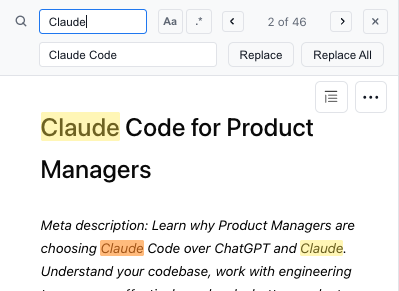
Press **Cmd+F** to open the find bar. It shows a match count, lets you step through matches, and expands to replace one match or all of them.
The find bar showing a search with its match count, plus a replacement field with Replace and Replace All buttons; matches are highlighted in the document.
### Table of Contents
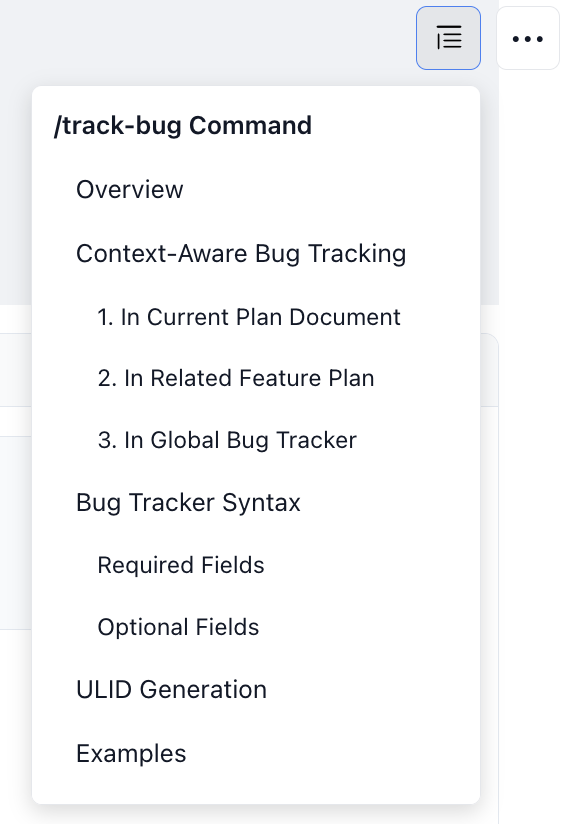
Nimbalyst generates a table of contents from your document's headings. Open it from the outline icon at the top right of the document, then click a heading to jump to that section.
The table of contents popover listing the document's headings as a nested, clickable outline.
More editor features are on the [markdown editor page](https://nimbalyst.com/features/markdown-editor/).