# Mermaid Diagrams and Images
Insert and edit Mermaid diagrams and images inside Nimbalyst markdown documents, by hand or by asking your AI agent to generate the syntax.
Markdown documents in Nimbalyst can hold rendered Mermaid diagrams and images alongside your text, so a spec or plan carries its own visuals. You can insert either by hand or by asking your agent.
### Mermaid Diagrams
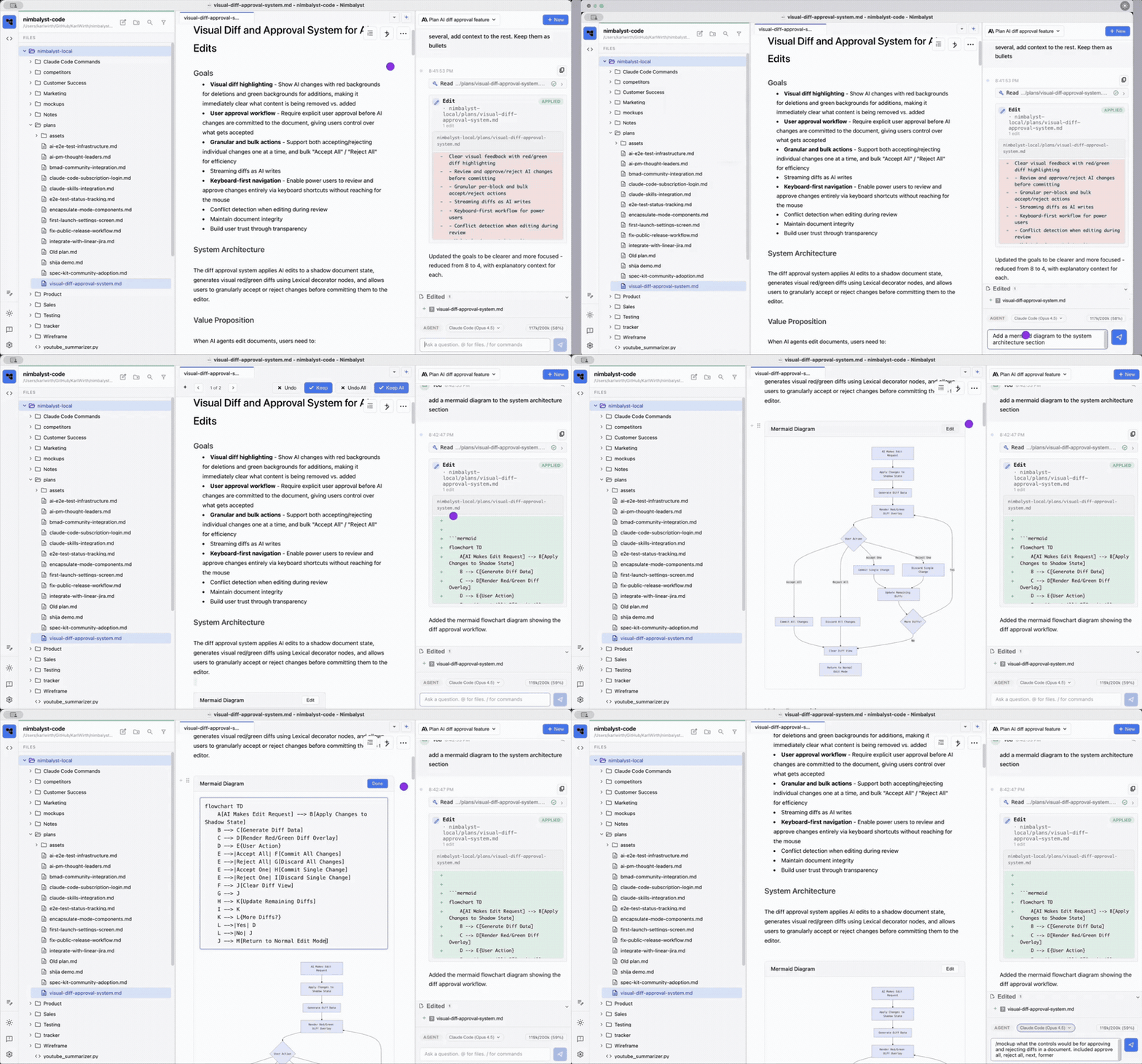
A markdown document open beside the agent panel, where the agent's edit to the document is applied and reviewed.
**Manually**: type **/** in WYSIWYG view and insert a Mermaid Diagram, then click **Edit** on the diagram block to edit the Mermaid syntax.
**With AI**: ask the agent to create a Mermaid diagram in the document, then edit it manually or keep iterating on it in chat.
Diagram types include:
* Flowchart
* Sequence diagram
* Gantt chart
* Class diagram
* State diagram
* Entity relationship
See the [diagrams feature page](https://nimbalyst.com/features/diagrams/) for how teams use Mermaid and Excalidraw together, and [architecture diagrams](https://nimbalyst.com/use-cases/architecture-diagrams/) for a worked example.
### Images
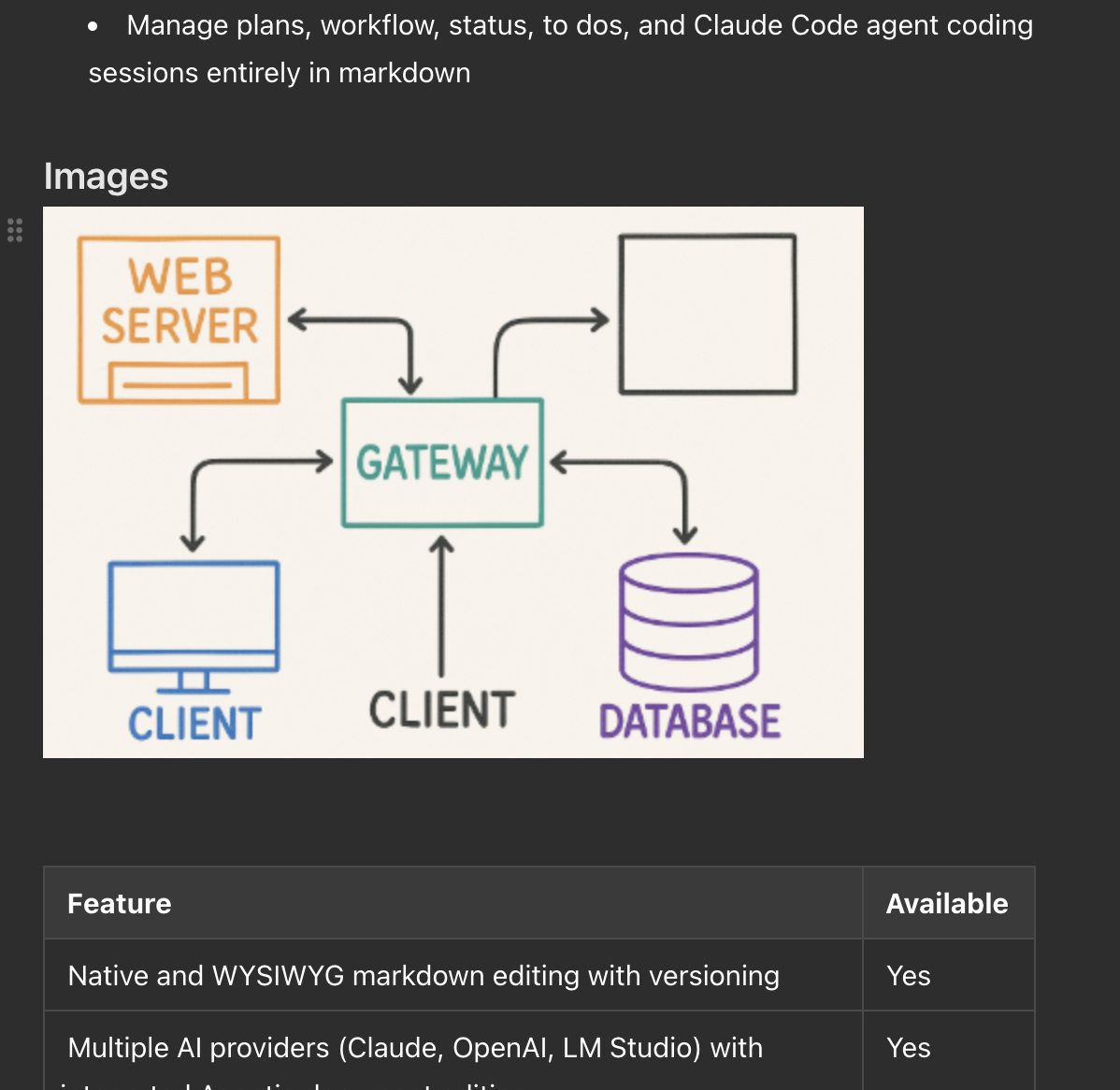
A document in dark mode with an embedded architecture image rendered under an Images heading, above a feature table.
Paste or insert an image into a document and resize it in place. Nimbalyst stores the image in an assets folder next to the markdown file and writes a normal markdown link to it, so the document stays portable.