Best Markdown Editors for Developers
Discover the best markdown editors for developers, focusing on integration, AI workflows, and seamless documentation editing to optimize your coding environment.
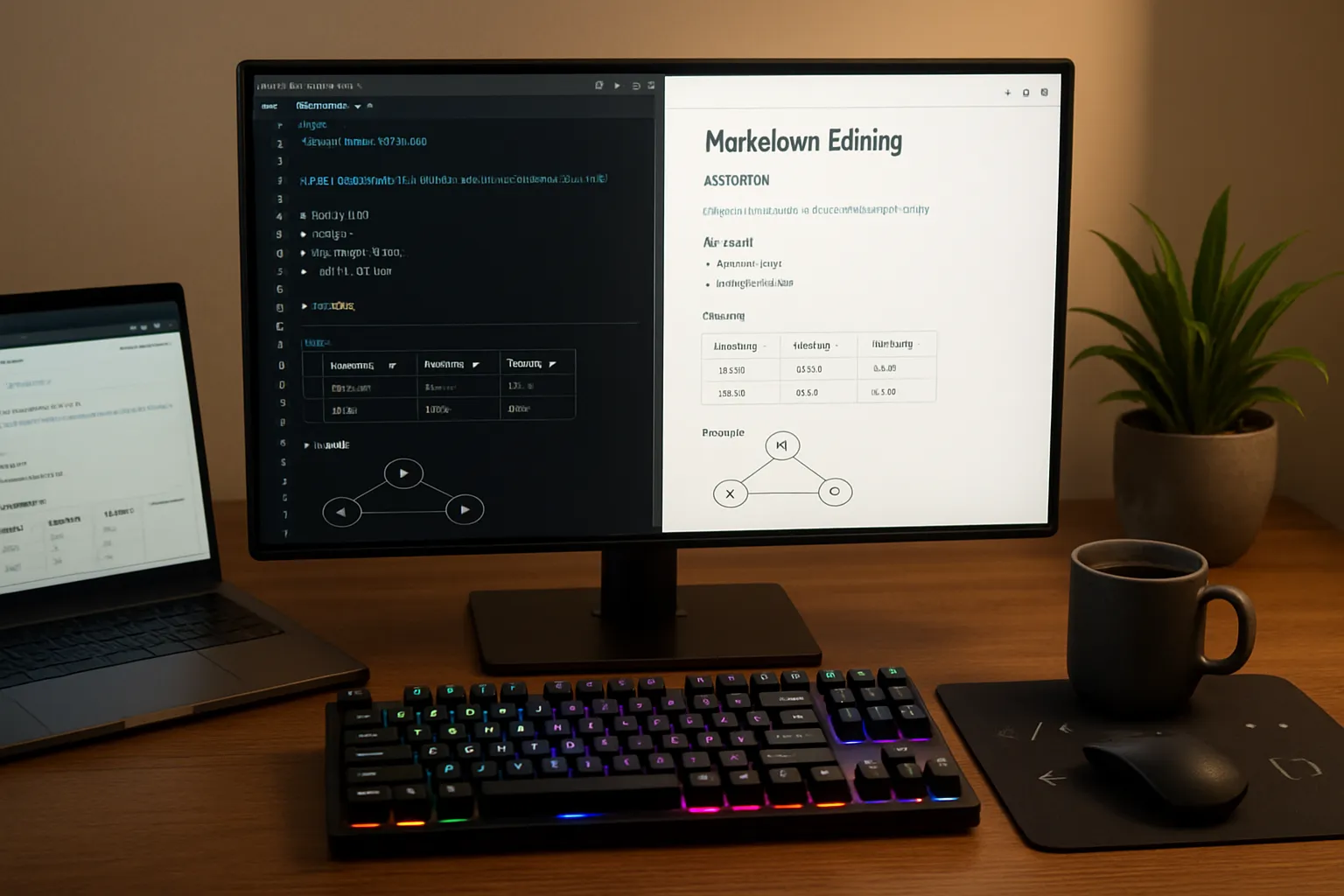
Most developers settle for whatever markdown support their IDE provides. Open a file, see some syntax highlighting, maybe a preview pane. Good enough, right?
It’s fine until it isn’t. Until you’re wrestling with a complex table that doesn’t render correctly. Until you’re trying to update documentation that’s drifted from your actual code. Until you’re re-initializing context between your terminal, your editor, and your AI assistant for the fifth time today.
This guide is for developers who want better. Not just better markdown editing, but better integration between your docs and your code, between your writing and your AI workflows. For a broader comparison across all use cases, see our complete guide to markdown editors.
What is the Best Markdown Editor for Developers?
For developers, the best markdown editor depends on what you’re editing. For inline code documentation, stay in your IDE. For project planning and documentation, you need real WYSIWYG text, table, image, and diagram editing. For specs and design docs that drive AI code generation, you need something that maintains context across your entire project.
How Do Developers Edit Markdown Files?
Most developers edit markdown in one of four ways:
Option 1: Raw editing in IDE. You open the .md file in VS Code or whatever you use. Syntax highlighting shows you the structure. Maybe you toggle a preview pane. This works for quick edits but becomes painful for anything involving tables, diagrams, or complex formatting.
Option 2: Dedicated markdown app.Typora, Obsidian, or similar. Better editing experience, but now you’re context-switching between your code editor and your docs editor. Copy-pasting paths, losing mental context, duplicating effort.
Option 3: Git web interface. Edit the README directly on GitHub. Convenient for small changes. Terrible for anything substantial.
Option 4: Integrated environment. Tools like Nimbalyst that treat markdown as a first-class concern alongside code. Newer approach, fewer options, but addresses the fundamental problem of fragmented context.
The Problems with Editing Workflows
**Native mode makes it hard to think.**You wouldn’t write your code in a notes app, so why write your words in a coding app. Words deserve a first-class environment where you aren’t distracted but have a clean, WYSIWYG editor.
Tables are awful in raw markdown. Keeping columns aligned as you edit is tedious. Adding a column means reformatting every row. Most developers avoid tables entirely because of this, which hurts documentation quality.
Diagrams are difficult. Similar problems to tables. Its hard to edit it in raw markdown and you have to flip between your edits and a preview mode
Images require too much friction. Take screenshot, save to repo, write the markdown path, hope you got the relative path right. Then do it again when the screenshot needs updating.
Preview is never quite right. Your local preview might render differently than GitHub. Dark mode handling varies. Mermaid diagrams might work in one context and not another.
AI Edits don’t show up in most WYSIWYG editors. It is essential to understand what AI changed and review, approve, and reject it. Often, you must choose between working in WYSIWYG mode and seeing diffs.
The best workflow minimizes these friction points. Dedicated markdown editors with WYSIWYG table editing solve the first problem. Drag-and-drop image handling solves the second. Native diagram support solves the third.
Git Integration and Version Control
Your markdown editor must play well with git.
That means:
- Plain markdown files. No proprietary formats, no database backends, no sync services that create merge conflicts.
- Clean diffs. Your markdown output shouldn’t include formatting artifacts that change between edits without meaningful content changes.
- Local file access. The editor needs to work with files in your git repo, not copies in some app-specific location.
This rules out tools that store documents in their own format or require cloud sync. Obsidian works here if you configure it correctly. Typora works. Notion does not. Google Docs does not.
Syntax Highlighting and Code Blocks
Developers need good code block support. This means:
- Syntax highlighting for your languages. Not just the popular ones. Your edge-case language or config format needs to render correctly.
- Easy language specification. Typing the language tag should be frictionless, ideally with autocomplete.
- Copy-paste preservation. Pasting code from your editor into a code block shouldn’t mangle indentation.
Most markdown editors handle this adequately. What differs is the experience of editing code blocks. In raw markdown, you’re managing the triple backticks manually. In WYSIWYG editors, code blocks behave more like IDE editor windows, which feels more natural.
Extension and Plugin Ecosystems
VS Code has the largest extension ecosystem. You can find markdown extensions for almost anything. The question is whether bolting on features creates a coherent experience or a Frankenstein’s monster.
Obsidian’s plugin system is extensive for note-taking workflows but weaker for development-specific needs. We compare Obsidian with Claude Code against Nimbalyst in a separate deep dive.
Typora is intentionally minimal. No plugin system. What you see is what you get.
For developers, the relevant extensions fall into categories:
- Preview enhancements: Better rendering, GitHub-flavored markdown support, diagram rendering.
- Editing helpers: Table formatters, link validators, paste image handlers.
- AI integration: Copilot, Claude, various autocomplete tools.
The extension approach works until you need features to interact with each other. Getting your AI assistant to understand your diagrams, your docs, and your code context simultaneously is hard when each feature is a separate bolted-on extension.
Performance Considerations
Performance matters when you’re working with large documents or switching between files frequently.
- Startup time: How fast does the editor open? If you’re using it throughout the day, slow startup adds up.
- Large file handling: Some editors struggle with markdown files over a few hundred kilobytes. Technical documentation can get big.
- Preview rendering: Real-time preview of complex documents, especially those with many images or diagrams, can lag in some tools.
Desktop editors generally outperform web-based ones. Electron-based editors (VS Code, Obsidian) fall in between. Native apps (Typora) tend to be fastest.
Comparison Matrix
| Capability | VS Code | Obsidian | Typora | Nimbalyst |
|---|---|---|---|---|
| Syntax highlighting | Excellent | Good | Good | Good |
| Table editing | Manual | Plugin | Excellent | Excellent |
| Image support | Extension | Plugin | Drag-drop | Drag-drop, paste |
| Code block experience | Native | Good | Good | Good |
| Git integration | Native | Good | Good | Good |
| Diagram support | Extension | Plugin | Limited | Native |
| AI integration | Extensions | Plugin | None | Claude Code native |
| Red/Green AI Diffs | Not WYSIWYG | No | No | Yes |
| Performance | Good | Good | Excellent | Excellent |
The AI Workflow Problem
Here’s what’s changed for developers in 2025: AI coding assistants are generating substantial amounts of code from natural language specs.
The quality of that generated code depends on the context you provide. Your PRD, your technical design doc, your architecture diagrams, your specifications, your existing code, these all feed into what the AI produces.
Most developers are currently managing this context manually, jumping between the command line and their IDE and their markdown editor. This is fragmented and error-prone. Context gets lost. Documents drift from reality. The feedback loop is slow.
A better workflow keeps docs, diagrams, and AI sessions in one place. When you update a spec, the AI has access to the update. When the AI generates code, you can review the changes inline. When you accept changes, the documentation can stay synchronized.
This is the direction that matters for developer markdown editing in 2025. Not just rendering markdown correctly, but treating markdown as part of an integrated development workflow — what we call an IDE for words, diagrams, and mockups. Explore the full set of Nimbalyst features to see this in action.
Practical Recommendations
If you’re doing quick edits to existing docs: Stay in VS Code. Add the Markdown Preview Enhanced extension if you haven’t.
If you’re writing substantial documentation from scratch: Use Nimbalyst and iterate together with AI for the cleanest editing experience, then commit to your repo.
If you’re building a personal knowledge base: Obsidian with developer-focused plugins works well.
If you’re working onfeatures where specs drive AI code generation: Look at tools that integrate markdown editing with AI workflows natively. Nimbalyst is built for this use case, keeping your docs, diagrams, mockups, and Claude Code sessions in one local workspace … integrated.
The best markdown editor for developers isn’t necessarily the one with the most features. It’s the one that reduces friction in your actual workflow. Consider what you’re really trying to accomplish, then pick the tool that makes that easier.
Frequently Asked Questions
Should I use VS Code for markdown editing?
Yes, for small edits and inline documentation. VS Code is adequate and you’re already there. For substantial documentation work, especially involving tables or diagrams, dedicated tools provide a better experience.
What markdown editor works best with GitHub?
Any editor that produces clean GitHub-flavored markdown works with GitHub. The important thing is avoiding tools that add proprietary formatting or store files in non-standard locations.
How do I edit markdown tables without going insane?
Use an editor with WYSIWYG table editing. Typora handles this well. So does Nimbalyst. In VS Code, there are table formatter extensions, but they’re still more manual than visual editors.
Can I use AI assistants with my markdown editor?
Yes, through extensions in VS Code and plugins in Obsidian. The limitation is that these integrations often don’t maintain context across your full document set. Tools built with AI integration in mind, like Nimbalyst with its native Claude Code support, provide more cohesive workflows including red/green AI diffs that you approve and support for / commands and skills.
What’s the best markdown editor for technical writing?
For pure writing quality, Typora. For linking and organization, Obsidian. For integration with code and AI workflows, Nimbalyst. For staying in an IDE, VS Code with extensions.