Developer
Track everything in your workspace
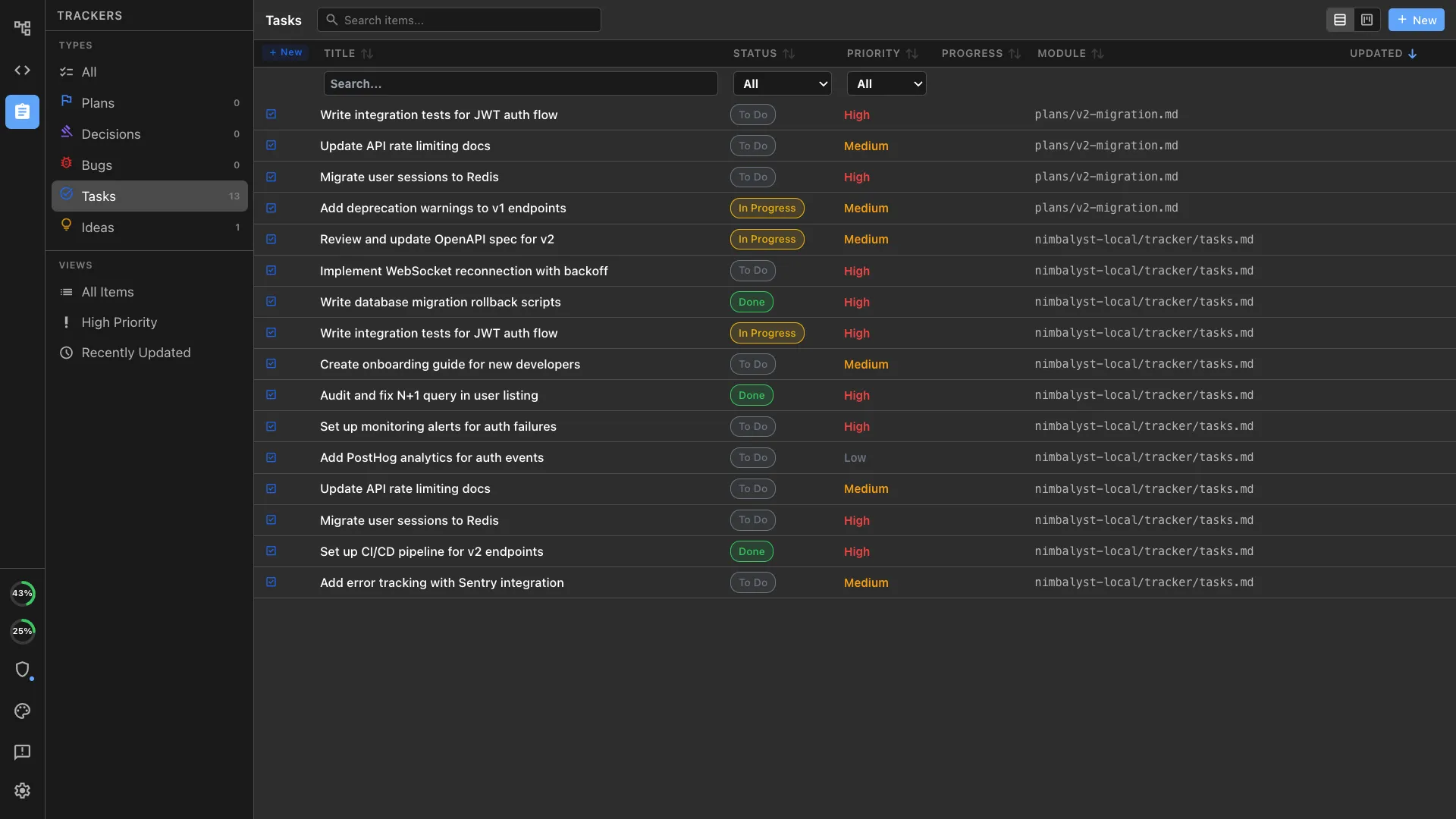
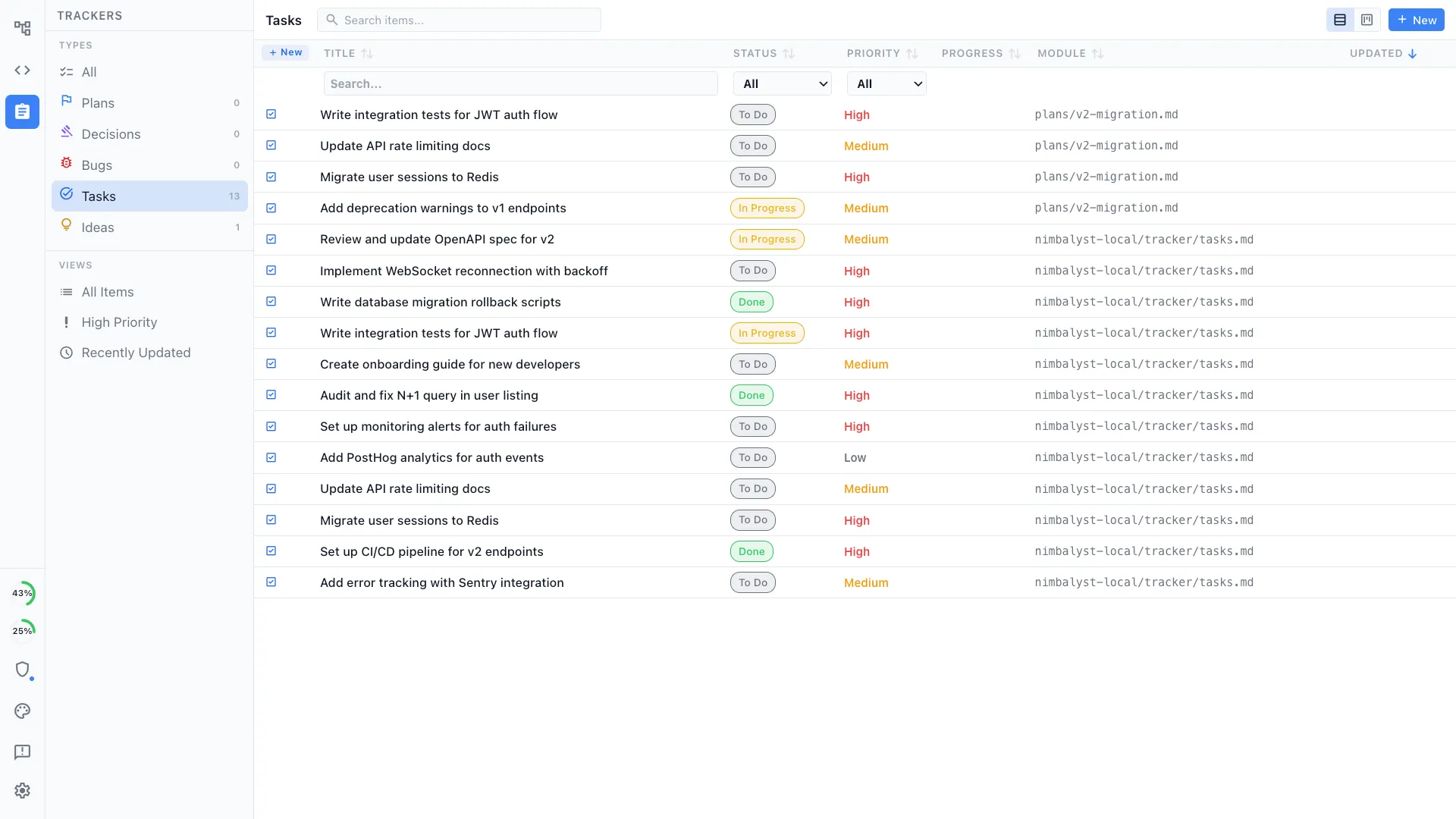
Run /track to log bugs, tasks, ideas, and decisions as structured markdown files. Query and filter from the chat — no external tool required.
Track bugs, tasks, ideas, and decisions as markdown files with YAML frontmatter. Create, update, and query tracked items from the chat.
Capabilities
Lightweight task management
Structured tracking
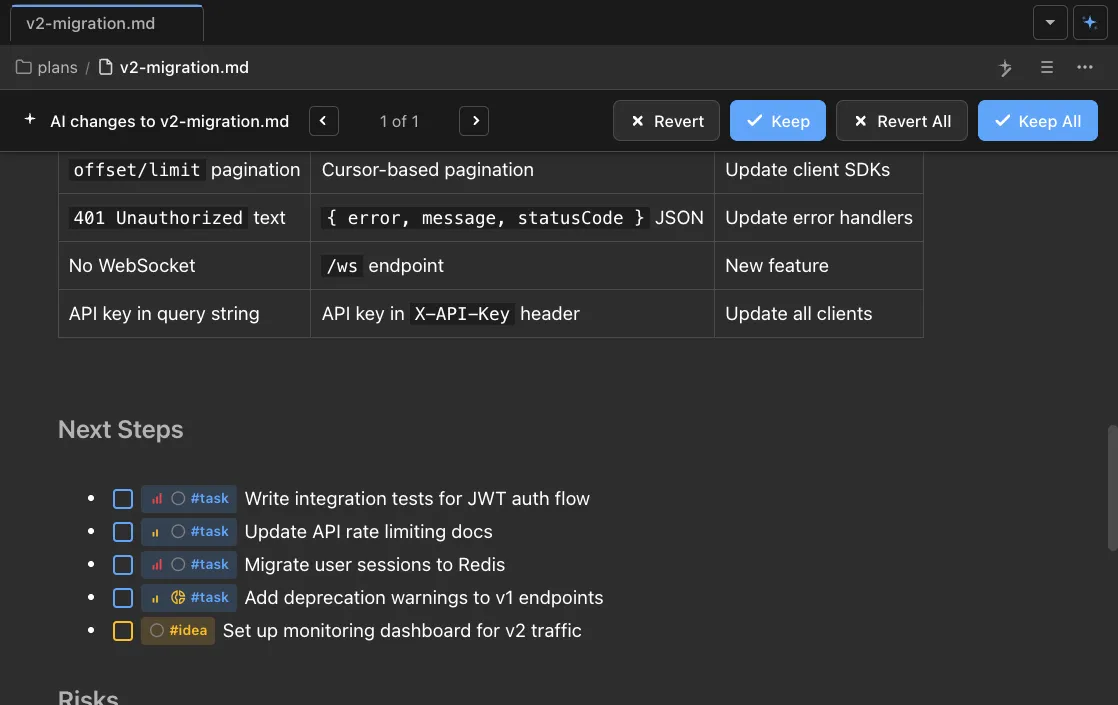
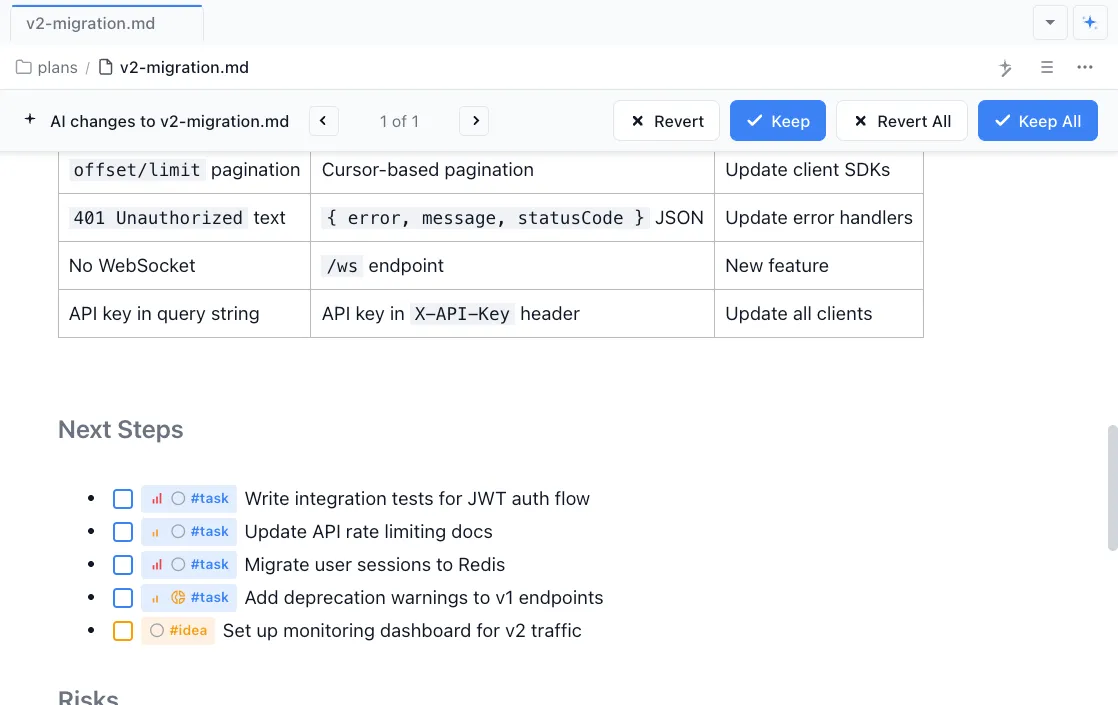
Each tracked item is a markdown file with YAML frontmatter — type, status, priority, tags, and assignee. Human-readable and agent-readable.
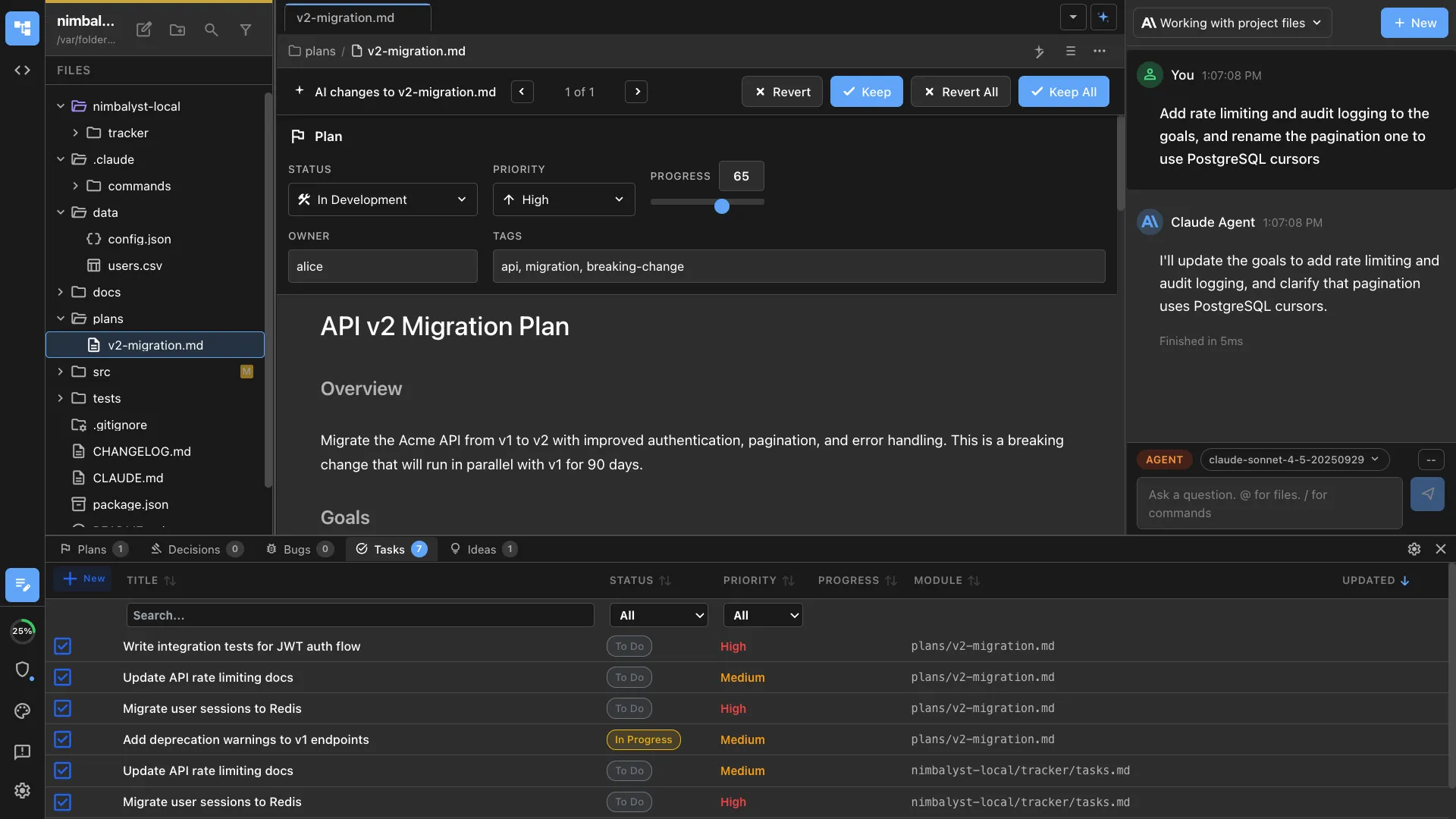
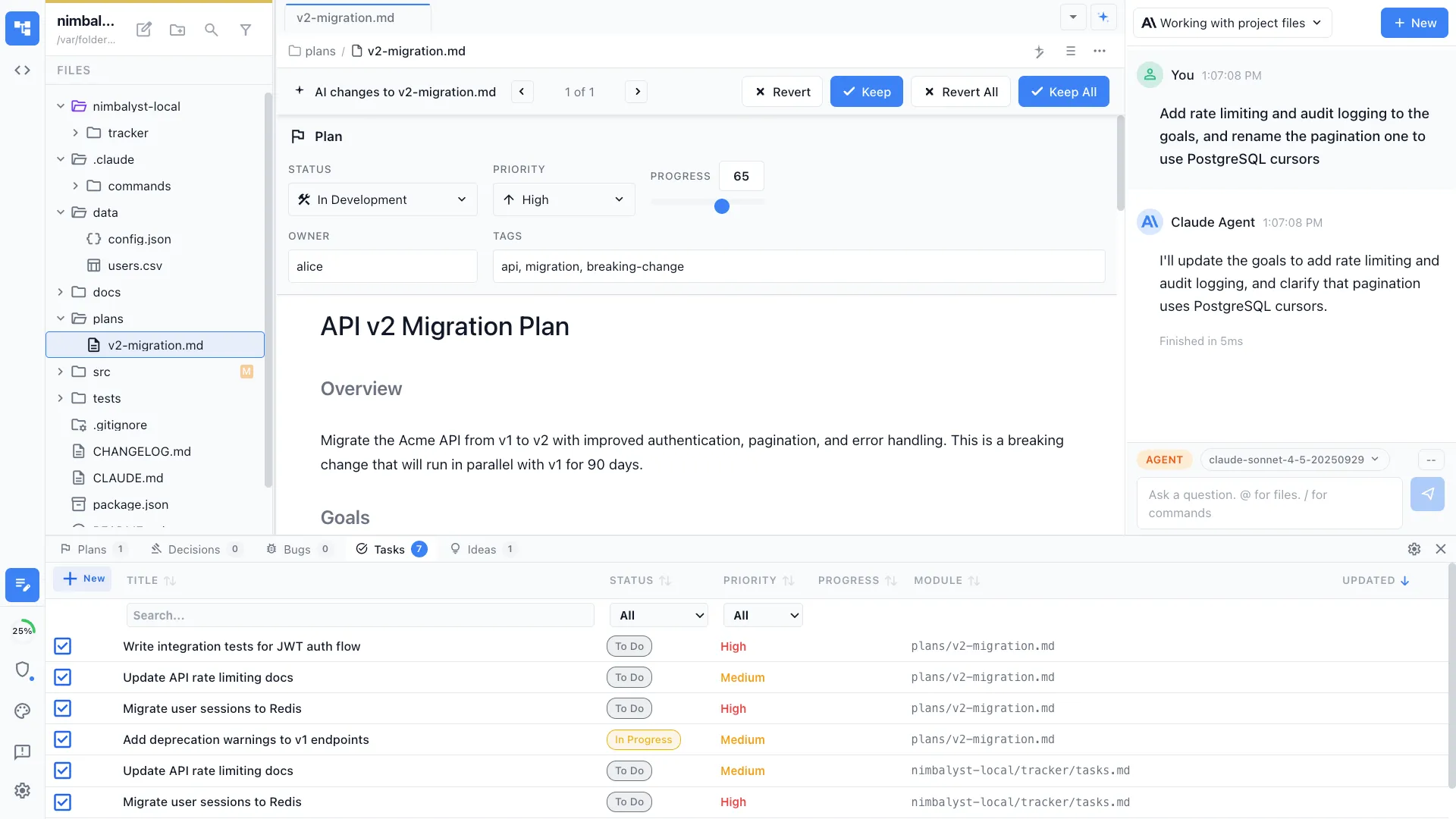
Query from chat
Ask 'what bugs are open?' or 'show me all high-priority tasks' and the agent filters your tracked items and shows results inline.
Tags and metadata
Add custom tags, link to files, reference sessions, and attach related items. Everything is plain markdown — no database required.
How It Works
How /track works
Type /track
Run /track and describe the item — a bug you found, a task to do, an idea to explore, or a decision to document.
Agent creates the tracker item
A markdown file is created with structured frontmatter. The item is instantly queryable and visible in your project file tree.
Update and query
Update status through conversation, add comments, and query your backlog. The agent keeps your tracker items organized.
Try It
Example prompts
/track bug: session names don't persist after restart /track task: add error handling to the upload endpoint /track idea: weekly digest email with session summaries /track what's the status of all open bugs? Full Skill Source
Use this skill in your project
Copy the full text below or download it as a markdown file. Place it in your project's .claude/commands/ directory to use it as a slash command.
---
description: Track bugs, tasks, ideas, and other work items
---

# /track Command

Create a tracking item in the appropriate tracking document.

## Usage

```
/track [type] [description]
```

**Examples:**
- `/track bug Login fails on mobile Safari`
- `/track task Update API documentation`
- `/track idea Add dark mode support`
- `/track devblog-post How we built realtime sync`

## CRITICAL: Discover Custom Tracker Types First

Before creating a tracker item, **always check for custom tracker types** defined in the workspace:

1. Look for YAML files in `.nimbalyst/trackers/*.yaml` in the workspace root
2. Each YAML file defines a custom tracker type with a `type:` field (e.g., `type: devblog-post`)
3. The `type` field in the YAML is what goes after `#` in the tracker syntax (e.g., `#devblog-post[...]`)
4. The `idPrefix` field determines the ID prefix (e.g., `dev` produces IDs like `dev_abc123`)
5. Custom types have their own status options - use those, not the built-in ones

**If the user's requested type matches a custom tracker (even partially), use the custom type name exactly as defined in the YAML.**

For example, if `.nimbalyst/trackers/devblog-post.yaml` exists with `type: devblog-post`, then:
- `/track dev-blog Something` should use `#devblog-post`, NOT `#plan` or `#blog`
- The file goes in `nimbalyst-local/tracker/devblog-posts.md`, NOT `plans.md`

## Built-in Tracker Types

These are always available:
- **bugs.md**: Issues and defects (`#bug`)
- **tasks.md**: Work items and todos (`#task`)
- **ideas.md**: Concepts to explore (`#idea`)
- **decisions.md**: Important decisions (`#decision`)
- **plans.md**: Plans and features (`#plan`)

## Custom Tracker Types

Defined in `.nimbalyst/trackers/*.yaml`. Common custom types:
- **feature-requests.md**: User requests (`#feature-request`)
- **tech-debt.md**: Technical debt (`#tech-debt`)
- **devblog-posts.md**: Dev blog posts (`#devblog-post`)
- Any other type defined in the workspace's YAML files

## Item Format

```markdown
- [Brief description] #[type][id:[idPrefix]_[ulid] status:[default-status] priority:medium created:YYYY-MM-DD]
```

The `[type]` and `[idPrefix]` come from the tracker YAML definition. The `[default-status]` comes from the first status option in the YAML, or `to-do` for built-in types.

## Execution Steps

1. **Check `.nimbalyst/trackers/*.yaml`** for custom tracker types that match the user's request
2. Parse the type from the command - match against custom types first, then built-in types
3. Use the correct `type` name and `idPrefix` from the YAML definition
4. Generate a unique ID using the prefix from the YAML (e.g., `dev_` for devblog-post)
5. Use the correct default status from the YAML definition
6. Determine priority from description keywords:
   - "critical", "urgent", "blocking" -> high/critical
   - "nice to have", "minor", "low" -> low
   - Otherwise -> medium
7. Add to `nimbalyst-local/tracker/[type]s.md` (pluralize the type name)
8. Confirm where the item was tracked

## CRITICAL: Do NOT Call tracker_create

**Never call the `tracker_create` MCP tool when executing /track.** The markdown file you write is automatically synced to the tracker widget via frontmatter/inline parsing. Calling `tracker_create` in addition to writing the markdown file creates a duplicate entry -- one from the file sync and one from the database insert. Only write the markdown file; the tracker system handles the rest.

## Best Practices

- Always check for custom tracker types before falling back to built-in ones
- Be specific in descriptions
- Include context when helpful
- Use the exact type name from the YAML definition
- Set priorities appropriately
Related Skills
Skills that work well together
Explore More