Claude Code Session Kanban: How to Organize Your AI Coding Agents Visually
Learn how to use a kanban board to manage Claude Code sessions. Compare kanban tools like Claude Code Board, Kanban Code, Claudine, Vibe Kanban, Agent Viewer, and Nimbalyst for organizing AI coding workflows.
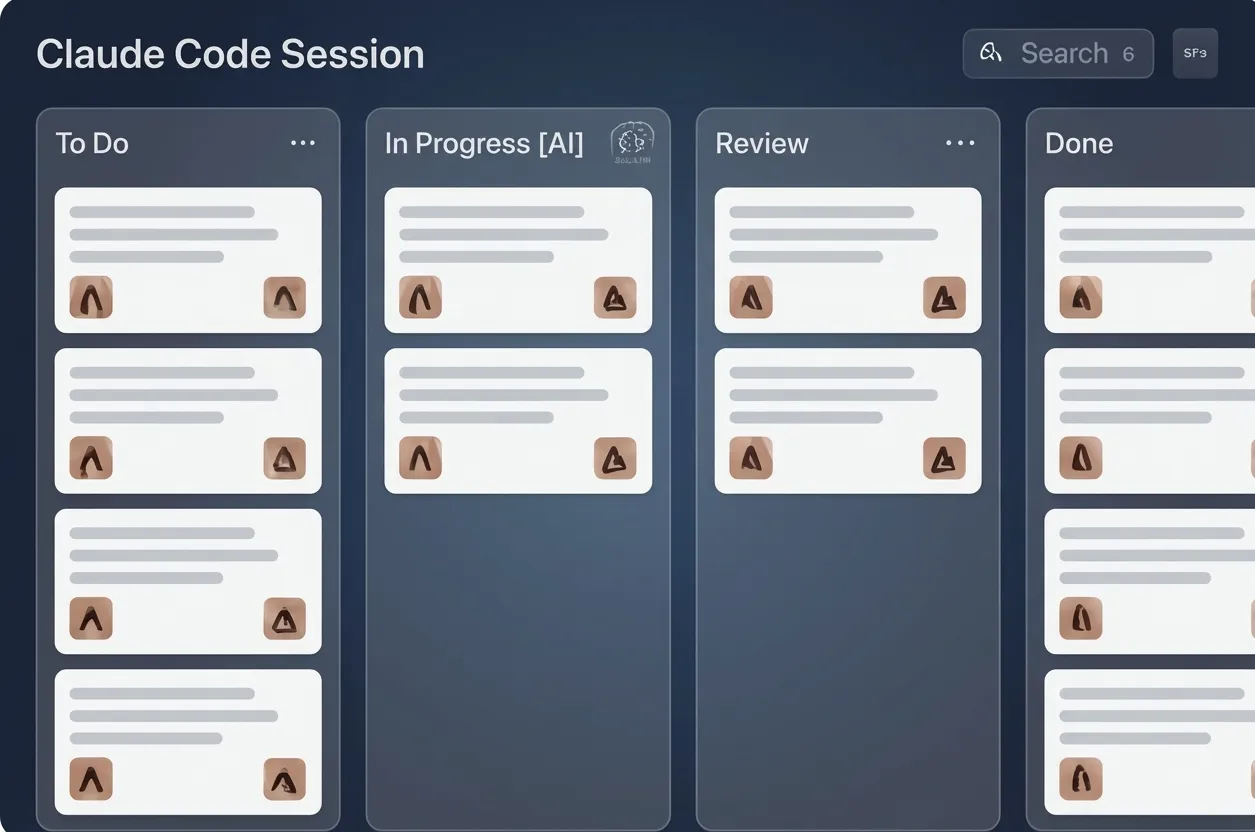
You’re running four Claude Code sessions. One is done. Two are running. One is waiting for your input. Without a system, you find out which is which by clicking through terminal tabs and reading output. With a kanban board, you glance at a screen and know instantly.
Kanban boards — the simple column-based workflow tool — turn out to be a near-perfect fit for AI agent management. This guide covers why, and which tools do it best.
Why Kanban Works for AI Agent Sessions
Kanban was designed for manufacturing: visualize work items, limit work-in-progress, move items through stages. AI coding sessions fit this model naturally:
Columns map to session states:
- Backlog: Tasks you plan to assign to agents
- In Progress: Sessions actively running
- Waiting: Sessions that need your input
- Review: Completed sessions you need to review
- Done: Reviewed and merged
Cards map to sessions:
- Each card represents one agent session
- Card shows: session name, project, agent type, last activity
- Color-coding indicates status at a glance
The flow is intuitive:
- Write a task → it goes in Backlog
- Assign it to an agent → it moves to In Progress
- Agent asks a question → it moves to Waiting
- Agent finishes → it moves to Review
- You approve the changes → it moves to Done
This isn’t revolutionary. It’s a 70-year-old workflow management technique applied to a new problem. But it works because the underlying problem — tracking multiple work items through stages — is exactly the same.
Tools That Offer Session Kanban
Claude Code Board
A web-based kanban board for Claude Code sessions. Simple, focused, open source.
How it works: Run a local server that connects to your Claude Code sessions. Sessions appear as cards on a kanban board in your browser. Drag cards between columns.
Kanban features:
- Customizable columns
- Session cards with status and last prompt
- Drag-and-drop
- Basic filtering
What’s missing: No automatic status updates — you move cards manually. No git integration. No diff review from the board.
Kanban Code (VS Code Extension)
A VS Code sidebar that adds kanban-style organization to your AI coding sessions.
How it works: Install the extension. A sidebar panel shows your sessions as cards. Works with Claude Code sessions started from VS Code’s integrated terminal.
Kanban features:
- Sidebar kanban in VS Code
- Custom columns
- Session notes
- Tag-based filtering
What’s missing: Only works in VS Code. No automatic status detection. No multi-agent support. Sessions must be started from VS Code.
Claudine
A desktop app with session history and organization. Not strictly kanban, but offers list-based session management.
How it works: Desktop app that connects to your Claude Code installation. Shows sessions in a searchable list with status indicators.
Kanban features:
- List view with status indicators (not a true kanban board)
- Session search and filtering
- Conversation replay
What’s missing: No drag-and-drop kanban layout. No automatic status transitions.
Vibe Kanban
A lightweight web-based kanban for tracking coding sessions manually.
How it works: A standalone web app where you create cards for your coding tasks. Not integrated with any AI agent — you update cards manually.
Kanban features:
- True kanban board layout
- Custom columns and cards
- Simple and fast
What’s missing: No integration with Claude Code or any agent. Purely manual. No auto-status, no diffs, no session data.
Agent Viewer
A terminal-based dashboard for watching agent output. Not kanban-based.
How it works: Split-pane terminal view showing real-time output from multiple agent sessions.
Kanban features: None. This is a monitoring tool, not an organizer.
What it’s good for: Watching agents work in real-time. Not for organizing or tracking work.
Nimbalyst
A cross-platform workspace app (macOS, Windows, Linux, iOS) where the kanban board is the primary interface for all agent session management.
How it works: Every session — Claude Code or Codex — lives on a kanban board. Sessions automatically move between columns based on their actual state. The board is the first thing you see when you open the app.
Kanban features:
- Automatic status tracking: Sessions move between columns without manual intervention. When an agent starts running, the card moves to “In Progress.” When it asks a question, it moves to “Waiting.” When it finishes, it moves to “Review.”
- Multi-agent cards: Claude Code and Codex sessions on the same board, visually differentiated
- Session detail drill-down: Click a card to see the full conversation, file changes, and visual diff
- Tagging and filtering: Filter by project, agent type, status, or custom tags
- Mobile board: The same kanban board on your iOS app, optimized for touch
- Git worktree per card: Each session card represents an isolated worktree — no conflicts
- Board-to-editor flow: Click a card, review the diff, approve and merge — all from the board
What’s missing: Not open source. The opinionated kanban workflow may not suit developers who prefer freeform session management.
Feature Comparison
| Feature | Claude Code Board | Kanban Code | Claudine | Vibe Kanban | Agent Viewer | Nimbalyst |
|---|---|---|---|---|---|---|
| True kanban layout | Yes | Yes | No (list) | Yes | No | Yes |
| Auto status tracking | No | No | No | No | N/A | Yes |
| Agent integration | Claude Code | Claude Code | Claude Code | None | Multiple | CC + Codex |
| Diff review from board | No | No | No | No | No | Yes |
| Git worktree isolation | No | No | No | No | No | Yes |
| Mobile kanban | Web | No | No | Web | No | iOS app |
| Drag-and-drop | Yes | Yes | No | Yes | No | Yes |
| Open source | Yes | Yes | No | Yes | Yes | No |
Setting Up a Session Kanban Workflow
Whether you use a dedicated tool or a generic kanban board (Trello, Linear, Notion), here’s a workflow that works:
1. Plan Before Prompting
Before starting a session, write the task as a card:
- Title: What the session should accomplish
- Description: Key requirements, files involved, acceptance criteria
- Tags: Feature area, priority, complexity
This forces you to think about what you’re asking the agent to do before you ask it.
2. One Session Per Card
Each card should map to exactly one agent session. If a task is too large for one session, break it into multiple cards. This keeps your board accurate and your sessions focused.
3. Use WIP Limits
Kanban’s core principle: limit work in progress. For AI agents, this means:
- Don’t run more sessions than you can realistically review
- 3–5 active sessions is a good starting point
- If “Review” column is growing faster than you can process, stop starting new sessions
4. Review Before Starting
When a session moves to “Review,” review it before starting new work. This prevents a backlog of unreviewed changes that become harder to understand over time.
5. Daily Board Cleanup
Spend 5 minutes at the start of each day:
- Archive completed sessions
- Reprioritize backlog
- Check for stale sessions (waiting for input you forgot about)
Getting Started
If you want to try kanban for session management with minimal setup:
- Simplest option: Use a physical sticky note board or Trello with four columns. Update manually.
- Terminal-native: ccmanager + your own discipline to track status mentally.
- VS Code user: Install Kanban Code for a sidebar board.
- Full integration: Download Nimbalyst for automatic status tracking, git isolation, and a mobile board. It’s free and takes 2 minutes to set up.
The specific tool matters less than the practice. Start tracking your sessions visually, and you’ll immediately feel more in control of your AI-assisted workflow.