Visual Editors
AI diagrams from a slash command
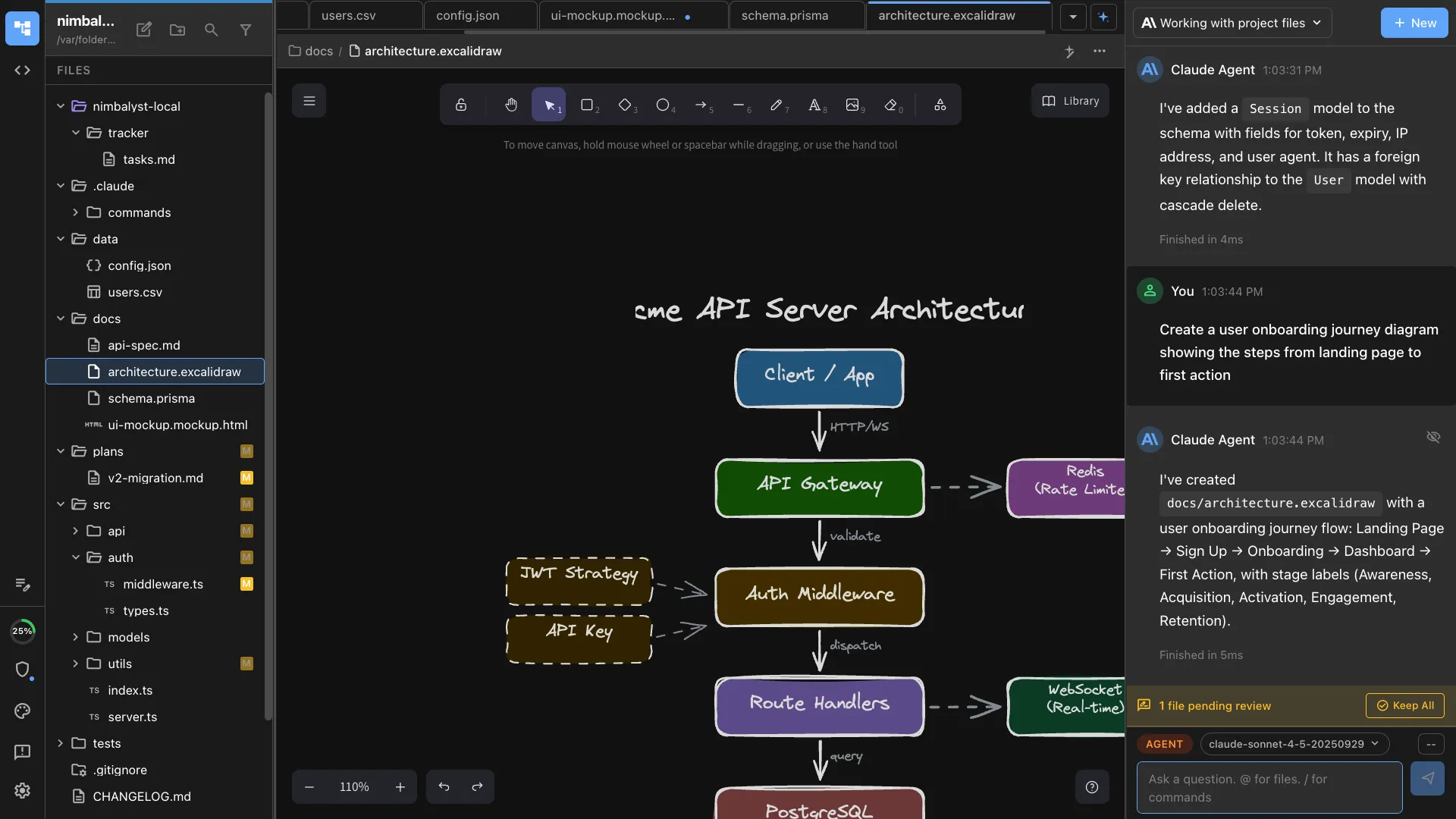
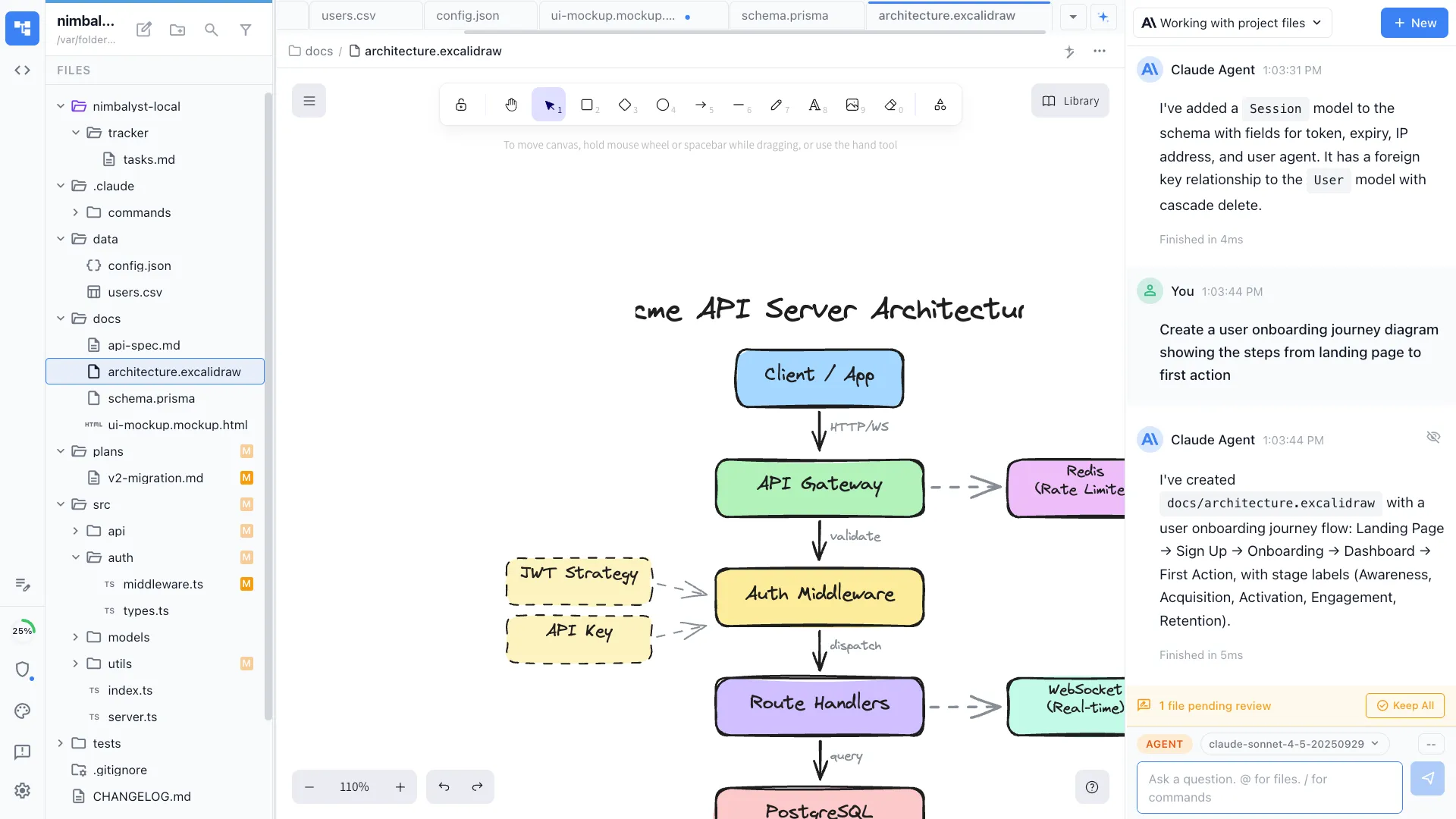
Describe a system, a flow, or an architecture and /excalidraw draws it. Edit on canvas or iterate through conversation — your agent places, connects, and styles elements.
Create and edit Excalidraw diagrams from natural language. Generates .excalidraw files with boxes, arrows, labels, and connections that render on an infinite canvas.
Capabilities
Diagram anything
Architecture diagrams
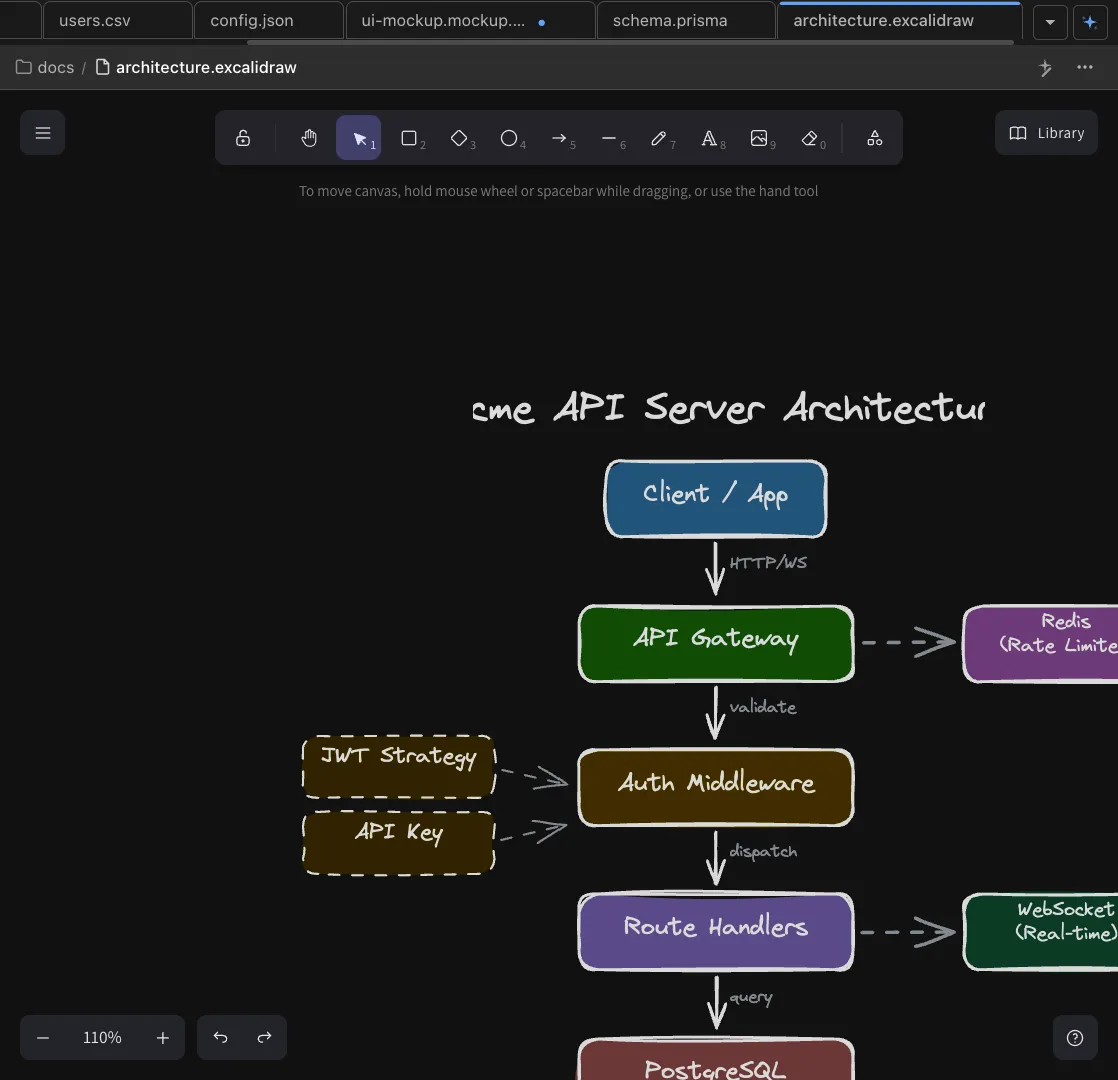
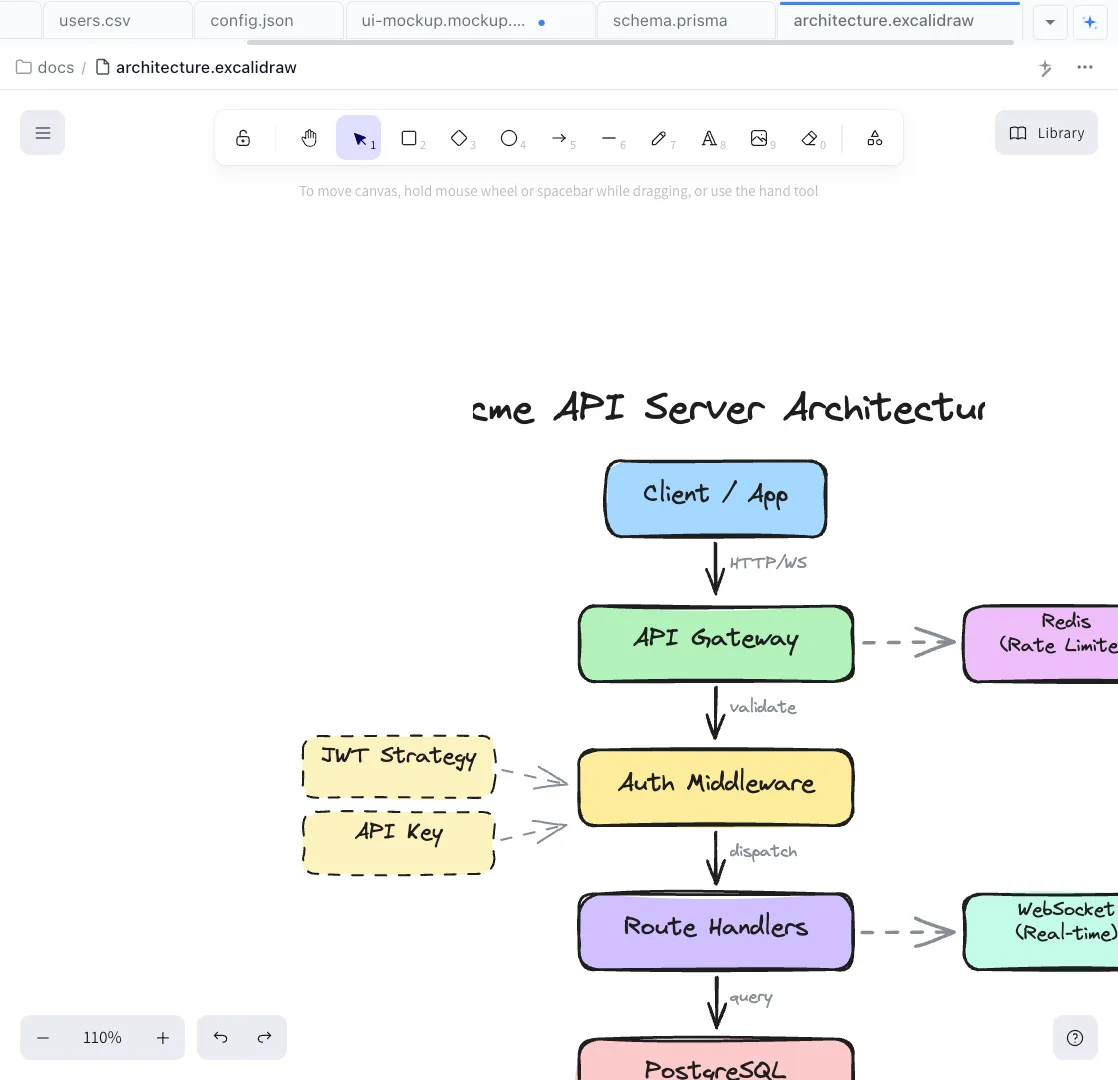
Describe your system — 'microservices architecture with API gateway, three services, and a shared database' — and the agent draws it with boxes, arrows, and labels.
Infinite canvas editing
Edit diagrams directly on the Excalidraw canvas. Move elements, add connections, change styles — or ask the agent to make changes conversationally.


Codebase-aware diagrams
The agent reads your actual project structure to generate diagrams that reflect real code. Architecture diagrams that stay in sync with implementation.
How It Works
How /excalidraw works
Type /excalidraw
Run the command and describe what you want to diagram. The agent understands system architectures, user flows, data pipelines, and more.
Agent draws the diagram
Your AI agent creates an .excalidraw file and places elements on the canvas. Boxes, arrows, labels, and groupings appear in the visual editor.
Edit and use as context
Refine through conversation or direct canvas editing. Use the diagram as context for implementation — the agent can scaffold code from it.
Try It
Example prompts
/excalidraw architecture diagram for a SaaS app with auth, API, worker queues, and a database /excalidraw user flow for checkout — cart, shipping, payment, confirmation /excalidraw class diagram for the models in this project Full Skill Source
Use this skill in your project
Copy the full text below or download it as a markdown file. Place it in your project's .claude/commands/ directory to use it as a slash command.
---
name: excalidraw
description: Create diagrams and visual drawings using Excalidraw (.excalidraw files). Use when the user wants flowcharts, architecture diagrams, system diagrams, sketches, or any visual diagram. For database schemas and entity relationship diagrams, use the DataModelLM extension instead.
---

# Excalidraw Diagrams

Excalidraw is Nimbalyst's whiteboard-style diagram editor for creating flowcharts, architecture diagrams, system diagrams, and visual sketches.

## When to Use Excalidraw

- Flowcharts and process diagrams
- Architecture diagrams
- System design diagrams
- Sequence diagrams
- Mind maps
- Network diagrams
- User flow diagrams
- General visual diagrams and sketches

## When NOT to Use Excalidraw

- **Database schemas / Entity relationship diagrams** - Use DataModelLM extension instead (creates `.datamodel` files with Prisma schema)

## File Format

- **Extension**: `.excalidraw`
- **Format**: JSON-based Excalidraw format
- **Location**: Any directory in the workspace

## Available MCP Tools

The Excalidraw extension provides these MCP tools for diagram manipulation:

### Getting Information
- `excalidraw.get_elements` - Get all elements in the diagram

### Adding Elements
- `excalidraw.add_rectangle` - Add a rectangle/box
- `excalidraw.add_arrow` - Add a single arrow
- `excalidraw.add_arrows` - Add multiple arrows at once
- `excalidraw.add_elements` - Add multiple elements at once
- `excalidraw.add_frame` - Add a frame (container for elements)
- `excalidraw.add_row` - Add elements in a horizontal row
- `excalidraw.add_column` - Add elements in a vertical column

### Modifying Elements
- `excalidraw.update_element` - Update an existing element
- `excalidraw.move_element` - Move an element to new position
- `excalidraw.remove_element` - Remove a single element
- `excalidraw.remove_elements` - Remove multiple elements

### Organization
- `excalidraw.align_elements` - Align elements horizontally/vertically
- `excalidraw.distribute_elements` - Distribute elements evenly
- `excalidraw.group_elements` - Group elements together
- `excalidraw.set_elements_in_frame` - Put elements into a frame
- `excalidraw.relayout` - Automatically relayout elements

### Special Features
- `excalidraw.import_mermaid` - Convert Mermaid syntax to Excalidraw
- `excalidraw.clear_all` - Clear all elements from the diagram

## Workflow

1. **Create file** - Create a new `.excalidraw` file or open existing one
2. **Use MCP tools** - Use the Excalidraw MCP tools to add/modify elements
3. **Verify visually** - Use `mcp__nimbalyst-mcp__capture_editor_screenshot` to see the result
4. **Iterate** - Make adjustments based on visual feedback

## Best Practices

- Use frames to group related elements
- Keep diagrams clean and readable
- Use consistent spacing and alignment
- Add arrows to show flow/relationships
- Use color sparingly for emphasis

## Example: Creating a Flowchart

1. Add rectangles for each step
2. Add arrows connecting the steps
3. Use `align_elements` to align horizontally/vertically
4. Use `distribute_elements` for even spacing
Explore More