AI Diff Review: How to Review Agent Code Changes Visually
AI agents edit dozens of files per session. Traditional diff tools only handle code. Learn how visual diff review across all file types -- code, mockups, diagrams, docs -- makes reviewing AI agent output practical and fast.
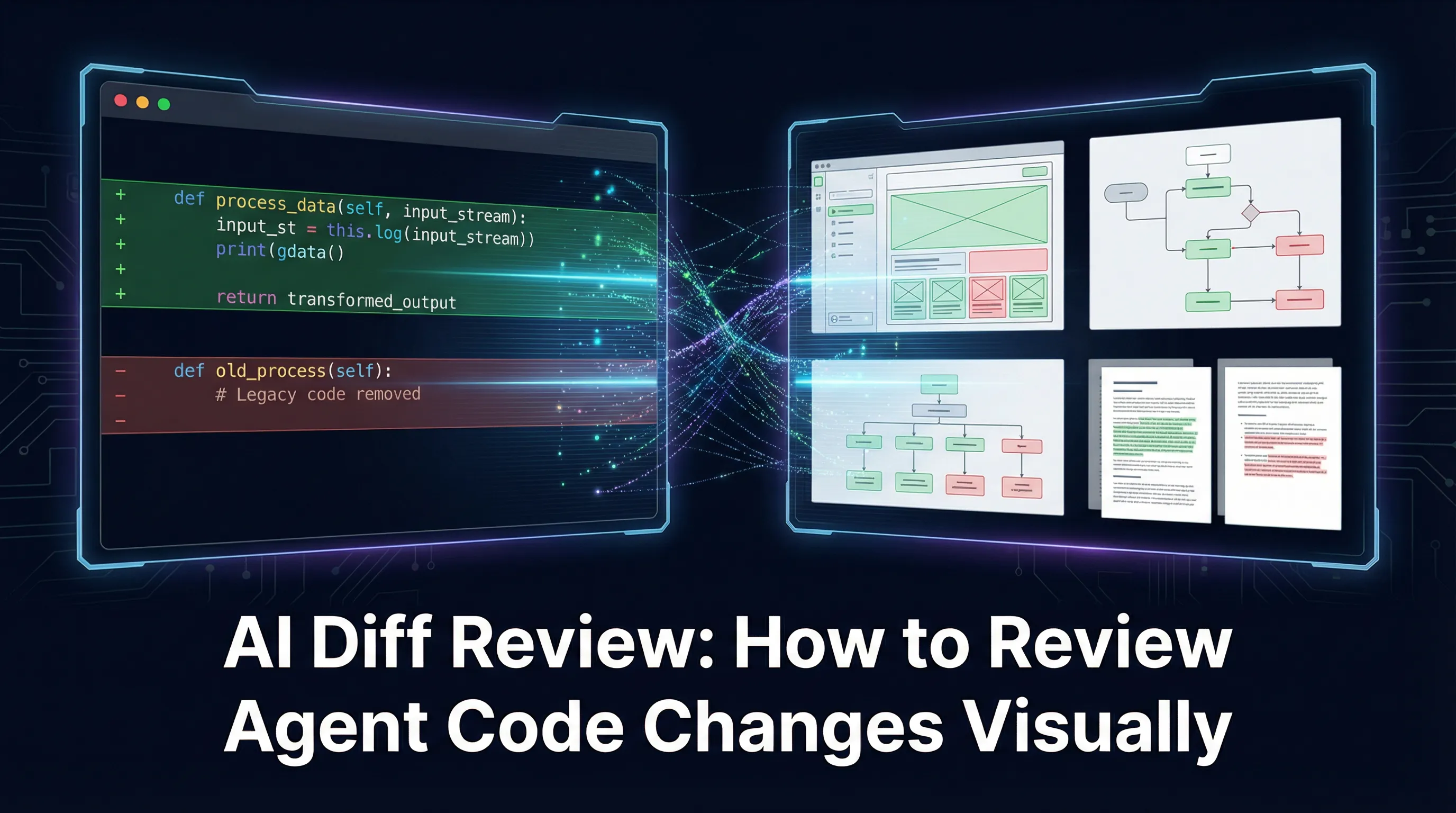
AI agents write fast. Reviewing their output is the new bottleneck.
A year ago, the hard part of building software was writing the code. Today, AI coding agents like Claude Code and Codex can generate entire features, refactor modules, and scaffold projects in minutes. The bottleneck has shifted. Writing isn’t the constraint anymore. Reviewing is.
When an agent modifies 25 files in a single session, you need to understand what changed and why. You need to catch hallucinated logic, verify that the agent didn’t silently break something unrelated, and confirm the changes match your intent. This is AI diff review, and it is now the most important skill in agent-assisted development.
The problem is that most review tools were designed for a world where humans wrote code one file at a time.
The review problem: agents change everything at once
A human developer working on a feature might touch 3-5 files in a commit. An AI agent routinely touches 15-30. It edits source code, updates tests, modifies configuration files, rewrites documentation, and sometimes changes diagrams or mockup files that existed in the project.
When you get that wall of changes back, you face a choice: review every file carefully (which takes longer than writing the code yourself would have), or skim and hope nothing is broken. Neither option is good.
Terminal-based diffs make this worse. Running git diff after an agent session produces hundreds of lines of red and green text scrolling past. Context collapses. You lose track of which file you’re in. The unified diff format was designed for small, human-sized patches. It buckles under the weight of agent-scale changes.
The cognitive load isn’t just about volume. It’s about format diversity. An agent session might modify TypeScript source code, a Markdown spec document, an Excalidraw diagram, a data model definition, and an HTML mockup. A terminal diff treats all of these as text. But they aren’t text. A diagram is a spatial artifact. A mockup is a visual layout. Reviewing the raw JSON of an Excalidraw file tells you almost nothing about what actually changed in the picture.
Traditional approaches and where they fall short
git diff / git log: The default. Shows you line-by-line text changes in the terminal. Works fine for small patches to code files. Falls apart when you’re reviewing 20+ files across multiple formats. No visual rendering of non-code files. No way to selectively accept or reject individual changes.
GitHub PR review: Better than raw git diff. Gives you file-by-file navigation, inline comments, and syntax highlighting. But it still treats everything as text. Your diagram changes show up as JSON blobs. Your mockup changes are raw HTML. And there’s no connection between the review interface and the agent session that produced the changes — you lose the context of why the agent made each change.
IDE diff viewers (VS Code, JetBrains): Side-by-side diffs with syntax highlighting. Solid for code files. But IDE diff viewers only handle code. If your project includes visual artifacts — and increasingly, projects do — you’re back to squinting at raw file formats for anything that isn’t a .ts or .py file.
All three approaches share the same blind spot: they assume every file is code. They assume line-by-line text comparison is sufficient for understanding what changed. That assumption was reasonable when developers only committed source code. It isn’t reasonable when AI agents are editing across your entire project.
The visual diff approach: reviewing what you actually see
The missing piece is visual diff review — the ability to see changes rendered in the format they’re meant to be consumed in, not as raw text.
When an agent edits a mockup, you should see the before and after mockup side by side, or better, see the changes highlighted directly on the rendered mockup. When an agent modifies a diagram, you should see the new boxes and arrows overlaid on the original diagram. When an agent rewrites a Markdown document, you should see the formatted text with additions and deletions marked, not a wall of + and - prefixed lines.
This is what AI diff review should look like. Not a text dump. A visual representation of change, native to each file type.
How Nimbalyst handles AI diff review
Nimbalyst is a visual workspace built on top of Claude Code and Codex. When an AI agent edits a file, Nimbalyst shows the diff inline, directly in the editor for that file type. Red for deletions. Green for additions. Rendered visually, not as raw text.
This works across every editor type in the workspace:
Code files get inline red/green diffs in the Monaco editor, the same engine VS Code uses. You see exactly which lines the agent added, removed, or modified, with full syntax highlighting.
Markdown documents show formatted diffs in the rich text editor. You see the actual rendered text — headings, bold, lists — with changes highlighted. No more parsing +## New Section in a terminal.
Mockups and UI prototypes render the visual diff on the actual mockup. You see what the layout looked like before and what it looks like now. A shifted button, a new section, a changed color — all visible without reading HTML source.
Diagrams (Excalidraw) show changes on the canvas itself. A new node, a moved arrow, a renamed label — visible in the spatial context of the diagram, not buried in a JSON diff.
Data models and spreadsheets follow the same pattern. Every editor type that Nimbalyst supports renders its own diffs natively.
Beyond the inline diffs, Nimbalyst provides two features that make reviewing agent output practical at scale:
The Changes tab shows every file the current AI session modified, in one list. Click any file to jump directly to its visual diff. No hunting through git status output. No opening files one by one. The Changes tab is your review dashboard for each agent session.
File-to-session linking connects files to the agent sessions that touched them. When you open a file and see something unexpected, you can trace it back to the exact session and conversation that produced the change. This is the audit trail that terminal-based workflows completely lack.
Keeping track of what changed
Visual diffs solve the “how do I review this file” problem. But when you’re running multiple agent sessions across a project, you also need to answer a broader question: what has changed, and what have I actually reviewed?
Nimbalyst surfaces change tracking at multiple levels:
File tree indicators mark files that have been modified by an agent directly in the sidebar. You can see at a glance which files in your project have pending changes without opening anything or running git status.
The edited files list collects every file touched by a session into a single view. Instead of scanning a full file tree for changes, you get a flat list of exactly what the agent modified — click any file to jump to its diff.
Session review state tracks whether you’ve reviewed each agent session’s output. Sessions show as unreviewed until you’ve gone through their changes, so nothing slips through when you’re juggling multiple parallel agents or context-switching between tasks.
The session kanban gives you a board view of all your agent sessions organized by status — planning, in progress, needs review, complete. When agents are producing changes faster than you can review them, the kanban tells you where your review backlog stands and which sessions need attention first.
Together, these give you a system for managing agent output at the project level, not just the file level. The visual diffs tell you what changed in each file. The tracking layer tells you which files and sessions still need your eyes.
A practical workflow for reviewing agent output
Here’s a workflow for efficient AI diff review that avoids both the “review everything line by line” trap and the “skim and hope” trap.
1. Start with the Changes tab. After the agent finishes, open the Changes tab to see the full scope of what changed. Get the big picture before diving into any single file. Note how many files were touched and which categories they fall into (code, docs, visual artifacts).
2. Review visual artifacts first. Mockups, diagrams, and data models are the fastest to review visually and the hardest to review as text. Open each one, see the rendered diff, and confirm the changes match your intent. This takes seconds per file when you can see the actual visual output.
3. Review documentation and specs. Markdown files with formatted diffs are fast to scan. Check that the agent updated docs to match the code changes and didn’t introduce inaccurate descriptions.
4. Review code files last. These are the most detailed review. But by this point, you already understand the broader context from the visual artifacts and docs. You know what the agent was trying to do. Now you’re checking implementation correctness, not trying to reconstruct intent from code alone.
5. Accept, revert, or edit per-file. For each file, decide: keep the changes, revert to the previous version, or manually edit the agent’s output. Nimbalyst lets you do all three without leaving the workspace. No staging partial commits. No cherry-picking hunks. Just decide per file.
Tips for better AI code review
Write clear prompts, get reviewable output. The easier an agent’s changes are to review, the better your prompt was. If the agent touched 40 files when you expected 5, the prompt was too broad. Tight scope leads to tight diffs.
Review in the rendered format, not the source format. This is the core principle. If a file is meant to be seen as a diagram, review the diagram. If it’s meant to be read as formatted text, review the formatted text. Source-level diffs are a fallback, not the primary review surface.
Use session context to understand intent. When a change looks odd, check the session conversation. The agent’s reasoning is in the chat transcript. Nimbalyst’s file-to-session linking makes this one click instead of a forensic investigation.
Don’t review everything at the same depth. Not every file in a 20-file change set needs line-by-line scrutiny. This is especially true when running parallel agents where output volume is even higher. Test files that mirror the source changes are lower risk. Generated configuration is lower risk. Novel business logic is higher risk. Allocate your attention accordingly.
Review sooner, not later. The longer you wait to review agent output, the more context you lose. Review immediately after the session, while the intent is still fresh. The Changes tab makes this natural — it’s right there when the agent finishes.
The review layer is the missing piece
AI agents have gotten good enough that generating code is no longer the hard problem. The hard problem is maintaining quality, coherence, and intent across everything the agent produces. That requires review tools that match the breadth and speed of the agent itself.
Terminal diffs were built for a slower, narrower world. AI diff review needs to be visual, multi-format, and connected to the context that produced the changes. That’s what Nimbalyst provides: a review layer for the age of AI agents.
Nimbalyst is free for individuals and available on Mac, Windows, Linux, and iOS. Download it at nimbalyst.com.