Jupyter
Edit and run Jupyter notebooks against a local kernel
Available in the Nimbalyst Extension Marketplace
Don't have Nimbalyst yet? Download it
Notebooks Where Your Agent Already Is
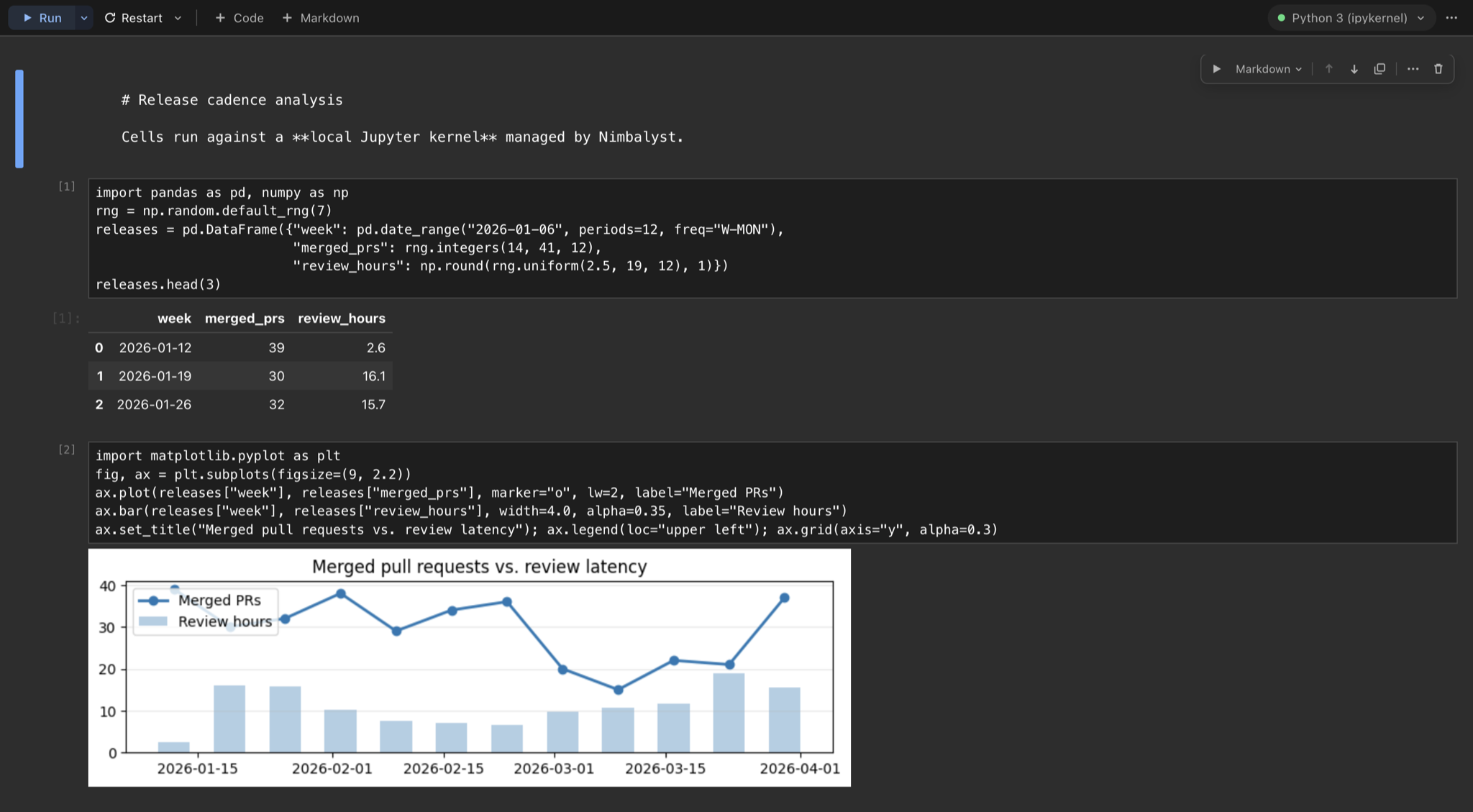
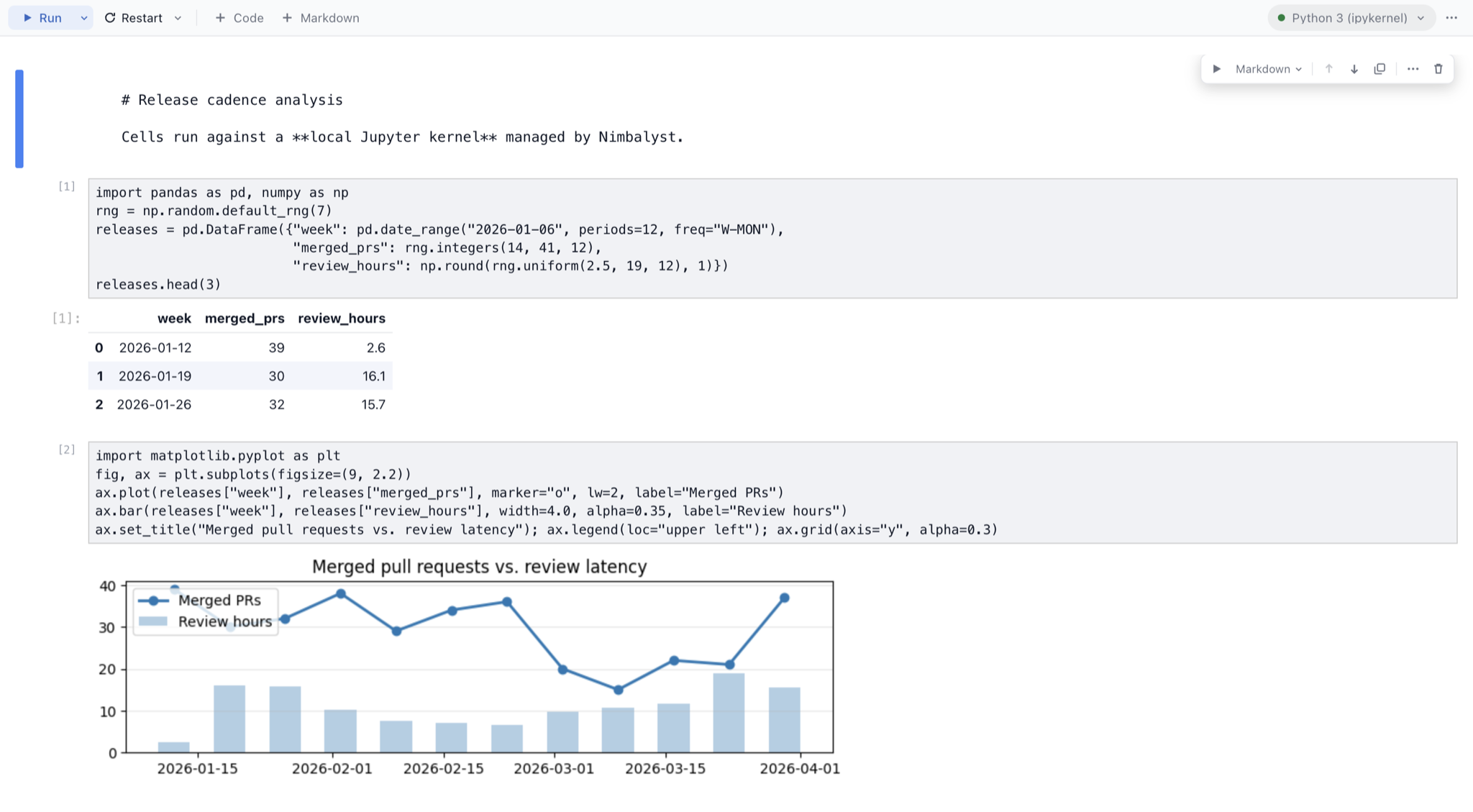
Notebooks are where analysis actually happens, but they usually live in a separate tool from the code and notes around them. This extension opens .ipynb files as a first-class editor in Nimbalyst, so the notebook sits beside the rest of your workspace and beside the agent you are already working with.
Cells execute for real. The extension detects a Python on your machine, offers to install the Jupyter stack if it is missing, and starts a local server rooted in your workspace.
Key Features
- Real cell execution — Run cells, run all, run above or below, interrupt, and restart against a live Python kernel, with a kernel picker and live status in the toolbar.
- Guided runtime setup — Detects workspace virtual environments, conda, pyenv, and system Python. If Jupyter is missing, an inline panel installs it for you.
- Rich output rendering — Core Jupyter MIME types render inline: HTML, images, LaTeX, tracebacks, and core ipywidgets controls.
- AI tools for the whole notebook — Agents can read a compact projection, create notebooks, edit and reorder cells, run code, and read outputs without pulling entire result sets into context.
- Kernel introspection — Agents can list kernel variables, inspect a value, preview a DataFrame, and check which interpreter is actually behind the notebook.
- Staleness tracking — Cells are flagged when their source changed after the last run, or when the last run predates a kernel restart, so nothing is read as current when it isn’t.
- Faithful round-trip —
nbformatreading and writing preserves cell IDs and metadata, so notebooks stay clean in version control.
Use Cases
- Analysis beside your project — Explore data in a notebook while your code, plans, and notes stay one tab away.
- Agent-assisted data work — Ask an agent to load a dataset, plot it, and explain the result, then check its work cell by cell.
- Debugging a live kernel — Have an agent inspect variables and DataFrames in the running kernel instead of guessing from source.
- Reproducibility checks — Restart the kernel and re-run everything to confirm a notebook still works top to bottom.
Security
The managed server binds only to 127.0.0.1, uses a random port and a random token, and is rooted inside your workspace. It stays alive while notebook editors renew leases and shuts down after the last one expires. If you prefer to run your own server, only loopback URLs are accepted, and its token is held for the session rather than written to configuration. Notebooks opened read-only refuse AI edits and execution.
How It Works
Open any .ipynb file. On first use, the extension asks to enable its local runtime, detects your Python, and starts a Jupyter server scoped to the workspace. Pick a kernel from the toolbar, run cells, and the outputs render inline. The AI tools operate on the same live editor you are looking at, so anything an agent runs or edits shows up immediately.