Wiki Plugin and nim CLI Reference
Reference for using the Nimbalyst Wiki outside the app: the nimbalyst-wiki plugin for Claude Code and Codex and its commands and MCP servers, the nim wiki CLI, nim mcp, and nim wiki serve.
This page is the reference for the wiki outside the Nimbalyst app: every command and setting of the plugin for Claude Code and Codex, and of the nim CLI. For a quick start, see Wiki in Your Coding Agent. For agents inside the app, see Wiki in the Nimbalyst App.
In Claude Code
The Nimbalyst Wiki plugin (nimbalyst-wiki) lets Claude Code create and maintain a wiki without the Nimbalyst app open. It works on a local wiki with no account, and on your team wiki after you add the team add-on and sign in. The plugin is open source under the MIT license. Install it from the Nimbalyst plugin marketplace:
/plugin marketplace add nimbalyst/nimbalyst-wiki
/plugin install nimbalyst-wiki@nimbalyst-wiki| Command | What it does |
|---|---|
/nimbalyst-wiki:start | A short tour: what the plugin does, which commands it has, and the best next step for this repository. It writes no pages. |
/nimbalyst-wiki:setup | Builds a wiki: asks who it is for, then writes Home, the writing guide, and starter pages from your README and docs. Can define types. Safe to re-run. |
/nimbalyst-wiki:capture | Records what this session decided, answered, or left open in the pages each one affects, or says there is nothing worth keeping. |
/nimbalyst-wiki:recall | Answers what the wiki says or decided about a question or an area, and which pages cover the code you are about to change. Claude also uses it on its own for a "why did we..." question. See Ask the Wiki What Was Decided. |
/nimbalyst-wiki:update | The writing guide Claude follows for every wiki edit. You rarely call it yourself. |
/nimbalyst-wiki:connect | Chooses which wiki the session uses, local or team, and connects a repository to its team project. |
/nimbalyst-wiki:team | Moves the local wiki to Nimbalyst Teams: signs you in, creates or picks the team, moves every page, opens it in the browser, and invites teammates. See Move Your Local Wiki to Teams. |
You can also just ask: "start a wiki for this repo," "what does the wiki say about auth?", or "add a page about our deploy process." Ask "open the wiki in my browser" to read and edit it in a browser tab. At the start of a session, the plugin tells Claude what the local wiki covers and which pages cover files you have changed but not committed. After a session with substantial work in it, such as a commit, a plan, or several file edits, it reminds Claude once to run capture before it stops, naming the pages the session's changes touched.
Which wiki Claude uses. Once per session, Claude uses the wiki you name; otherwise the repository's local wiki if it has one, asking if the repository is also connected to a team project; otherwise the team project connected to the repository's git remote. If there is none, it offers once to start a local wiki, either private in nimbalyst-local/wiki or checked in under a folder you choose.
What it installs. The plugin brings two MCP servers, listed in /mcp:
nimbalyst-local: the local wiki, plus the browser view of it. Runs on your machine and needs nothing else installed. Every result names the wiki folder in use, and when a session moves to another project, Claude switches to that project's wiki withuseLocalWiki.wikiDoctorreports broken links and orphan, stale, and duplicate pages without changing anything, andlistMarkslists the decisions and open questions recorded across the wiki.nimbalyst-session: lets Claude cite what you typed in this session. It reads only this session's transcript, on your machine.
The team add-on. The team wiki's server, nimbalyst-team, comes in a separate plugin, nimbalyst-wiki-team, so a local wiki never asks you to sign in. /nimbalyst-wiki:team offers to install it when you share the wiki. To install it yourself:
/plugin install nimbalyst-wiki-team@nimbalyst-wikiRestart Claude Code (claude --continue returns to the same conversation), run /mcp, choose nimbalyst-team, and pick Authenticate. Access follows your Nimbalyst Teams membership, and a team admin connects the repository's git remote to a team project. If you used the team wiki with plugin version 0.7.0 or earlier, install the add-on once after updating.
The wiki in your browser. When you ask Claude to open the wiki in your browser, nimbalyst-local starts the browser view on your machine and opens a tab with the page tree, the page editor, typed pages, and type tables. Drawings, mind maps, spreadsheets, data models, mockups, and canvases open in their own editors, and you can create them from the New page menu. The browser app ships inside the plugin, so there is nothing to install. The view accepts connections only from your machine, with the token in the link, and stops when the session ends.
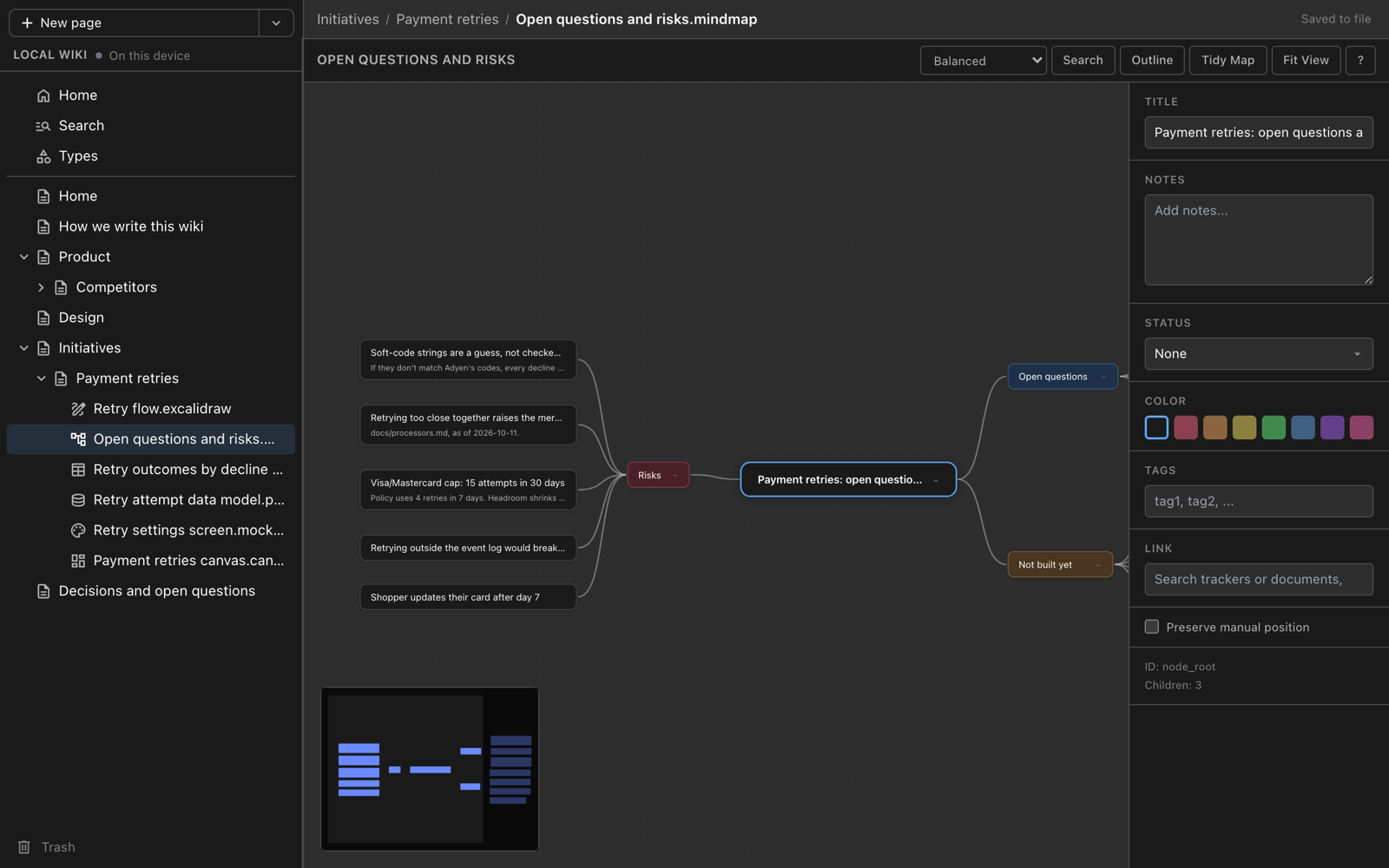
A mind map of open questions and risks that Claude built with the mind map tools, open in the browser view.
On a local wiki, decision marks name you from git config user.name and git config user.email. Inside the Nimbalyst app the plugin stands aside, because agents there already have the wiki tools.
In Codex
The same plugin installs in the Codex CLI:
codex plugin marketplace add nimbalyst/nimbalyst-wiki
codex plugin add nimbalyst-wiki@nimbalyst-wiki
It brings the same skills (nimbalyst-wiki:start, setup, capture, recall, update, connect, and team), the same two MCP servers, which codex mcp list shows, and the same browser view. For the team wiki, add the team add-on and sign in:
codex plugin add nimbalyst-wiki-team@nimbalyst-wiki
codex mcp login nimbalyst-team
Two things work differently from Claude Code:
- Codex does not run the hooks a plugin brings, so there is no summary of the wiki at session start and no end-of-session reminder to capture decisions. Ask for it: "record what we decided in the wiki."
nimbalyst-sessionreads Claude Code transcripts only, so a decision recorded from Codex carries your name but no quote from the session.
In Cursor, VS Code, Cowork, and other agents
These agents use the local wiki through nim mcp. They get the wiki tools but not the plugin's skills, so ask for what you want in your own words: "set up a wiki for this repo," "record what we decided in the wiki," or "what did the wiki decide about retries?" See Start in Your Coding Agent for each agent's setup.
For the team wiki, use the nim CLI. Sign in once in a terminal:
npm install -g @nimbalyst/cli
nim login
nim login shows a code and opens a page in the web console where you approve it. After that, an agent that can run terminal commands, such as Cursor's agent or Copilot in VS Code, reads and writes the team's pages with nim wiki: list, read, search, edit, create, and items. Ask it, for example, to "use nim wiki to read the team wiki's page on retries."
To move a local wiki to Teams from one of these agents, run the steps yourself or ask the agent to run them:
nim wiki team-create "Northwind"
nim wiki move-to-team --dry-run
nim wiki move-to-team
nim mcp also has the teamSignIn and moveLocalWikiToTeam tools, so an agent connected to it can do the move as well, once the repository is connected to a team project.
From the command line: nim wiki
The nim CLI works on both wikis from a shell, for scripts and for any agent. Install it with npm (Node.js 22 or later):
npm install -g @nimbalyst/clinim wiki init # create the local wiki (nimbalyst-local/wiki, ignored by git)
nim wiki init --location docs/wiki # or a checked-in folder
nim wiki list # the page tree
nim wiki read "Product" # a page by title, path, or id
echo "..." | nim wiki write "Notes" --create
nim wiki search "deploy"
nim wiki move "Notes" --parent "Product"
nim wiki convert-type partner --to pages # turn a table type into pages
nim wiki serve # open the local wiki in your browserlist,read,move, andsearchuse the local wiki when the project has one and the team wiki otherwise. Add--localor--teamto choose.writereplaces a page body from stdin or--file. With--expected-version(fromread --json) it refuses to overwrite a page that changed since you read it.convert-type <type> --to pagesturns a table type into one typed page per row, keeping each item's id and field values, and moves the CSV to the wiki trash. See Convert a table type to pages.nim tracker list,get,create, andupdatework on typed pages in the local wiki.- Team commands such as
status,edit,create, anditemsneednim login, which signs in with a device code approved in the web console.nim --helplists them all.
See The nim CLI for the rest of nim.
nim mcp: the local wiki for any agent
nim mcp runs the local wiki's tools as an MCP server on stdio, so Codex (CLI or app), Cowork, Cursor, VS Code, or any other MCP client can read and write the same pages. For Claude Code without the plugin:
claude mcp add nimbalyst-local -- nim mcpBesides the page and type tools, nim mcp has tools for mind map and Excalidraw pages, so an agent can build them without the app: mindmap_get_document and mindmap_apply_operations, and excalidraw_get_elements, excalidraw_add_elements, excalidraw_add_arrows, and excalidraw_remove_elements. createSharedDoc takes a documentType, such as excalidraw, mockup.html, or html, with the whole file as initialContent, so an agent can also write a mockup or an interactive HTML page. convertTypeStorage converts a table type to pages, and openWikiInBrowser opens the browser view.
nim wiki serve: the local wiki in a browser
nim wiki serve opens the same browser view from a terminal: the page tree, pages in the same editor as the app, typed pages with their fields, type tables, and drawings, mind maps, spreadsheets, data models, mockups, and canvases in their own editors. Edits save straight to the files, and changes made in your editor or by an agent show up live. The browser app (@nimbalyst/wiki-web) installs with nim, so there is nothing else to install.
The server listens on your machine only and requires the token in the URL it opens. --no-open prints the URL instead of opening a browser, and --port picks the port.
Updates and settings
Updating the plugin. Once a day the plugin checks GitHub for a newer version, and if there is one, the agent mentions it the next time it uses the wiki. The check sends nothing about you or your wiki. To update by hand in Claude Code, run both commands, then restart Claude Code or run /reload-plugins:
claude plugin marketplace update nimbalyst-wiki
claude plugin update nimbalyst-wiki@nimbalyst-wiki
In Codex, run codex plugin marketplace upgrade nimbalyst-wiki and start a new session. A session that is already open keeps the version it started with.
Updating nim. Installing the plugin does not update nim, and updating nim does not update the plugin. Once a day nim mcp checks npm for a newer nim, and the agent mentions it. nim update updates nim and the plugin for Claude Code and Codex in one step and says what to restart; nim update --check only reports what is out of date, and nim doctor shows which versions are installed and from where.
Settings.
| Variable | What it does |
|---|---|
NIMBALYST_WIKI_NO_UPDATE_CHECK=1 | Turns off the plugin's daily version check. |
NIMBALYST_WIKI_NUDGE_MIN_EDITS | How many file edits in a Claude Code session trigger the reminder to capture. |
Coming from version 0.3.0? That version was installed from the nimbalyst/nimbalyst marketplace. Switch to the current one so you get updates and the browser view, then restart Claude Code. Your wiki is files in your repository, so nothing in it changes:
/plugin uninstall nimbalyst-wiki@nimbalyst
/plugin marketplace remove nimbalyst
/plugin marketplace add nimbalyst/nimbalyst-wiki
/plugin install nimbalyst-wiki@nimbalyst-wiki
Getting good results
- Run setup first. A wiki with a guide, a Home page, and a few starter pages gives agents the structure to write into.
- Edit the guide. "How we write this wiki" is the rulebook every agent follows in that section. Tighten it when the wiki collects things you don't want.
- Ask for it at the end of a session. "Record the decisions from this session" or
/nimbalyst-wiki:captureturns a long session into a few marked sentences. See Capture Decisions at the End of a Session. - Read Home. Place the open questions and decisions lists on Home and check it when you sit down. Settle a question there and every agent works from the answer.