Markdown (WYSIWYG)
Nimbalyst is a WYSIWYG AI markdown editor. Write visually while plain .md files stay on disk, with agent editing built into the same document.
The Markdown editor is Nimbalyst's main writing surface. You see formatted text as you type, while the file on disk stays a plain .md file that Git, other tools, and your AI agent can all read. Use it for docs, specs, plans, notes, and anything else you write in markdown.
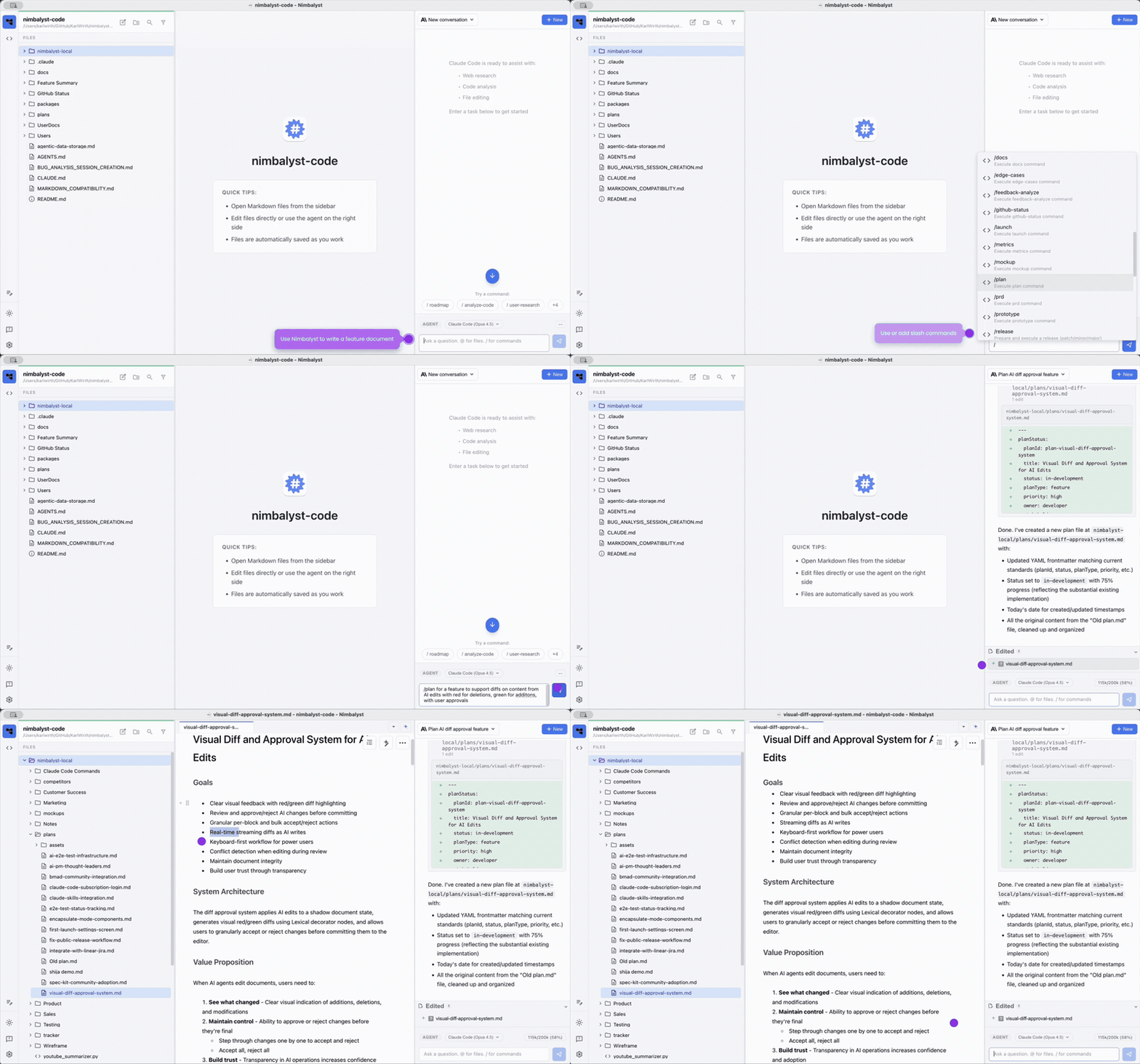
Why Nimbalyst as a Markdown Editor?
- True markdown files on disk, edited visually
- Unified content: text, tables, code, lists, images, and embedded visual editors in one document
- AI-integrated: agents see your documents and can research, write, edit, and code alongside you
- Fast, minimal interface built for distraction-free writing
The markdown editor feature page has a fuller walkthrough of WYSIWYG editing with agents.
Important Commands
- @ references a file in the document or in chat. Supported custom-editor files (mockups, Excalidraw, data models, CSV, and others) embed as live frames when the link is on its own line; see "Embedding Custom-Editor Files" below.
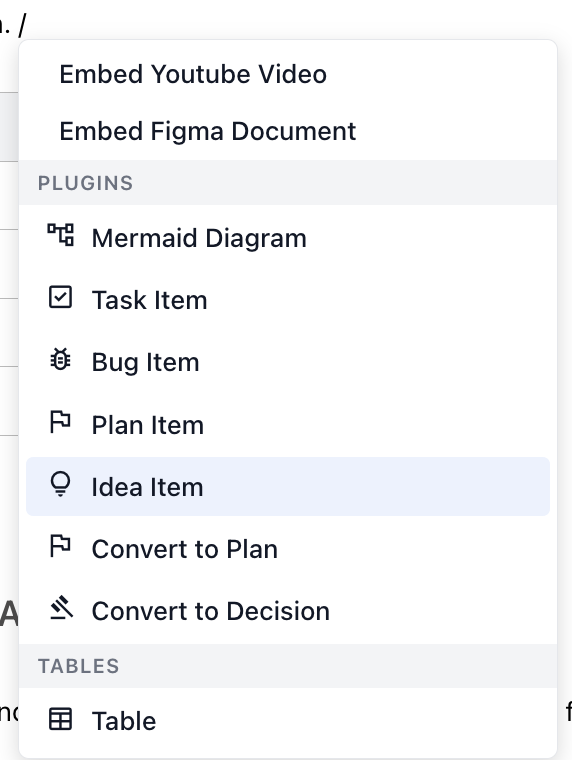
- / opens the menu of insertion options: tables, Mermaid diagrams, tracker items, and more.
- # creates a tagged tracker item (bug, task, plan, idea) inline.
- Selecting text shows a toolbar with quick formatting options.
- Standard markdown syntax works as you type.
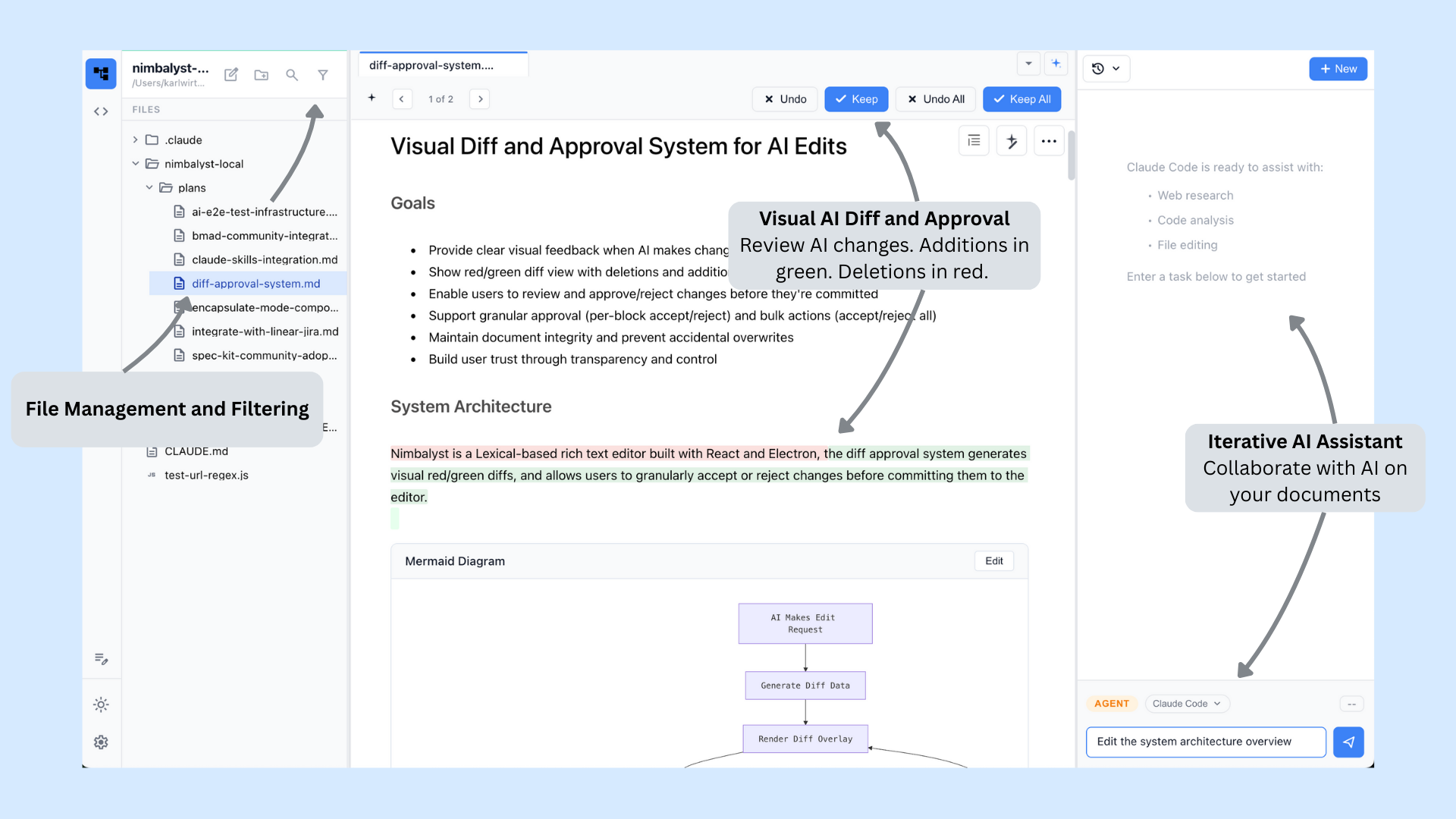
File and Editor View
Open any markdown file from the file tree and edit it as a formatted document.
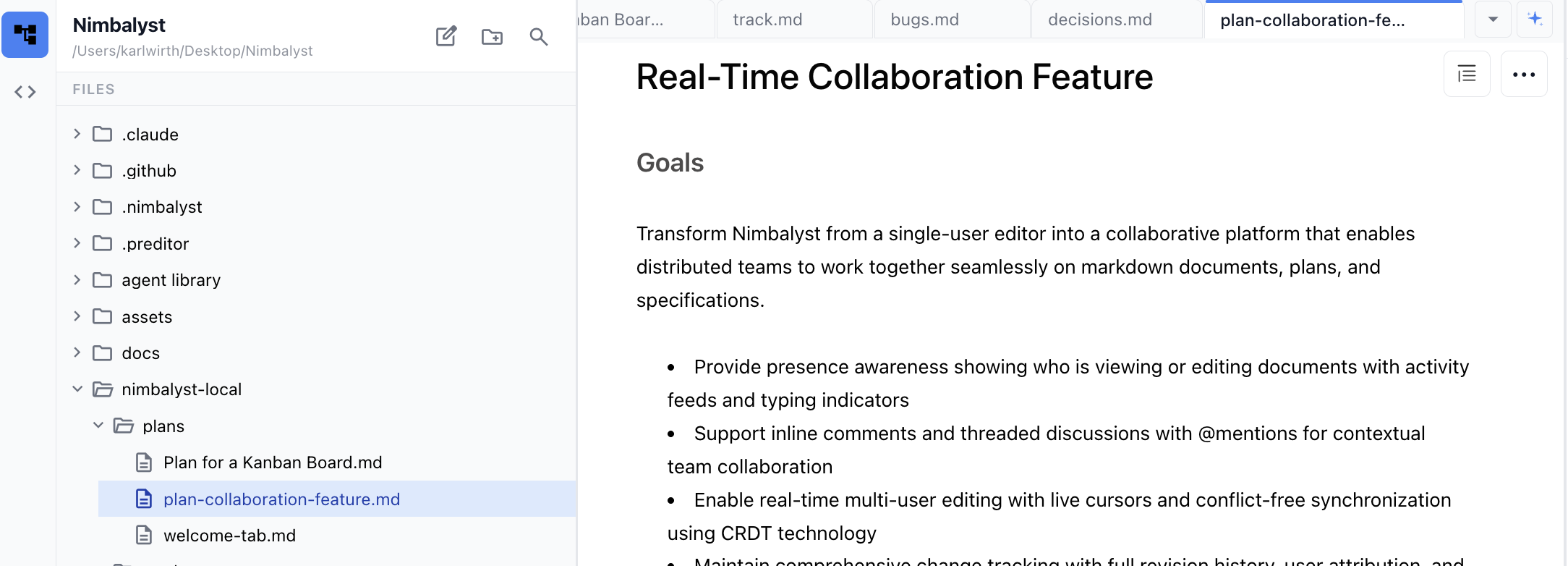
WYSIWYG and Raw Markdown
Toggle between the formatted view and raw markdown using the three-dot menu at the top right of the document.
Text
Common markdown shortcuts:
- Headings:
#plus a space for H1,##plus a space for H2 - Lists:
-or*plus a space; Tab to indent - Numbered lists:
1plus a space - Links: select text and click the link icon in the toolbar
- Quotes:
>plus a space; nest with>> - Code blocks: type
/and insert - Horizontal rule: type
--- - Inline formatting like
**bold**and*italic*works as you type
Tables
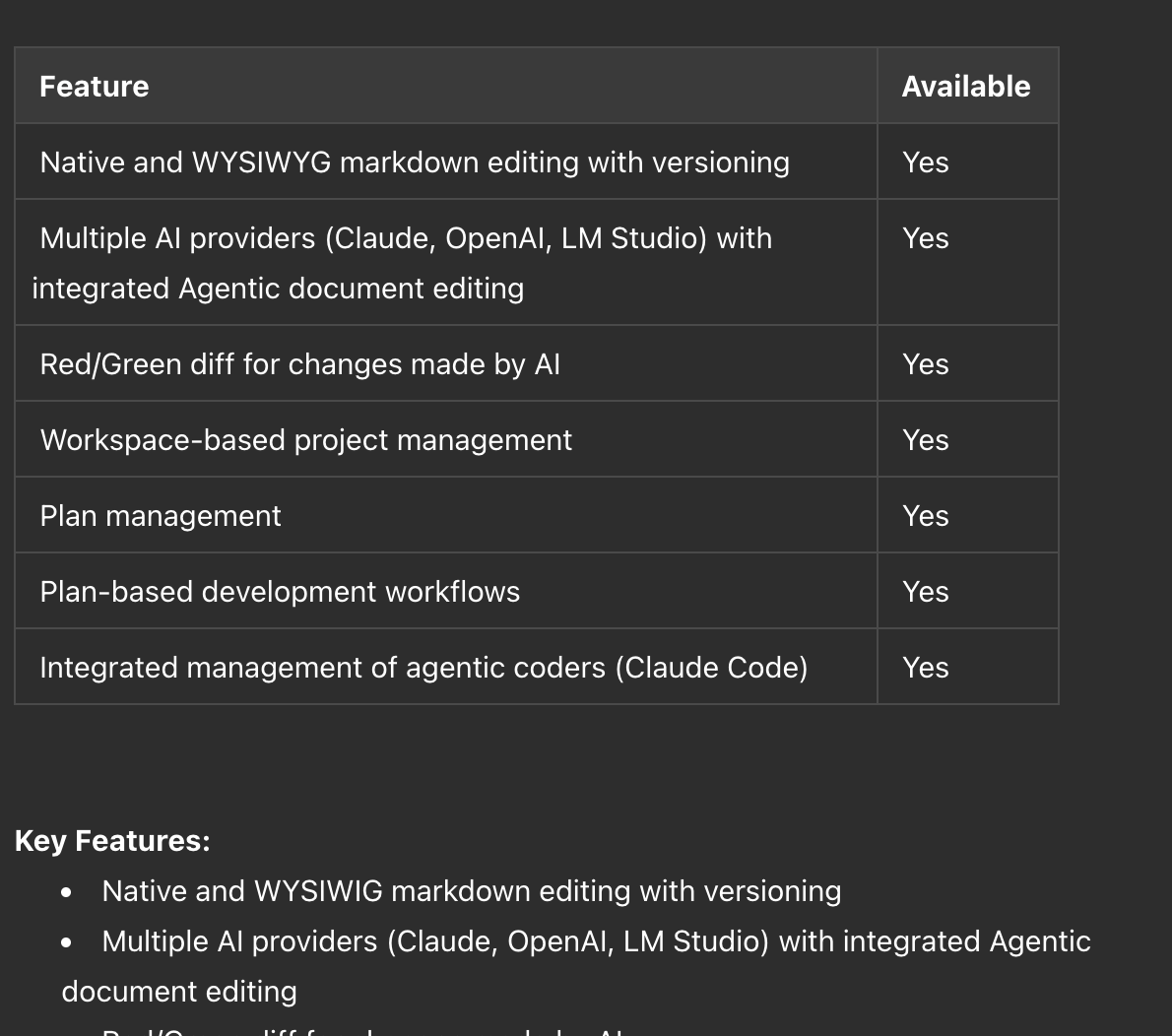
Create a table by typing / and choosing Table.
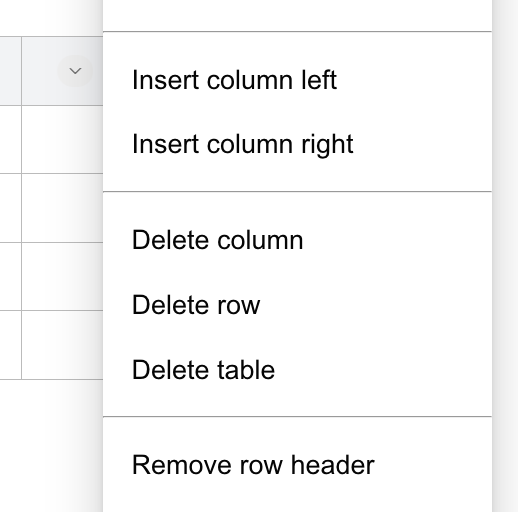
Format a table by clicking the down arrow on a cell.
Embedding Custom-Editor Files
A markdown document can render other workspace files inline as live frames. Drop a link to a file like .mockup.html, .excalidraw, .prisma, .csv, or any other custom-editor file on its own line and Nimbalyst upgrades it into an embedded editor in WYSIWYG view.
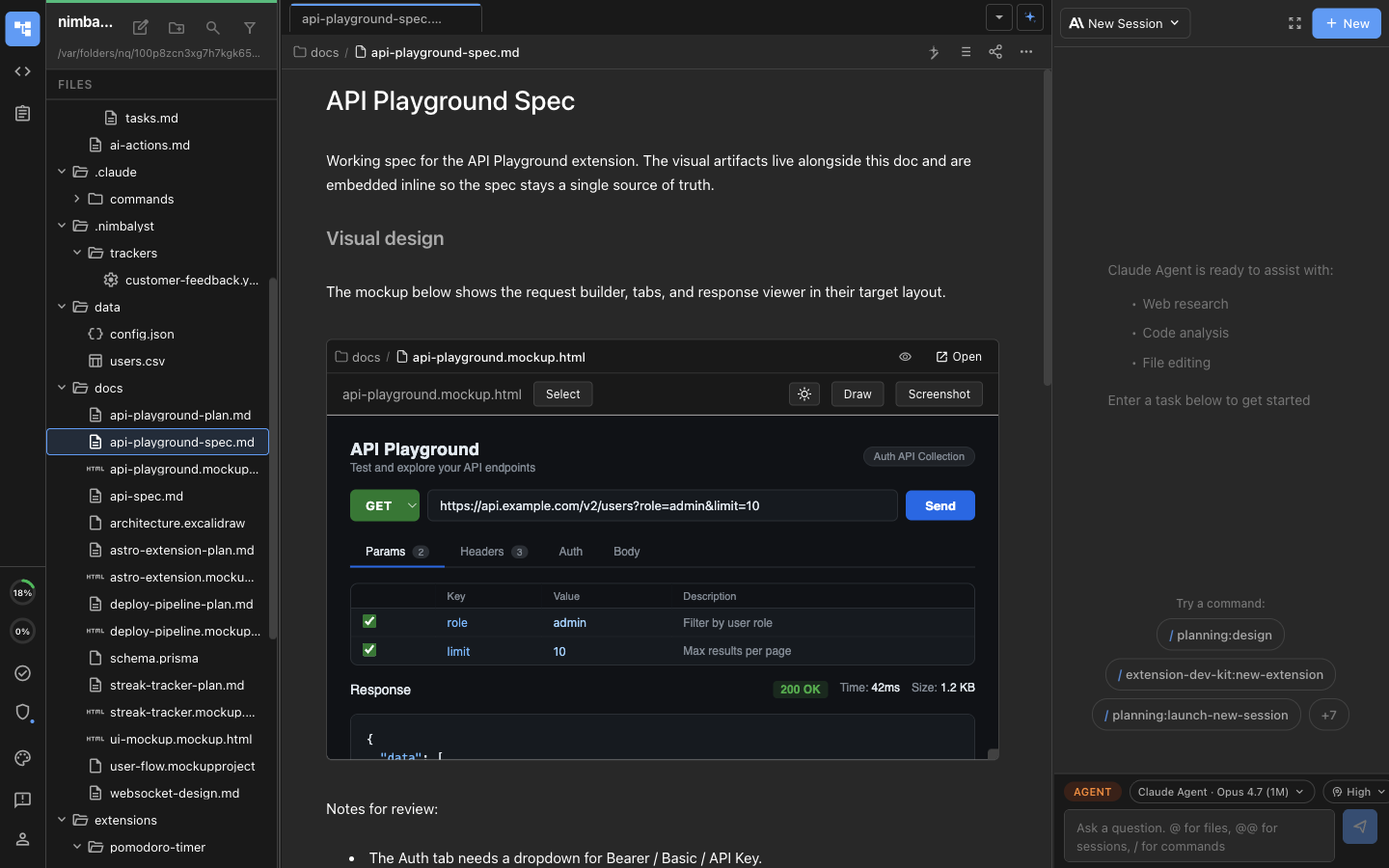
A markdown spec with a mockup and an Excalidraw diagram embedded inline.
How it works:
- Type
@to pick a file. If the file is a supported custom-editor type and the link ends up alone in its own paragraph, it auto-upgrades to an inline embed. - You can also paste a normal markdown link like
[my mockup](./docs/api.mockup.html)on its own line. - The embedded frame is the real editor for that file. Edit it in place and the change saves back to the file on disk.
- Multiple users see embedded edits stream in live when the document is shared.
Switch to raw Markdown view (the three-dot menu at the top right) to see the underlying link. The link round-trips: write a link in raw view, switch to WYSIWYG, and it becomes a live frame.
AI Editing in Shared Collaborative Documents
When you are editing a shared document in collaboration mode, the right-pane chat sees and edits the active document the same way it does in Files mode. Edits route through Yjs, so other connected users see them stream in live. The familiar accept/reject bar appears for pending AI edits, just like in single-user editing.
You don't need to do anything special to turn this on. Open a shared document, ask the agent to edit it, and the changes flow into the document for everyone in the session.
Anchor Links to Headings
Clicking a Markdown anchor link like [Section](#section) scrolls the document to the matching heading.
Export to PDF
Markdown documents export to PDF with the document title and an outline generated from your headings. Exported files are bookmarked at each heading and the title shows up in PDF readers.
Undo and Redo
- Cmd+Z to undo
- Cmd+Shift+Z to redo