AI Editing, Red/Green Diff, Approval
How AI editing works in Nimbalyst documents. The agent writes its changes to the file and Nimbalyst shows them as a red and green diff so you can review each one and keep it or revert it.
When an agent edits a document, Nimbalyst shows every change as a red and green diff right in the editor, so you review the work visually instead of in a terminal. This page covers how to request edits, how the diff review works, and what the agent knows about your document.
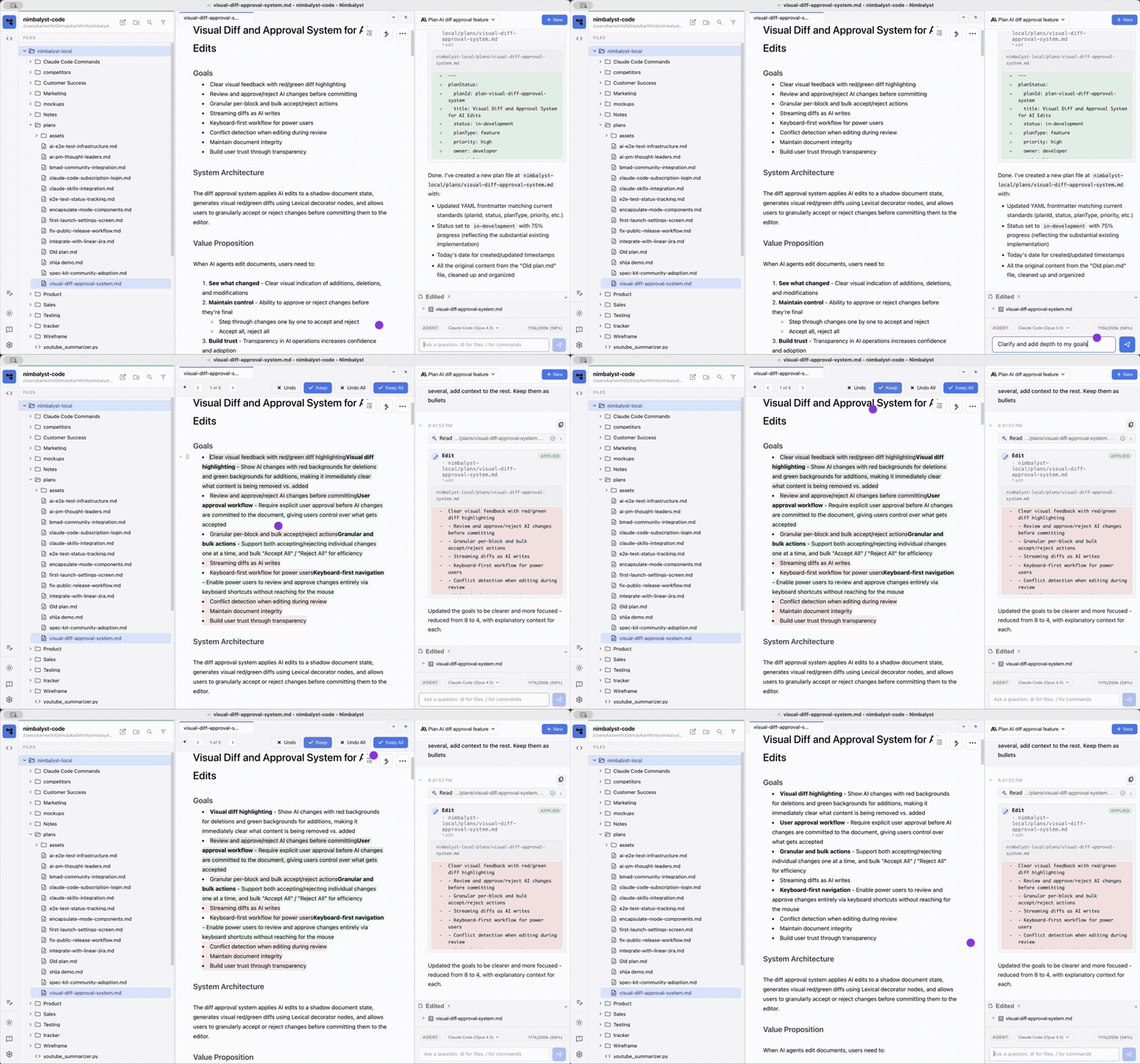
The Agent Panel
The agent panel runs on the right side of your document view.
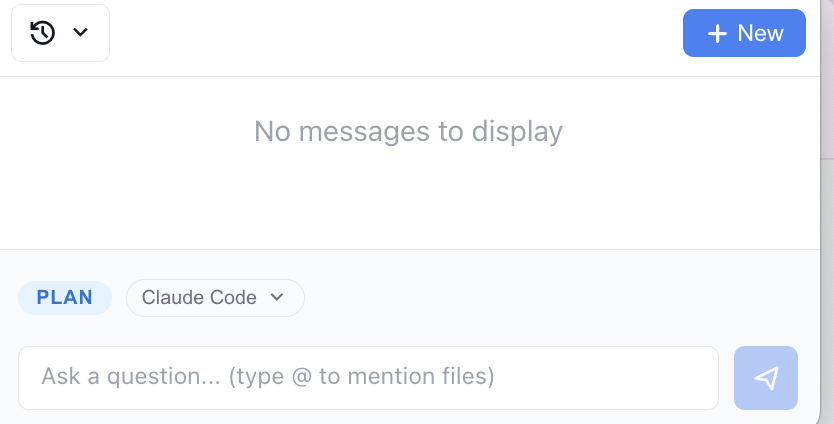
- Open the panel with the AI icon, or toggle it with Cmd+Shift+A
- Select an AI provider from the dropdown and type your message
- Click + New to start a fresh session with fresh context
- Paste attachments or images into the chat
Chat without editing. You can converse in the panel without touching your document. Use this to research, explore, and learn.
Requesting edits. Ask the agent to modify the document: "Add a section about X", "Rewrite this paragraph."
Streaming edits. Changes appear in the document as the agent makes them, highlighted as a visual diff, and a review toolbar appears. The agent writes each change to the file as it makes it; the diff is where you review afterwards. If you want to approve edits before they are written, use a permission mode that asks first, such as Ask every time.
Plan mode and Agent mode. Plan mode limits the agent to editing and creating markdown files; Agent mode gives it the full power of its tools. Click the Plan or Agent badge to toggle modes.
Red/Green Diff
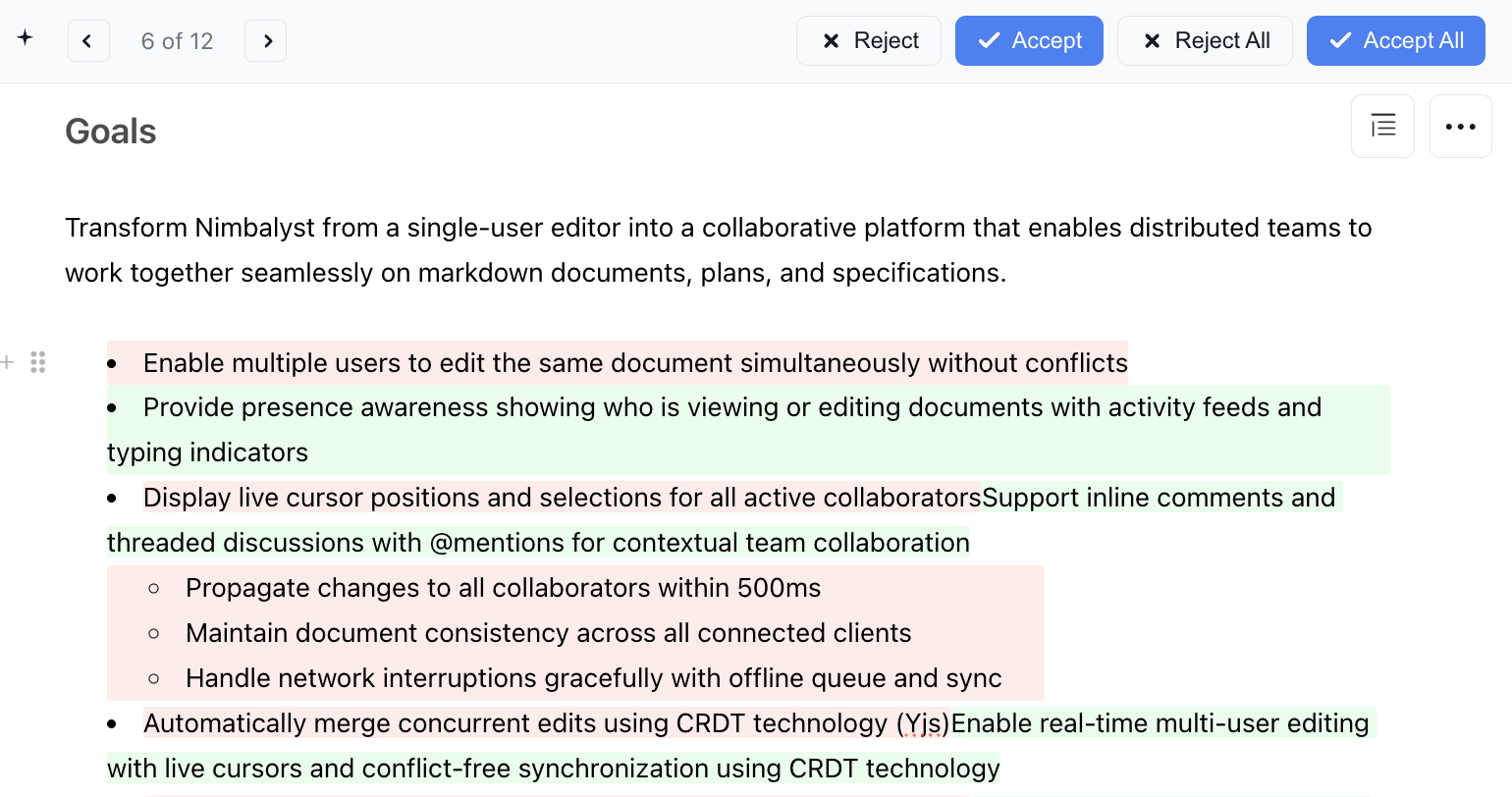
- Additions show with a green background, deletions with red
- Keep or revert all changes at once, or step through them one by one
- Clicking a change or the arrow buttons selects that change and scrolls to it
What Keep and Revert do
The diff is a review surface for changes the agent has already applied, not a hold queue in front of them.
- When the agent edits a document, the change is written to the file on disk right away. Git, pre-commit hooks, and anything else watching the folder see it immediately.
- Keep marks the change reviewed and clears the red and green highlighting. The file contents do not change.
- Revert restores the previous contents from file history and writes them back to disk, then records a history snapshot of the restored version.
- Leaving the bar alone keeps the change. Closing the document without deciding is the same as keeping it.
Nimbalyst keeps a version history of every AI edit, so a change you revert can still be recovered from the document's history.
Tell the agent when you revert
Reverting in the editor is not reported back to the agent session. The tool call already returned success at the moment the write happened, so the agent goes on believing its edit is in the file, and its next edit may be written against text that is no longer there.
If you revert an agent change and plan to keep working in the same session, say so in the chat, for example "I reverted your last edit to notes.md, the file is back to its previous contents." The agent then re-reads the file and works from what is actually on disk.
To reject a change in a way the agent participates in, deny the action when it asks. This requires a permission mode that prompts before edits.
Agent Context & Conversations
The agent is passed, and understands, this context:
- Document context: the current file's content
- Workspace context: the file tree and related files
- Session context: the conversation history
When conversing, the agent automatically includes the open document. Reference other files by typing @, and include images or code snippets directly in your message. Being specific helps: "Looking at the function in file.ts..." works better than a vague pointer.
Context Window
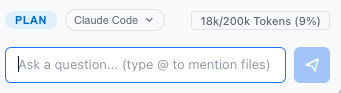
The token indicator (for example, 18k/200k) shows how much of the session's context window is used. As you approach 100%, click + New to start a fresh session.
AI Tool Calls
The agent can invoke tools to act beyond text generation: file operations (read, write, search), code analysis and execution, web research, and data processing. Tool results appear in the chat with special formatting.
Show Tool Calls in Chat
By default, every tool call the agent makes appears as a row in the transcript. To hide them entirely (not just collapse them), turn off Show Tool Calls in Chat under Settings > Application > Agent Features. Interactive prompts, such as permission requests, plan-mode exits, commit proposals, and questions the agent asks you, still appear so you can always respond.