View Files in Agent Mode
View and edit the files an AI session touches directly inside Agent mode, without switching to Files mode to check what the agent did.
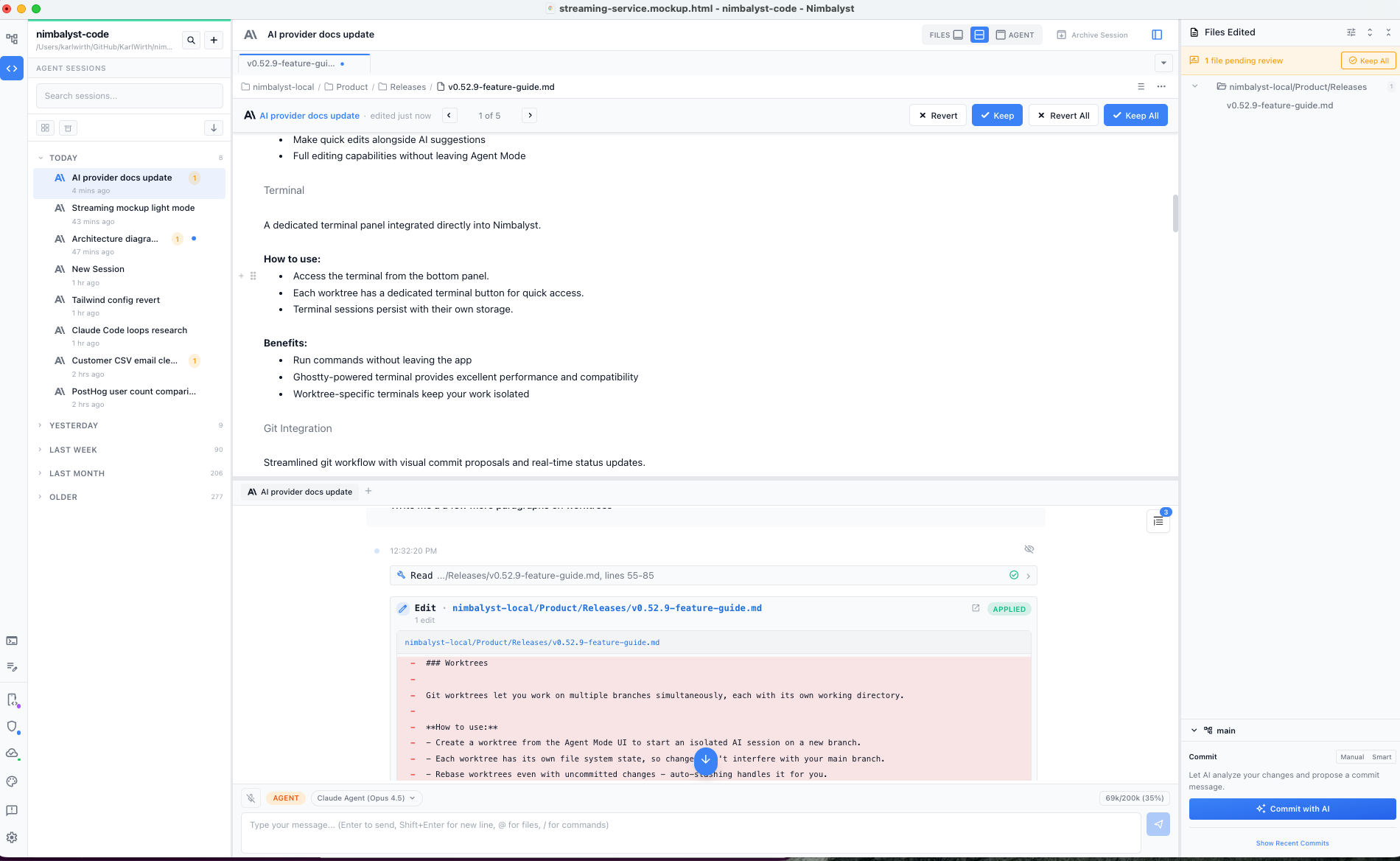
When an agent edits or reads files during a session, those files appear in a panel on the right side of the Agent window. You can open, review, and edit them there, next to the conversation, instead of switching to Files mode to check what the agent did.
How to use
- When a session, workstream, or worktree touches a file, it appears in the right panel.
- Click a file to open it. You can open multiple files in tabs, and resize or hide the panel as needed.
- Edit files directly while collaborating with your agent.
- Right-click any file to open it in Files mode if you prefer the full editor experience.
Seeing agent output as rendered files rather than terminal text is the core idea behind the visual editor for Claude Code. In a workstream, the same panel combines files from every session; see Workstreams.
Collapsing sections
The panel groups files under section headers (Edited, Referenced, Read). Click a header to collapse or expand that group, which helps when a long session has touched many files.
Tips
- Long filenames are truncated. Hover to see the full relative path from your workspace.
- Multiple edits to the same file are aggregated, so you see the total lines added and removed across all changes.
- Git status updates automatically when you switch back to Nimbalyst from another app.
- Empty state: if no files have been touched yet, the panel shows "No file interactions yet."