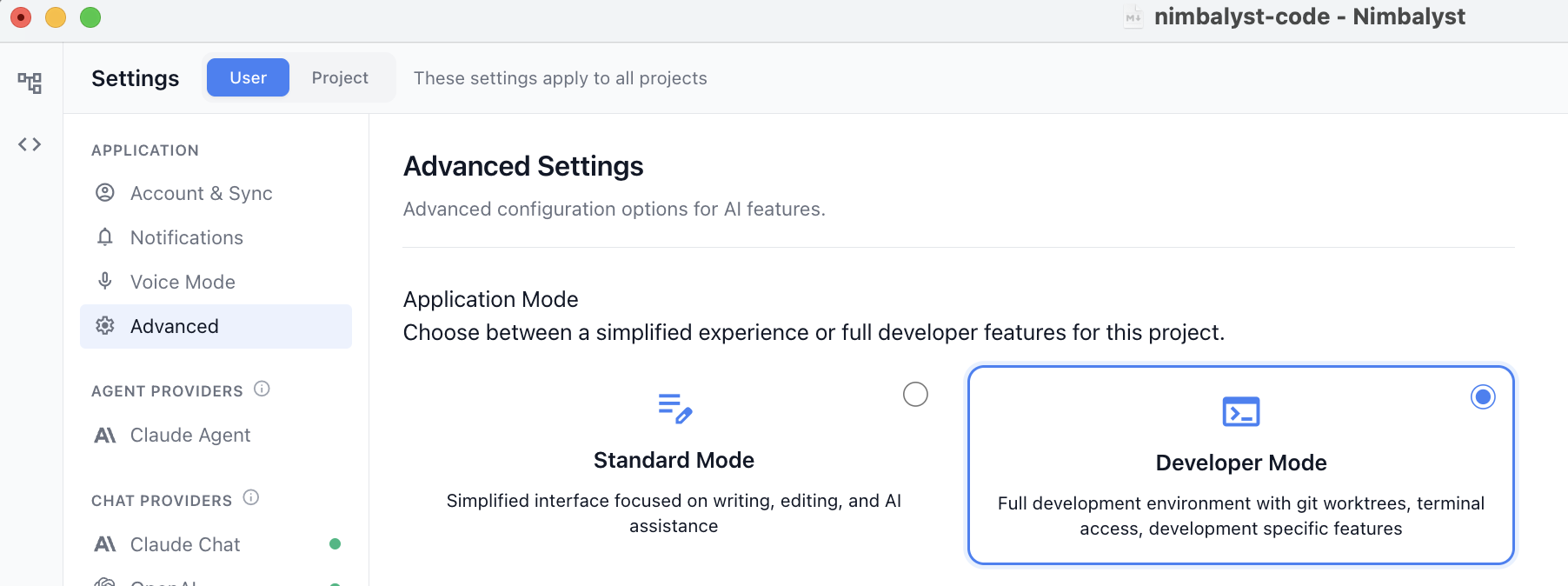
Turn on/off Developer Mode
Turn Developer Mode on or off in Nimbalyst to show or hide the terminal, git worktrees, and the other git features you may not need.
Nimbalyst has two application modes. Standard Mode keeps the interface focused on writing, editing, and AI assistance; Developer Mode adds the terminal, worktrees, and git tooling. Turn on Developer Mode when you work with code; leave it off if those features would just be clutter.
What Developer Mode Adds
The following features are only available in Developer Mode:
- Terminal
- Worktrees
- Many git features, such as Pull Request mode
Git-related features also require the project to be a git repository. Everything gated behind Developer Mode is described on the developer tools page.
Turning Developer Mode On or Off
- Open Settings.
- Go to Advanced.
- Under Application Mode, choose Standard Mode or Developer Mode.