Mobile App
Run your desktop coding agents from your phone with Nimbalyst Mobile. Start and resume sessions, answer approvals, and edit synced markdown on the go.
Nimbalyst Mobile is an iOS app that runs your desktop coding agents from your phone. Use it when you are away from your desk and want to start new sessions, resume or redirect running ones, answer an agent that is waiting for approval, and edit synced markdown files (in alpha for now).
Why Mobile?
When you run multiple parallel sessions, agents often finish or hit a blocker while you are at lunch, commuting, or in a meeting. Nimbalyst Mobile keeps you connected so you can start new work, answer a waiting agent, or just keep an eye on things from wherever you are.
See mobile agent management for what the phone app covers.
How It Works
The mobile app links securely to the desktop app running Nimbalyst. You select which projects to sync, then run sessions, edit files, and manage your agents from the phone while the work itself executes on your desktop machine.
iPhone and iPad share one adaptive layout. Rotating the device preserves the active session and any draft you are composing, and wide screens add a session sidebar so you can switch sessions without leaving the one you are reading.
Setup
- On desktop, sign in to Nimbalyst and select which projects you want synced.
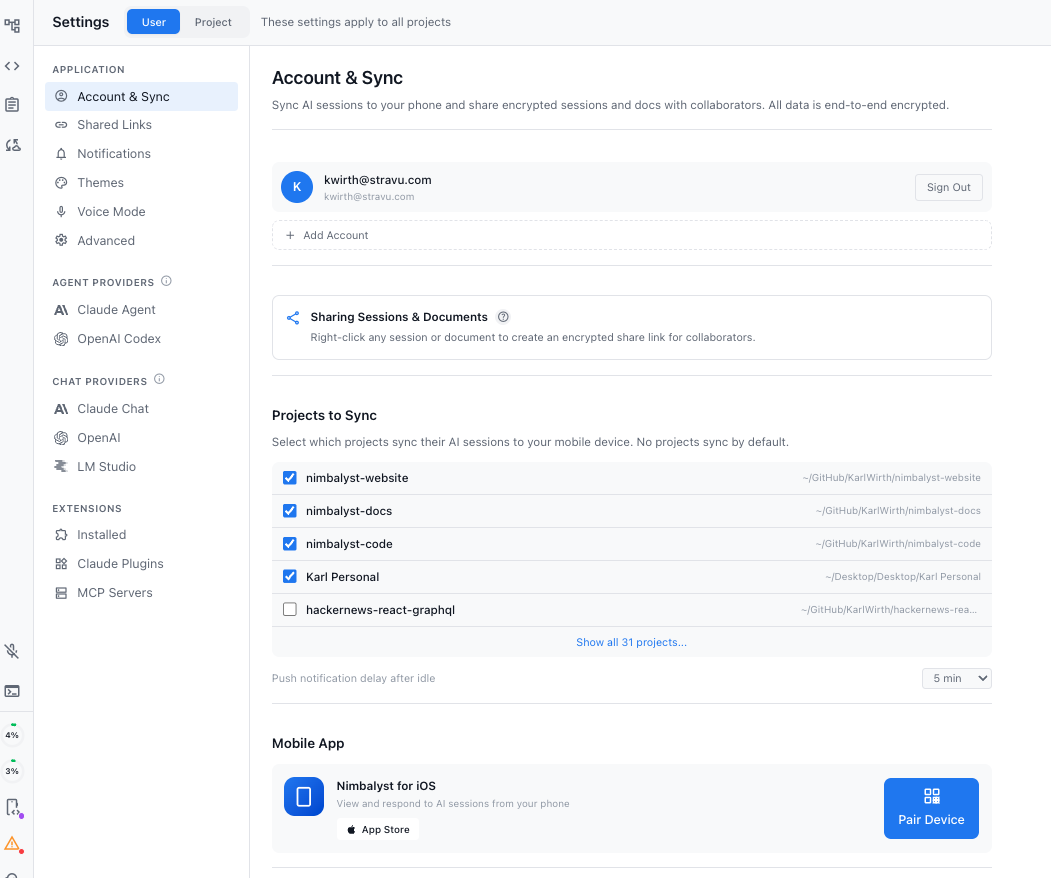
- Download the Nimbalyst mobile app from the iOS App Store.
- Sign in with Google or use your email address and the magic link Nimbalyst sends you.
- On desktop, click the Pair Device icon.
- In the mobile app, scan the QR code and authenticate with the same credentials.
If QR scanning doesn't work (camera issues, bright sunlight): use the "Copy to Clipboard" option on desktop and paste the pairing data manually into the mobile app's text field.
Use Multiple Accounts
You can sign in with more than one Nimbalyst account on iOS and switch between them from the account menu.
Each account keeps its own organizations, project access, paired-device state, and personal sync profile. If some content is not visible, switch to the account that owns the project or received the team invitation.
On desktop, manage accounts under Settings > Account > Accounts and choose mobile projects under Settings > Account > Mobile App.
What Syncs to Mobile
Sessions: Full conversation history, session metadata (title, provider, model), status, and draft inputs you're composing.
Project Files: Markdown files (.md) from projects with Docs enabled sync to mobile. You can read and edit them, so documentation, plans, and notes stay updatable from your phone, and edits sync back to desktop. Document sync is currently available on the Alpha update channel: select Alpha (Developer Releases) under Settings > Application > Advanced, then enable Docs for the project under Settings > Account > Mobile App.
What doesn't sync: Code files, images, Excalidraw diagrams, mockups, data models, PDFs, CSVs, app settings, and extension data. These remain on desktop only.
Start New Sessions
You don't need to be at your desk to kick off work. Start a brand new AI session from your phone: pick a project, type a prompt, and the session runs on your desktop machine.
Choosing a Model
Pick which agent and model run your work right from your phone. The model you select becomes the default for new sessions you start on mobile.
- Open a project and stay on its Sessions list.
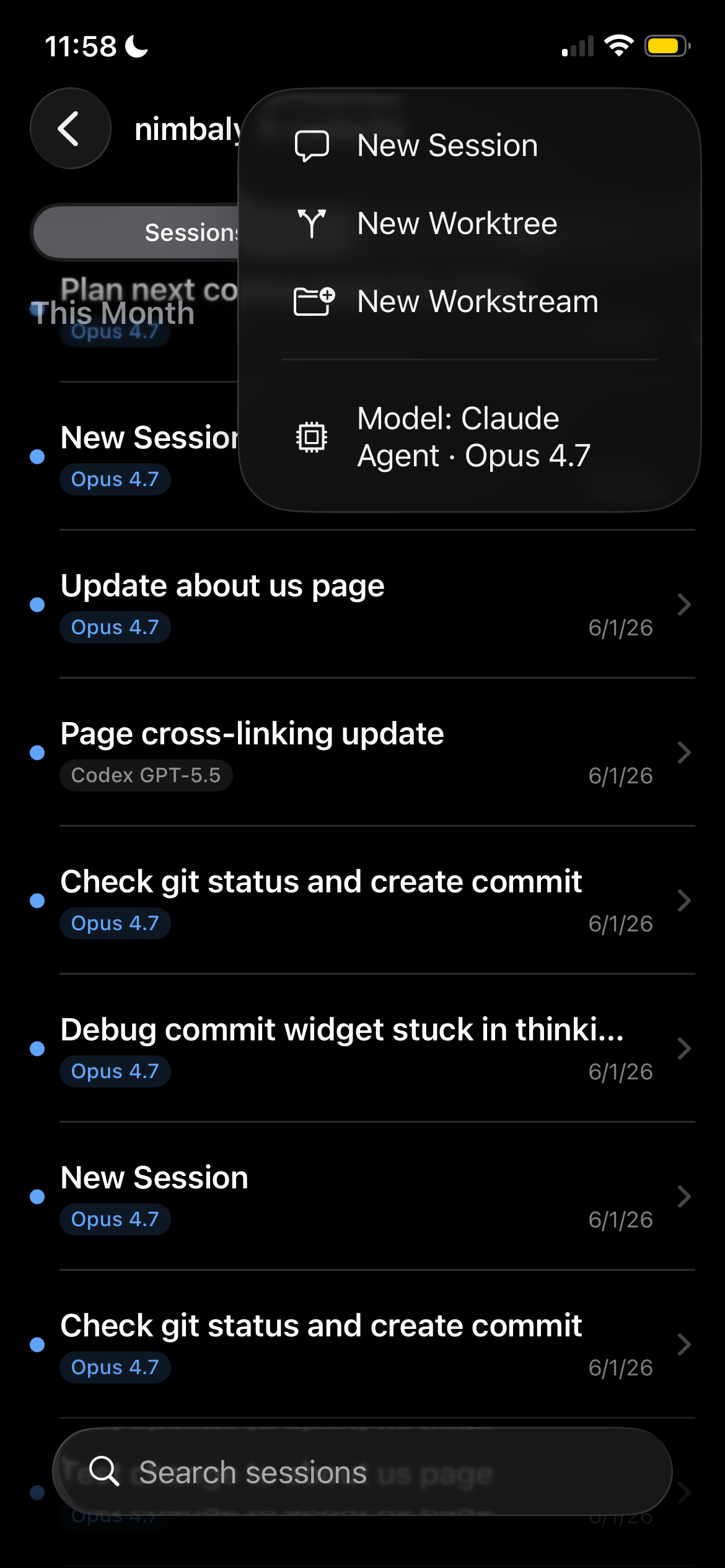
- Tap the + button in the top right to open the new session menu.
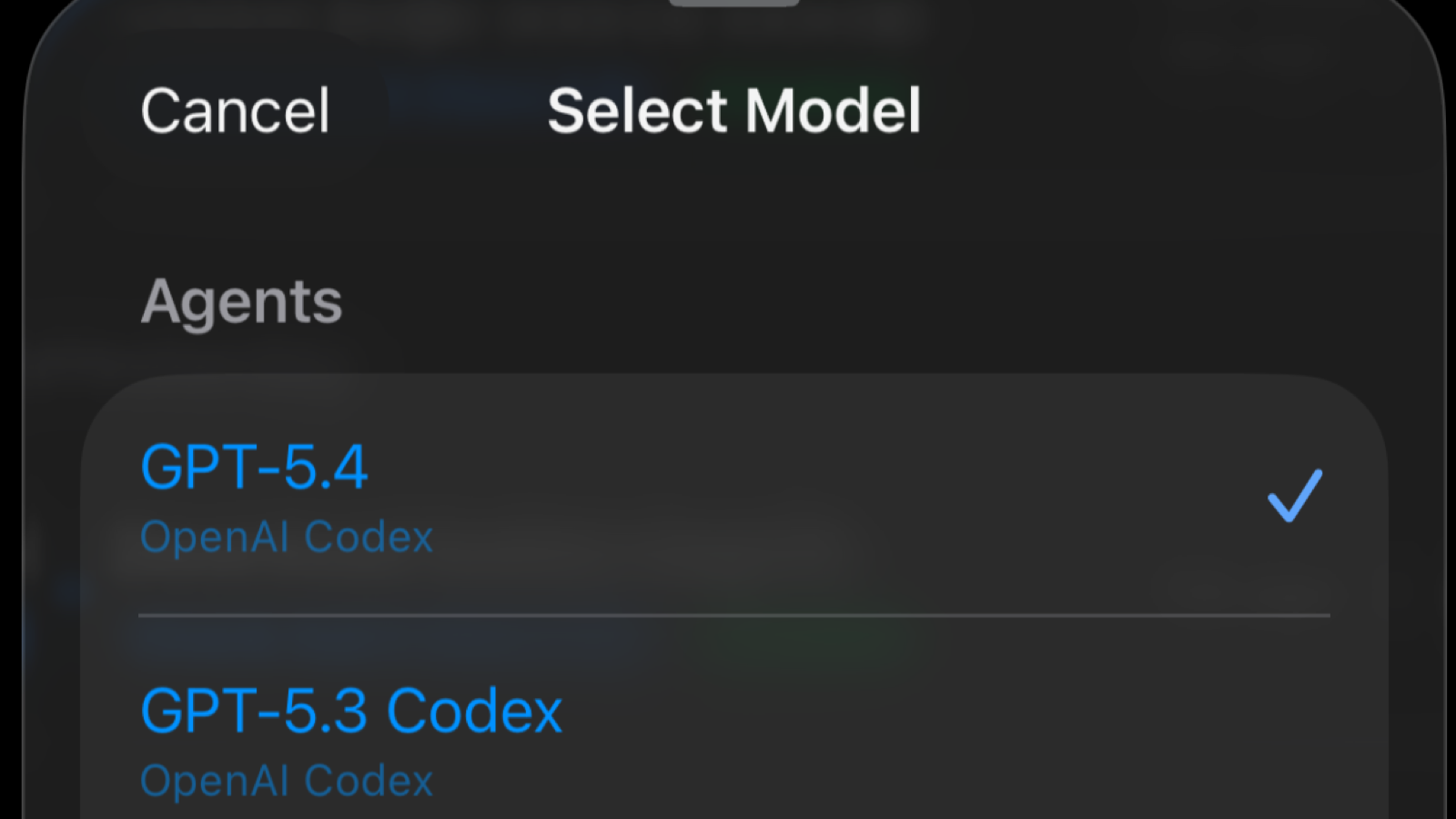
- Tap the Model row at the bottom of the menu. It shows the current agent and model selection.
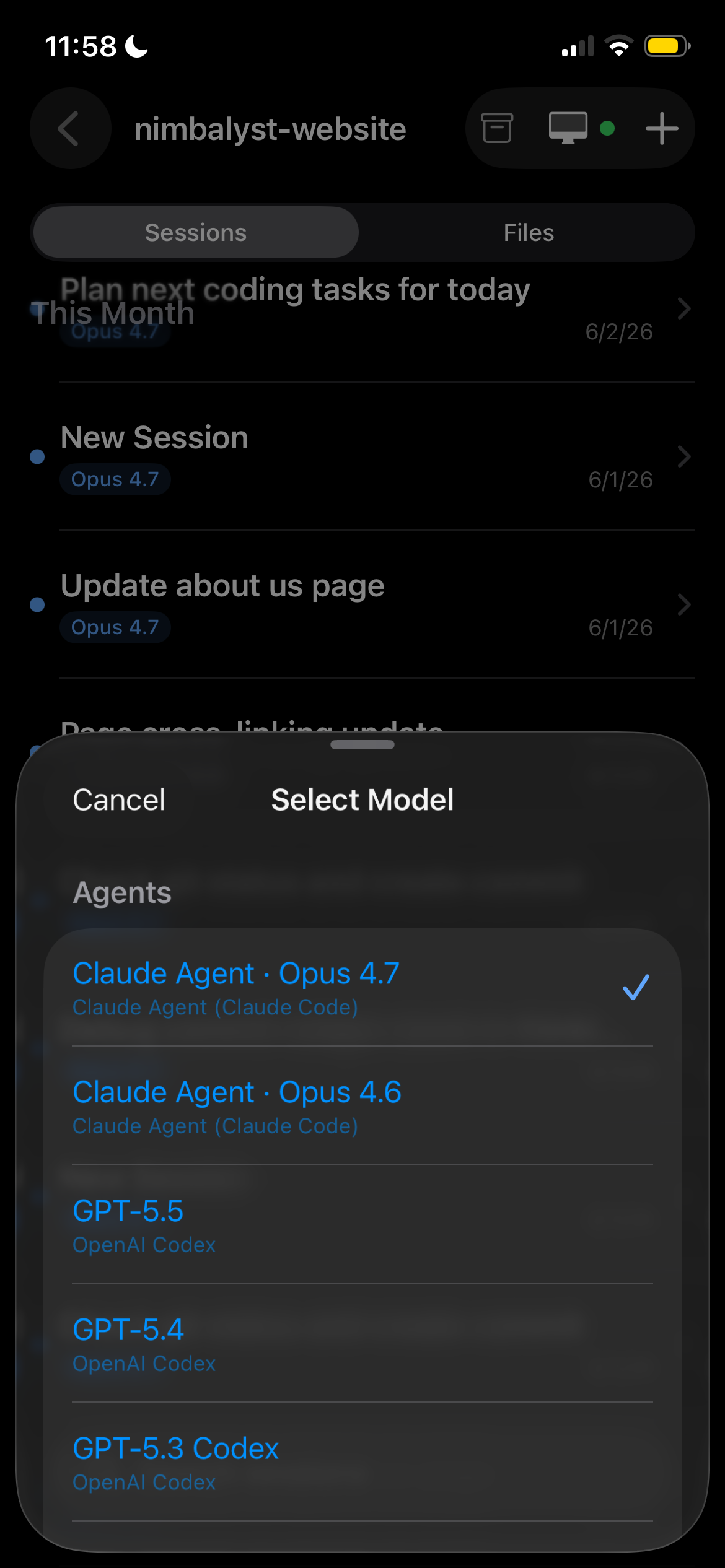
- In the Select Model sheet, tap the model you want. A checkmark marks the active choice.
Models are grouped under Agents:
- Claude Agent (Claude Code)
- OpenAI Codex
The list reflects the providers and models you have set up on your desktop, so what you see may differ.
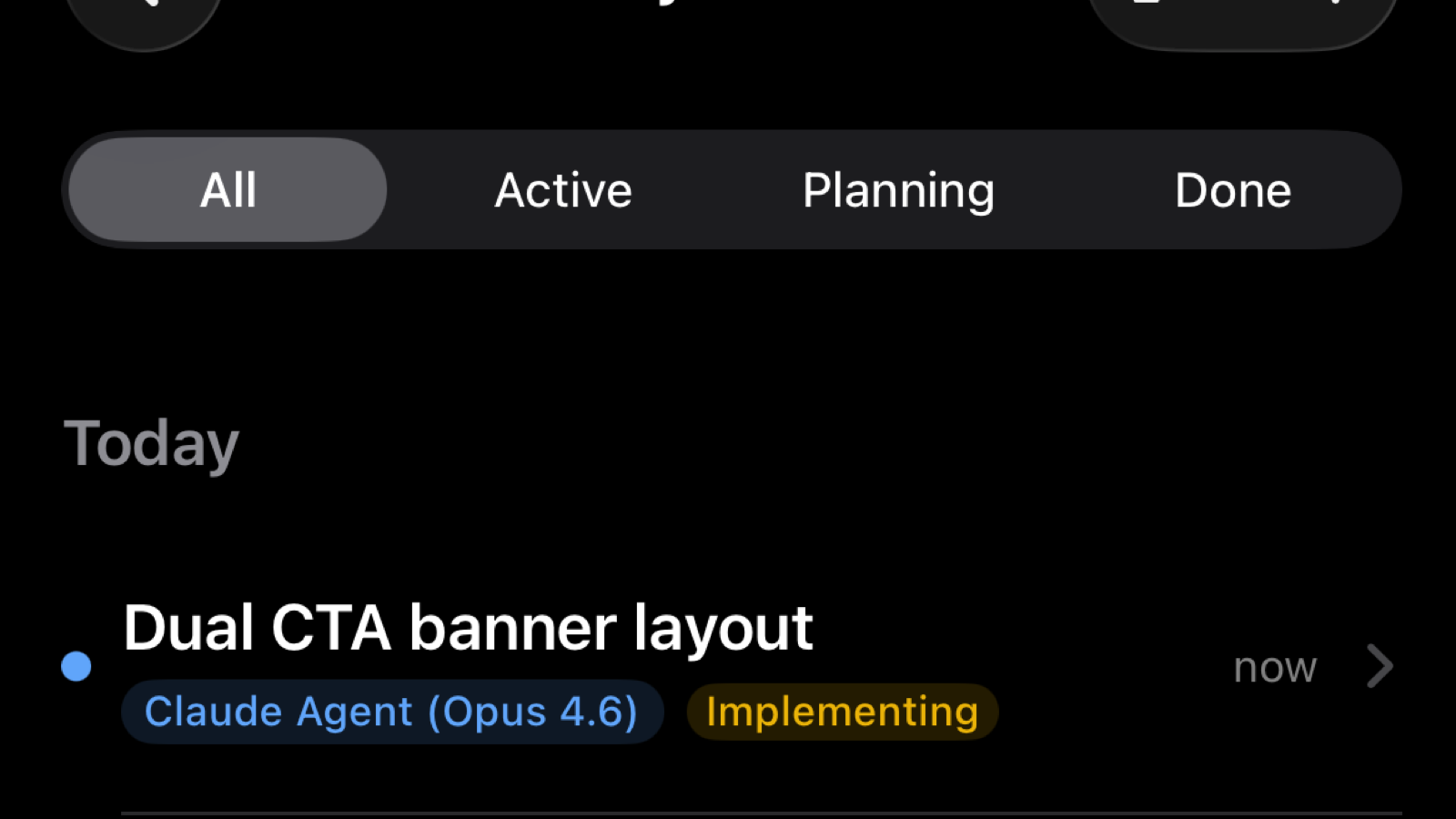
Each session in your list also shows its own model badge, so you can tell at a glance which agent is running each one.
Session Dashboard
See all your active, completed, and paused sessions at a glance, with color-coded status, sorted by activity. One tap opens the details.
Answer Questions and Approvals
When a session is waiting for input, open it to answer the question or respond to its approval request. This includes tool permissions, plan approval, and commit proposals surfaced in the transcript. Code diff review remains a desktop workflow.
Resume
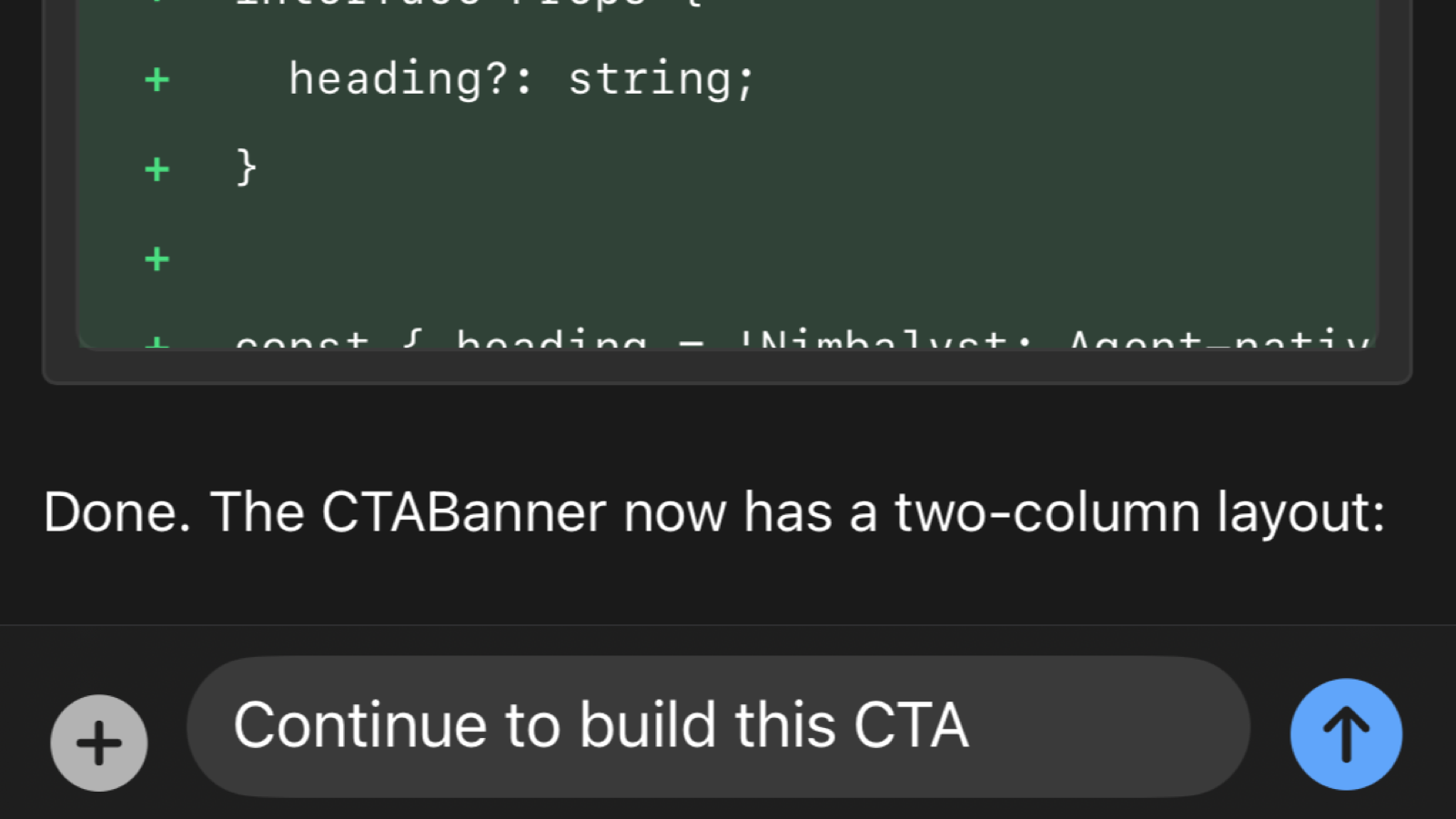
Session stalled? Resume it with a voice note or typed instruction right from your phone. Redirect the agent or continue the conversation just like you would on desktop.
- Queue a prompt: If the session is busy, your prompt queues and runs when the current task finishes. You can queue multiple prompts while offline.
- Attach images: Take a photo or choose from your camera roll. Useful for screenshots of bugs, whiteboard sketches, or design references.
- Draft sync: Start typing a message on mobile, switch to desktop, and your draft is there waiting.
Voice on Mobile
Drive your desktop sessions by voice from your phone. Ask the voice agent to start a new session, find a session by topic, switch between sessions, summarize one (including any question it is waiting on), answer a pending question, or send a new coding task to your desktop.
There is no permanent mic button. Start voice from the ••• menu inside a session (Start Voice Mode), or from the + menu on a project's Sessions tab (Start Voice Agent). The floating mic appears once it connects, with Pause and Cancel so you stay in control.
Voice runs in the iOS app and is in alpha. See Voice on Mobile for setup, controls, and troubleshooting, or Voice Mode for the desktop side.
Lock Screen Live Activity
On iPhone, your session fleet also reaches the Lock Screen and Dynamic Island as a Live Activity. Sessions are ranked by how long each one has been waiting on you, so the agent that has been blocked the longest is the first thing you see. Tap a session to open it in the app.
Push Notifications
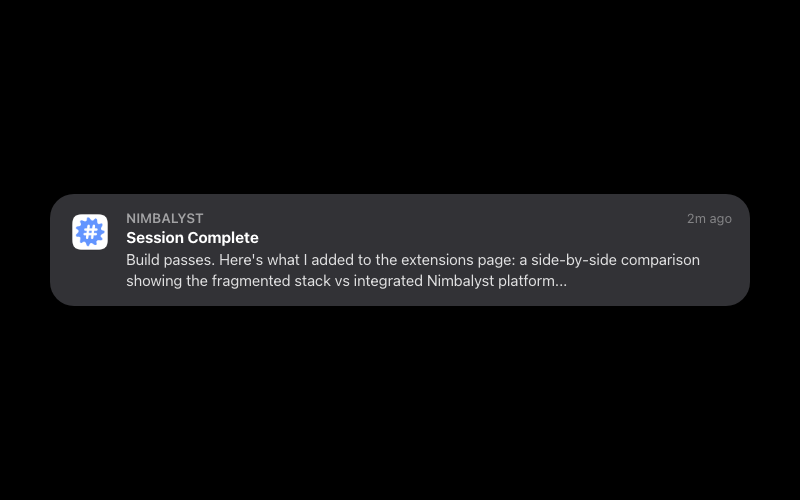
Get notified when sessions complete, hit errors, or need your approval. Your agents tell you when they need you, so you can stop checking.
Smart routing: Notifications only go to your phone when you're away from your desktop. If Nimbalyst is active on your Mac, your phone stays silent.
Desktop Sync
Sessions, prompts, supported approvals, and enabled markdown documents sync with your desktop Nimbalyst workspace. Prompts you queue from your phone run on your desktop machine, and markdown edits sync back to the corresponding project file.
Sleep Prevention / Keep Awake
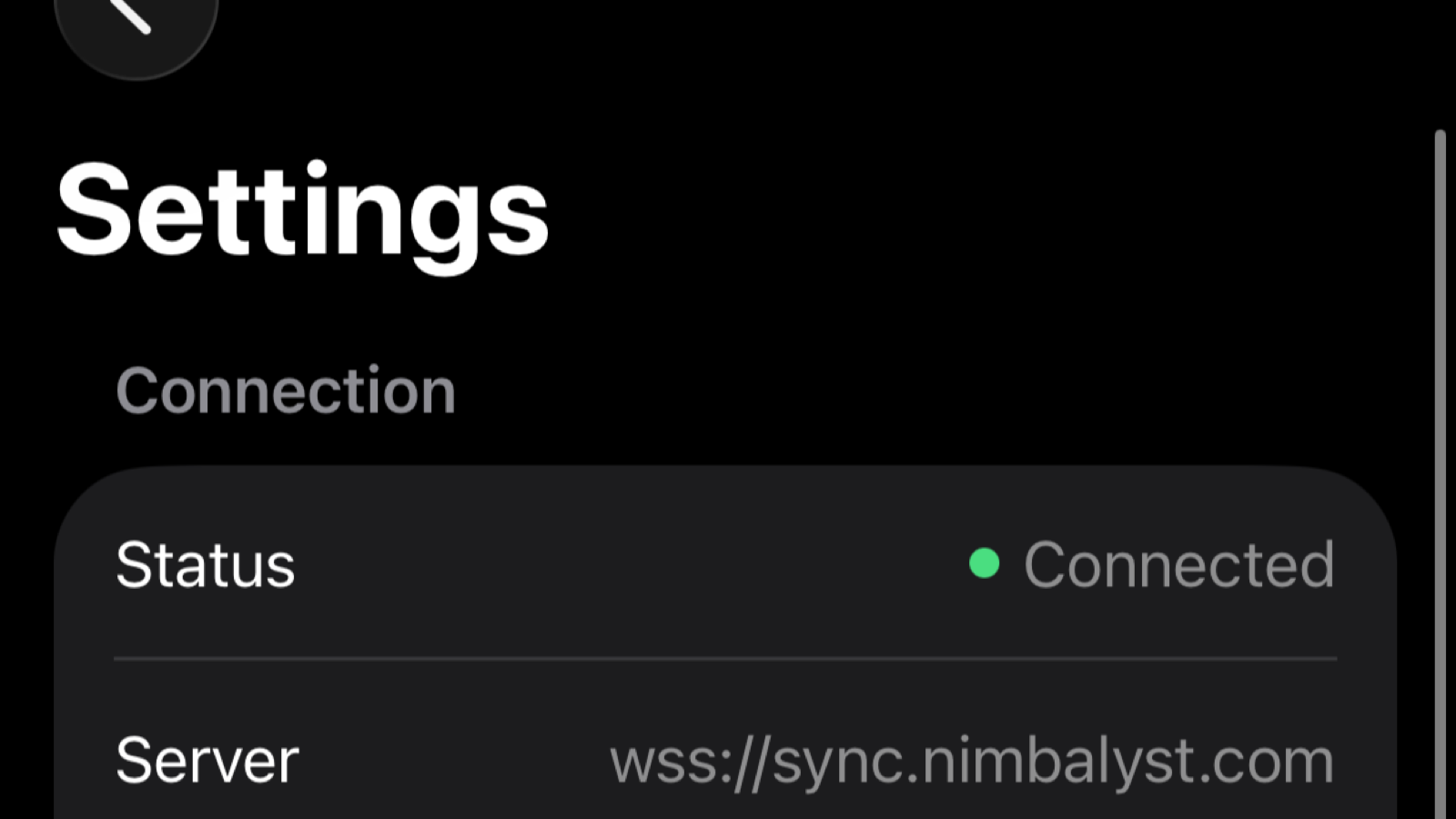
A common issue with mobile sync is your desktop going to sleep, which breaks the connection. In Nimbalyst Settings, you can enable sleep prevention to keep your desktop awake while syncing. Choose between:
- Off: default, no sleep prevention
- Always: keeps your desktop awake whenever Nimbalyst is running
- When plugged in: only prevents sleep when your computer is connected to power
Clickable Links in Transcripts
Links in session transcripts on iOS are tappable, so you can open URLs directly from your mobile session view.
Encryption and Privacy
All data synced between your devices is end-to-end encrypted:
- Encryption: AES-256-GCM per message, each with its own initialization vector
- Key exchange: Via QR code during setup; keys never touch our servers
- Server access: Our sync servers store and relay encrypted data. They cannot read your content.
Your encryption key is derived from the seed shared during QR pairing using PBKDF2 with 100,000 iterations.
Offline Behavior
- Reading: Previously synced sessions and files are cached locally and readable without connectivity
- Writing: Compose and queue prompts while offline; they transmit automatically when you're back online
- Limitations: No push notifications or real-time updates while offline. New desktop sessions won't appear until you reconnect.
When you come back online, the app syncs incrementally, fetching only messages newer than what you already have.
Troubleshooting
Sessions not appearing on mobile
- Verify the project is enabled under Settings > Account > Mobile App on desktop.
- Confirm that the same account is active on the desktop and phone.
- Check that mobile sync is enabled for that account.
- Ensure both devices are online.
Push notifications not working
- Check that notifications are enabled in your phone's system settings for Nimbalyst.
- Notifications are suppressed when Nimbalyst is active on desktop. This is intentional.
Sync feels slow
- Large sessions with many messages take longer on first sync.
- After initial sync, updates are incremental and near-instant.
- Check your network connection on both devices.
Works With Claude Agent and Codex
Manage Claude Agent and OpenAI Codex sessions from one app. Other direct chat providers can also appear in the mobile model picker when they are enabled on desktop.