File Edits Sidebar
The File Edits Sidebar tracks every file your AI agent read or changed during a session, so you can review each modification before accepting.
The File Edits Sidebar lists every file the AI touched during a session, so you always know what was modified, referenced, or read, and what still needs your review. Use it as your review checklist after an agent finishes a task.
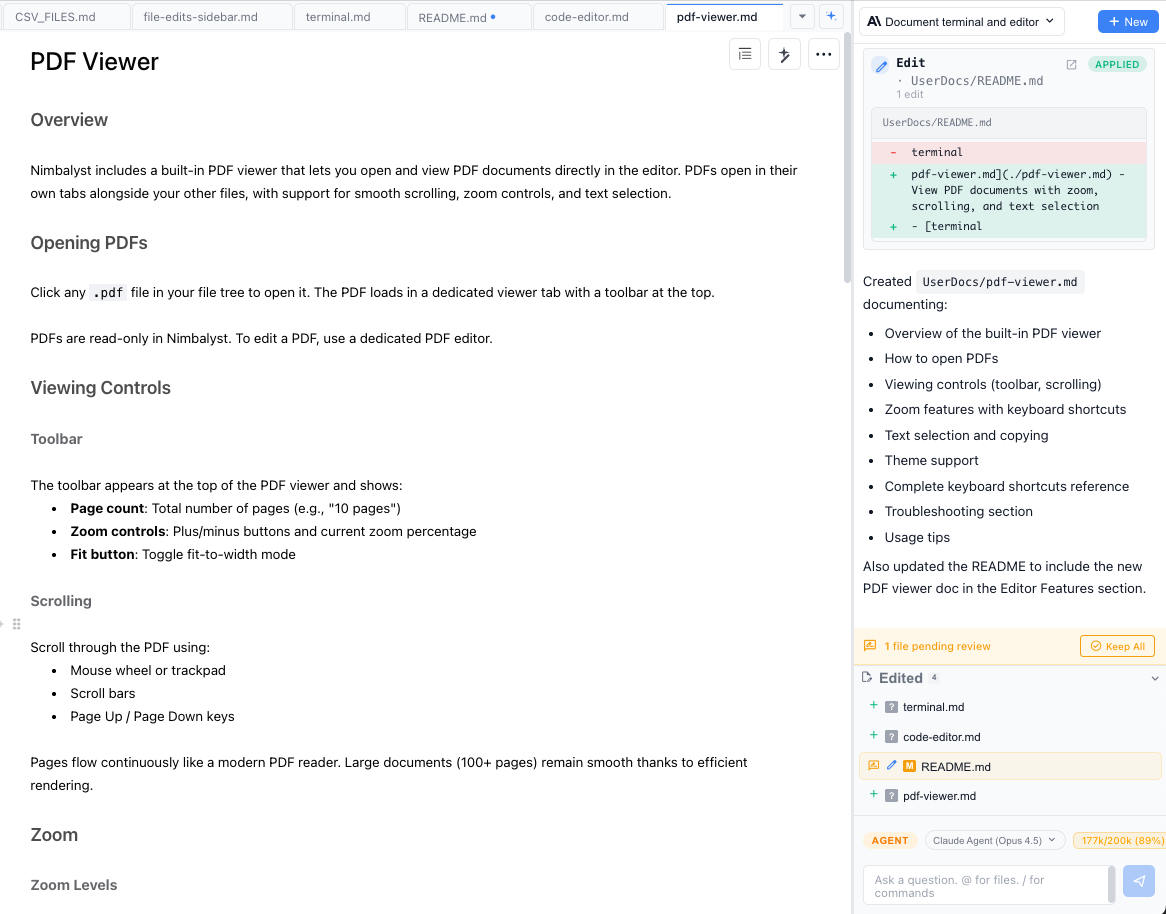
- Every file the AI edited appears in the sidebar list
- Click a file to jump directly to the AI session that made the edit
- See how many changes are in each file and navigate between them
- All Uncommitted Files mode shows files with pending changes across your project
Diff Peek
Hover any row in the edited-files list and a peek icon appears on the right. Click it to open a unified diff popover anchored to the row, so you can see exactly what the agent changed without leaving the session view or opening the file.
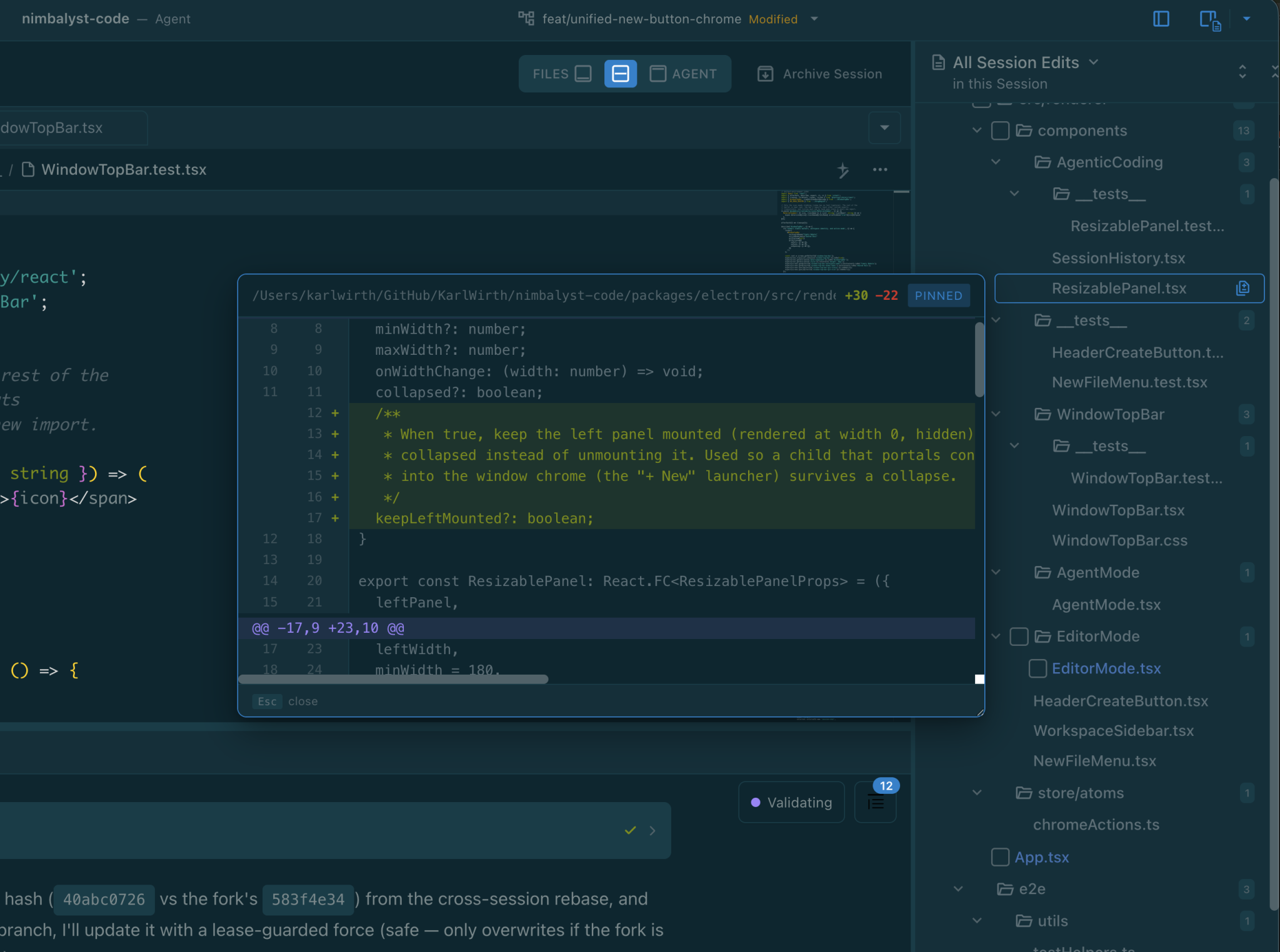
- Hover the row to reveal the peek icon
- Click the icon to pin the diff popover
- The popover is resizable, and the size you pick is remembered (it stays in sync with the diff peek in the Git extension and the commit proposal widget)
- Click outside or press Esc to close