AI Actions
AI Actions are reusable prompt presets that show up in the Nimbalyst composer. Define them in one workspace file so they version and share.
AI Actions are reusable prompt presets that show up as a dropdown in the AI composer. Pick one and the prompt drops into your draft, ready to send or edit. They live in a single file in your workspace, so they are easy to version, share, and edit.
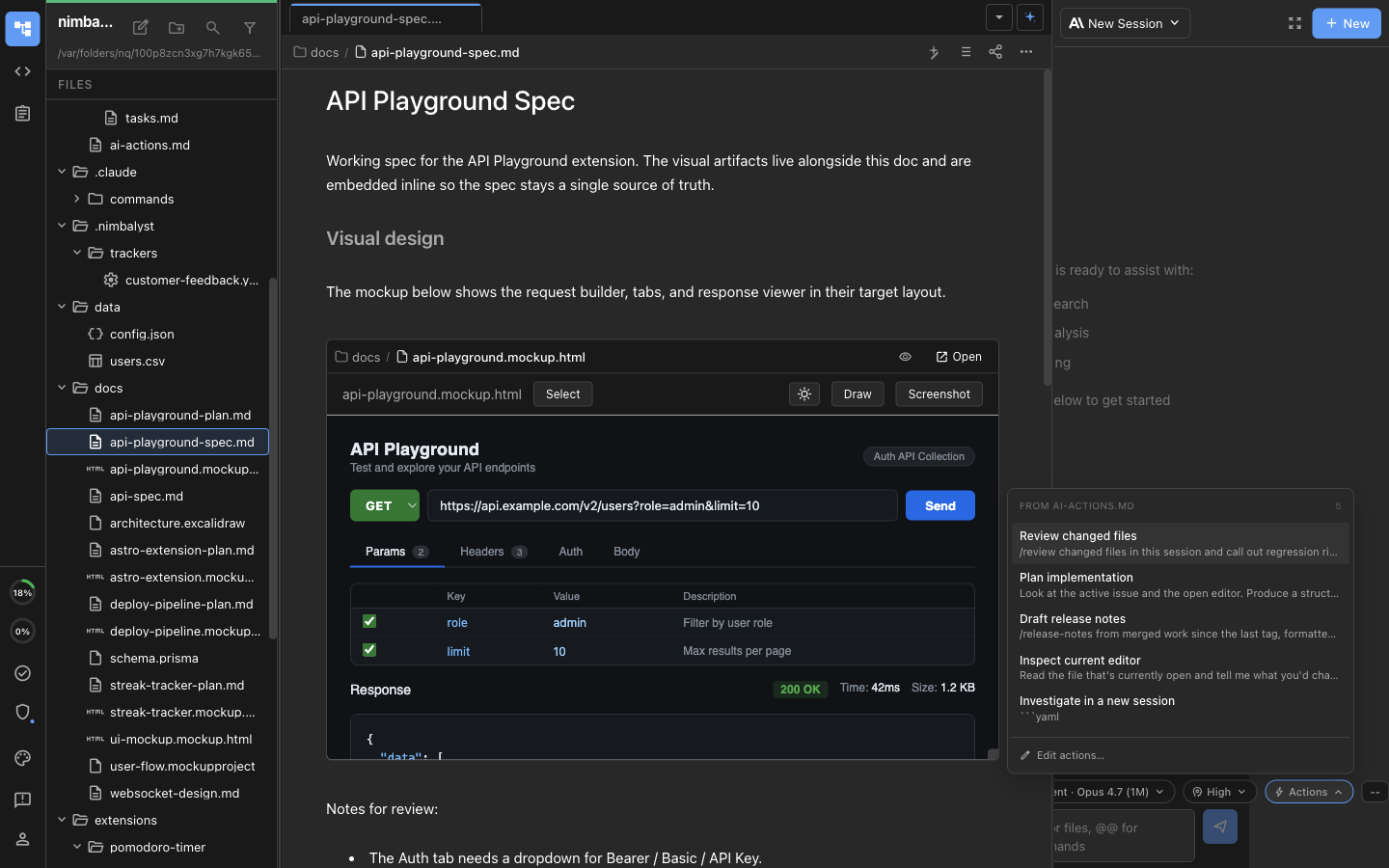
The Actions dropdown open in the composer, with entries loaded from ai-actions.md and an Edit actions link at the bottom.
When to use Actions
Actions are the lightest-weight way to reuse a prompt:
- Action: a prompt you reuse often, defined in one file, picked from a dropdown.
- Command (
/): a slash command in.claude/commands/<name>.md. Runs in either Claude Code or Codex. - Skill: a richer integration with workflow logic and tool usage patterns.
If you find yourself pasting the same prompt more than twice, turn it into an Action.
See the commands and skills feature page for how Actions, Commands, and Skills differ in practice.
Starter Actions often include patterns like:
- Review Changed Files
- Plan Implementation
- Draft Release Notes
- Inspect Current Editor
Where Actions live
Actions are defined in nimbalyst-local/ai-actions.md in your workspace. The first time you open the Actions dropdown in a workspace without that file, you'll see a "Create ai-actions.md with examples" button that seeds it with a few starter entries.
File format
Each ## Heading is one action. Everything between that heading and the next ## is the prompt body that gets inserted into the composer.
# AI Action Prompts

## Review changed files
/review changed files in this session and call out regression risk
in the affected modules.

## Plan implementation
Look at the active issue and the open editor. Produce a structured plan that:
- breaks the work into 3-5 phases
- identifies the files I'll need to touch
- flags any cross-cutting concerns

When you're done, ask me which phase to start with.

## Inspect current editor
Read the file that's currently open and tell me what you'd change. Be specific:
- 3 concrete improvements
- 1 thing that's already good and shouldn't change
Launching a new sibling session from an Action
By default an Action drops its prompt into the current composer. You can also configure an Action to spin up a brand-new sibling session and submit the prompt there, so the current session stays focused on what it was already doing. See Workstreams for how sibling sessions appear in the sidebar.
Add a fenced YAML config block right under the heading:
## Investigate in a new session
```yaml
launch: new-session
model: claude-code:opus
foreground: false
autoSubmit: true
```

Spin up a sibling investigation. Read the open file and the linked tracker item.
Produce a one-page summary of what the change should do, what it must not break,
and three risks to watch for. Reply in the sibling session when done.
Supported config keys:
| Key | Values | What it does |
|---|---|---|
launch | same-session (default), new-session | Whether the Action drops its prompt into the current composer or starts a sibling session. |
model | a provider-qualified model id (for example, claude-code:opus) | Model to use when launch: new-session. Defaults to the current session's model. |
foreground | true (default), false | When false, the sibling session opens in the background so you stay focused on the current one. |
autoSubmit | true (default), false | When false, the prompt is dropped into the sibling's composer but not sent. Useful when you want to tweak it before submitting. |
worktree | false (default), true | When true, the new session starts in a git worktree. This requires launch: new-session and a git repository. |
Actions with launch: new-session show a small "open in new" icon in the dropdown so you can tell at a glance which ones will spin up a sibling.
Editing your Actions
Click Edit actions… at the bottom of the Actions dropdown to jump straight to nimbalyst-local/ai-actions.md. Save the file and the dropdown updates the next time you open it. No restart needed.
Sharing Actions with a team
nimbalyst-local/ is normally gitignored, so Actions stay local by default. To share the same Action set through git, explicitly unignore and commit nimbalyst-local/ai-actions.md in your repository, or copy the file to teammates through another trusted channel. Pair this with .claude/commands/ and your skills/CLAUDE.md to make a one-clone-and-go agent environment.