File History and Restore
Nimbalyst saves file snapshots automatically. Open history with Cmd+Y to compare versions and restore a document after an AI edit goes wrong.
Nimbalyst keeps automatic snapshots of every document you edit, so version history is built into the editor with no git or other tools required. When an AI edit goes wrong, or you want yesterday's wording back, open the file's history, compare versions, and restore the one you want.
Files with unsaved changes
Tabs show a dot (•) next to a filename with unsaved changes. The dot disappears after a manual save (Cmd+S) or an autosave (the interval is configurable).
Opening file history
Snapshots are captured automatically as you work: on autosave, on manual save, and around AI edits, so you always have a version from just before the agent touched the file. They are stored compressed in Nimbalyst's local database.
Open the history panel for the current file in any of these ways:
- Press Cmd+Y
- Choose Edit > View Local History from the menu bar
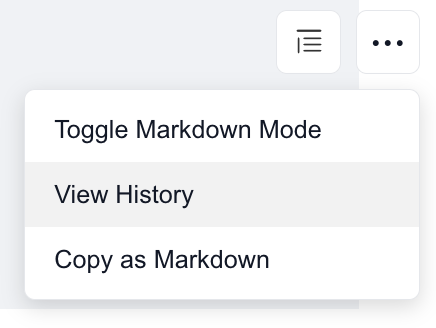
- Open the ... menu in the editor header and choose View History
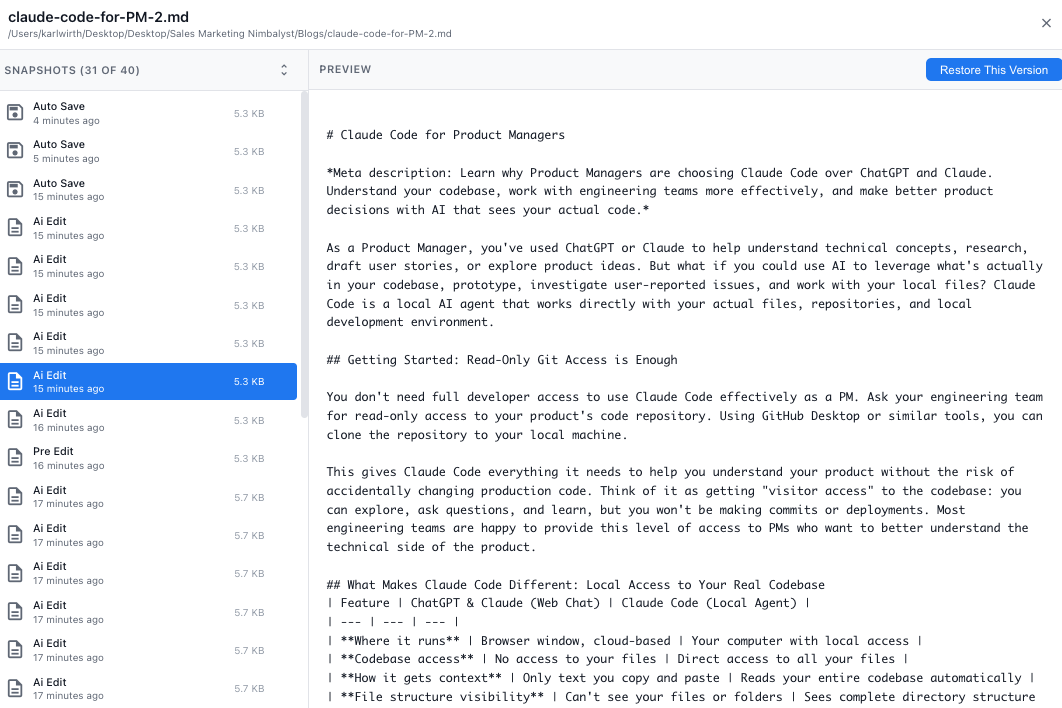
The panel lists every snapshot with a timestamp, a size, and how it was created (Auto Save, AI Edit, Pre Edit). Select a snapshot to preview its full content.
Comparing snapshots
Click a snapshot to see how it differs from the previous one. To compare any two versions, click the first snapshot and then Cmd+click the second.
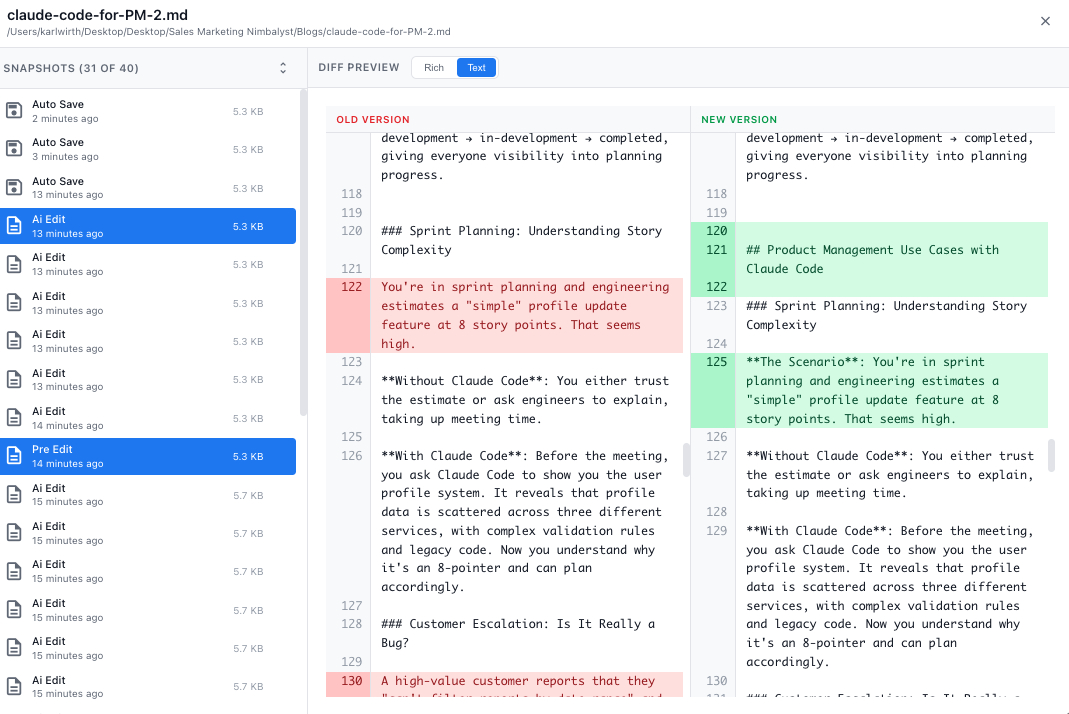
Study the differences, then choose the version you want.
Restoring a version
Select a snapshot and click Restore This Version. Your current version becomes a new snapshot, so history is preserved and you can undo the restoration if needed.
Deleting snapshots
Hover a snapshot in the list and click its delete icon. Nimbalyst asks for confirmation before removing it.
Where snapshots are stored
Snapshots live in the document_history table of Nimbalyst's local database, inside the application data folder:
| Platform | Application data folder |
|---|---|
| macOS | ~/Library/Application Support/Nimbalyst |
| Windows | %APPDATA%\Nimbalyst |
| Linux | ~/.config/Nimbalyst |
Newer installs use SQLite (sqlite-db/nimbalyst.sqlite). Installs that predate the SQLite migration use PGLite (the pglite-db/ folder) until they migrate. Development builds use a @nimbalyst/electron folder in the same location.
That database is backed up every 12 hours by default and on quit, so document history can be recovered after database corruption. You can change the interval under Settings > Application > Database. See Database Backups and Restore.