Linking Tracker Items
Link tracker items to each other with parent, blocks, and duplicate relationships. Links are two-way, so setting one side updates the other.
This page covers structured relationships between tracker items: a module can be the parent of its features, a plan can block another plan, a bug can duplicate another. Links are two-way, so setting one side makes the reverse show up on the other item automatically. For loose mentions of an item inside a document or chat, see Referencing Tracker Items; for connecting items to AI sessions, see Linking Sessions and Tracked Items.
Relationship fields live on the tracker type
Item-to-item links are not switched on for every type by default, which is why they can be hard to find at first. A type gets them when its schema includes one or more relationship fields. Each relationship field sets:
- the relationship it represents (parent of, child of, depends on, blocks, relates to, duplicates, or supersedes),
- the target types it is allowed to link to, and
- whether it holds a single item or many.
The example below is a custom "Feature Module" type whose schema defines three relationship fields: Parent Module (child of), Submodules (parent of), and Features (parent of, pointing at feature items).
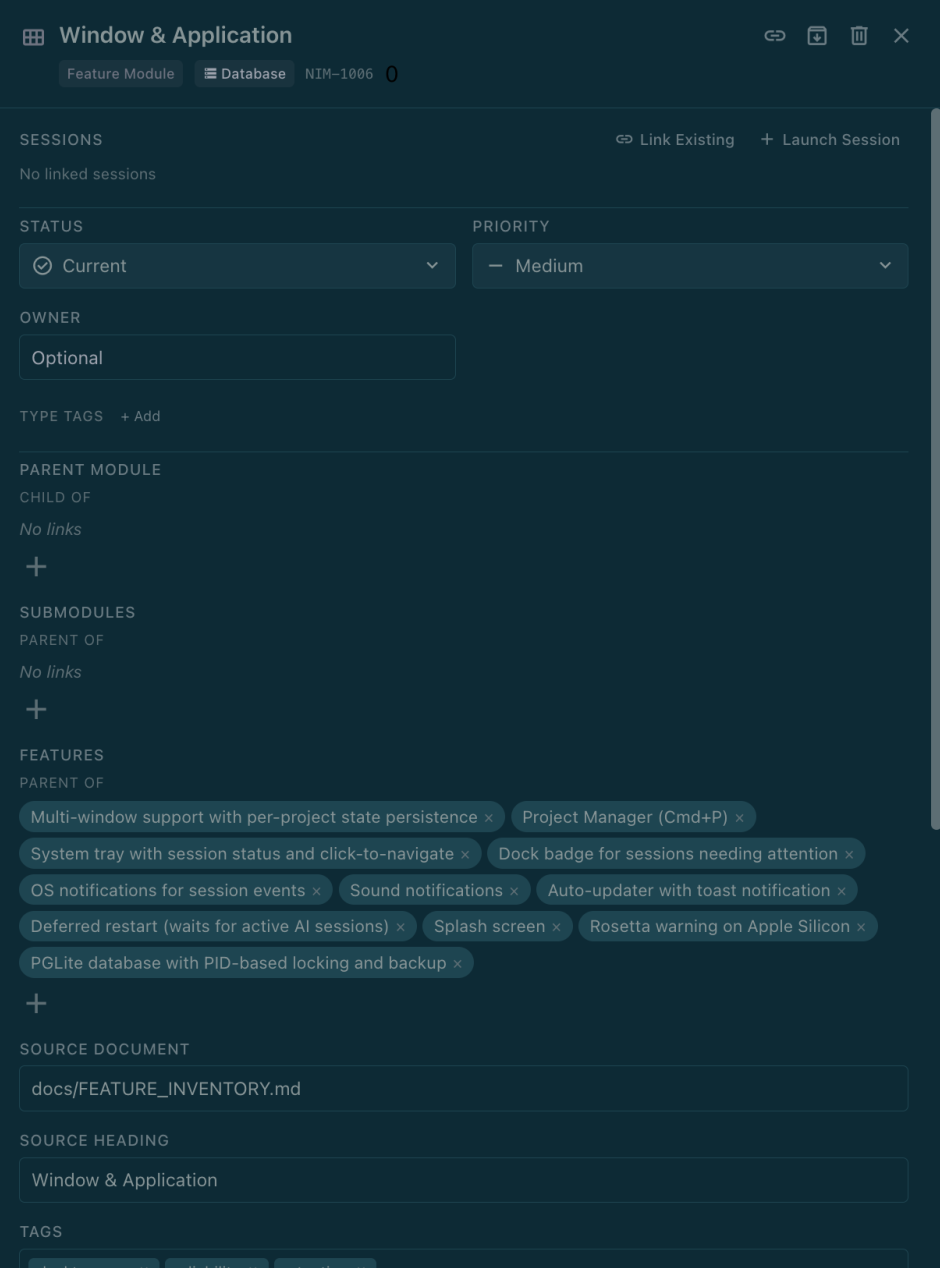
Relationship fields defined on a type: Parent Module (child of), Submodules (parent of), and Features (parent of).
Set up the fields (ask your agent)
The quickest way to add relationship fields is to ask the AI agent in Nimbalyst to edit the type's schema. For a parent/child hierarchy, tell it something like:
"For this tracker type, update the schema to support linked trackers. Make this tracker the parent of this tracker, and that one the child (a parent can have multiple children)."
Once it updates the schema, tell it which items to link to which, or let it work the links out from context. You can also edit the schema by hand under Settings > Project > Trackers (relationship is one of the field types). See Custom Tracker Types.
Link items
With relationship fields on the type, open an item's detail panel. Each relationship field lists the items already linked as pills. Click the + on the field, type in the box to find an item by key or title, and choose it. Remove a link with the × on its pill. A field can be restricted to certain target types, so if an item you expect is missing, it may not be an allowed type for that field.
Two-way "Linked from" backlinks
When a relationship field is paired with an inverse field on the other type, the link stays in sync on both ends. In the Feature Module example, adding an item to Submodules automatically fills that item's Parent Module field, and removing either side clears the other. A field backlinks only when its schema names an inverse field; a one-way field records just the side you set.
Relationship types
These are the relationship keys a field can use, with their natural inverse:
| Relationship | Inverse |
|---|---|
| Parent of | Child of |
| Depends on | Blocks |
| Relates to | Relates to (symmetric) |
| Duplicates | reference (set an inverse to backlink) |
| Supersedes | reference (set an inverse to backlink) |