Code Editor
Nimbalyst includes a Monaco code editor, the same engine VS Code uses, with syntax highlighting and AI edits next to your docs and diagrams.
Nimbalyst includes a full-featured code editor powered by Monaco (the same editor used in VS Code). When you open a code file, it automatically opens in Monaco with syntax highlighting and standard editing features.
Code editing sits next to the rest of the workspace rather than in a separate app. See the developer tools page.
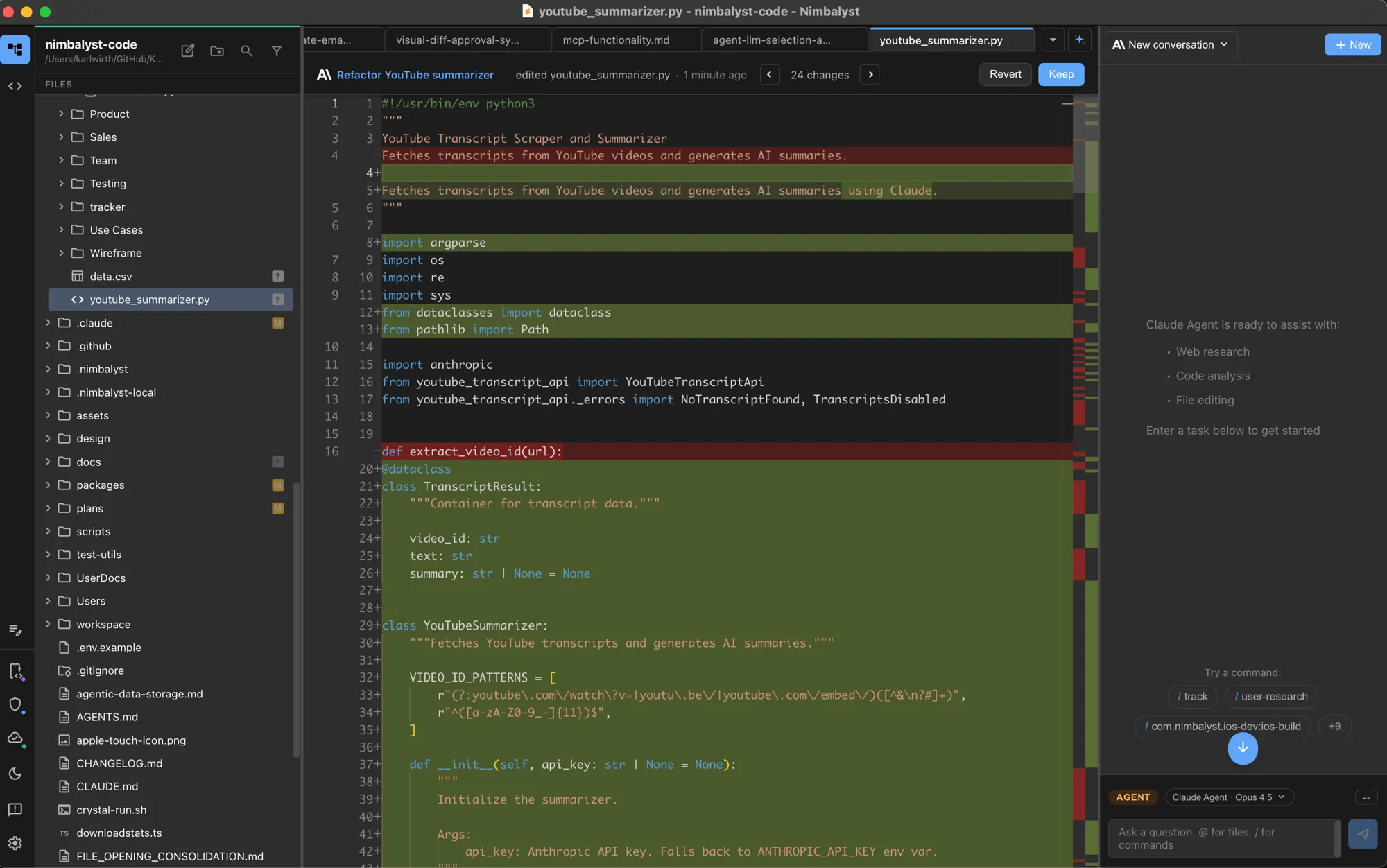
Code uses the same workspace layout as documents and visual editors, so the project and agent conversation stay beside the file.
Reviewing AI Changes
When an agent edits a code file, Nimbalyst opens Monaco's inline diff view. The editor is read-only while the diff is awaiting review:
-
Green background: Added content
-
Red background: Removed content (with strikethrough)
-
Previous and Next jump between changed regions, and the counter shows your position.
-
Accept All keeps the agent's version.
-
Reject All restores the version from before the edit.
-
Go to Session opens the agent session that made the edit when that session is known.
The diff remains visible until you accept or reject it.
Supported File Types
The code editor supports a wide range of programming languages:
Web Development
- JavaScript:
.js,.jsx,.mjs,.cjs - TypeScript:
.ts,.tsx,.d.ts - HTML:
.html,.htm - CSS:
.css,.scss,.sass,.less
Data Formats
- JSON:
.json,.jsonc - YAML:
.yaml,.yml - XML:
.xml - TOML:
.toml
Programming Languages
- Python:
.py,.pyw,.pyi - Go:
.go - Rust:
.rs - C/C++:
.c,.h,.cpp,.cc,.hpp - Java:
.java - C#:
.cs - Swift:
.swift - Kotlin:
.kt - Ruby:
.rb - PHP:
.php - Dart:
.dart
Shell & Config
- Shell scripts:
.sh,.bash,.zsh,.fish - SQL:
.sql - GraphQL:
.graphql - Dockerfile
Other
- Markdown:
.md(raw view mode) - Plain text:
.txt,.log
Editor Features
Syntax Highlighting
Each language gets appropriate color highlighting, making code easy to read and understand.
Line Numbers
Line numbers appear on the left for navigation and reference.
Minimap
A code overview appears on the right side, letting you see the structure of longer files and quickly jump to different sections.
Code Folding
Click the arrows next to code blocks to collapse or expand them. Works with:
- Functions and methods
- Classes
- Conditional blocks
- Loops
- JSON objects and arrays
Bracket Matching
Matching brackets, braces, and parentheses are highlighted in color, making it easy to see paired delimiters.
Editing Code
Autosave
Changes save automatically after 2 seconds of inactivity. A dot in the tab title indicates unsaved changes.
Manual Save
Press Cmd+S (Mac) or Ctrl+S (Windows/Linux) to save immediately.
All common editing shortcuts work:
- Cmd/Ctrl+C: Copy
- Cmd/Ctrl+V: Paste
- Cmd/Ctrl+Z: Undo
- Cmd/Ctrl+Shift+Z: Redo
- Cmd/Ctrl+F: Find
- Cmd/Ctrl+H: Find and replace
Indentation
New files default to two-space indentation. Existing files keep their detected indentation style.
File Watching
The editor detects when files are changed by other programs:
- If you have no unsaved changes, the file reloads automatically
- If you have unsaved changes, Nimbalyst shows a conflict banner so you can load the disk version or keep working with your current version
File History
Code file edits are tracked in your file history:
- Press Cmd+Y (Mac) or Ctrl+Y (Windows/Linux) to open file history
- Restore any previous version of the file
- See when changes were made
Tips
- Hover for full path: Hover over a tab to see the complete file path
- Multiple files: Open code and markdown files side by side in tabs
- Theme support: The editor automatically matches your Nimbalyst theme (light/dark)
- Focus indicator: When you click elsewhere and return, your cursor position is preserved