Multi-Folder Projects
Attach additional folders to a project so one workspace spans several repositories. Attached folders appear in the explorer, in search, and to your agents, with git tracked per repository.
A project can span several folders. When your work lives across a few repositories but belongs to one effort, attach the other folders to the project you already have open instead of juggling separate windows.
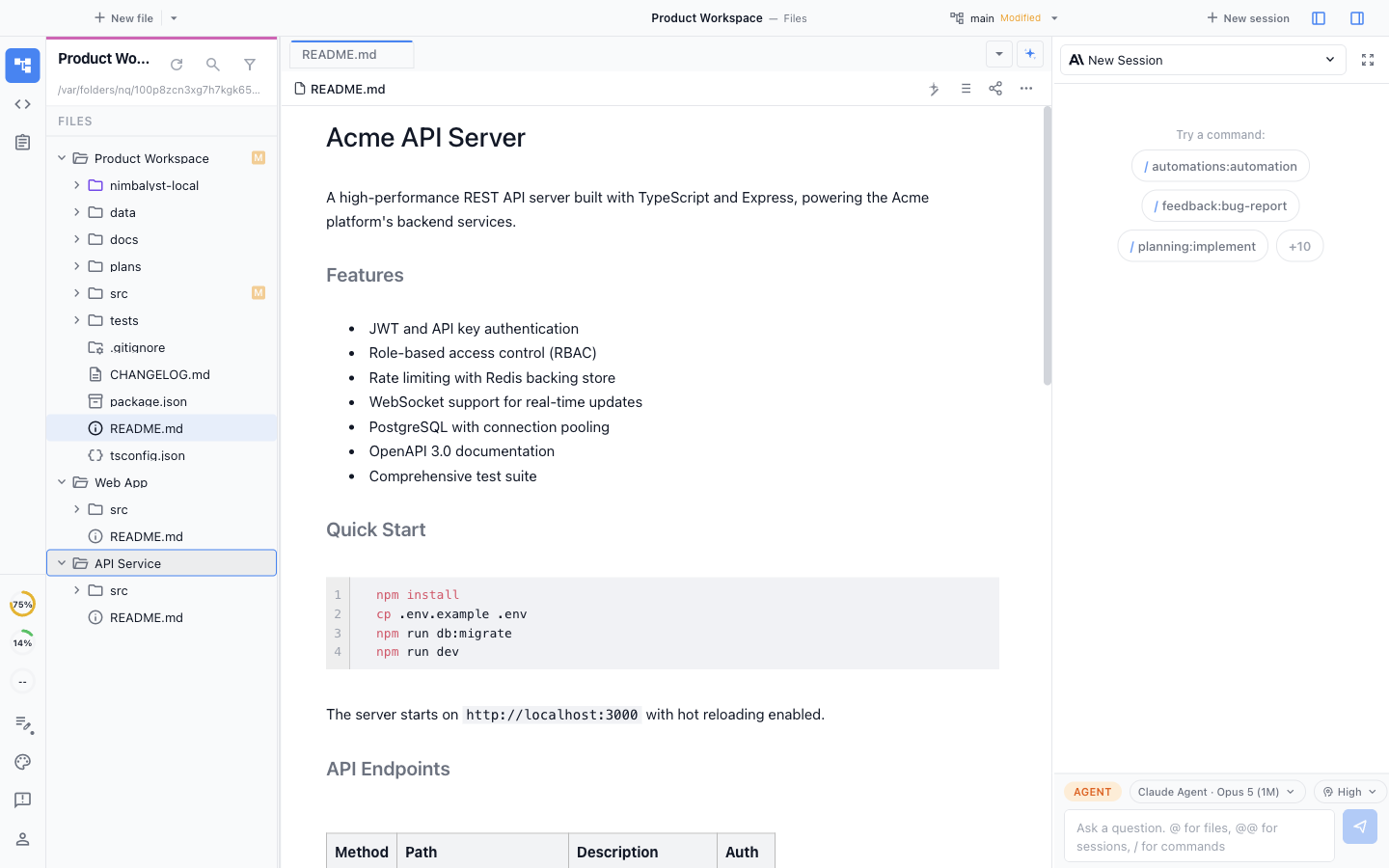
Each attached folder appears as its own root in the same file explorer.
An attached folder becomes part of the workspace:
- It appears in the file tree as its own root, alongside the primary folder
- Quick Open and in-file search cover it
- Your agents can read and write it, in every session in the project
- Git status, branches, and commits are tracked per repository, so each root shows its own branch and changes. Commit with AI proposes one commit per repository when changes span several. See Working with Git
Attaching a Folder
Attach a folder any of these ways:
- File menu: choose Attach Folder to Workspace and pick the folder
- Quick Open: search for the folder and attach it from there
- Explorer: right-click in the file tree and attach from the context menu
- Drag and drop: drop a folder from Finder or File Explorer onto the file tree
Whichever way you start, Nimbalyst confirms before attaching. The attached folder becomes part of this project and inherits its agent trust level, which means agents in the project will be able to read and write it. If that folder deserves different trust than the project it is joining, keep it as its own project instead.
A workspace holds up to eight attached folders in addition to the primary one.
Detaching a Folder
Right-click the attached root in the file tree to detach it. Detaching removes the root from the project but touches nothing on disk, and any tabs you had open from it stay open.
How It Relates to Projects
The primary folder still defines the project: its name, its settings, and the trust level everything runs under. Attached folders ride along. If you open one of the attached folders as its own project later, it behaves like any other project, with no memory of having been attached elsewhere.