File Search, File Tree, and Tabs
Find files fast in Nimbalyst with Quick Open (Cmd+O), the project file tree, and tabs for working across several documents at the same time.
Nimbalyst gives you three ways to move around a project: Quick Open for jumping to anything by name or content, the file tree for browsing, and tabs for keeping several documents open at once. This page covers all three, plus the shortcuts that tie them together.
Quick Open and Search

Click the magnifying glass or press Cmd+O to open the unified Quick Open launcher.
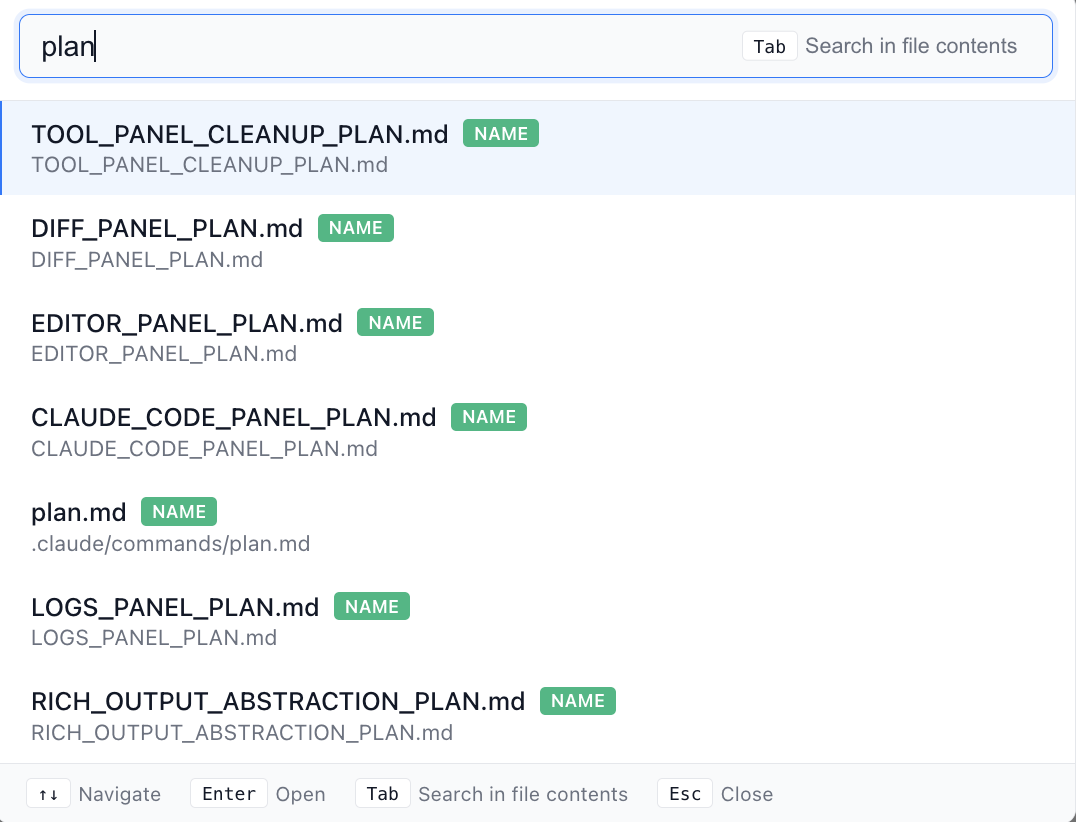
Quick Open brings several pickers together in one tabbed surface:
- Files - find files and folders by name, including dotfiles and images
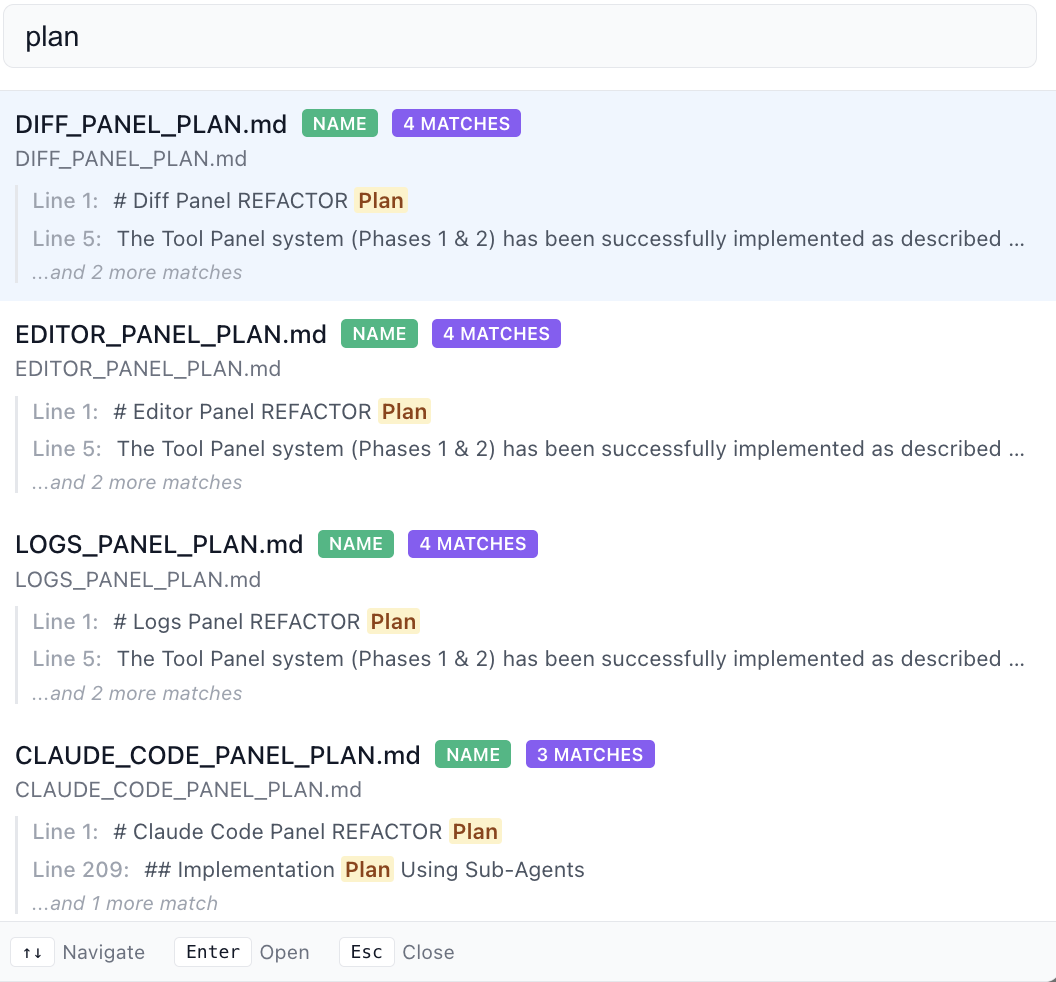
- In Files - search within file contents across the project
- Sessions - jump to AI sessions and workstreams
- Prompts - find prompts
- Projects - switch between open projects
- Trackers - jump directly to tracker items
- Memory - search project knowledge across Docs, Trackers, and optionally Sessions when the Nimbalyst Memory extension is enabled
The Files results can also include team shared documents. Opening one takes you to its collaborative editor. The Files tab can narrow to just your local files or just your team's shared documents, and it remembers the choice for next time.
Use the tab bar to switch modes, and use the inline filters for narrower results. In the Files tab, selecting a folder reveals it in the file tree. Direct shortcuts for some tabs are shown inside the launcher itself.
Search Shortcuts
- Cmd+O — Quick Open for files, folders, shared documents, projects, and Tracker items
- Cmd+L — Session Quick Open
- Cmd+Shift+L — Prompt Quick Open
- Cmd+Shift+F — file-content search
- Cmd+Shift+O — Memory search
- Cmd+Shift+D — team shared-document search
Filename search, file-content search, and Memory search answer different questions:
- Use Files when you know all or part of a file name.
- Use In Files when you know the exact text inside a local file.
- Use Trackers for exact issue-key lookup or structured Tracker search.
- Use Memory for a concept or question that may be described differently across documents, Trackers, and sessions. Memory combines semantic and keyword matching. Project Memory can also index agent instructions and personal memory as separate sources, and can use an optional on-device embedding model configured in project settings.
File Tree
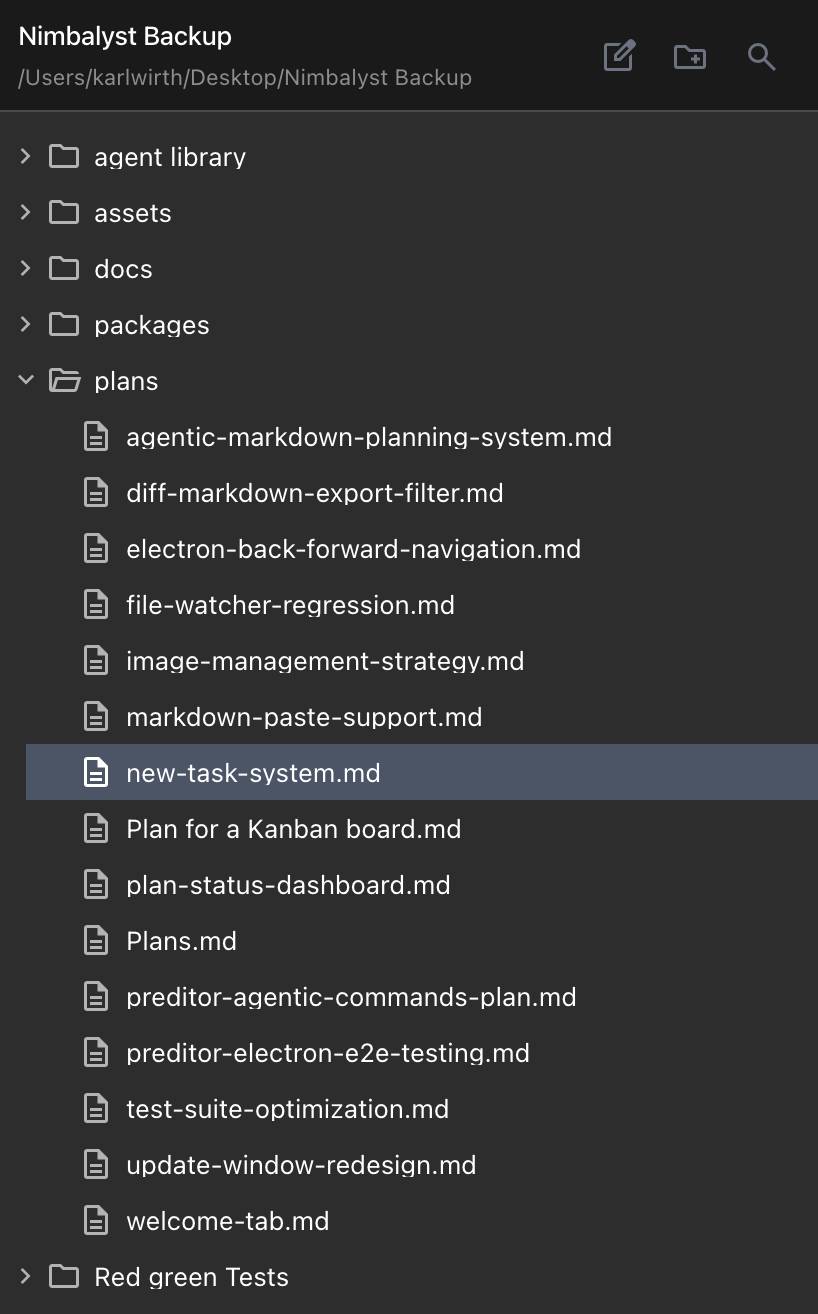
The file tree shows all files in your project. Navigate them by:
- Click folders to expand/collapse
- Click files to open
- Recent files appear at top of sidebar
- Right-click a file to rename, delete, open, copy path, or open in a new window
- Move files by dragging (hold Option/Alt to copy)
- Deleted files, attachments, assets, and themes move to the system trash instead of being permanently deleted
- Show dotfiles in the file tree by selecting the "All Files" filter
- In a team project, right-click a collaboration-supported file and choose Share to Team to promote it into the shared document space. See Collaborative Documents.
Creating from the Title Bar
The title bar carries two create buttons:
- The button on the left makes a new file, shared doc, or tracker item in the list you are looking at. It opens a menu of every type it can create there, so the same button adapts as you move between files, shared documents, and trackers.
- The button on the right starts a new session.
Tab Management
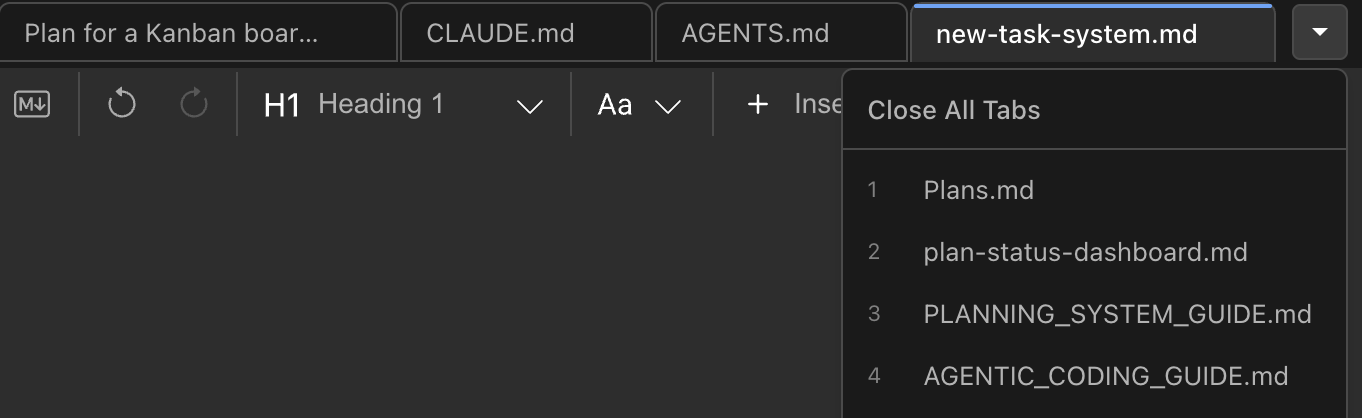
Tabs let you work with multiple documents (or sessions) in one window.
- A dirty indicator (•) shows unsaved changes
- Open tabs are saved when the workspace closes and restored when it reopens
- Pin a tab to the far left by right-clicking it and selecting Pin Tab
- Keyboard shortcuts move you between tabs, and the tab dropdown jumps to any open tab
Paste Options
- Cmd+Shift+V — force-paste as plain text without attachment conversion
Navigation Gutter
- Right-click the navigation gutter and choose Customize Gutter to hide or show mode, extension-panel, and status icons.
- Drag icons into a manual order inside their group.
- Right-click an individual gutter icon to hide it directly.
- Changes apply immediately to every open Nimbalyst window and persist across projects.
- The account and Settings control remains available and cannot be hidden.