Pages, Types, and Fields
How the Nimbalyst Wiki is organized: plain pages, rich editor pages, typed pages, types with fields and tables, the page tree, Search, history, Trash, and importing files.
Everything in the wiki is a page. Some pages are plain documents, some are drawings or other editor files, and some have a type with fields, like rows in a database you can read as prose. This page explains each kind and how to organize them. For an introduction to the wiki itself, see the Nimbalyst Wiki Overview, and for every block and editor a page can use, see Everything a Page Can Hold.
The three kinds of page
| Kind | What it is | Fields in the header |
|---|---|---|
| Page | A plain page. Markdown with marks, diagrams, embeds, and placed views. Every plain page is of the built-in type Page. | Status, owner, summary, tags |
| Typed page | One item of a type you defined, such as one competitor or one module. A prose body plus a few fields. | The type's own fields |
| Type page | The page for a type itself: a short description of the type above a table of every item of that type. | None. The table is the content. |
Plain pages
Every plain page has four fields, edited from the row under its title:
- Status: draft, current, or outdated.
- Owner: the person who keeps it current.
- Summary: one line, up to 280 characters.
- Tags: free-form labels.
These fields show as columns and filters in Search, so you can find every outdated page or every page one person owns.
Rich pages
A page can also be a whole editor file. Pages support markdown, Excalidraw drawings, mind maps, data models, mockups, interactive HTML pages, canvases, CSV and spreadsheets, and other shareable editor types. Team pages can also hold code files. A drawing or mockup page opens in its own editor, and agents can edit it with that editor's tools without the page being open.
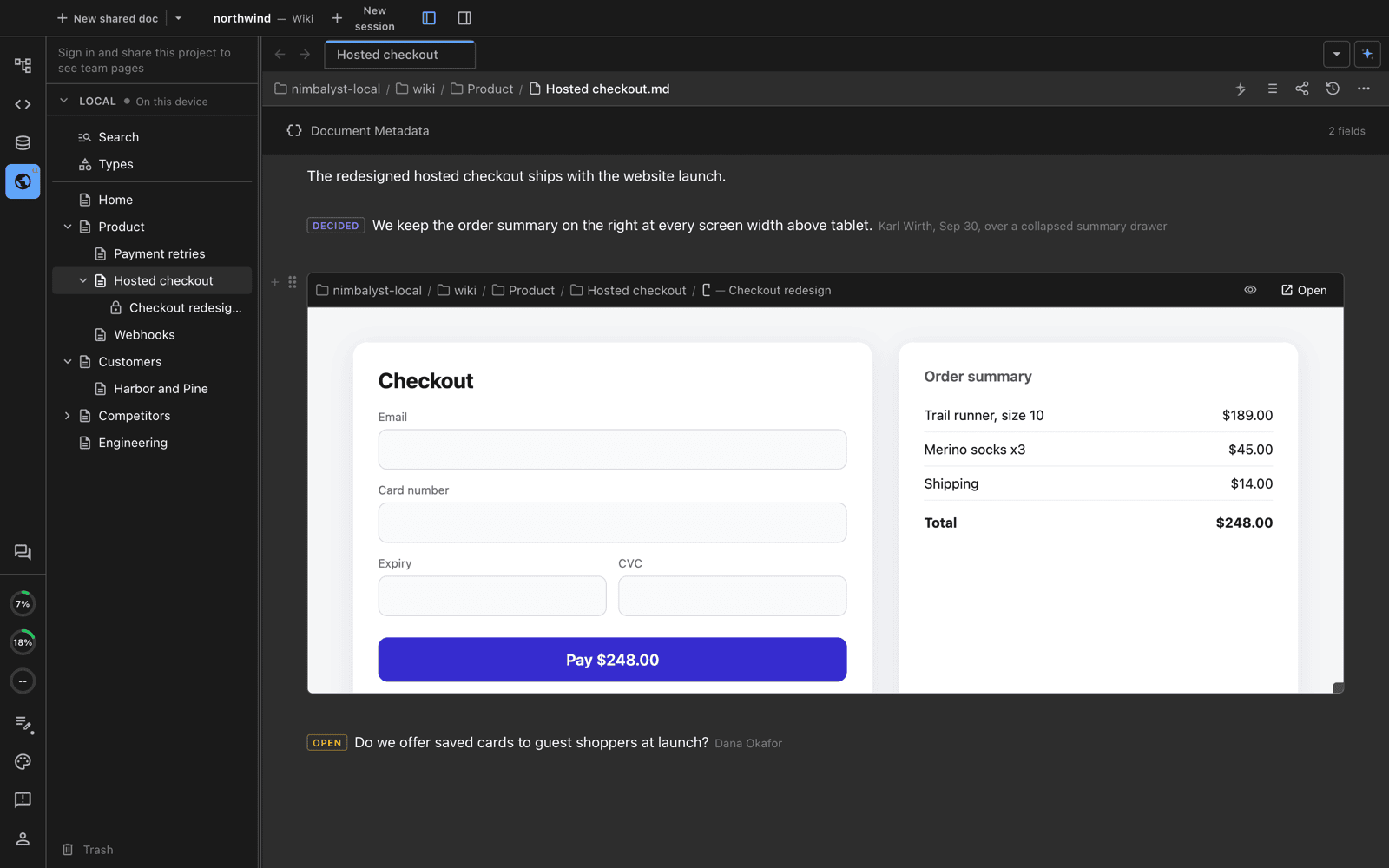
A mockup embedded in a page, between the decision it supports and the question still open.
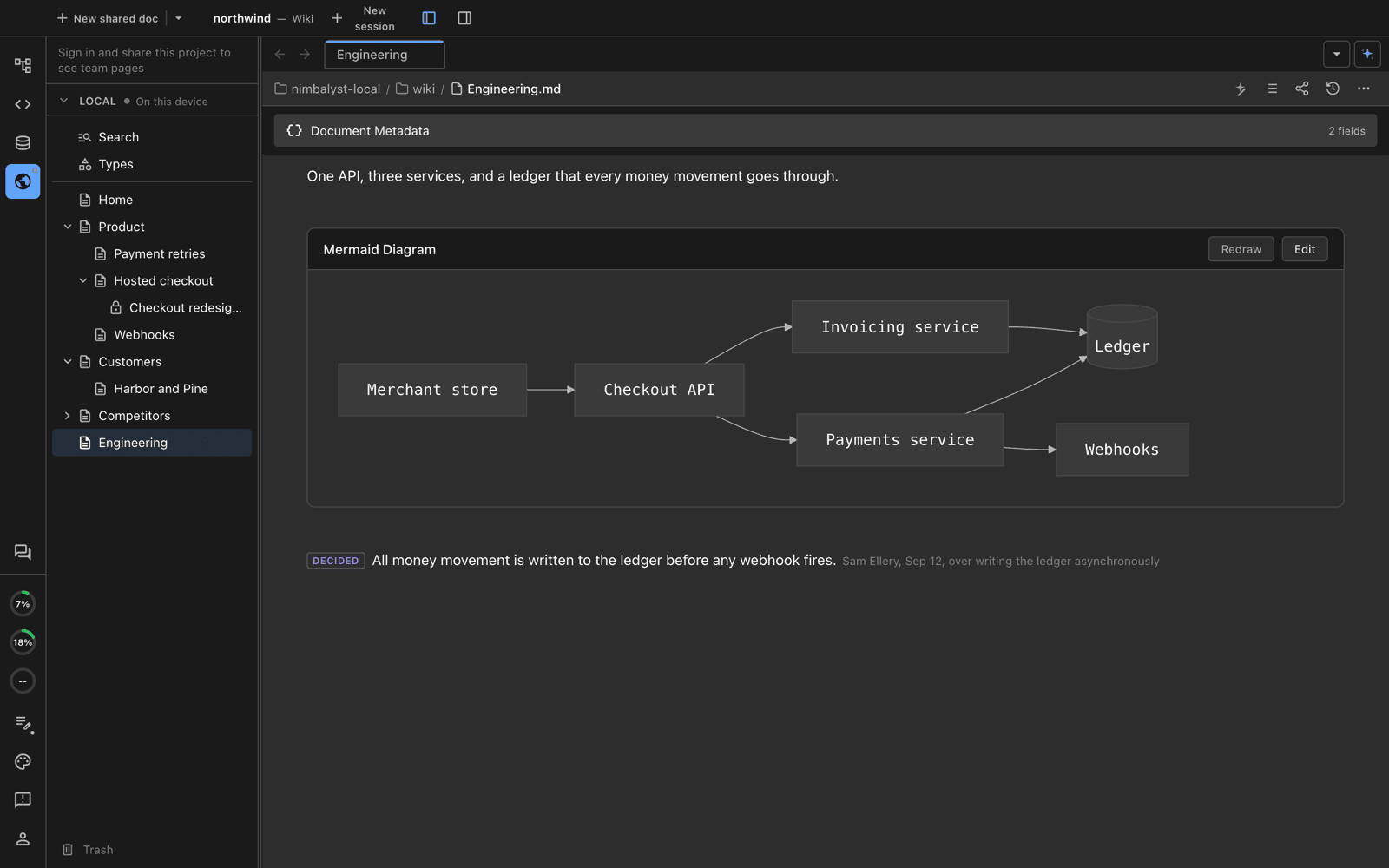
An architecture diagram with the decision it rests on.
Interactive HTML pages
An HTML page is a page written as one HTML file that readers click through: a map of your product or architecture whose boxes open each area's page, an interactive explainer, or a timeline. Use a mockup instead for a single screen, and a drawing for a sketch people will rearrange.
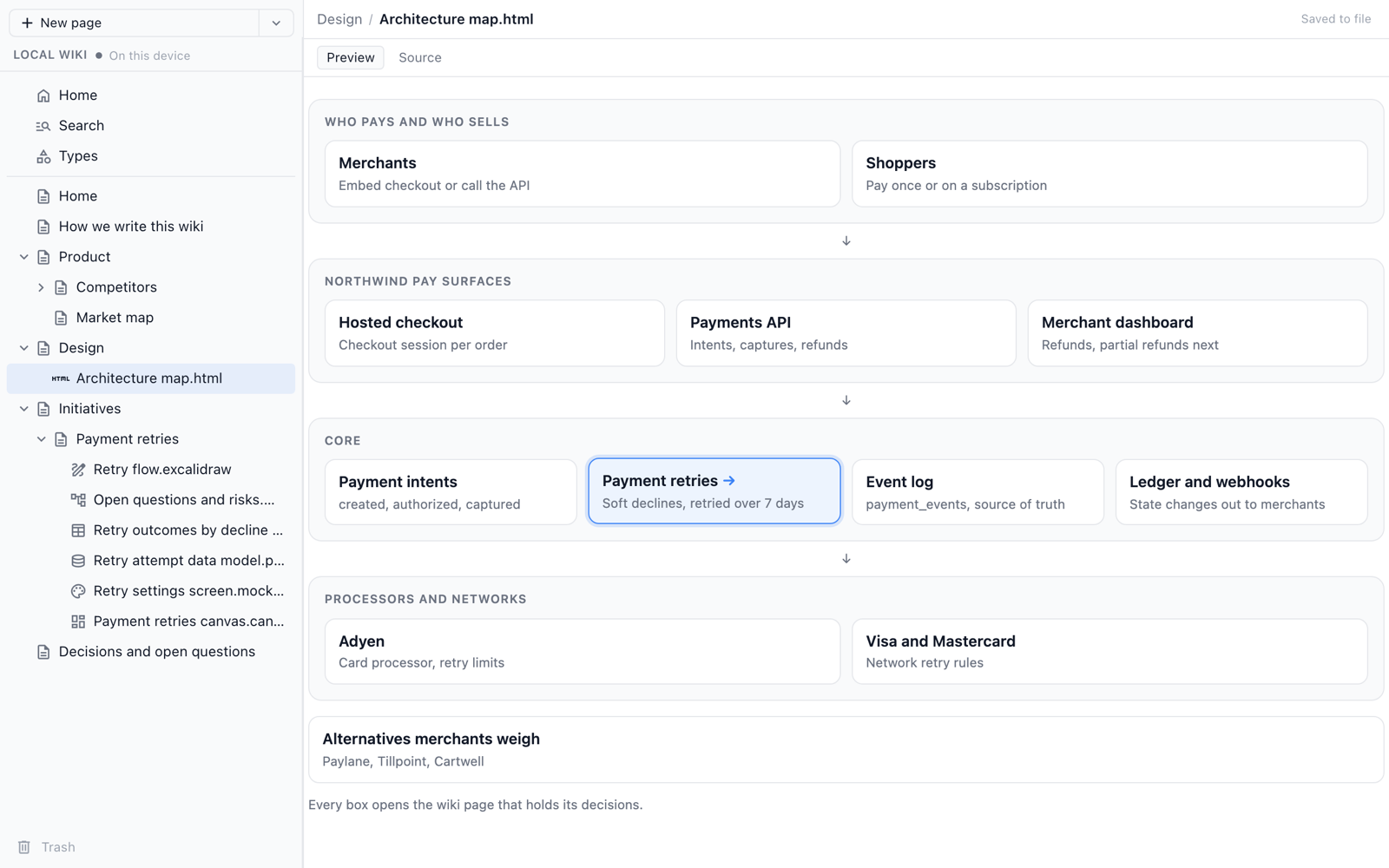
An architecture map as an HTML page in the local browser view. Each box opens the wiki page for that part.
- Links open wiki pages. An ordinary link inside the page opens its target in the wiki. A relative path such as
Product/Payments.mdopens that page, resolved from the HTML page's own place in the tree. A tracker link such asnimbalyst://NIM-123opens that item. In the app and the team web console, a link to a page in the web console opens that page. Other web links open in a new browser tab. - It runs in a sandbox. The page can't reach the app, its storage, or your sign-in. Scripts, styles, fonts, and images can load over https, so a charting library from a CDN works, but the page can't fetch data, so the data it shows lives in the file.
- It follows your theme. The page can use the app's color variables, such as
--nim-bg,--nim-text,--nim-border, and--nim-primary, so it matches light and dark mode. - Embedded, it works in place. A link to the HTML page alone on its own line in another page shows it there live. Readers click and scroll inside it without selecting it first, and it grows to fit its content unless the link sets a height.
Ask your agent for one. For example: "Make an HTML page under Product that maps the product, one box per area grouped by layer, with each box linking to that area's page. Embed it at the top of the Product page." The Nimbalyst Wiki skills tell the agent the format, how to link boxes to pages, and how to embed the result.
HTML pages render in the browser and the app for both local and team wikis, with these differences:
| Local wiki | Team wiki | |
|---|---|---|
| Browser | The local browser view (nim wiki serve, or "open the wiki in my browser"): opens on its own with a preview and a source view, and embedded in pages | The web console at console.nimbalyst.com: opens on its own with a preview and a source view, and embedded in pages |
| Nimbalyst app | Embedded in a page | Opens on its own with a preview and a source view, and embedded in pages |
| Who can create one | Any agent with the plugin or nim mcp, by writing the .html file, or New page in the browser view | Agents in the Nimbalyst app, or with the Nimbalyst Wiki plugin in Claude Code or Codex |
In the local browser view, a link to console.nimbalyst.com opens in a new tab instead of a local page, so link to local pages with relative paths. Relative links also keep working after you move the local wiki to your team.
Types: typed databases inside your wiki
A type is something you keep several of and want to compare in a table: competitors, customers, modules, technologies, people. There is no fixed list. You and your agents define the types your project needs.
Each type has:
- A name in singular and plural, such as Competitor and Competitors.
- A small set of fields. Field kinds include select (with options), text, number, yes/no, person, date, and a relation to another type.
- An optional parent type. A subtype such as Library can extend Technology, inheriting its fields; its items show in the parent's table and nest inside it in the tree.
Each item of a type is a typed page. Single-valued fields appear in the page header; add an empty field from the + menu next to them. Fields that hold several values show only in tables. The body is ordinary prose with the same marks, links, and embeds as any page.
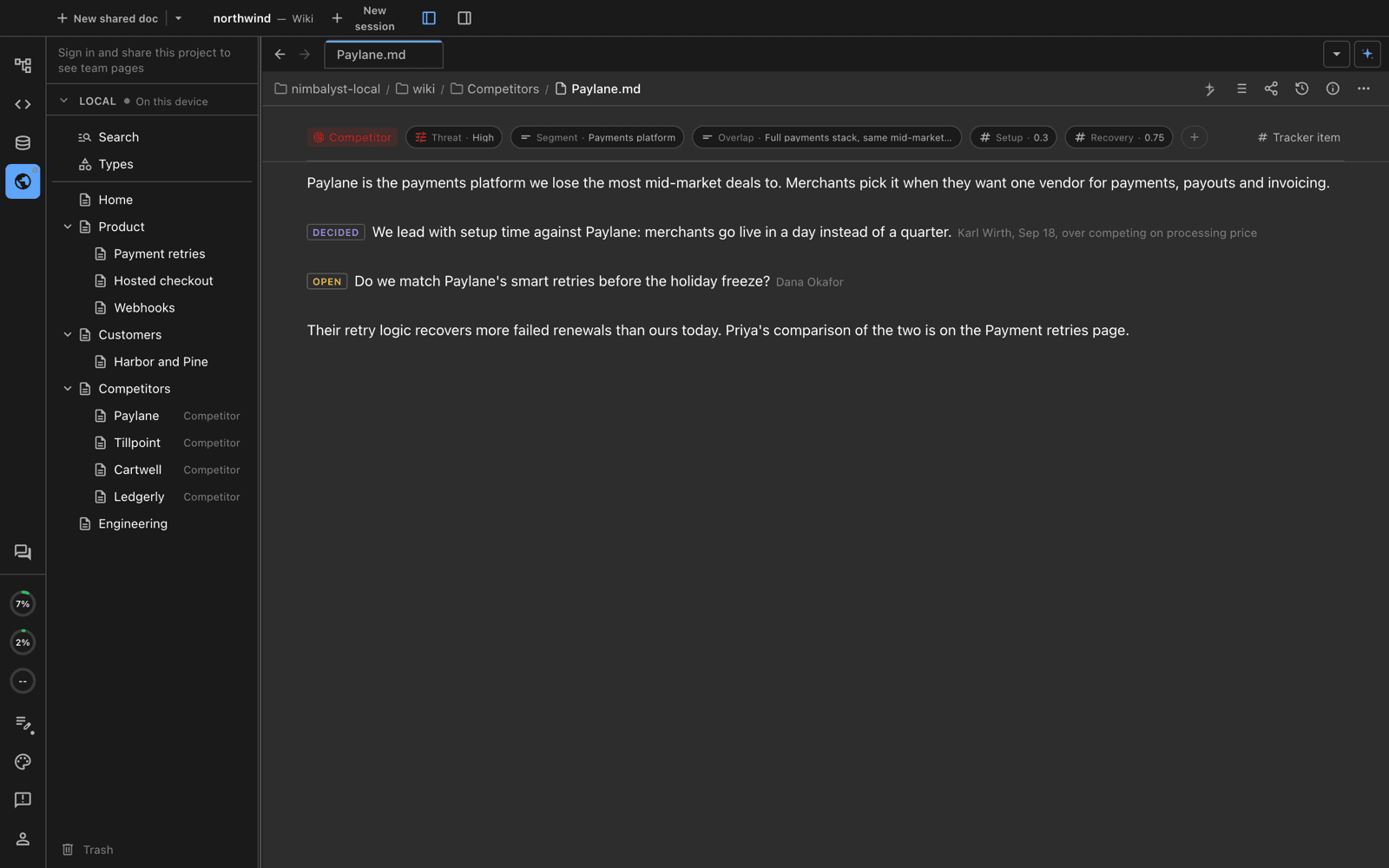
A typed page: the type and its fields in the header, ordinary prose with marks below. In the tree, each item shows its type.
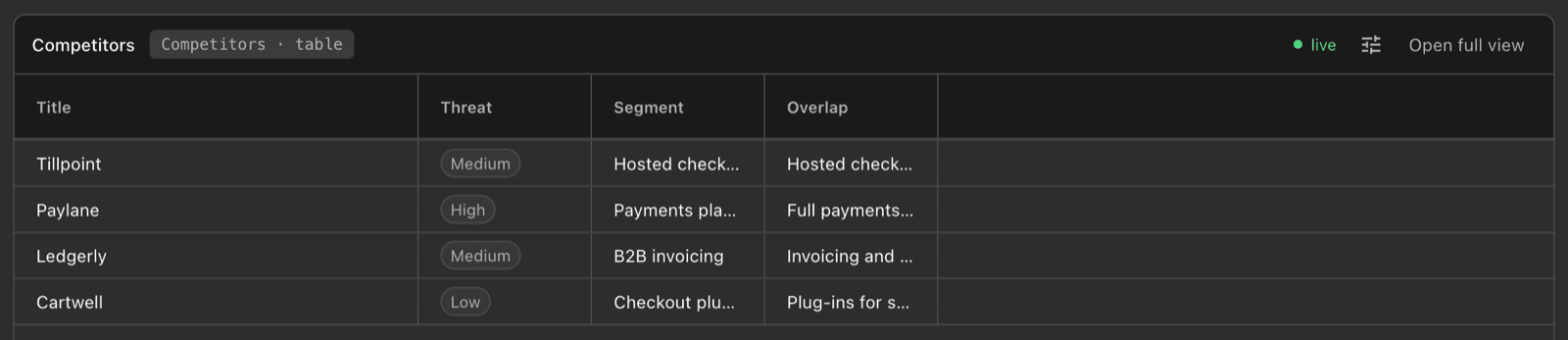
A type placed in a page as a live table. Editing a cell edits that competitor's page.
Click an item's title in a type's table to open its page. In a Local wiki, a type kept as a table (one CSV file) has rows with fields only; convert it to pages to give each item a body and child pages. See Convert a table type to pages.
Create a type
- Ask your agent. "Track our competitors in a table so I can compare them" is enough. The agent defines a type with a title and two to four fields, places it in the tree, and can create the first items.
- Do it yourself. Open Types at the top of the section and click New type..., or choose Set Type... on a page and create a new type from there. No agent needed.
Team types are shared with everyone in the team project. Local types are defined in .nimbalyst/trackers/<type>.yaml in your project, and each typed page is a markdown file with its fields in the frontmatter; see Local Wiki Files and Location.
See all your types
Types at the top of each section shows every type. Map draws the types and the relations between them; pan, zoom, and click a type to open it. Table lists the same types with their fields. Filters show types with no pages yet and relations nobody uses.
In a project shared with a team, the Local section's Table shows Share with team on each personal type. It hands the type and its items to the team after you confirm, and can't be undone. See Team trackers.
Turn a page into a typed page
Choose Set Type... from a plain page's menu and pick a type. The page keeps its place in the tree, its body, and its child pages, and gains the type's fields. Typed pages are archived rather than trashed.
Organize the tree
- Pages nest inside pages. A page with an empty body works as a folder. Drag to reorder siblings or move a page under another. In the Local section, a page's children are files in a folder with the page's name.
- Place a type in the tree. A type appears once in the tree, wherever you put it. Its items sit under it until you move one under any page. Remove from Tree hides the placement without deleting anything, and Back Under Its Type returns an item that was moved elsewhere.
- New page. Right-click empty tree space or a section heading and choose New page, or choose New Page Inside on any page.
- Navigate like a wiki. A click opens a page in the current tab; Cmd+click (Ctrl+click on Windows) opens a new tab. Each tab has Back and Forward: Cmd+[ and Cmd+], a two-finger trackpad swipe, mouse side buttons, or the arrows at the start of the tab strip.
The page menu
The ⋯ menu on a page header or tree row offers Rename..., Move to..., New Page Inside, Favorite (your stars are private to you), Move to Trash, Copy as Markdown, Export to PDF..., Add from Files..., Set Type..., and Move to Team... or Move to Personal...
Search
Search is one filterable table of the section's pages and typed pages. It matches titles and the text inside pages, and filters by type, tags, author, last updated, and a type's own fields. Active filters and tags show as pills inside the search box.
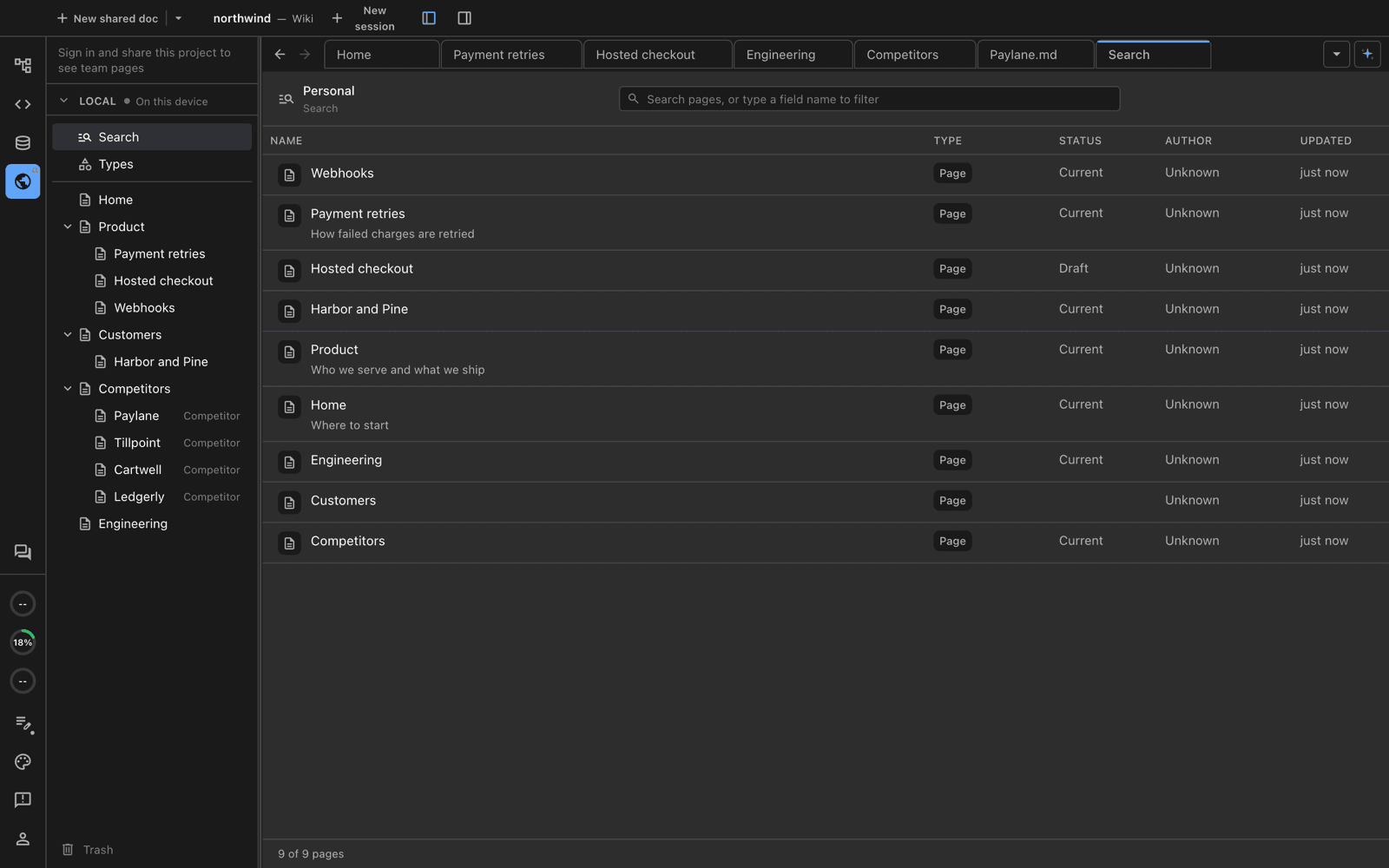
Search lists every page with its type, status, and summary.
History and Trash
Every page body has history, including typed pages and type descriptions. Open it from the history icon in the page header to compare any two versions in red and green and restore one. Agent edits to Team pages save a version before they change anything. Local pages are files, so they also have Nimbalyst's local file history, and git history if you check the wiki in.
Trash at the bottom of each section restores a page together with the pages under it. Team Trash is emptied after 30 days.
Bring in existing files
- Copy to Wiki... on a file in the Files tree, a tab, or the editor menu copies the file into the wiki as a page of its type.
- Add from Files... in the Wiki's New menu, or in a page's ⋯ menu to land inside that page, does the same from the Wiki.
- Your agent can import files for you.
Team copies keep a link back to the local file. See Collaborative Documents to share a whole folder.
Local and Team pages
A plain page and the plain pages under it can move between sections with Move to Team..., or Move to Personal... on a Team page to bring it into the Local section. Every body is copied and checked before the original goes to Trash. Typed pages, types, editor pages, and pages that hold typed pages can't move between sections yet.
Local pages are markdown files in your project, so you can open, copy, and commit them like any other file. Copy as Markdown and Export to PDF... work on any page. See Local Wiki Files and Location.