Custom Tracker Types
Define your own tracker types in Nimbalyst with YAML config files or from Settings. Custom types get the same board, detail view, and AI integration.
Beyond the seven built-in types, you can define your own tracker types: customer feedback, interview questions, content briefs, or whatever else your project tracks. Custom types get the same kanban board, detail view, and AI integration as built-in types. Define them as YAML files, or edit them visually from Settings.
Where to Define Custom Types
Create YAML files in your project's .nimbalyst/trackers/ directory. Each file defines one custom tracker type. Nimbalyst loads these definitions when the workspace opens.
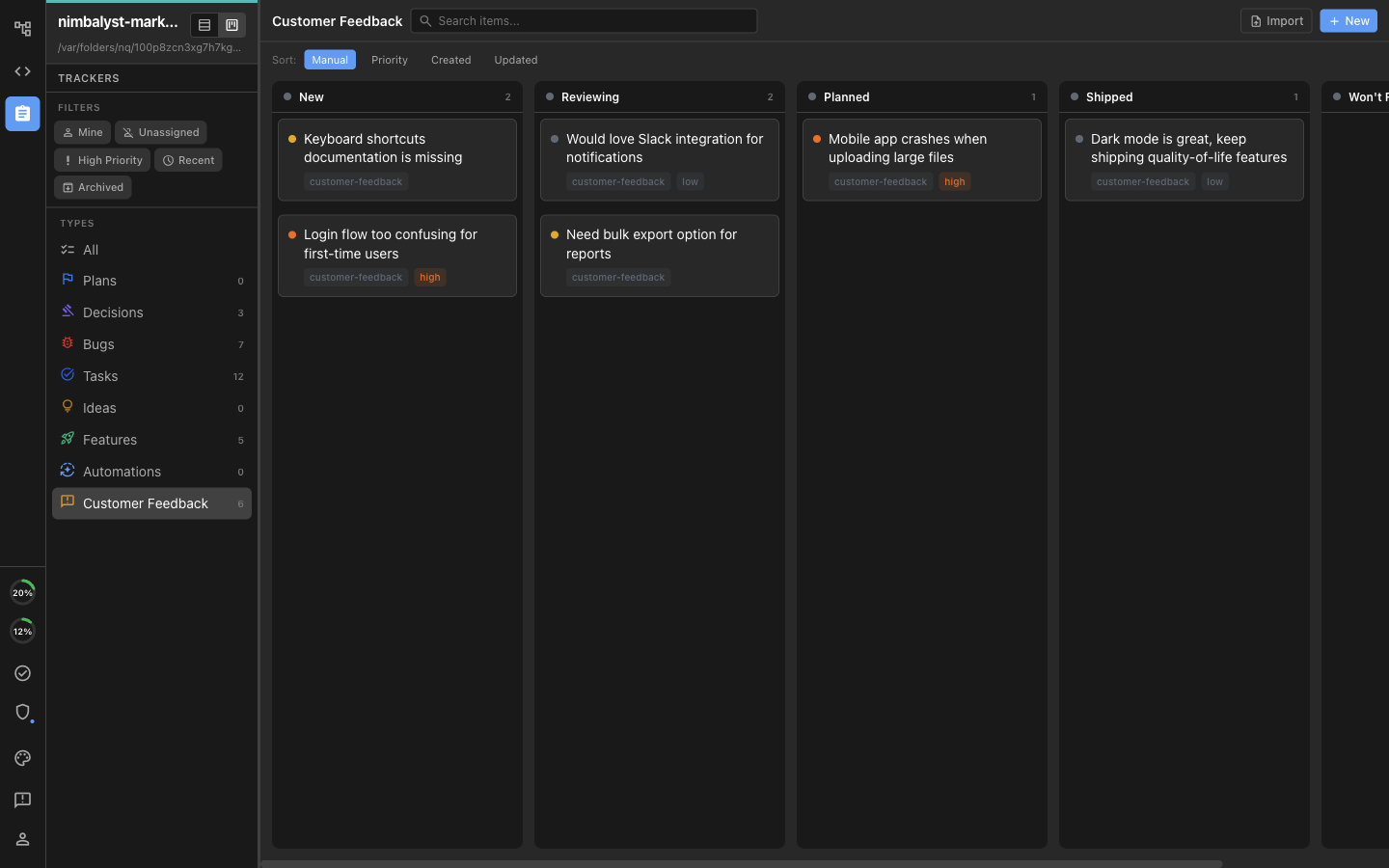
A custom Customer Feedback type on the board, with its own status columns and its own entry in the type list.
Example: Customer Feedback
# .nimbalyst/trackers/customer-feedback.yaml
type: customer-feedback
displayName: Customer Feedback
displayNamePlural: Customer Feedback
icon: feedback
color: "#f59e0b"

modes:
  inline: true
  fullDocument: false

idPrefix: fb
idFormat: ulid

fields:
  - name: title
    type: string
    required: true
  - name: status
    type: select
    default: new
    options:
      - value: new
        label: New
        icon: fiber_new
      - value: reviewing
        label: Reviewing
        icon: psychology
      - value: planned
        label: Planned
        icon: event
      - value: shipped
        label: Shipped
        icon: rocket_launch
      - value: wont-fix
        label: Won't Fix
        icon: block
  - name: source
    type: select
    options:
      - value: support
        label: Support Ticket
      - value: interview
        label: User Interview
      - value: survey
        label: Survey
      - value: social
        label: Social Media
  - name: customerName
    type: string
  - name: priority
    type: select
    options:
      - value: low
        label: Low
      - value: medium
        label: Medium
      - value: high
        label: High
      - value: critical
        label: Critical

roles:
  title: title
  workflowStatus: status
  priority: priority
Field Types Reference
| Type | Description | Options |
|---|---|---|
string | Single-line text | minLength, maxLength |
text | Multi-line text | -- |
number | Numeric value | min, max |
select | Single choice from options | options array with value, label, icon, color |
multiselect | Multiple choices | Same as select |
date | Calendar date | -- |
datetime | Date and time | -- |
boolean | True/false toggle | -- |
user | Person reference | -- |
array | List of values | itemType |
relationship | Link to other tracker items | relationshipTypeKey, targetTrackerTypes, multiValue, inverseFieldId |
url | Web address with an optional display label | -- |
object | Structured value with nested fields | schema |
For how relationship fields behave once defined, see Linking Tracker Items.
Field Properties
| Property | Description |
|---|---|
name | Field identifier (used in code and YAML) |
type | One of the types listed above |
required | Must have a value when creating |
default | Initial value for new items |
displayInline | Show in compact inline view (default: true) |
readOnly | Cannot be edited by users |
Roles
Roles map your custom fields to standard tracker behaviors:
| Role | Purpose |
|---|---|
title | Which field is the item's display title |
workflowStatus | Which field drives kanban columns |
priority | Which field is the priority level |
assignee | Which field is the item owner |
tags | Which field contains categorization tags |
progress | Which field tracks completion percentage |
dueDate | Which field is the deadline |
startDate | Which field is the start date |
reporter | Which field records who reported the item |
externalKey | Which field shows an external issue or pull-request identity |
prMergedStatus | Status value to apply when a linked pull request merges |
Schema Properties
| Property | Description | Default |
|---|---|---|
type | Unique identifier for this type | Required |
displayName | Singular display name | Required |
displayNamePlural | Plural display name | Required |
icon | Material Design icon name | Required |
color | Hex color for the icon | Required |
modes.inline | Show as inline markers in markdown | true |
modes.fullDocument | Can be a full markdown document | false |
idPrefix | 2-3 character prefix for IDs | Required |
idFormat | ID generation: ulid, uuid, or sequential | ulid |
creatable | Can users create items of this type | true |
primaryCapable | Can this type be an item's primary type | true |
supportsTags | Automatically provide the standard tags field and role | true |
sharing | Ownership of the tracker schema and items: personal or team | personal |
draftByDefault | In a team tracker, create new items as private drafts | false |
Editing a Type from Settings
You do not have to hand-write YAML. Open Settings > Project > Trackers, select a type, and choose Customize.
For a built-in or custom type, you can:
- Change the singular and plural labels, icon, and color.
- Add, rename, reorder, or remove workflow statuses.
- Give each status its own label, icon, and color.
- Add fields and configure their type, default value, and other properties.
- Assign field roles such as title, workflow status, priority, owner, tags, progress, and dates.
The preview shows how the type and its workflow will appear before you save. Changing a built-in type creates a project-level override; it does not modify Nimbalyst's built-in default for other projects.
Built-in types you have changed show Reset to default. Resetting removes the project's override and restores the current Nimbalyst definition, including its original fields and statuses.
When Files and Settings Drift
Nimbalyst keeps a local copy of each type's schema in step with the YAML files in .nimbalyst/trackers. If the two diverge, for example after pulling a teammate's changes in git, a Schema files are out of sync warning appears and names the types that differ. Click Resync from files to bring the app back in line with the YAML on disk.
Organize Tracker Types into Folders
Tracker type folders keep a long list of workflows manageable without changing the type itself.
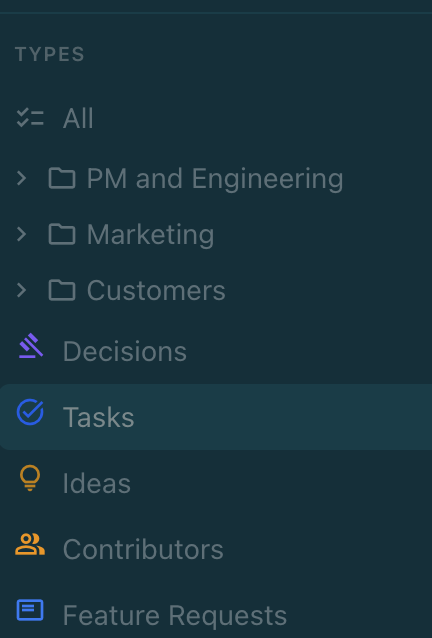
Group related Tracker types into folders and keep the most important workflows in a deliberate order.
Create folders from the Tracker type navigation, move types into or out of a folder, and drag folders or types into a manual order. Choose All to view items across every folder.
Folders organize the navigation only. Moving a type does not change its fields, workflow, issue keys, or existing items.
In a Nimbalyst Team project, the folder structure and manual order synchronize so teammates see the same organization.