Nimbalyst Teams: Step by Step
A step-by-step walkthrough of Nimbalyst Teams: sign in, invite your team, and work together in shared trackers and documents with your coding agents.
This tutorial takes you, in seven steps, from a solo workspace to a team working in the same trackers, the same documents, and the same files as their coding agents. Every screen below is the product as it ships.
Watch the whole walkthrough in under three minutes, or read the steps below.
Step 1. Sign in to Nimbalyst
Open the user menu at the bottom of the left rail and choose Sign in.
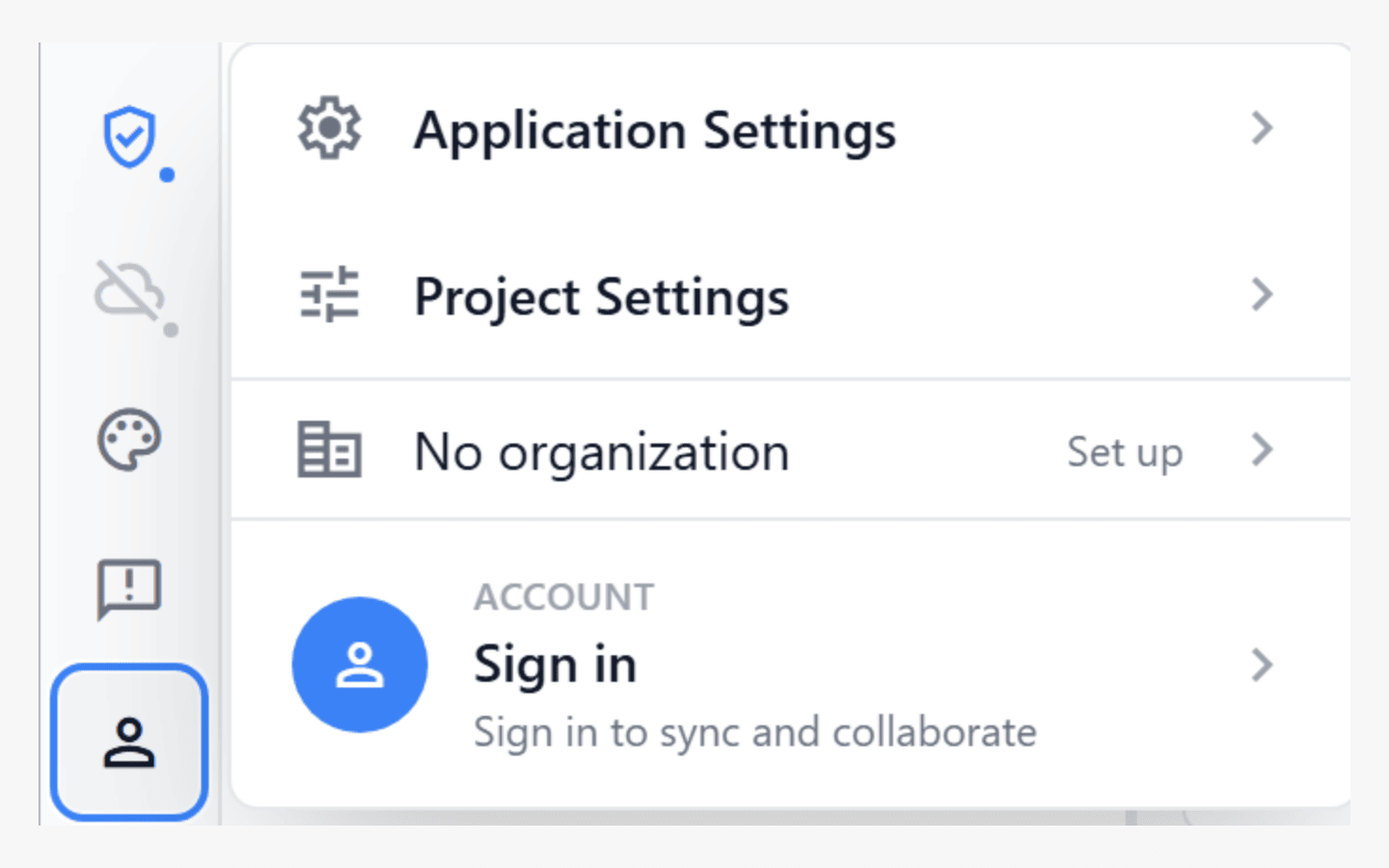
The user menu at the bottom of the left rail.
Sign in with Google or with a magic link sent to your email address. Signing in is what connects this copy of Nimbalyst to a team.
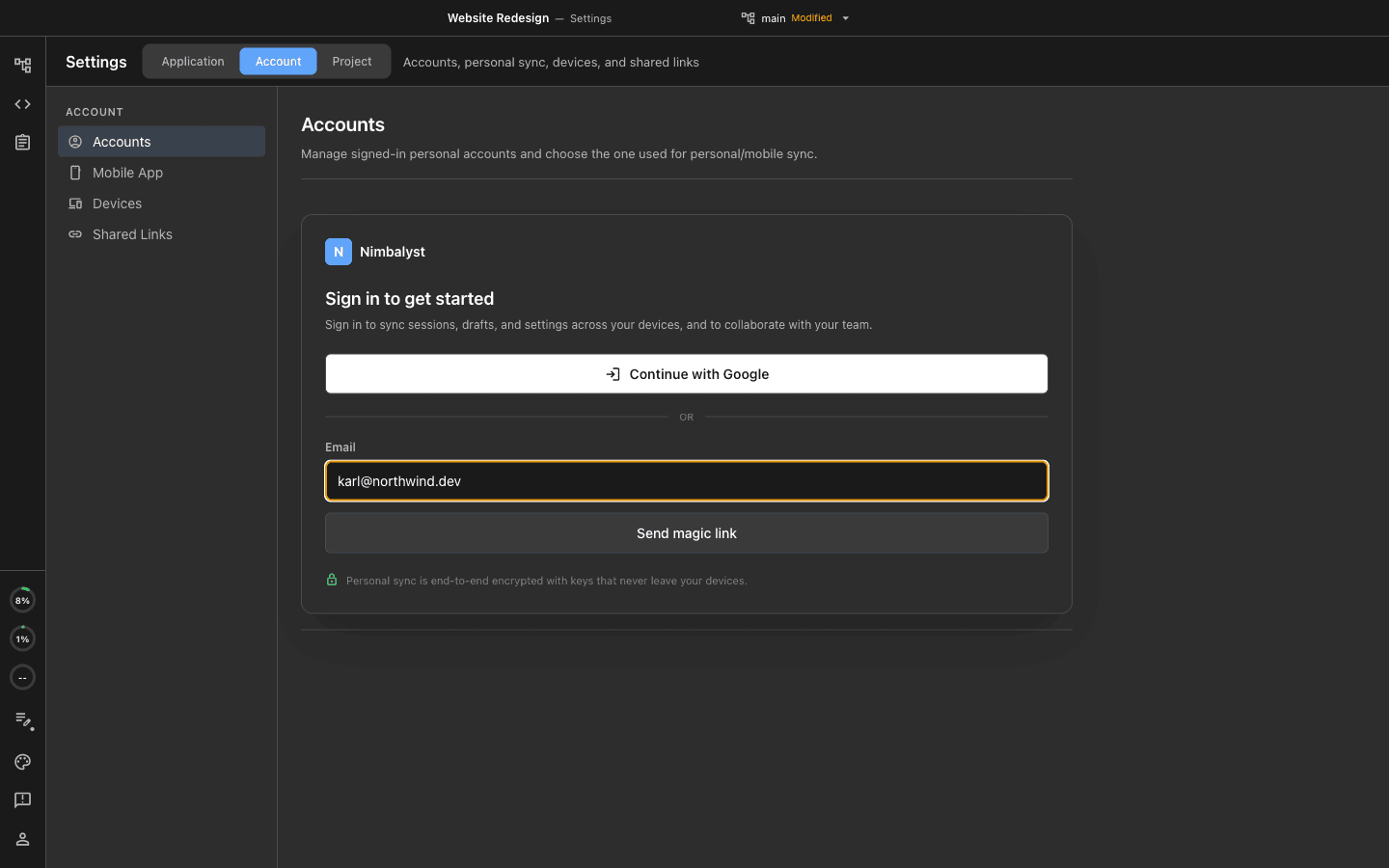
Sign in from Settings, under Account.
Step 2. Create your organization
From that same menu, choose Set up next to No organization.
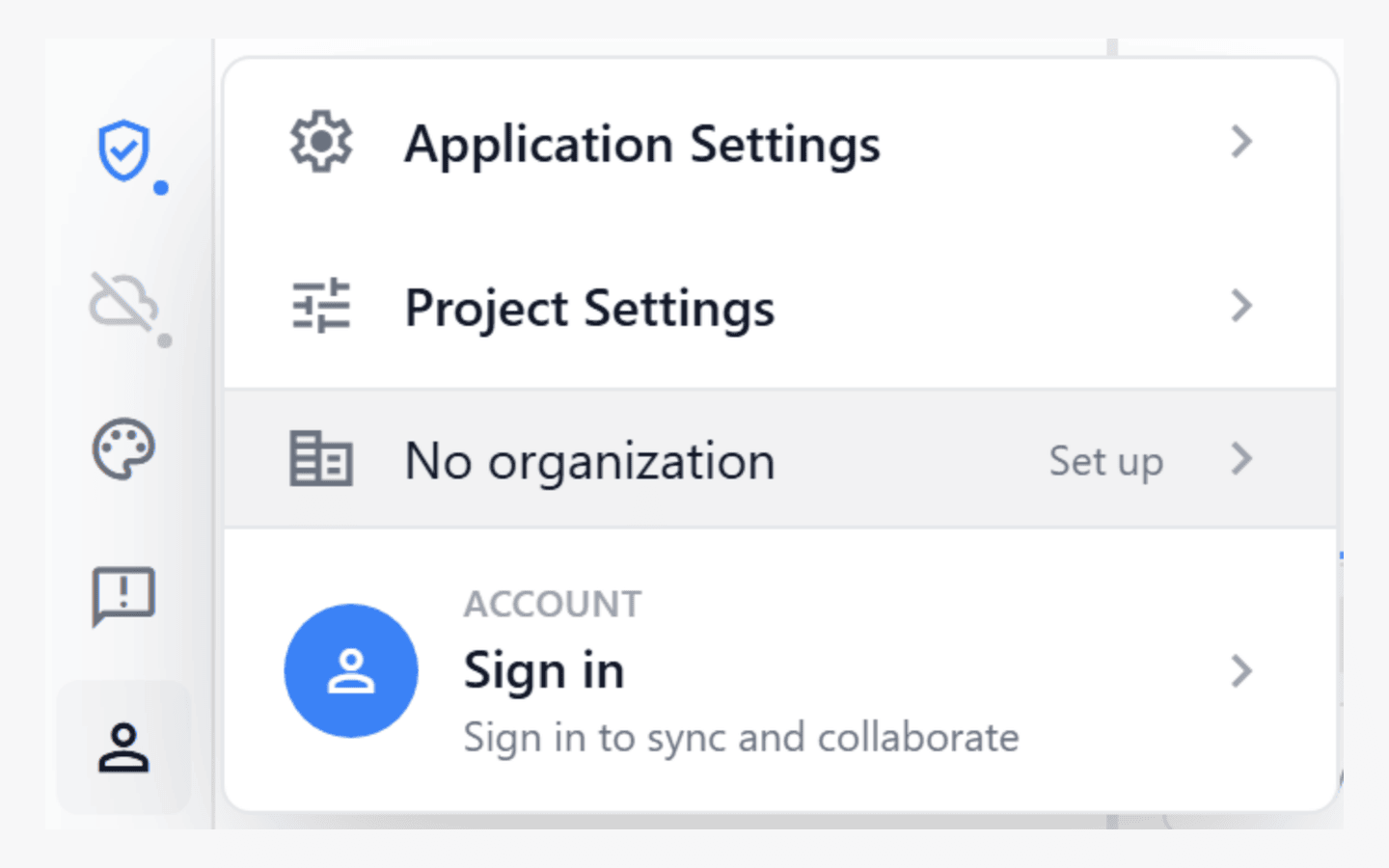
Set up an organization from the user menu.
Name your organization. Everyone you invite sees this name, and you can change it later.
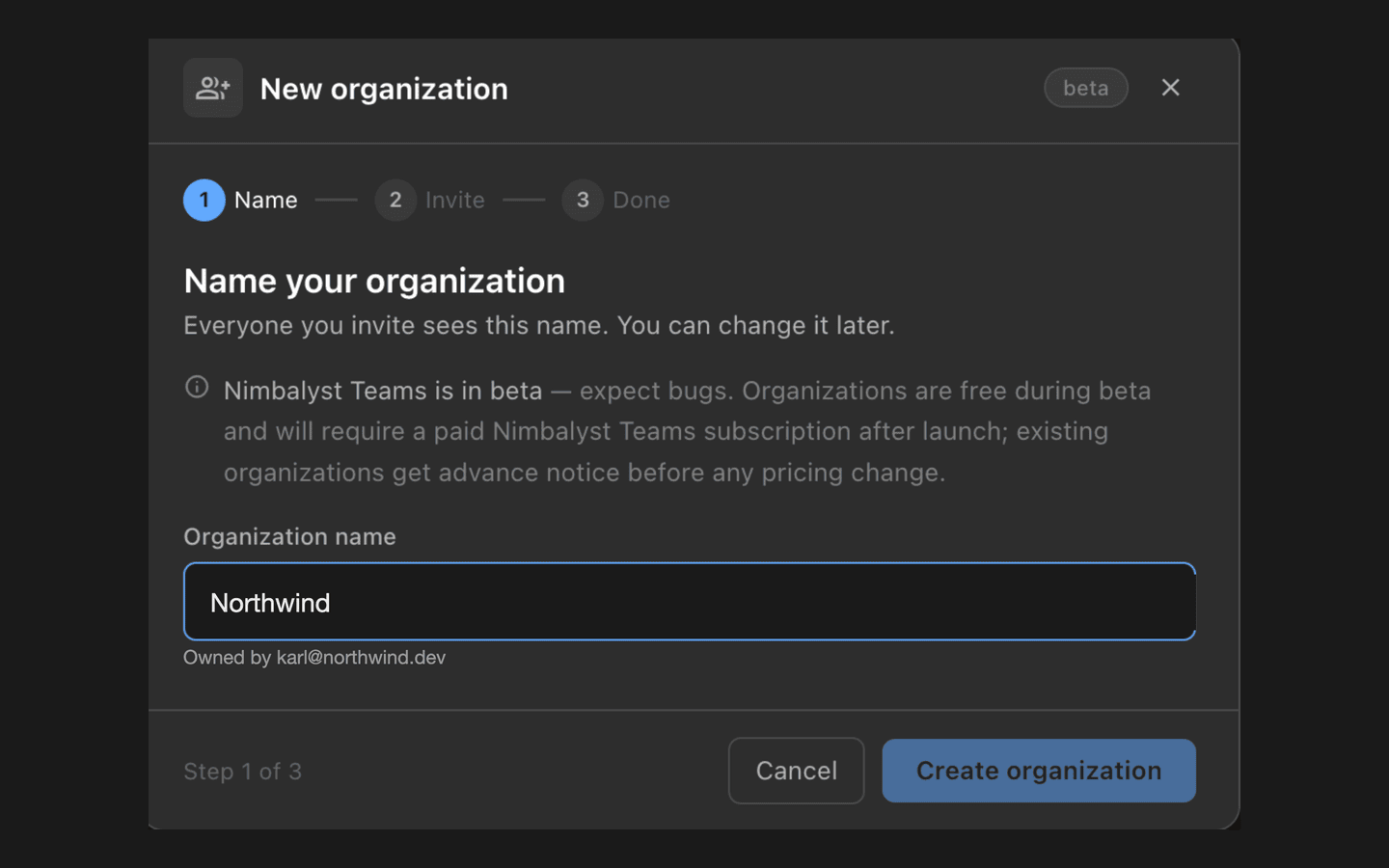
Step one of three: name the organization.
Then invite your teammates by email. They join as members, and you can change roles afterwards.
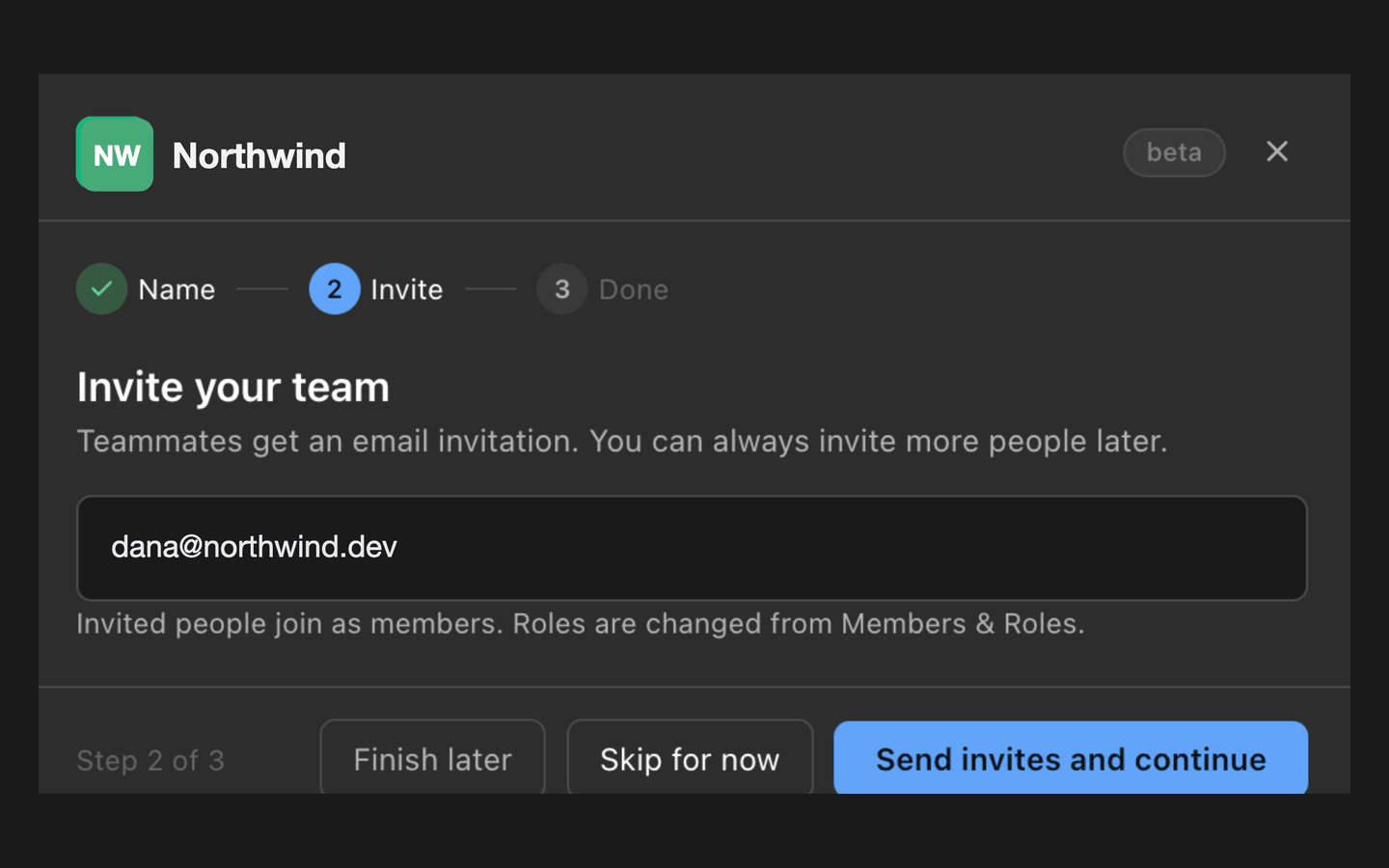
Step two of three: invite the team.
Everyone you add appears in the organization's member list, where you can change a role or invite more people at any time.
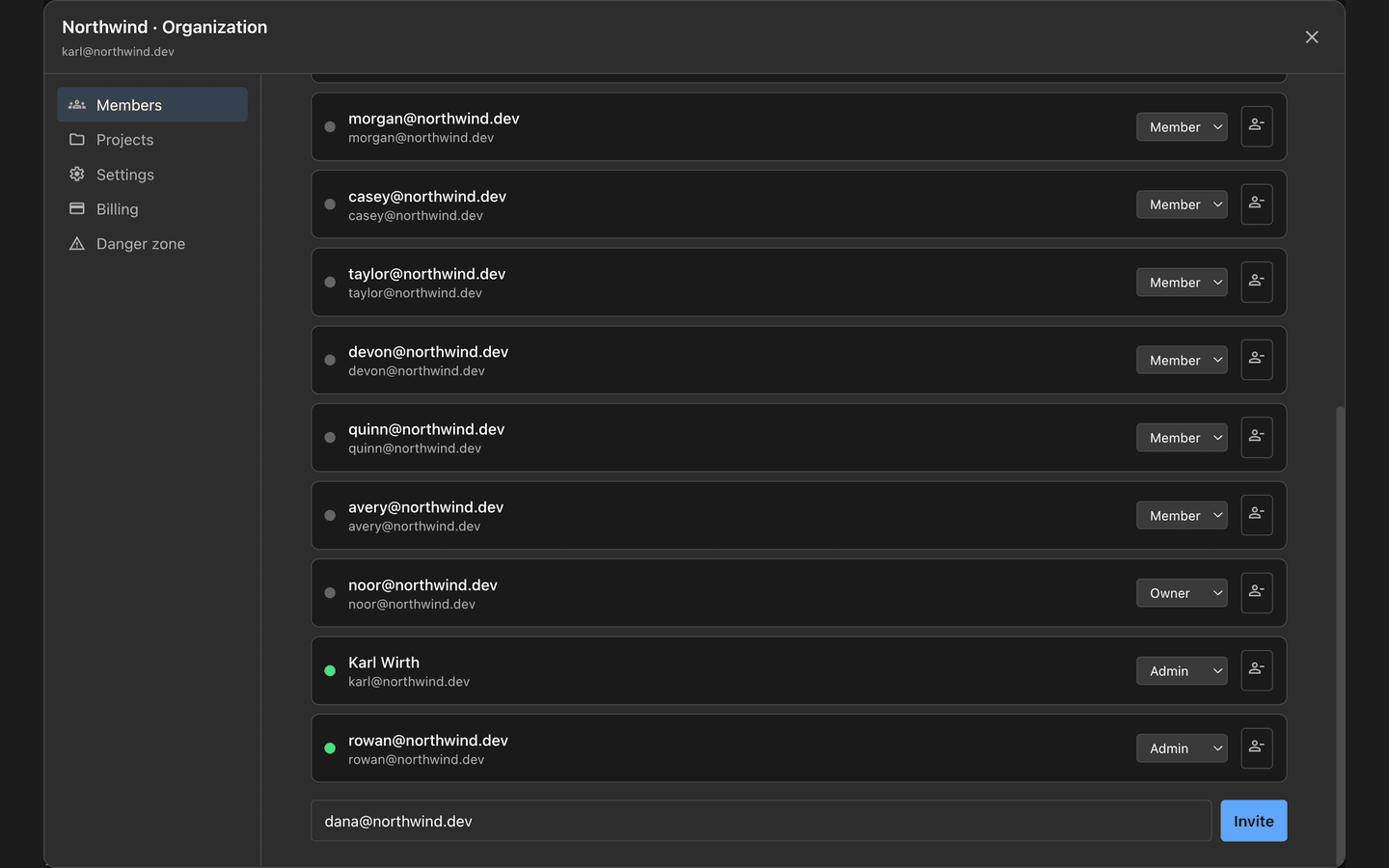
The member list for your organization.
Step 3. Your teammate receives an invite email
They receive an email with one button. There is no account to create first.
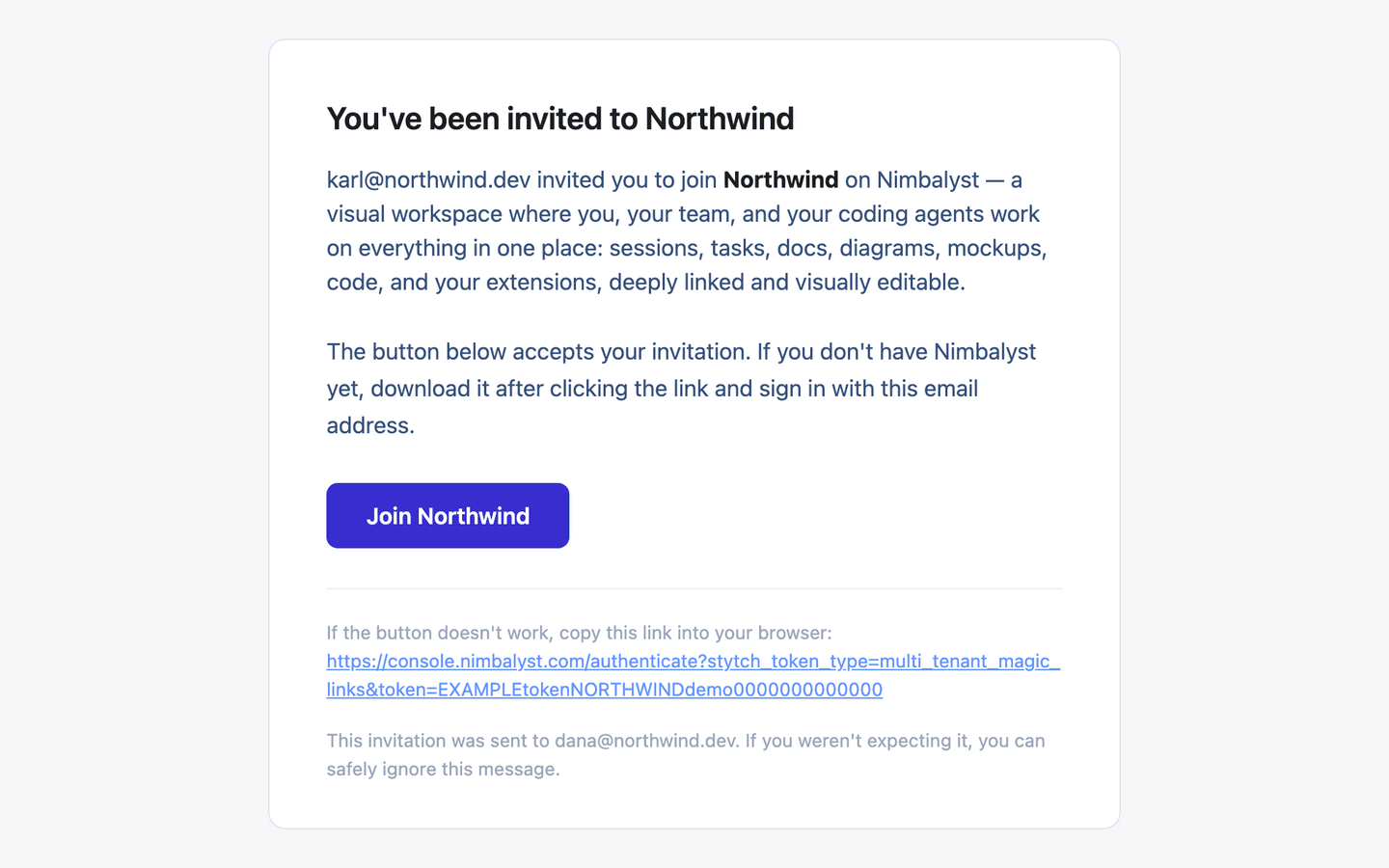
The invitation email your teammate receives.
Step 4. They accept and land in the team
Clicking through accepts the invitation and puts them in the organization. From there they can open the team in the desktop app, or keep working in the browser.
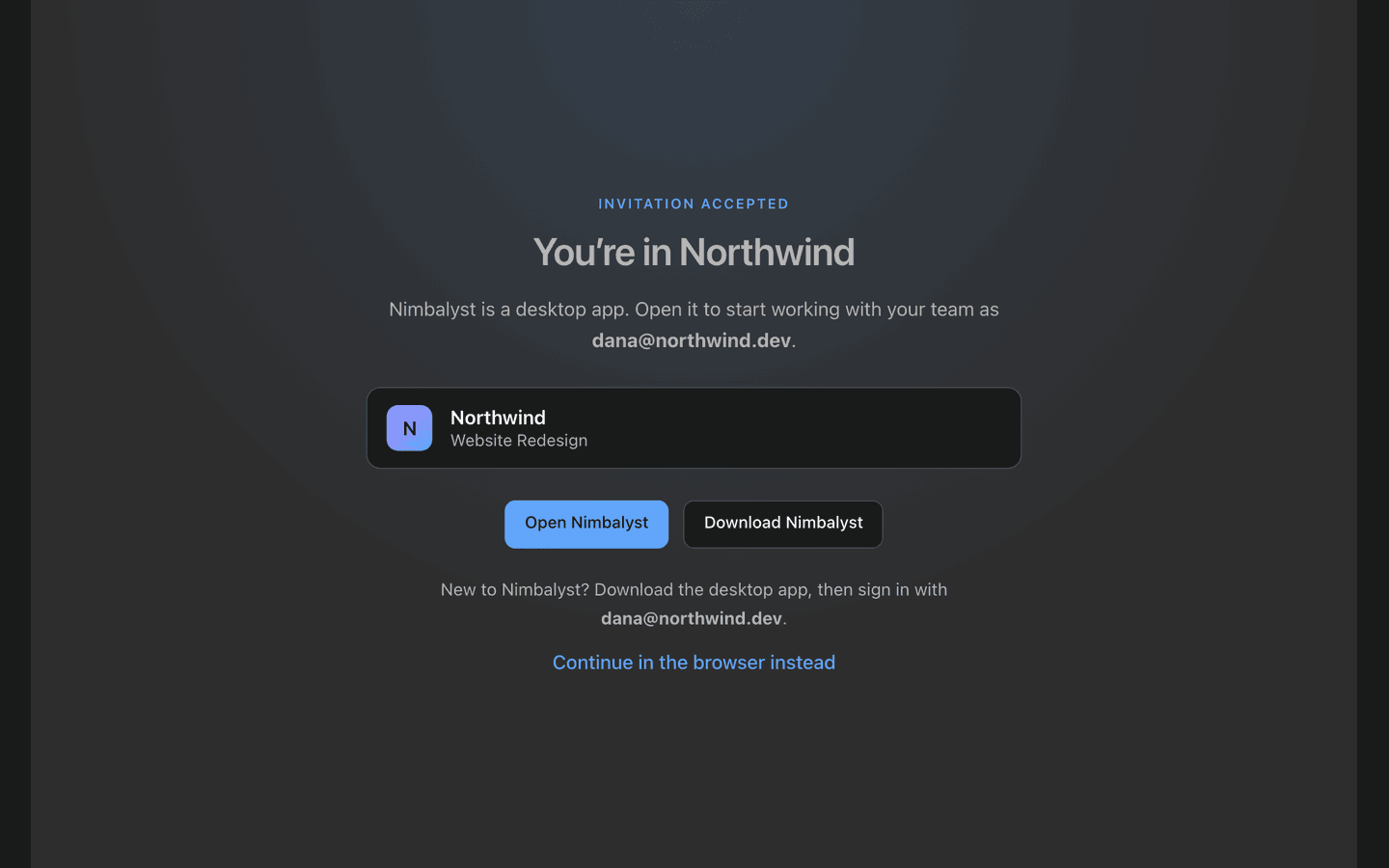
The invitation is accepted and your teammate is in the organization.
Step 5. Working collaboratively in trackers
Switch to Tracker mode. With a team, the left navigation splits into two groups. The top group belongs to the organization and everyone in it sees the same items. The bottom group stays on your machine.
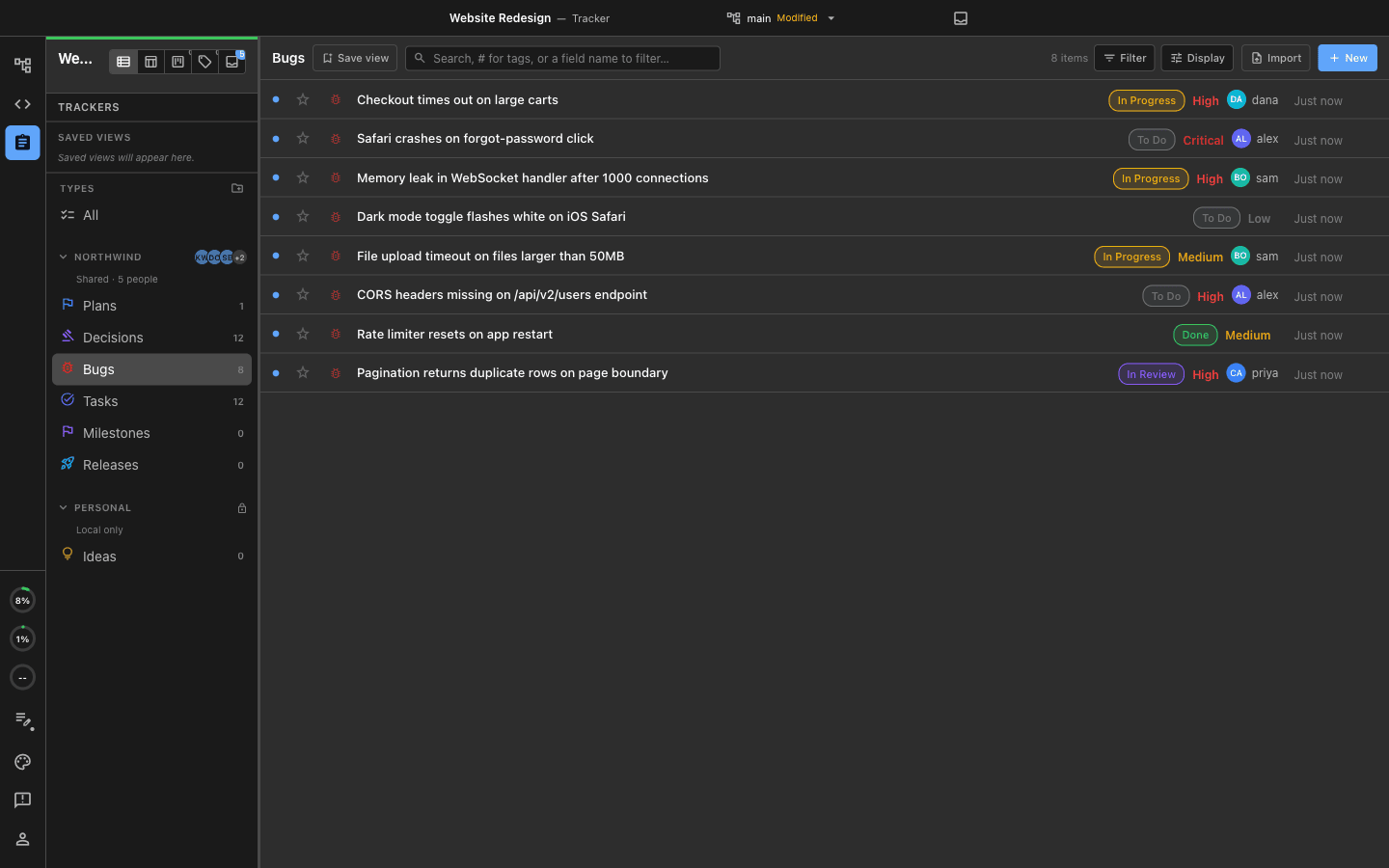
The team's trackers appear first; your personal trackers stay on your machine.
Every tracker opens as a grid you can edit in place. Press Cmd+Shift+N anywhere in Nimbalyst to launch an agent session against whatever you are looking at, without leaving the board.
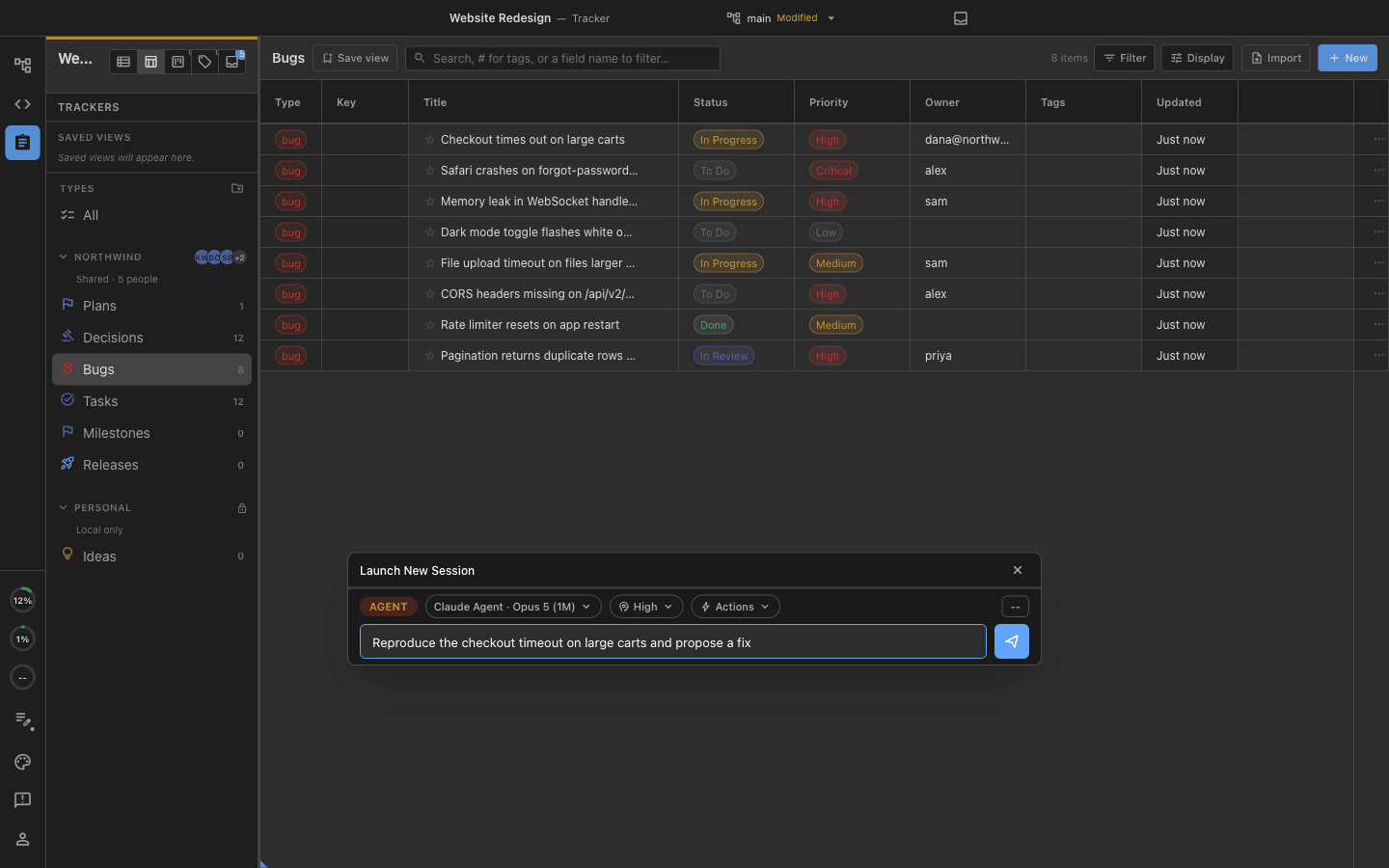
Cmd+Shift+N puts an agent on the item in front of you.
Open an item and it expands into a full document the team writes together, with its own agent chat alongside.
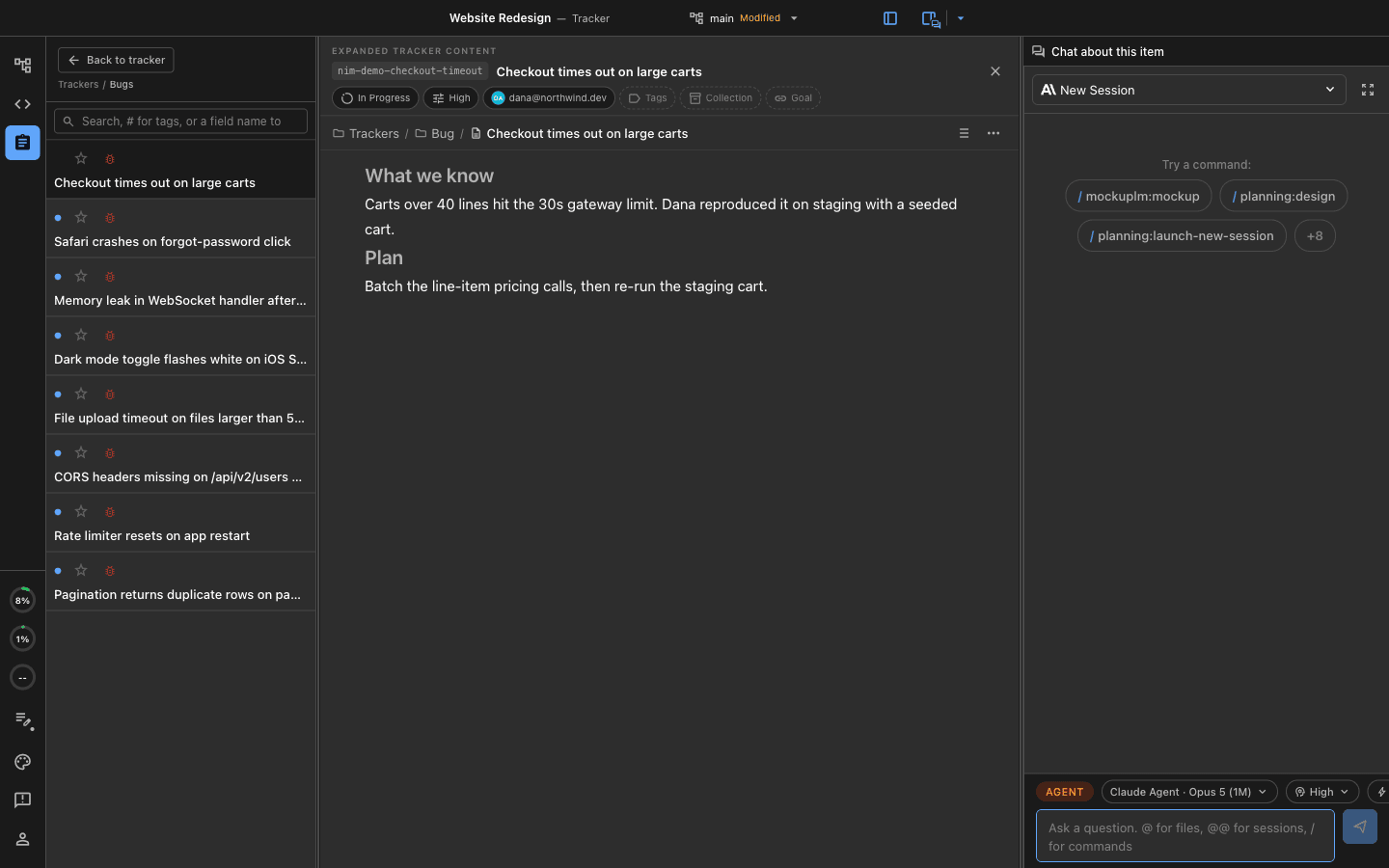
An item's body is a document, not a text field.
Put a file reference on its own line in that body and it becomes a live embed. Anyone with access can edit it in place, or open it in its own editor.
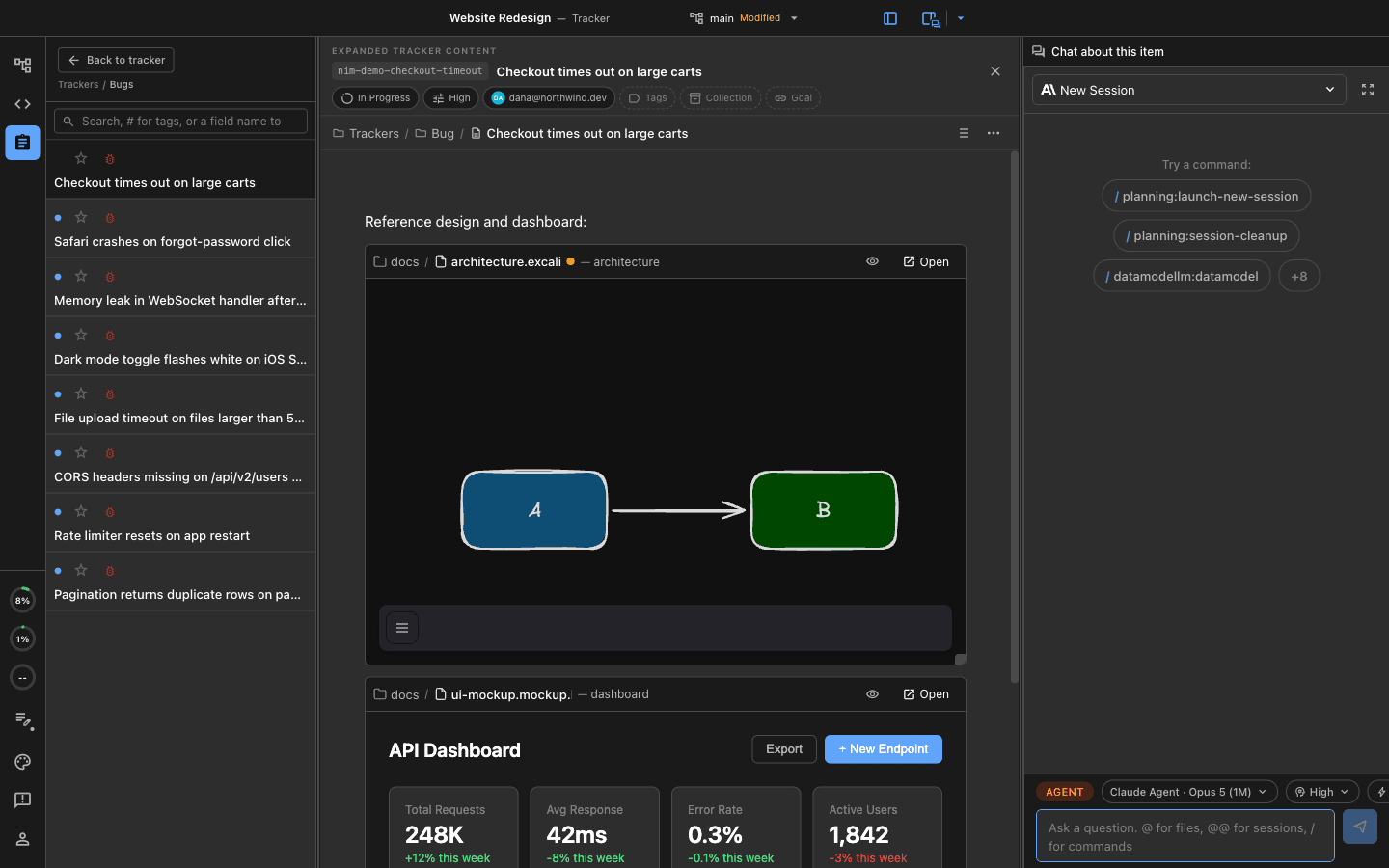
Embedded files render live inside the item.
Link your own agent sessions and the files they touched to an item, so the work and the record of it stay together.
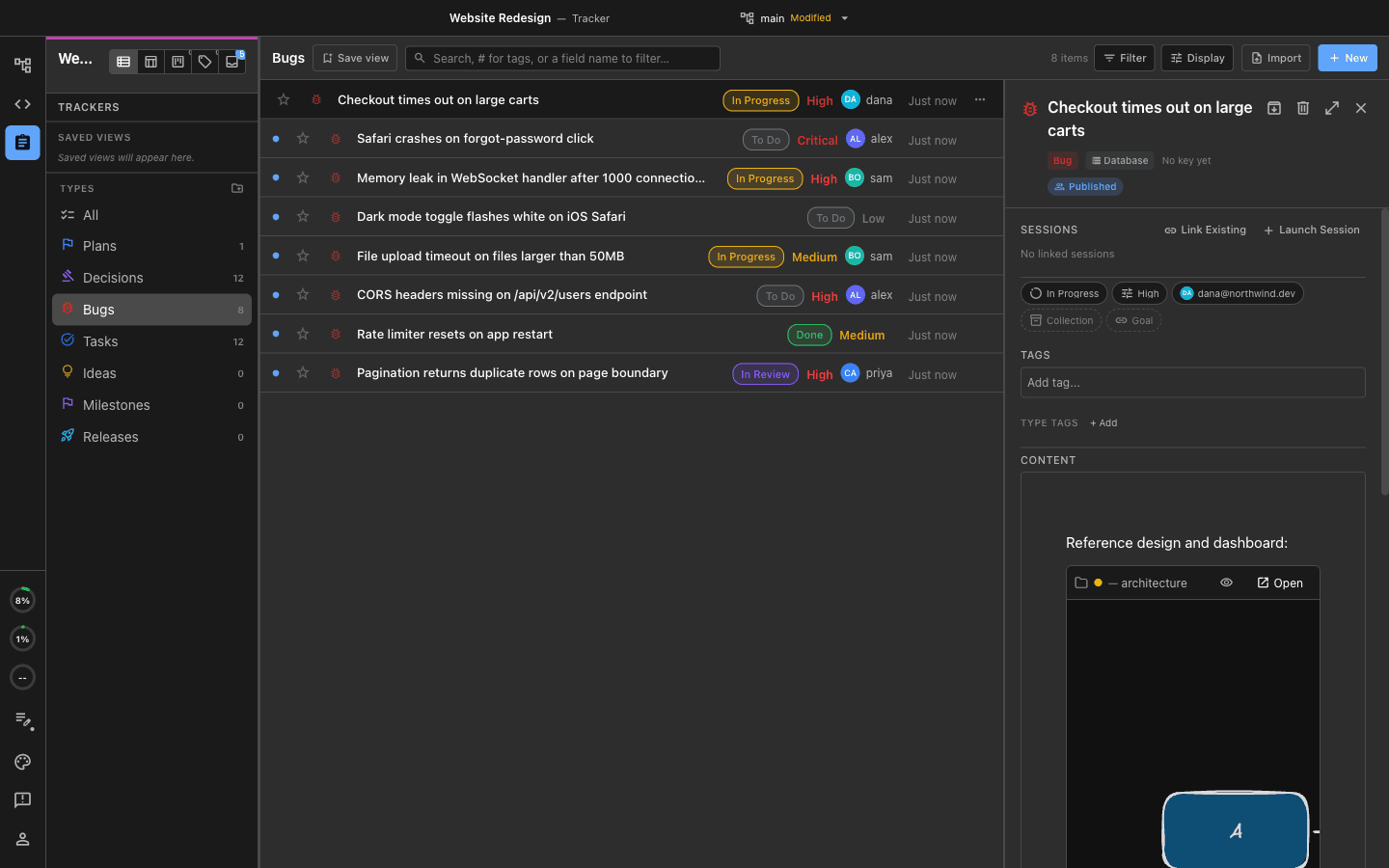
Link an existing session, or launch a new one from the item.
Step 6. Working collaboratively in documents
Right click any file in your project and choose Share to Team. Nimbalyst scans the file for embedded files and offers to share those alongside it, so your teammates do not open the document and find empty placeholders. A whole folder shares the same way: right-click it and choose Share Folder to Team to publish everything shareable inside it at once, mirroring its subfolders in the team space.
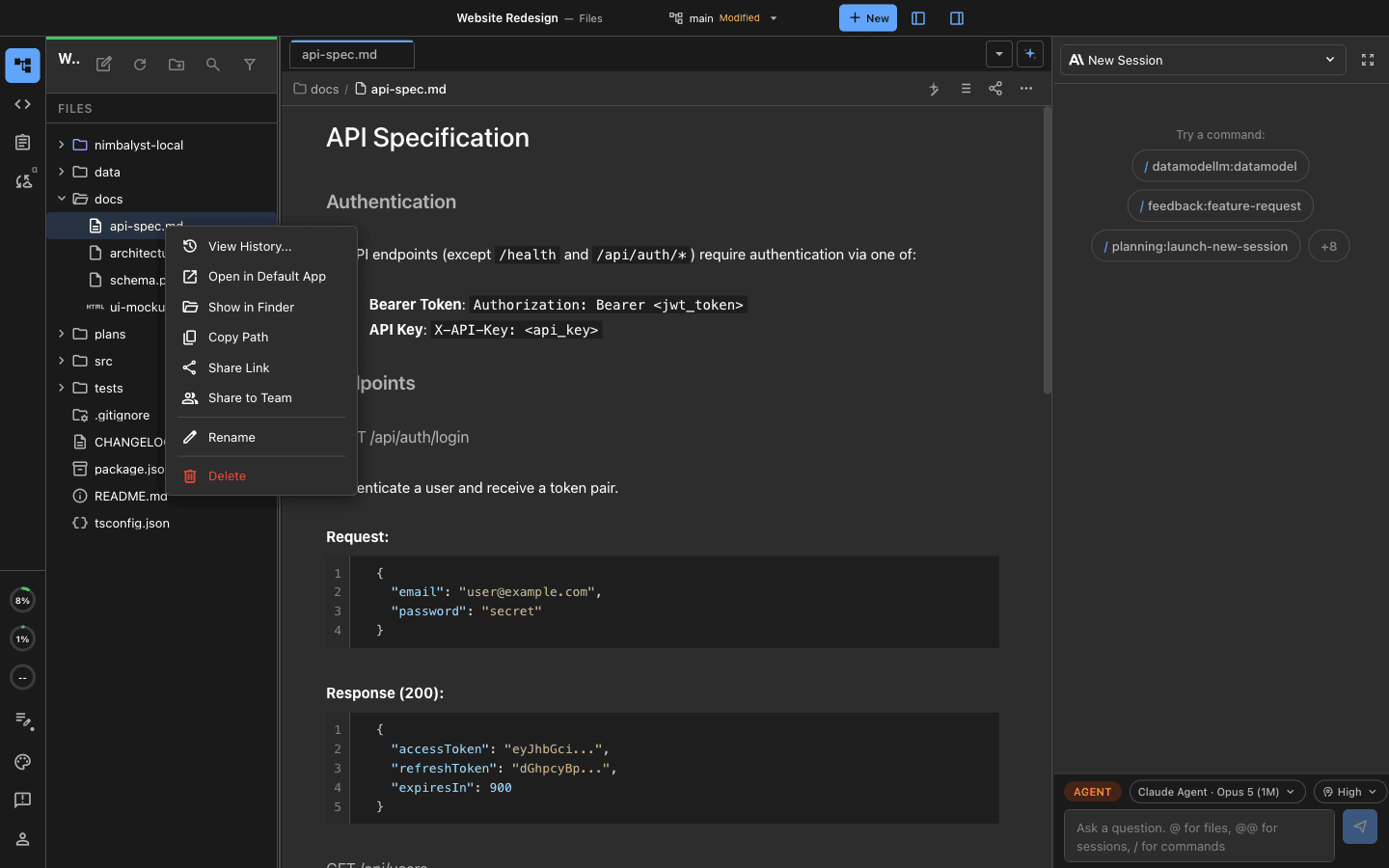
Any project file can become a shared document.
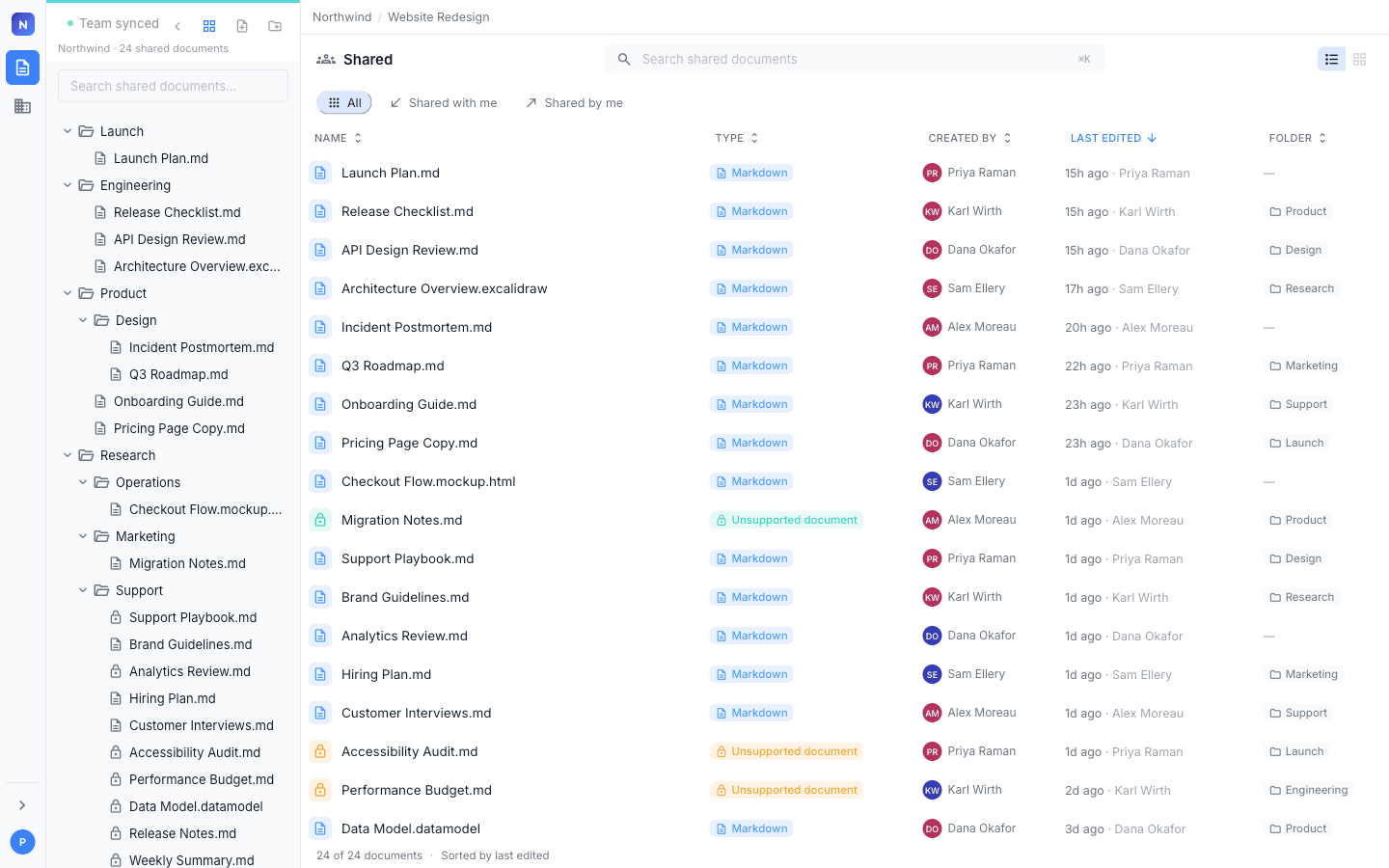
Shared Docs holds every shared document and folder in one place. A blue dot marks anything changed since you last opened it.
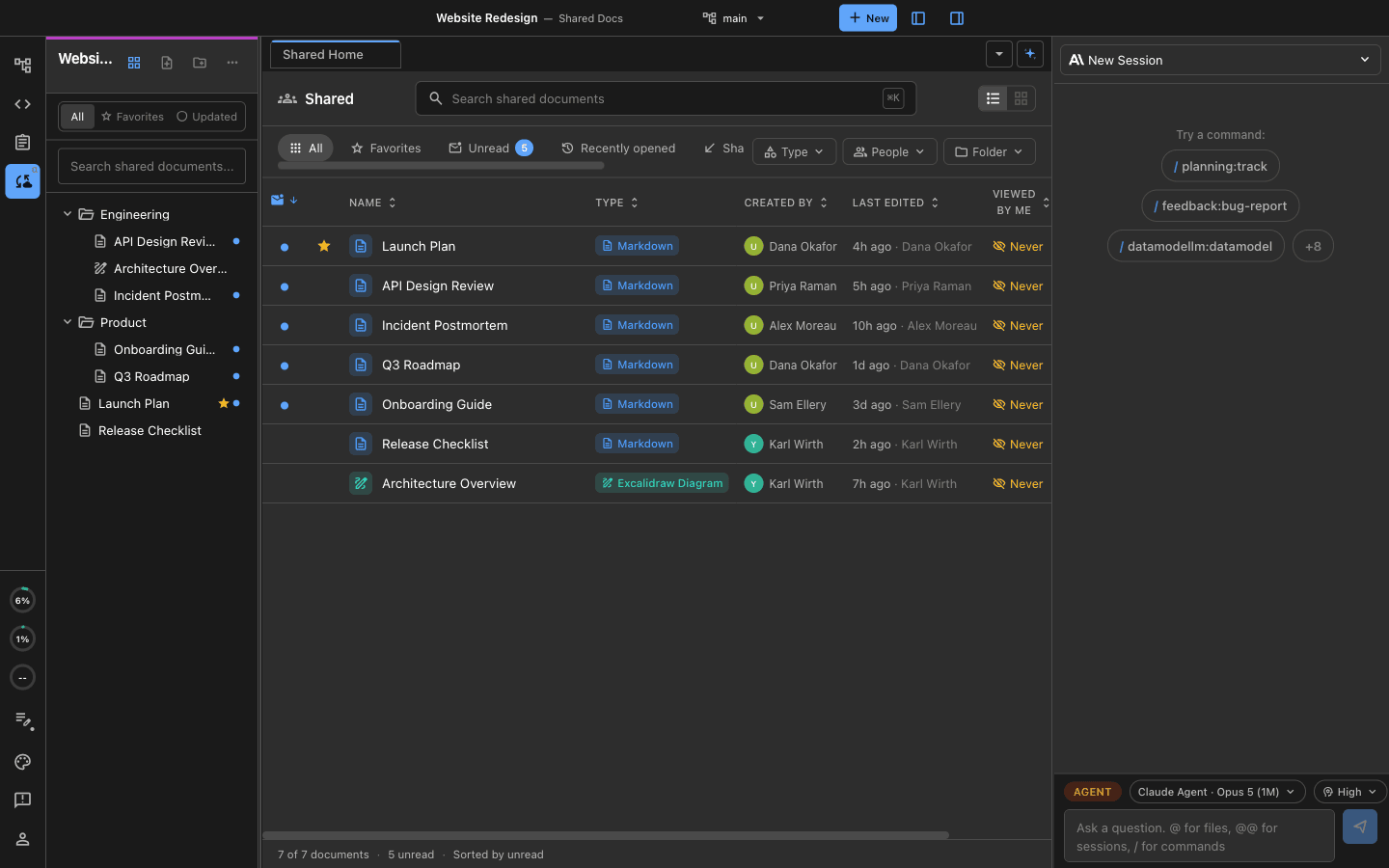
One space for everything the organization shares.
Star the documents you work in every day and the Favorites filter brings them straight back.
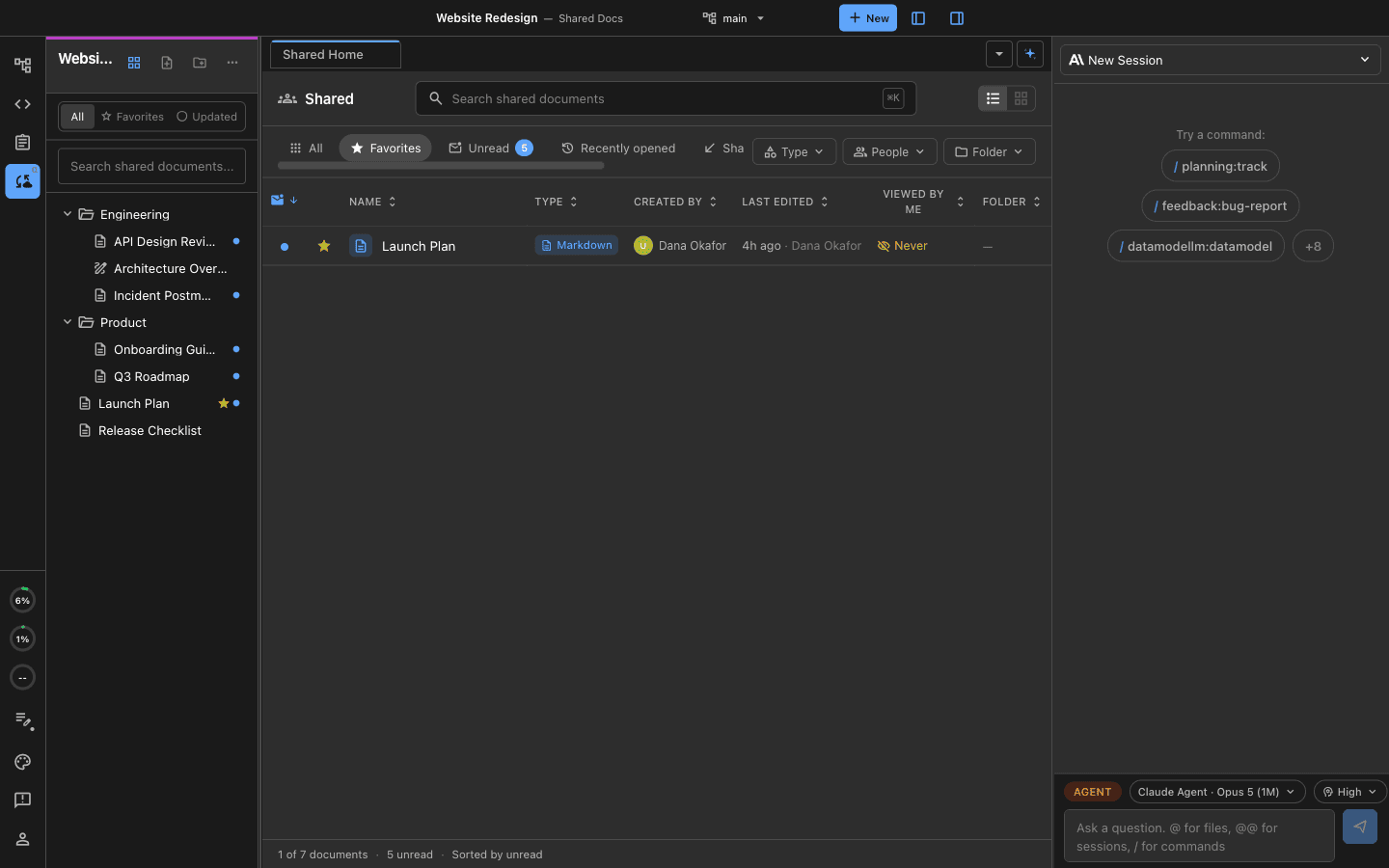
The Favorites filter shows only the documents you starred.
Open a shared document and you are editing the same copy as everyone else, with a labelled cursor for each person. Each teammate's locally running coding agent works in that same document.
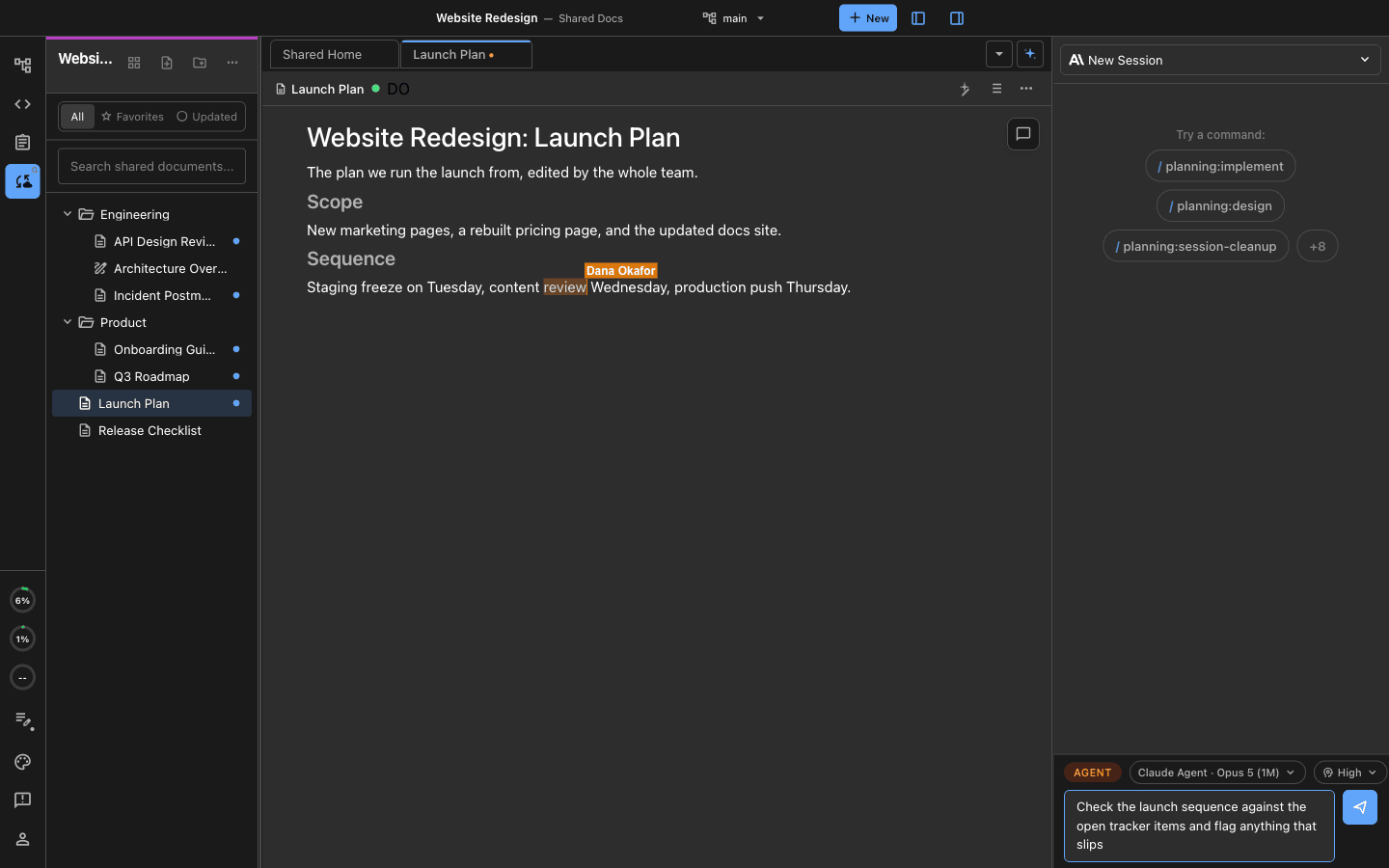
People and their agents edit one shared copy.
Select a passage to leave a comment, mention someone with @, and reply in the thread. Comments live with the document, so they follow it everywhere it is opened.
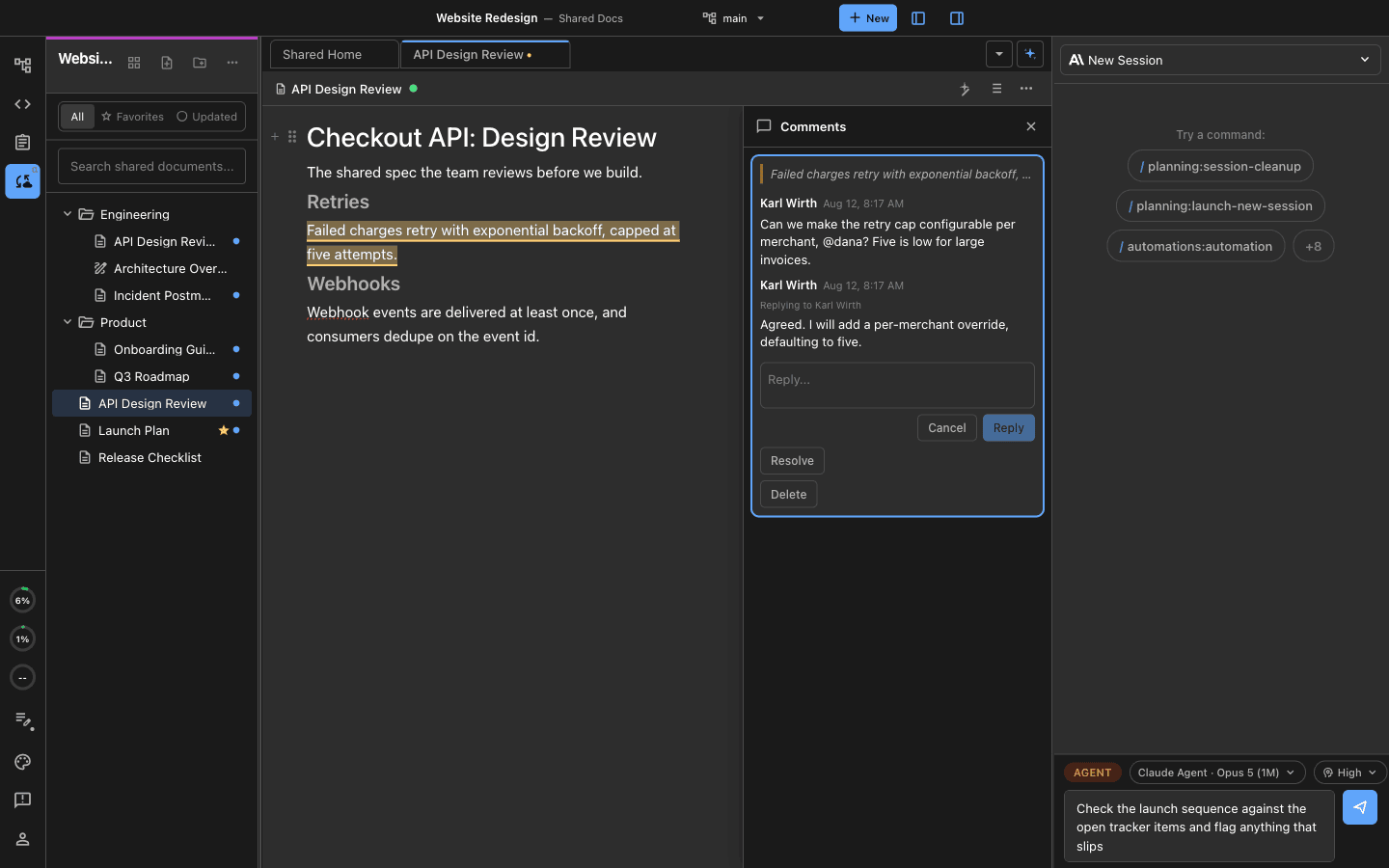
Comments and replies attach to the passage they are about.
Anything addressed to you shows a badge in the top right corner of the window.
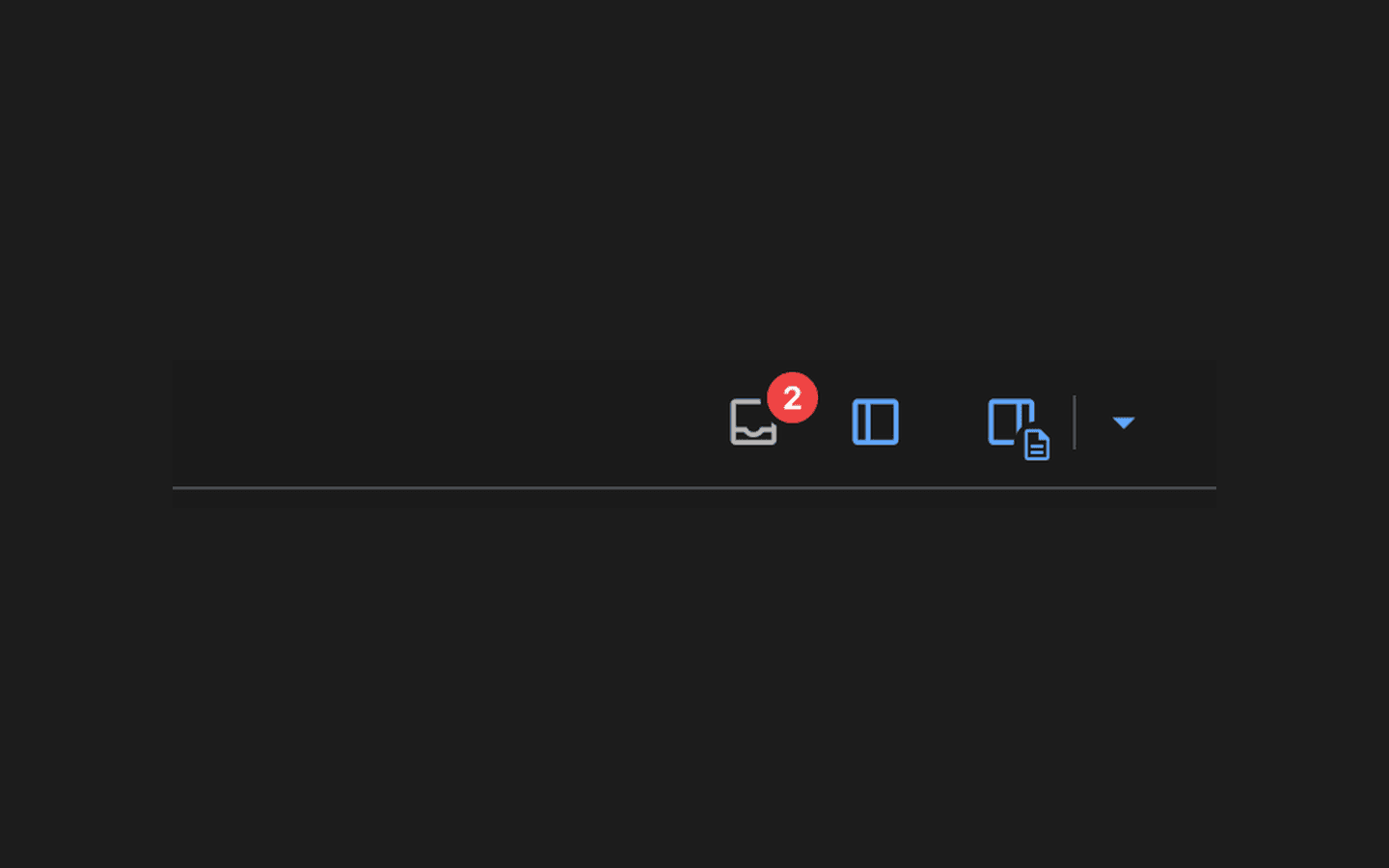
The unread badge sits in the top-right corner of the window.
Open it for a single list of every mention, comment, and message waiting on you, each linked to the document it came from.
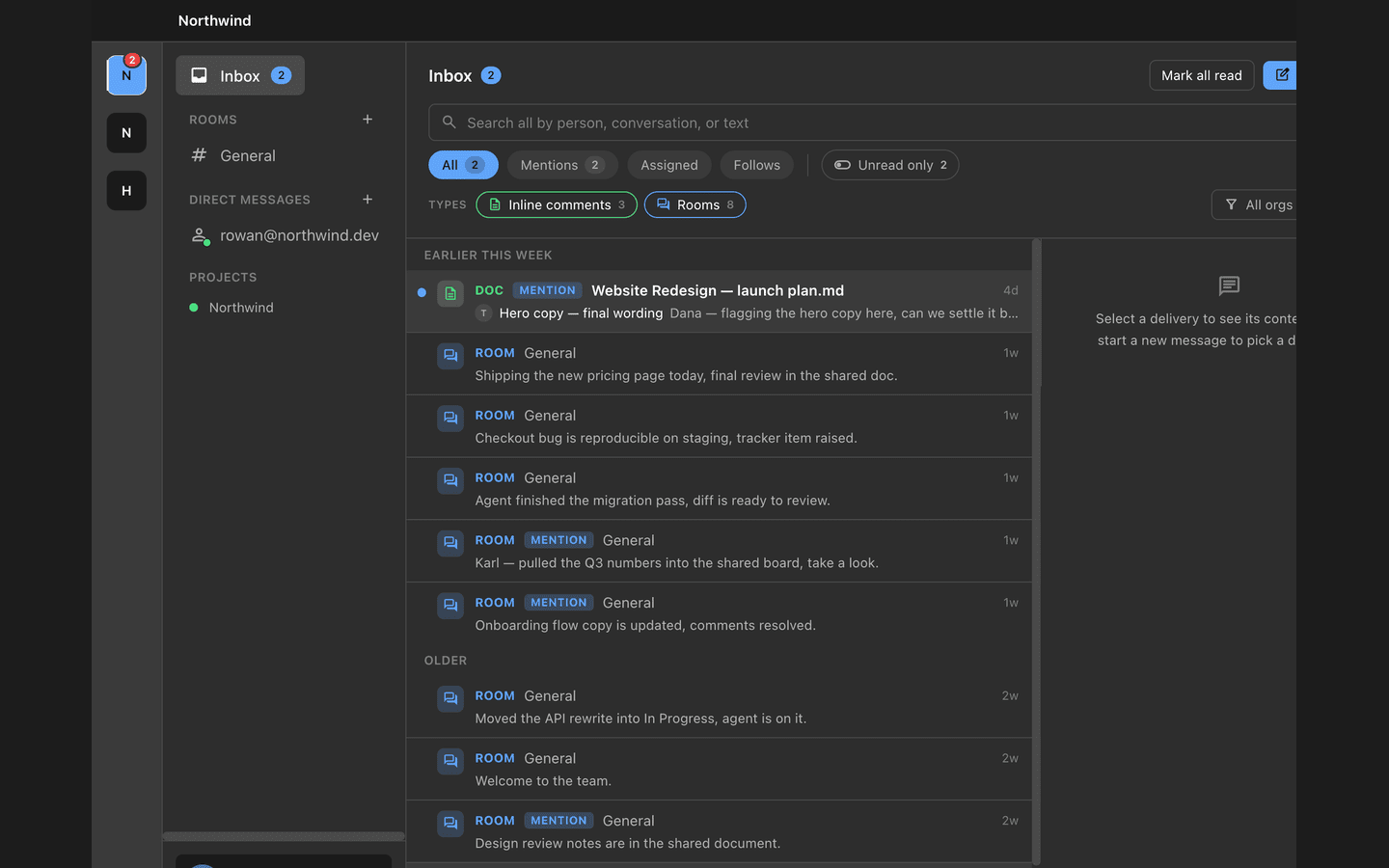
Every mention, comment, and message in one list.
Step 7. Teammates can work in the browser
Someone without the desktop app opens console.nimbalyst.com and reads, writes, and comments on the same shared documents. People on the desktop app and people in the browser work side by side on the same files.
The same shared documents open in a browser.
See Web Console for what the browser supports.