Set Up Your Wiki
Start a Nimbalyst Wiki with /wiki:setup: answer a few questions, and your agent builds Home, starter pages, a writing guide, and optional types.
One command starts a wiki. Your agent reads the project, asks what the wiki is for, and builds a Home page, a few starter pages with sourced content, and a guide for how the wiki is written. You can also start from a blank page and build it by hand.
Using Claude Code, Codex, Cowork, Cursor, or VS Code without the app? See Start in Your Coding Agent.
Before you start
- Open the Wiki. Press Cmd+D (Ctrl+D on Windows) or click the Wiki icon in the left rail.
- Check that the Wiki extension is on. It ships with Nimbalyst and is on by default. If you turned it off earlier, go to Settings > Extensions > Installed, find Wiki, and turn its toggle back on. See Extension System & Marketplace.
- Decide Local or Team. If the project is shared with a Nimbalyst Teams organization, setup builds the shared Team section. Otherwise it builds the Local section: markdown files in
nimbalyst-local/wiki, or the folder you named in.nimbalyst/local-wiki.json. See Local Wiki Files and Location. See Nimbalyst Wiki Teams.
Run the setup command
In any agent session in the project, type:
/wiki:setupYou can add a sentence about what you want, for example /wiki:setup a wiki for new engineers joining the payments team. The command takes no other arguments; the rest happens in conversation.
In Claude Code or the Codex CLI without the app, the Nimbalyst Wiki plugin runs the same setup with its nimbalyst-wiki:setup skill (/nimbalyst-wiki:setup in Claude Code). With no wiki yet, it asks whether to keep the new local wiki private in nimbalyst-local/wiki or check it in under a folder you choose.
What the setup does, step by step
-
Looks before adding. The agent reads the project's README and docs, then reads any Home, guide, and overview pages that already exist, along with the types and relations already defined. Nothing changes in this step.
-
Asks what would make the wiki useful. For a new wiki, the agent opens one interactive prompt with suggested answers drawn from the project. It covers:
- Purpose and audience: who reads it and what it should help them do. A strategic project wiki is suggested first; onboarding, a reference for coding agents, and research are the usual alternatives.
- Sections: Product and its Modules, Initiatives, Decisions, Team, and Strategy are chosen by default, and Meetings and Glossary are offered. Drop any you do not want.
- Modules: the parts of the product the agent found in the code and docs, each with a one-line purpose and its layer, such as clients, server, or data.
- Initiatives: the bodies of work under way or planned, with status, owner, and dates where your sources give them. The agent asks you for health, impact, and effort and never fills them in itself.
- Owners and strategy: who owns which module and initiative, and your goals, bets, main competitors, and positioning, if you want them recorded. Blank is a fine answer.
The agent asks about sources and boundaries, and how deep to go, only when they are unclear.
Answer, edit the suggestions, or tell the agent to choose; it then uses defaults grounded in the project and says what it assumed.
-
Installs the writing guide. The agent creates a page called How we write this wiki right after Home. It holds the rules both people and agents follow: what belongs, what does not, how pages fit together, and how to write. Edit it to fit your team. Setup never overwrites it; on a re-run it reports whether the guide still matches the base text or has been edited, and offers a merge only with your approval.
-
Writes Home and the sections. For a software project the default is a strategic project wiki: Home is a dashboard of the whole project, with what it is and who it serves, a product map, the initiatives with their status and health, open questions and recent decisions, and start-here links. Behind it sit the sections you chose, with a page for each module, initiative, and competitor. A research notebook or a personal reference gets only Home and a few pages. Each page gets a few paragraphs backed by your sources, plus a summary, a status, and an owner when you named one. Where information is missing, the page says what is unknown instead of guessing.
-
Adds types, if you want them. When you keep several things of one kind, such as competitors, modules, or customers, the agent defines a small type with a title and two to four fields, lists the fields to show as columns in the type's table, and places it in the tree. In a Local wiki each item is its own page, unless you ask for a table kept in one CSV file. It only does this when you ask or agree.
-
Adds relations, if useful. For two types you link often, the agent can name the relation in both directions, such as "built on" and "underlies." It does not add vague relations like "related to."
-
Reads everything back and reports. The agent checks every page it wrote and leads its report with a link to Home, followed by the pages it created, any types and relations it added, and anything it still needs from you.
Running the command again is safe. It reuses existing pages, fills only what is missing, never duplicates a page or link, and asks before replacing anything a person wrote.
Outside the app, open the wiki in your browser to read and edit what setup wrote.
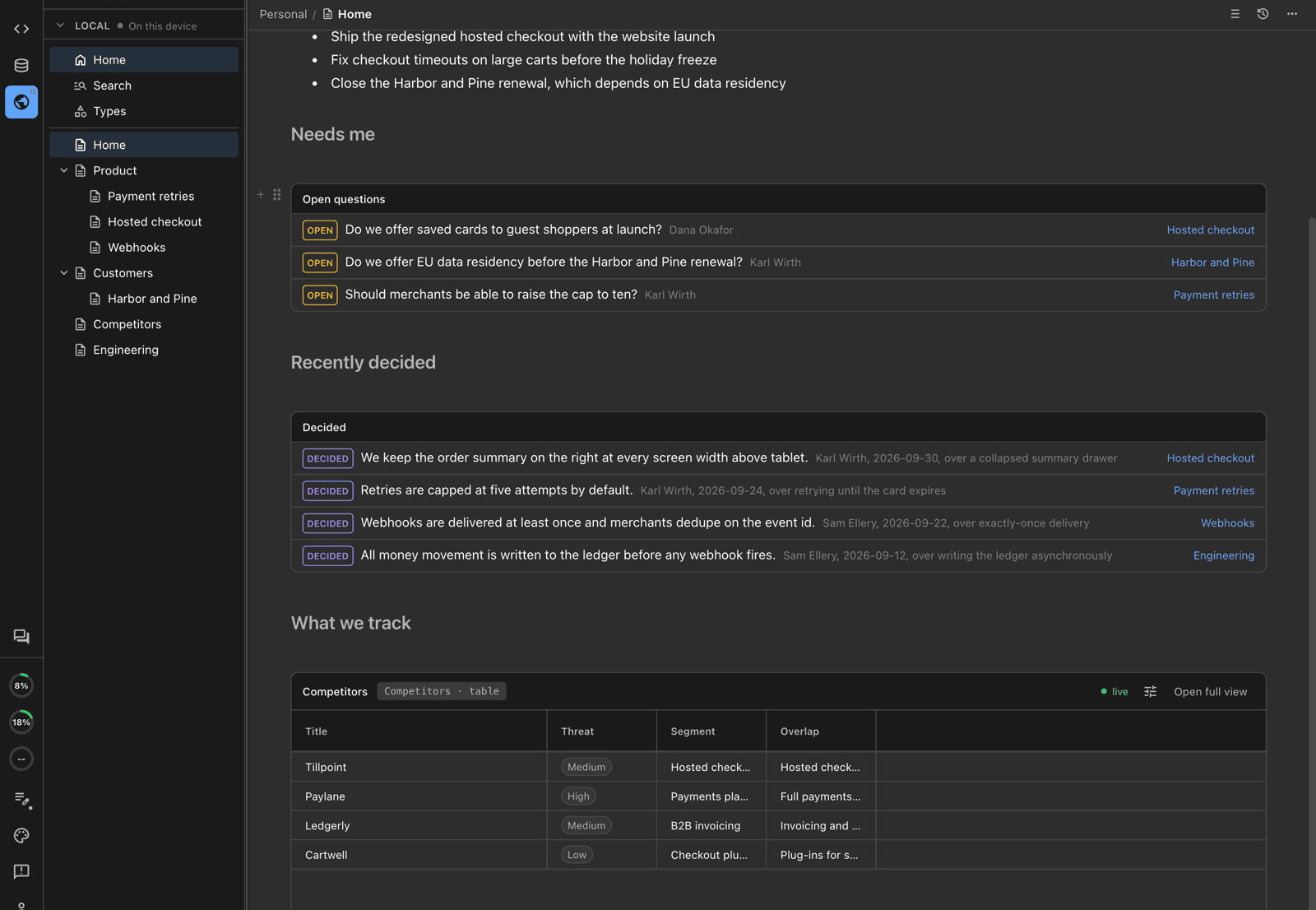
A Home page with the quarter's priorities, the questions that need you, recent decisions, and a live table, each linked to the page it lives on.
The writing guide
The How we write this wiki page is what keeps the wiki short and useful as it grows. The base guide covers:
| Section | What it says |
|---|---|
| What belongs here | Decisions with reasons, what people asked for, open questions, context with sources and dates, hard-won lessons. |
| What does not belong | Anything the code already says, task lists, status updates, meeting notes, and copies of other pages. |
| How the pages fit together | Pages nest, some pages have a type, types are yours to define, and relations are named links. |
| How to write | Short and specific. Mark decisions and open questions on the sentence. Cite people and sources. Date facts that change. |
| For agents | Read the guide and Home before writing, search before creating a page, never invent a decision, keep edits small, and say which pages changed. |
Your edited guide overrides the base guide for everyone working in that section.
Keep it current
After setup, ask your agent to record what a session decided, or run /wiki:update to have it write pages, typed pages, marks, and links following your guide. Good prompts:
- "Record the decisions from this session in the wiki."
- "Add the three competitors we discussed as Competitor pages and place the table on the Market page."
- "Which open questions on the Product page are answered by today's work?"
Start without the command
You can build the wiki by hand. Right-click empty space in the sidebar or the Local heading and choose New page, or right-click any page to add a page inside it. Use Add from Files... to bring in existing documents. See Pages, Types, and Fields.