Workstreams
Workstreams group related AI sessions that touch the same files or topic, so you can branch an approach without losing the earlier thread.
A workstream is a group of related AI sessions that appear together as tabs, share one combined view of edited files, and are grouped as one item in your session list. Use a workstream when several sessions belong to the same effort: trying a second approach to the same problem, running a side task in parallel, or splitting a big job across a few agents.
You never create a workstream from the New session menu. A workstream forms automatically the moment a session gains a second session.
Creating a workstream
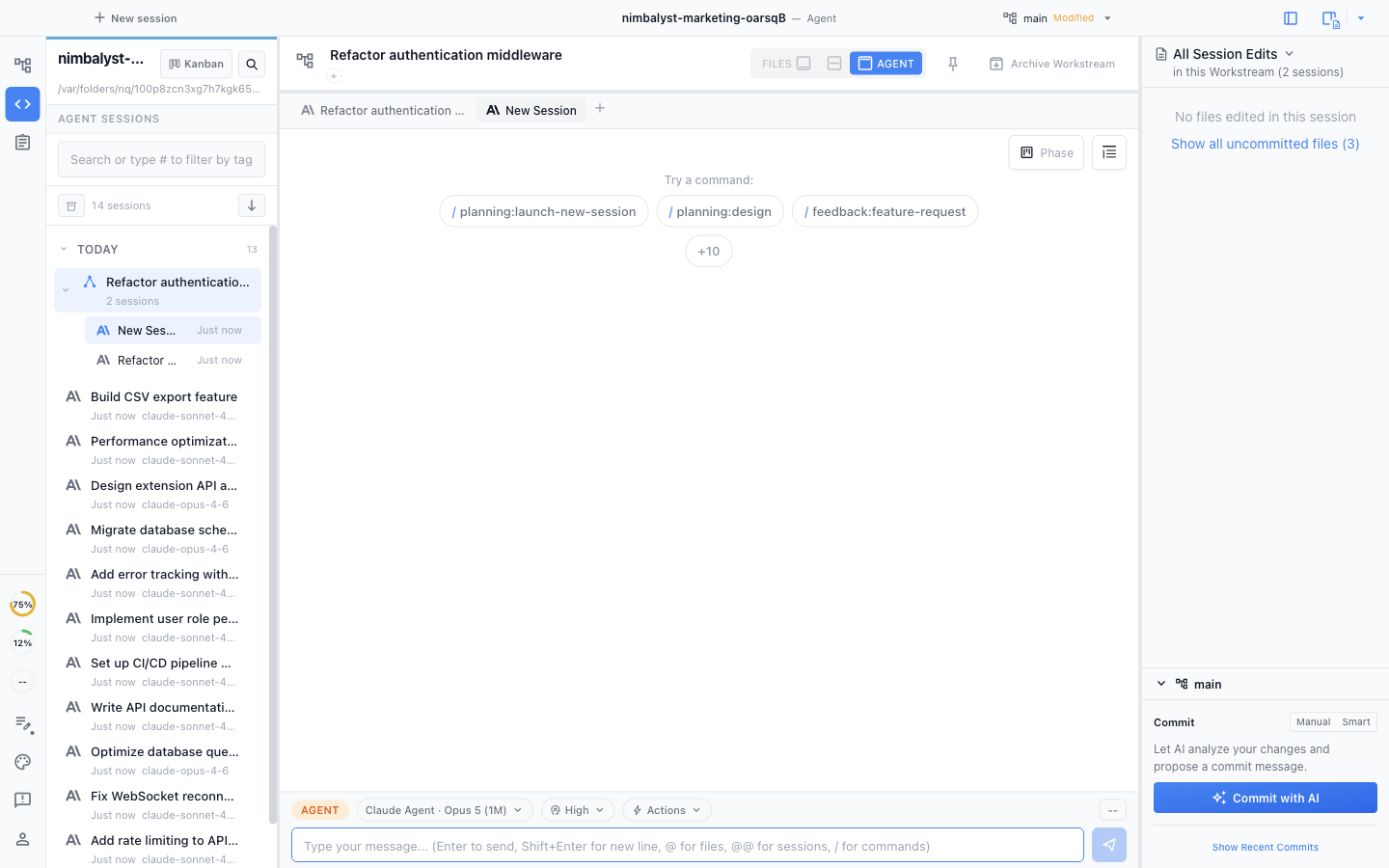
Start a session as usual. When you want to branch your work or run a related task alongside it, click the + button next to the session tab. The tooltip reads New session in workstream.

Your single session converts into a workstream. Each session gets its own tab, and the session list on the left groups them under one parent with a session count.
One view of every file changed
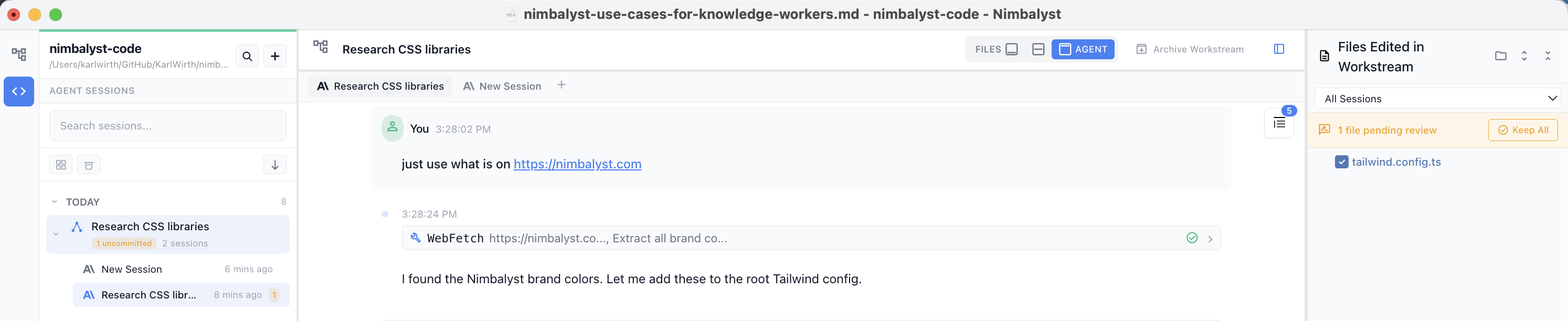
The right panel shows all files modified across every session in the workstream, so you can review the combined result of the work in one place.
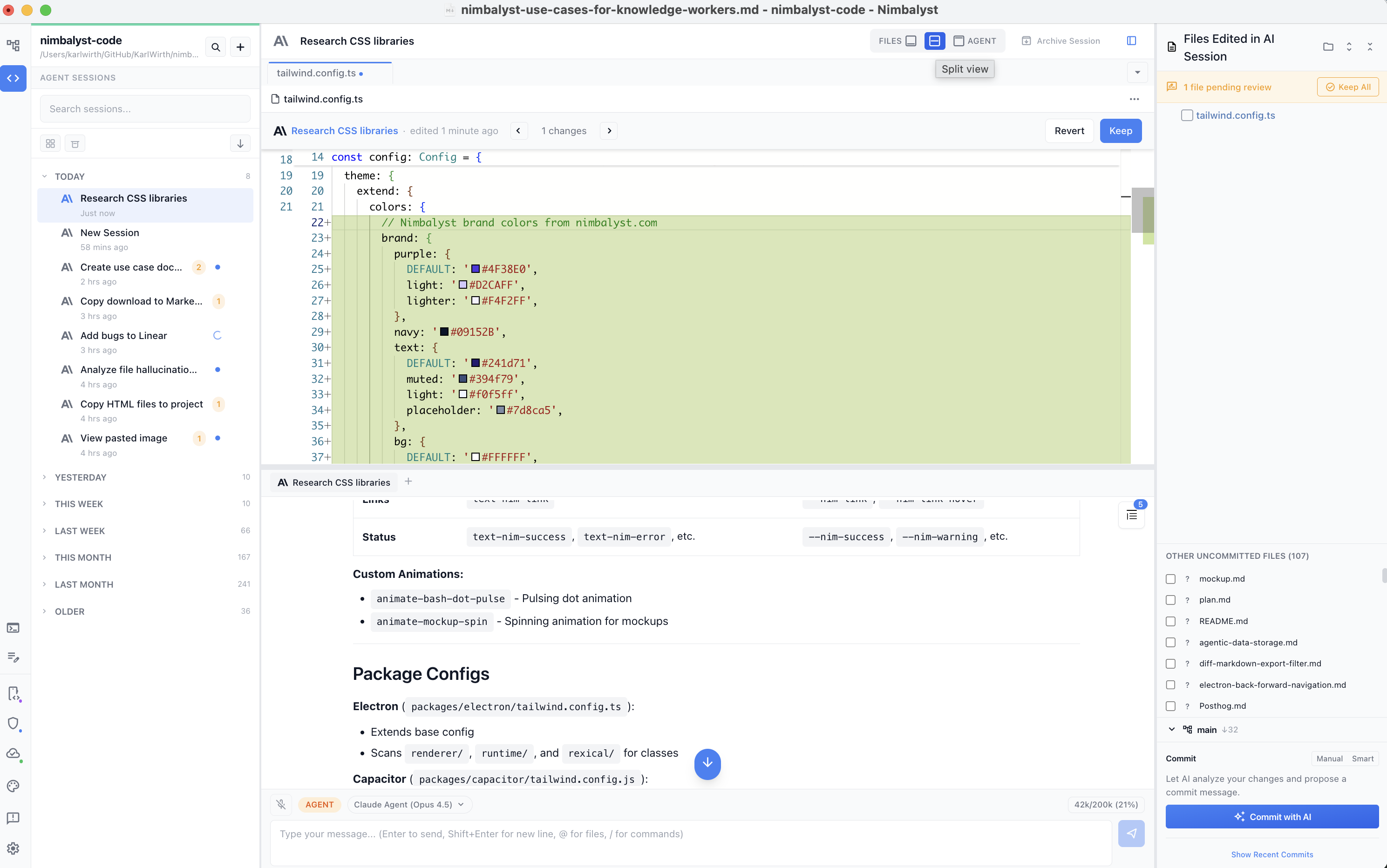
Click a file to open it right there in Agent mode, next to the sessions that changed it.
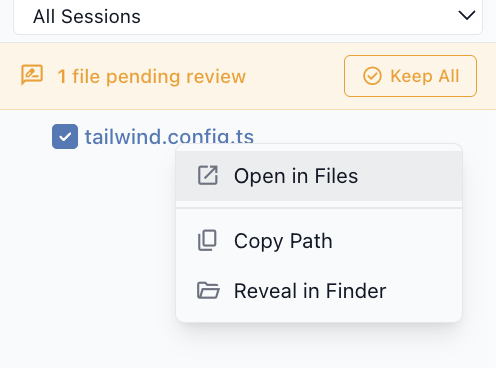
Right-click a file to open it in Files mode instead.
Workstreams and worktrees
These are easy to mix up:
- A workstream groups sessions. By default, its sessions share the same project folder and branch; grouping sessions does not itself isolate their file changes.
- A worktree gives a session its own git branch and folder, isolated from your main checkout. With Developer Mode enabled, choose New Worktree from the New session menu.
Use a workstream to organize related sessions; use a worktree when a session's changes should stay off your main branch. A session in a worktree can also grow into a workstream, so the two combine.
For running many agents against one project at once, see agent orchestration and parallel Claude Code sessions.
Letting the agent add sessions
You can also ask the agent working in a session to spin off a sibling for a side task, without leaving the current session. Run /launch-new-session and describe the side task.
By default the new session joins the caller's workstream as a sibling, so the edited-files view and workstream overview are shared. The original session stays focused on its own thread while the sibling runs in parallel. You can mention the reasoning effort you want the new session to run at, or let the agent pick one that fits the work.
If the side task should be fully separate, say so ("isolated bug fix", "fix and commit separately") and the agent creates a top-level session instead of a sibling. Either kind can also be put on its own worktree branch; sibling-vs-isolated and worktree are independent choices.
You can also launch sibling sessions from the composer's Actions dropdown by configuring an Action with launch: new-session. See AI Actions for the config keys.
Why use workstreams
- Keep related work organized without losing context
- Compare different approaches to the same problem side by side
- Review all file changes from multiple sessions in one place