Automations
Schedule recurring AI tasks in Nimbalyst. Automations run on a timer from a markdown file to produce standups, weekly reports, and reviews.
Automations are recurring AI tasks that run on a schedule inside Nimbalyst. Use them for anything you would otherwise do by hand on a rhythm: a daily standup summary, a weekly status report, a periodic code review.
Each automation is a markdown file in nimbalyst-local/automations/. The frontmatter defines the schedule and output settings, and the markdown body is the prompt that runs on each execution.
The automations feature page covers scheduling patterns teams use, such as standups and recurring reviews.
Creating an Automation
Quick: Use /automation
Type /automation followed by a description:
/automation summarize my git commits every weekday morningNimbalyst creates the automation file with the right schedule and prompt, sets it to disabled so you can review it first, then tells you to open the file and enable it.
Manual: Create the File
Create a .md file in nimbalyst-local/automations/ with this format:
---
automationStatus:
  id: standup-summary
  title: Daily Standup Summary
  enabled: false
  schedule:
    type: weekly
    days: [mon, tue, wed, thu, fri]
    time: "09:25"
  output:
    mode: new-file
    location: nimbalyst-local/automations/standup-summary/
    fileNameTemplate: "{{date}}-standup.md"
  runCount: 0
---

# Daily Standup Summary

Review the git log and recent file changes in this workspace since the previous business day. Summarize:

1. **What was accomplished** - List completed work based on commits and file changes
2. **What's in progress** - Identify files with uncommitted changes or recent branches
3. **Any blockers** - Note any error logs, failing tests, or stale branches

Format as a concise standup update suitable for sharing with the team.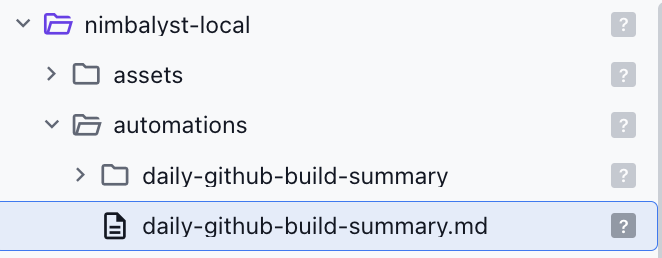
Document Header Controls
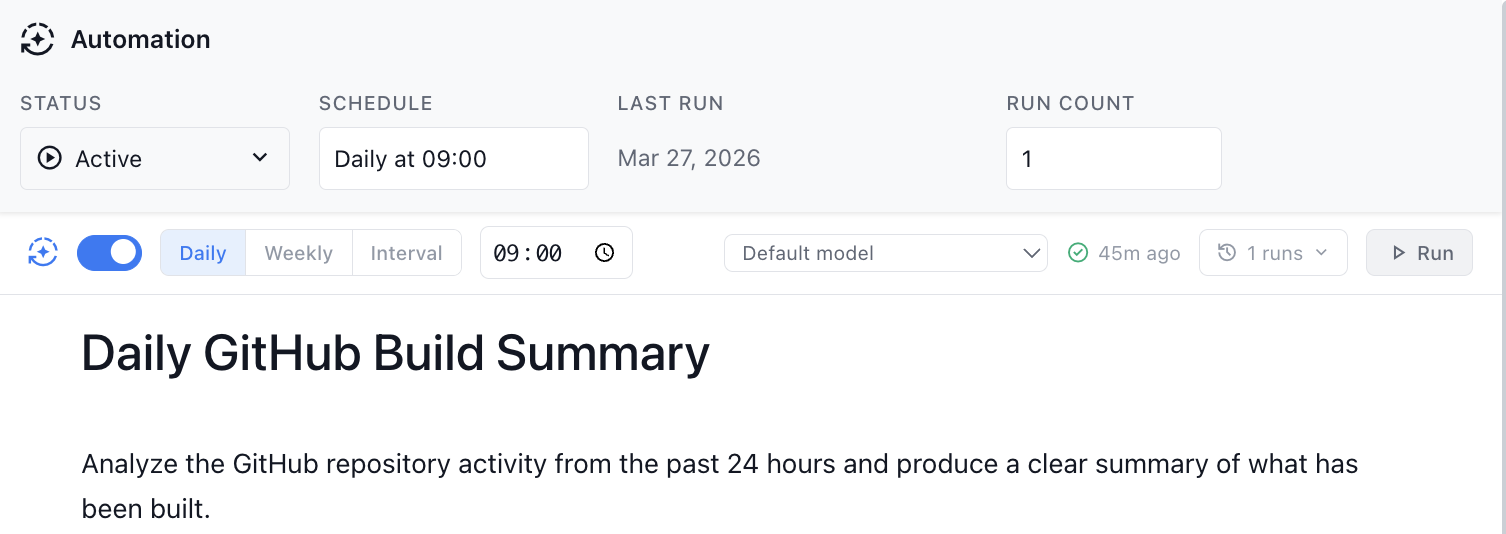
When you open an automation file, a header bar appears at the top of the editor with:
- Enable/Disable toggle: turn the automation on or off
- Schedule display: shows the schedule in plain language (for example, "Weekdays at 9:25 AM")
- Last run info: when it last ran and whether it succeeded
- Run Now button: trigger the automation immediately without waiting for the next scheduled time
Schedule Types
Daily
Runs once per day at the specified time.
schedule:
  type: daily
  time: "09:00"
Weekly
Runs on specific days of the week at the specified time. Valid days: mon, tue, wed, thu, fri, sat, sun.
schedule:
  type: weekly
  days: [mon, wed, fri]
  time: "14:00"
Interval
Runs every N minutes while Nimbalyst is open.
schedule:
  type: interval
  intervalMinutes: 60
Output Modes
Each run's output is written to files. You control how with the output block:
| Mode | Behavior |
|---|---|
| new-file | Creates a new file per run. Use fileNameTemplate with {{date}}, {{time}}, and {{id}} placeholders. |
| append | Appends each run's output to a single output.md file with date headers. |
| replace | Overwrites a single output.md file each run, so only the latest result is kept. |
Example output config:
output:
  mode: new-file
  location: nimbalyst-local/automations/standup-summary/
  fileNameTemplate: "{{date}}-output.md"
AI Provider
By default, automations run using Claude Code. You can optionally specify a different provider or model:
provider: claude-code     # "claude-code", "claude", "openai", or "openai-codex"
model: claude-code:sonnet # optional: specific model ID
Execution History
Each automation tracks its run history in a history.json file inside the output directory. This includes timestamps, duration, success or error status, and links to the AI session that produced the output.
You can also ask the agent in chat:
What's the run history for my standup-summary automation?Example: Weekly Project Status Report
---
automationStatus:
  id: weekly-status
  title: Weekly Project Status
  enabled: true
  schedule:
    type: weekly
    days: [fri]
    time: "16:00"
  output:
    mode: new-file
    location: nimbalyst-local/automations/weekly-status/
    fileNameTemplate: "{{date}}-status.md"
  runCount: 0
---

# Weekly Project Status

Generate a weekly status report for this project:

1. **Summary** - One paragraph overview of the week's progress
2. **Completed** - List all merged PRs and completed features this week (check git log)
3. **In Progress** - List open branches and their status
4. **Metrics** - Count commits, files changed, and lines added/removed
5. **Next Week** - Based on open branches and TODOs, suggest priorities

Format as a clean markdown report.
Frontmatter Fields Reference
| Field | Required | Description |
|---|---|---|
id | Yes | Unique kebab-case identifier |
title | Yes | Human-readable name |
enabled | Yes | true or false |
schedule.type | Yes | daily, weekly, or interval |
schedule.time | For daily/weekly | Time in 24h format ("HH:MM") |
schedule.days | For weekly | Array of day abbreviations |
schedule.intervalMinutes | For interval | Number of minutes between runs |
output.mode | Yes | new-file, append, or replace |
output.location | Yes | Path for output files (relative to workspace) |
output.fileNameTemplate | For new-file | Filename with {{date}}, {{time}}, and {{id}} placeholders |
provider | No | AI provider to use |
model | No | Specific model ID |
runCount | Auto | Incremented on each run |
lastRun | Auto | ISO timestamp of last execution |
lastRunStatus | Auto | success or error |
nextRun | Auto | ISO timestamp of next scheduled run |
Tips
- Start disabled: new automations default to
enabled: false. Review the prompt and schedule before enabling. - Edit anytime: just edit the markdown file. Changes are picked up within 30 seconds.
- Run Now to test: use the Run Now button in the document header to test your automation before relying on the schedule.
- Check output: outputs appear in the
locationdirectory. Open them from the file tree. - Automations only run while Nimbalyst is open: if Nimbalyst is closed at the scheduled time, the automation does not fire retroactively.