Share Link to a Session
Create a public share link for an AI session so anyone can read the full transcript in a browser without installing Nimbalyst.
A share link publishes a read-only copy of a session transcript (or a markdown file) at a public URL, so a teammate can read it in a browser without installing Nimbalyst. Use it to show someone what an agent did, hand off context, or share an interesting conversation.
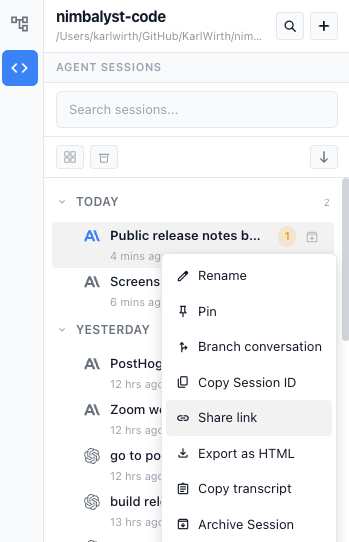
How to share
You must be signed in to a Nimbalyst account before you create a link.
- Right-click a session in the session list.
- Select Share link.
- Choose whether the link expires after 1 day, 7 days, or 30 days. Nimbalyst remembers this choice for the next link.
- If you use multiple accounts, choose which account owns the link.
- Click Copy link, then paste it anywhere: Slack, email, X, or a document.
After sharing, the session menu changes to Copy share link and Unshare. Unshare removes the hosted copy immediately.
Security and safety
- Anyone with the link can view the shared content. Do not share sessions containing sensitive information.
- Shared content is encrypted on your computer before upload. The decryption key lives in the URL fragment and is not sent to the share server, so anyone who receives the complete URL can decrypt the content in their browser.
- There is no separate password. Access ends when the chosen expiration is reached or you select Unshare.
Shared links are read-only. For live collaboration on the same session context, see Nimbalyst for Teams.