Local Wiki Files and Location
A Nimbalyst local wiki is a folder of files in your project: markdown for text pages, and each editor's own format for drawings, mind maps, spreadsheets, data models, mockups, and canvases. How pages, child pages, frontmatter fields, typed pages, links, and trash map to files, how to choose the folder, and how to export old Personal pages.
The Local section of the Wiki is a folder of ordinary files in your project. There is no database copy and no server: you, a text editor, git, and any coding agent can read and edit the pages directly, and Nimbalyst shows the changes right away.
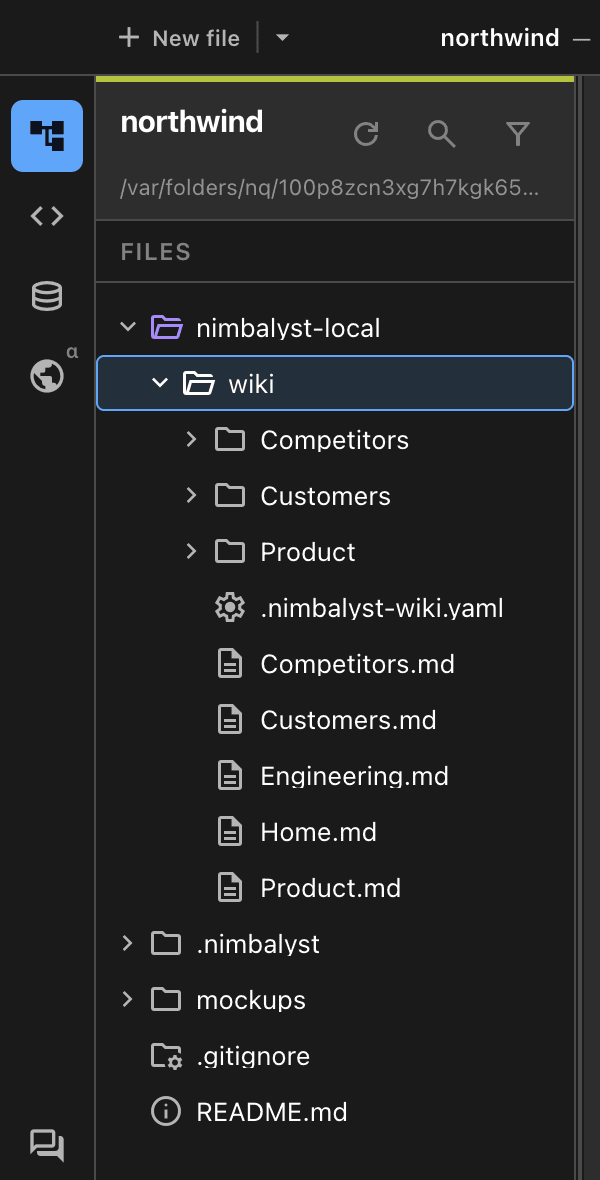
A local wiki in the Files tree. Each page is a markdown file; child pages sit in a folder with the page's name.
Where the wiki lives
By default the wiki is nimbalyst-local/wiki in your project. Nimbalyst creates the folder when you add the first page.
-
Keep it private.
nimbalyst-local/is meant to stay out of git.nim wiki initadds it to.gitignorefor you if git does not already ignore it. -
Check it in. To share the wiki with teammates through git, put it in a tracked folder such as
docs/wiki. Either runnim wiki init --location docs/wiki, or create.nimbalyst/local-wiki.jsonin the project:{ "location": "docs/wiki" }The location must be a relative path inside the project.
-
Worktrees share one wiki. In a git worktree, the Local section shows the main checkout's wiki, so every worktree of a project works on the same pages.
How pages map to files
nimbalyst-local/wiki/
  .nimbalyst-wiki.yaml          marks the folder as a wiki
  Home.md
  How we write this wiki.md
  Product.md
  Product/                      Product's child pages
    Payment retries.md
    Hosted checkout.md
  Competitors.md
  Competitors/
    .assets/                    files attached to Competitors.md
    Paylane.md                  a typed page (type: competitor)
    Paylane.activity.jsonl      the typed page's change log
  Partners.csv                  a table type: one row per item
.trash/ deleted pages, restorable-
A page is
<Title>.md. The file name follows the title, so renaming a page renames its file and its child folder. Characters a file name can't hold are replaced, and the full title is kept in the frontmatter. -
Child pages live in a folder with the page's name. A folder without a matching
.mdfile is a page with an empty body. If that folder holds aREADME.mdorindex.md, that file is the page's body, so an imported folder of docs keeps its landing page. -
Editor files are pages too. A drawing, mind map, data model, mockup, interactive HTML page, spreadsheet, or canvas in the folder shows up as a page and opens in its own editor. Each keeps its editor's own file format, so other tools can open it:
Page File Drawing Flow.excalidraw(Excalidraw)Mind map Risks.mindmapSpreadsheet Outcomes.csvCalc sheet Budget.calc.mdData model Attempts.prisma(Prisma schema)Mockup Settings.mockup.htmlInteractive HTML page Product map.html(see Interactive HTML pages)Canvas Overview.canvasThe page's title is the file name without the suffix, and its id and fields live in a small hidden file beside it, such as
.Flow.excalidraw.wiki.yaml. Nothing is added to the editor file itself. A.csvnamed after a table type is that type's table, not a spreadsheet page. -
Attachments. Drop or paste a file into a page to attach it. Nimbalyst stores it in a hidden
.assets/folder inside the page's child folder, soCompetitors.mdkeeps its files inCompetitors/.assets/. Images show inline and other files become links. Attachments move, go to Trash, and come back with the page, and renaming the page rewrites its links to them. -
Other images and files in the folder travel with the page when it moves, but are not pages themselves.
-
Deleting moves a page to
.trash/, where you can restore it from Trash in the sidebar.
Frontmatter: ids, order, and fields
Each page file starts with flat YAML frontmatter:
---
id: 01M4HH07GFJC3V1PSY8Q2D5RKA
order: 2000
status: current
owner: [email protected]
summary: How failed charges are retried
tags: [payments, retries]
---

Failed charges retry with exponential backoff...idis assigned by Nimbalyst and never changes, even when the page is renamed or moved. A file you create by hand without one gets an id the next time Nimbalyst scans the wiki, without disturbing the rest of your formatting.ordersets the page's position among its siblings. Pages without it sort after the others, by title.- Every other key is a field:
status,owner,summary, andtagsfor a plain page, or the type's own fields for a typed page. Keys Nimbalyst doesn't know are kept. pathsnames the code a page covers, as repository-relative globs such as[src/sync/**]. The wiki plugin uses it to tell the agent which pages to read before changing those files and which pages a session's changes touched.
When a Local page is open, its path shows above it and its fields appear in the Page info panel, which the info button in the page header opens and closes.
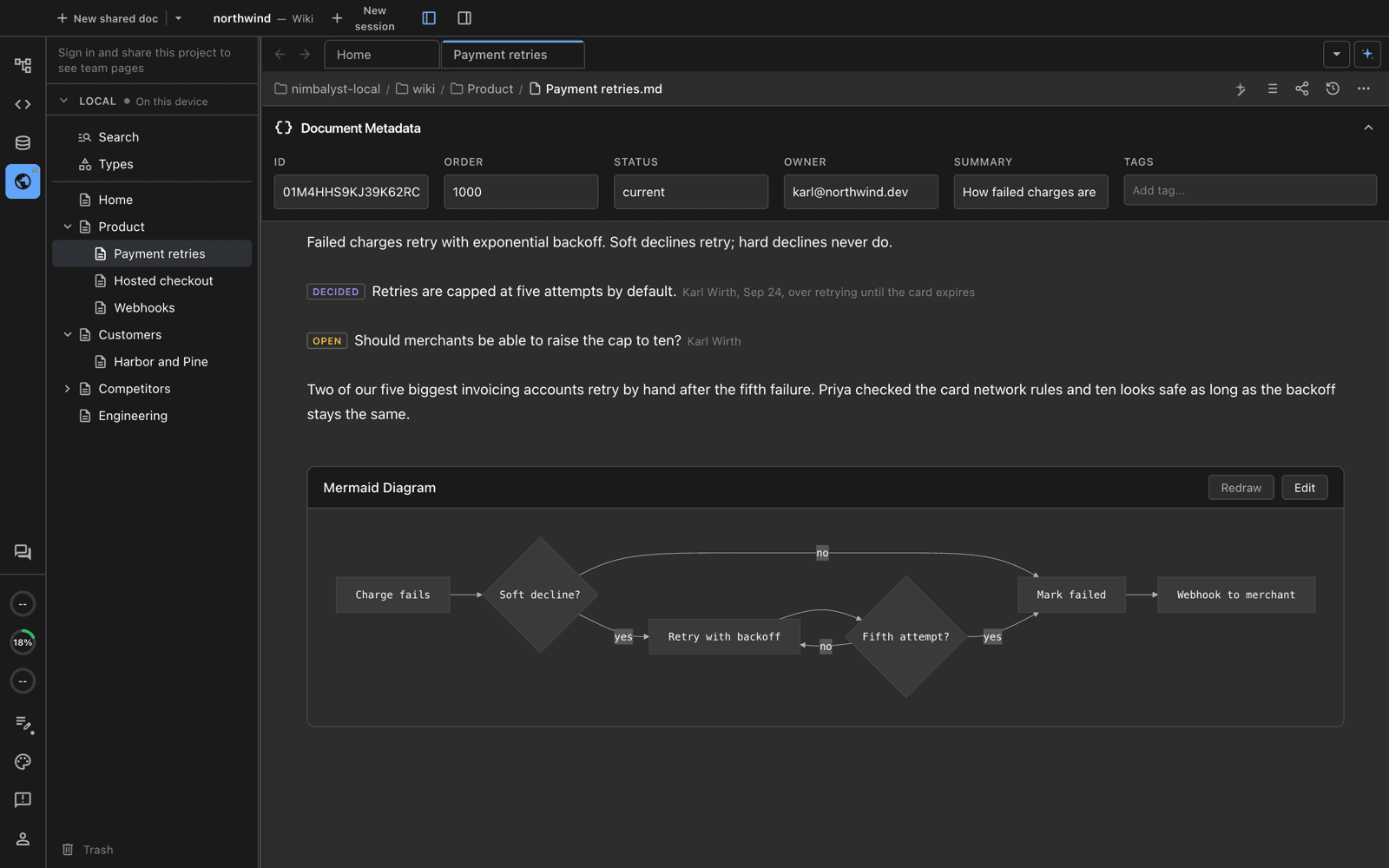
A Local page shows its file path, and its frontmatter fields in the Document Metadata panel.
Typed pages and types in files
Types are defined in .nimbalyst/trackers/<type>.yaml. A type is part of the wiki when its definition includes a storage line:
storage: pageskeeps one markdown page per item. This is the default when you place a type in the Local section.storage: tablekeeps every item as a row of one CSV file, such asPartners.csv, in the folder of the page it sits under. A row has fields only, with no body and no child pages. Agents running setup create page types unless you ask for a table.
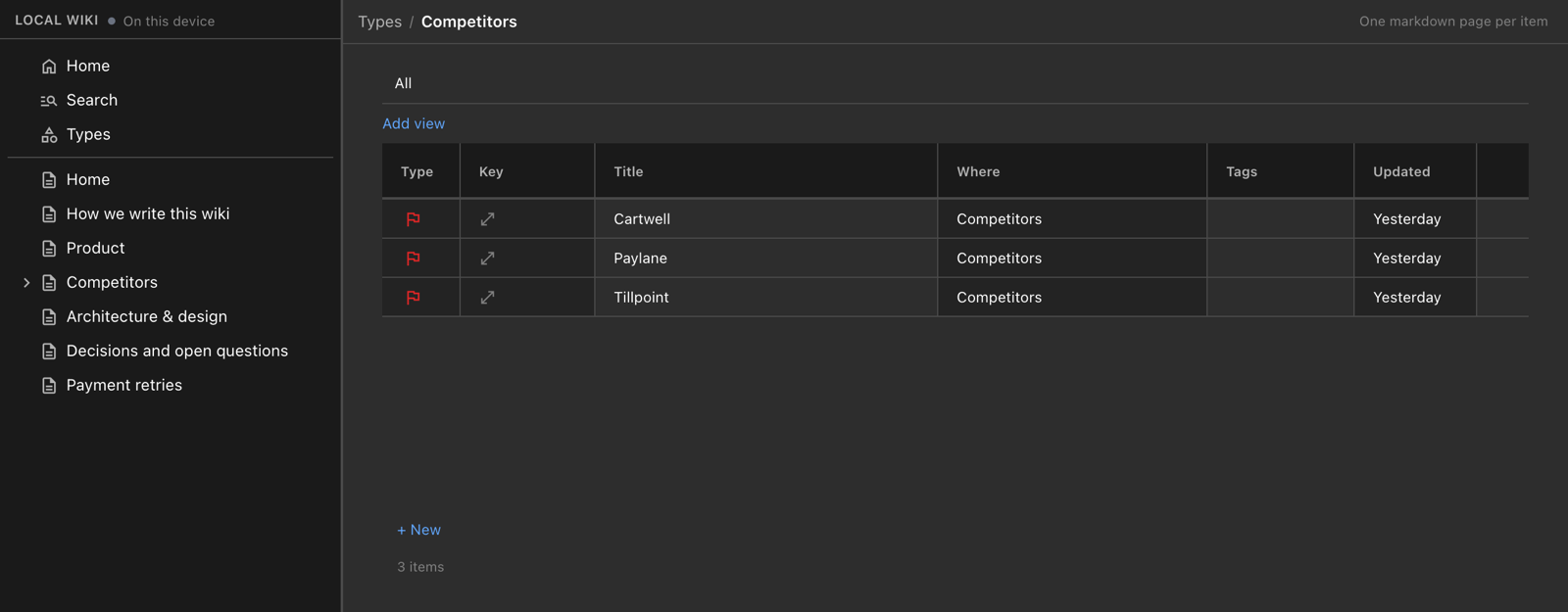
A type stored as pages: one markdown page per competitor, listed in the type's table in the browser view.
Types without storage, such as bugs and tasks, keep their items in the app's tracker as before.
A typed page is a markdown file with type: and its fields in the frontmatter:
---
id: 01M4HH2F1PVRJ2PJKAG4XW89ZV
type: competitor
order: 1000
threat: high
segment: Payments platform
overlap: Full payments stack, same mid-market buyer
---

Full payments stack, same mid-market buyer.
A type file can list the fields shown as columns in the type's table, in order:
tableView:
  defaultColumns: [threat, segment, overlap]
Setup writes this for the types it creates. A field that is not listed is not a column until someone adds it.
The prose on a type's own page (the description above its table) is stored in the app, not in a file. See Pages, Types, and Fields.
Convert a table type to pages
When the items of a table type need notes or child pages, convert the type to pages. Each row becomes a typed page in the CSV's folder with the same item id and field values, its change log moves beside it, the type file changes to storage: pages, and the CSV goes to the wiki trash. Links to the items keep working because the ids don't change. Converting only goes from table to pages.
- In the browser view: click Convert this type to pages on the type's page, or on a row's page, and confirm.
- From a shell:
nim wiki convert-type <type> --to pages, with the type id, such aspartner. - Ask your agent: with the Nimbalyst Wiki plugin or
nim mcp, the agent converts it with theconvertTypeStoragetool.
Links between pages
Links between Local pages are relative markdown links that carry the target's id:
[Paylane](../Competitors/Paylane.md "id=01M4HH2F1PVRJ2PJKAG4XW89ZV")They work on GitHub and in any markdown editor. When a page moves in Nimbalyst, links to it are rewritten; if you move files outside Nimbalyst, broken links are repaired on the next scan.
Edit the files directly
You and your agents can edit the files with any tool. Nimbalyst's wiki tools, the Nimbalyst Wiki plugin, and nim wiki add what a plain edit does not: ids, ordering, link rewriting on moves, typed fields, CSV rows, and trash. Use them when you move or rename pages, and edit page text however you like.
To read and edit the local wiki in a browser without the desktop app, ask your agent to open it, or run nim wiki serve. See Read and Edit the Wiki in Your Browser and the Wiki Plugin and nim CLI Reference.
Pages from the old Personal section
Before version 0.80.6, Personal pages were stored in Nimbalyst's local database. They still appear in the Local section and you can keep editing them, but you can't add pages under them or move them into the file wiki directly.
To turn them into files, right-click the Local section heading and choose Export N database pages to files. Nimbalyst copies each markdown page into the wiki folder, keeps the database copy, and overwrites nothing. Typed pages and non-markdown pages from the old section stay in the database.
Move pages to the Team wiki
Move to Team... on a plain Local page copies it and the plain pages under it to the Team section, checks every copy, and then moves the original to Trash. Typed pages, types, editor pages, and pages that hold typed pages can't move between sections in the app yet. To move a whole local wiki with all of them, use /nimbalyst-wiki:team in Claude Code; see Move Your Local Wiki to Teams.