Excalidraw
Draw diagrams, flowcharts, and whiteboard sketches in the built-in Excalidraw editor, and let your AI agent build them from a description.
Overview
Nimbalyst includes a built-in Excalidraw editor for creating diagrams, flowcharts, and whiteboard sketches. Files open in a visual canvas where you can draw shapes, connect them with arrows, and let AI help build diagrams from descriptions.
The Excalidraw extension page lists what the built-in canvas supports.
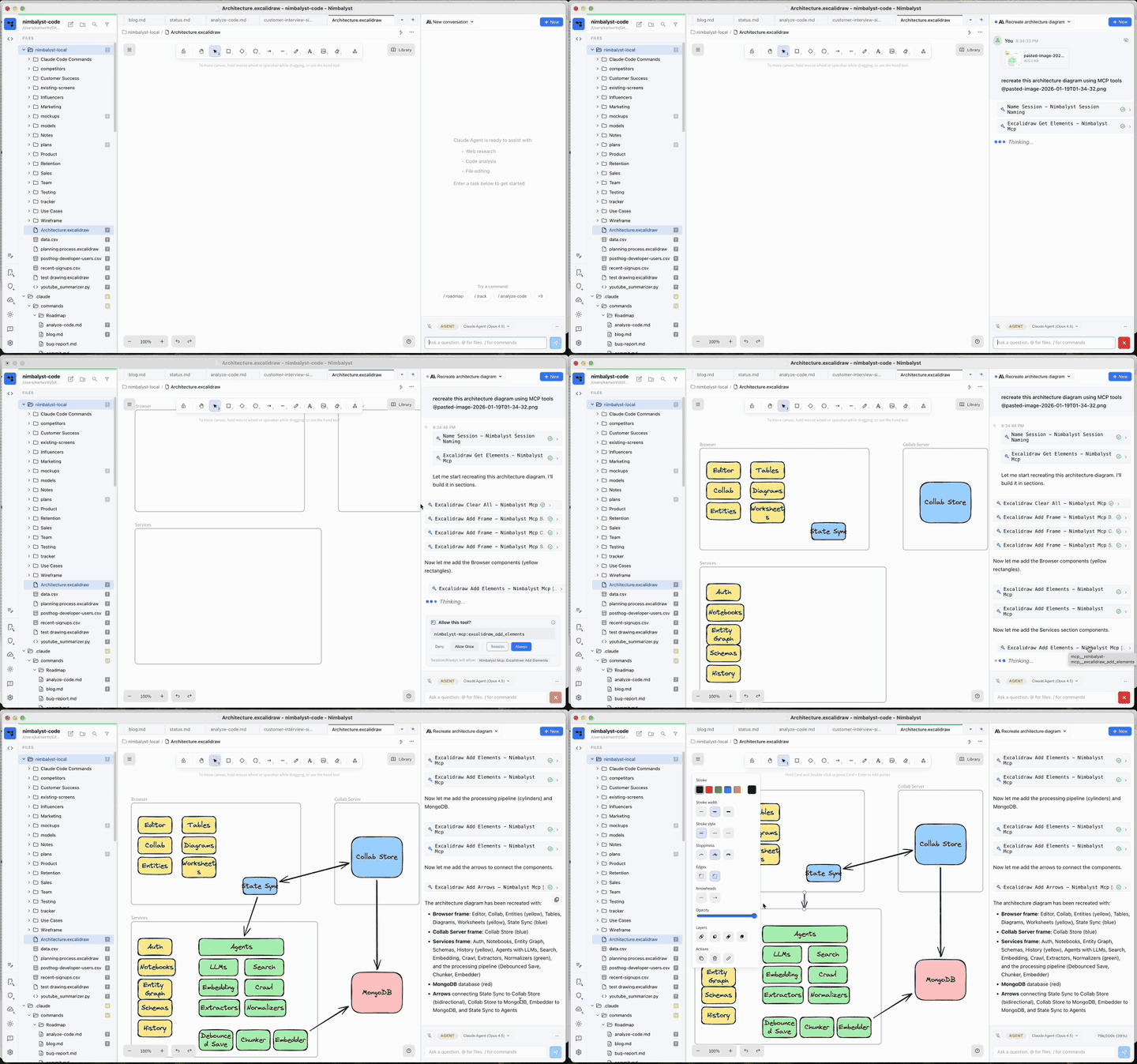
AI-Assisted Diagramming
Ask the AI to create or modify diagrams directly. The AI can:
- Add shapes with labels and colors
- Connect elements with arrows
- Import Mermaid diagrams
- Align and distribute elements
- Group elements together
- Create rows and columns of shapes
Human Diagramming
Right-click in the file tree and select New File > Excalidraw Diagram, or create any file with the .excalidraw extension.
The toolbar provides standard Excalidraw tools:
- Selection: Click and drag to select elements
- Rectangle: Draw boxes (rounded by default)
- Diamond: Draw decision shapes
- Ellipse: Draw circles and ovals
- Arrow: Connect elements with arrows
- Line: Draw freeform lines
- Text: Add text labels
- Frame: Group related elements with a titled container
Example AI Prompts
- "Create a flowchart showing user login flow"
- "Add a blue rectangle labeled 'Database'"
- "Connect 'Frontend' to 'API' with an arrow"
- "Import this mermaid diagram: graph TD; A-->B"
- "Align all the boxes on the left"
Mermaid Import
Convert Mermaid syntax to visual diagrams:
graph TD
    A[Start] --> B{Decision}
    B -->|Yes| C[Action]
    B -->|No| D[End]
Ask the AI to import Mermaid, or use the import_mermaid tool directly.
Working with Frames
Frames are titled containers that group related elements. Use them to organize architecture diagrams into sections like "Browser", "Services", or "Database".
Create frames manually or ask the AI: "Add a frame called 'Frontend' around the React components"
Theme Support
The editor adapts to your Nimbalyst theme. Light themes show a white canvas; dark themes show a dark canvas with adjusted colors.
Tips
- Pan canvas: Hold space and drag, or use two-finger scroll
- Zoom: Cmd/Ctrl + scroll, or use the zoom controls
- Duplicate: Alt + drag to duplicate elements
- Snap to grid: Hold Cmd/Ctrl while dragging for alignment
- Lock elements: Prevent accidental edits by locking shapes
Diagrams on a Board
An Excalidraw file can sit on a Canvas alongside the plan and mockups it explains, and stays editable there.