Windows: Detailed Install Guide
Install Nimbalyst on Windows, open a project, and connect Claude Agent or OpenAI Codex using a plan login or API key.
This guide takes you from the Windows installer to your first agent session. Download the current .exe from the Nimbalyst download page.
Install the App
- Open the downloaded Nimbalyst installer.
- Choose the installation options you want and finish setup.
- Launch Nimbalyst from the Start menu or the shortcut you created.
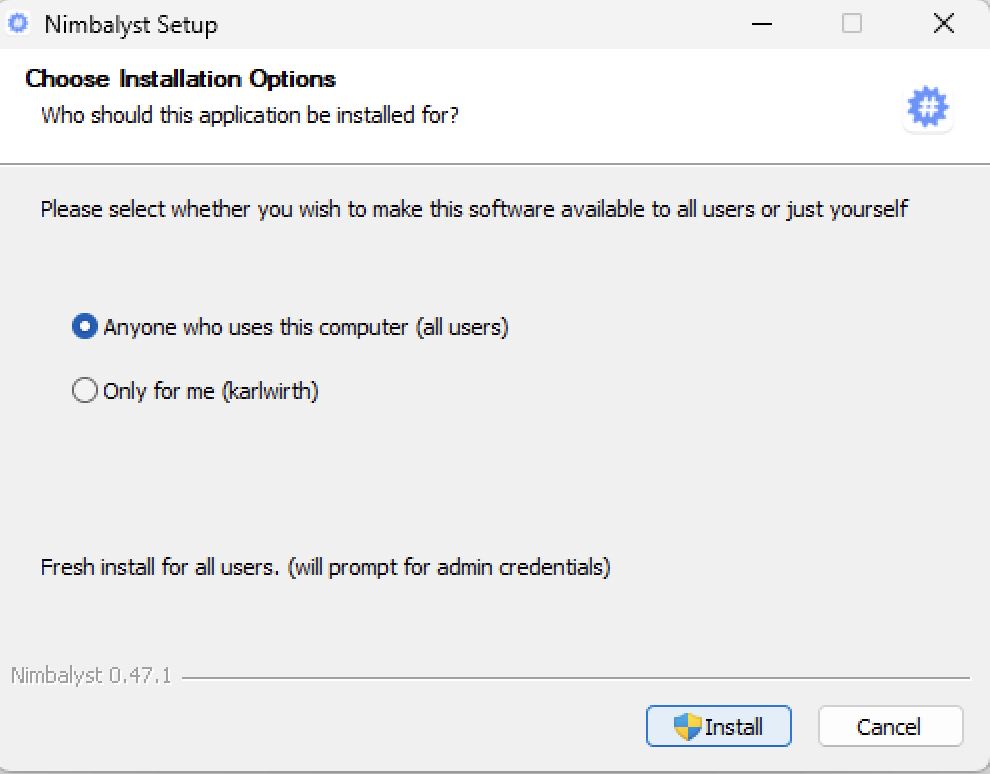
Choose the shortcuts you want, then continue through the installer.
Open a Project
A project is a folder on your PC. It can be a Git repository or any other folder containing the documents and files you want to work with.
- On the Project Manager screen, choose Open Folder or New Folder.
- Complete the welcome screen. Choose Standard Mode for a simpler writing workspace or Developer Mode for Git, terminal, and worktree features; you can change this later.
- Use Start tutorial if you want a disposable example project, or Get started… to open your own folder.
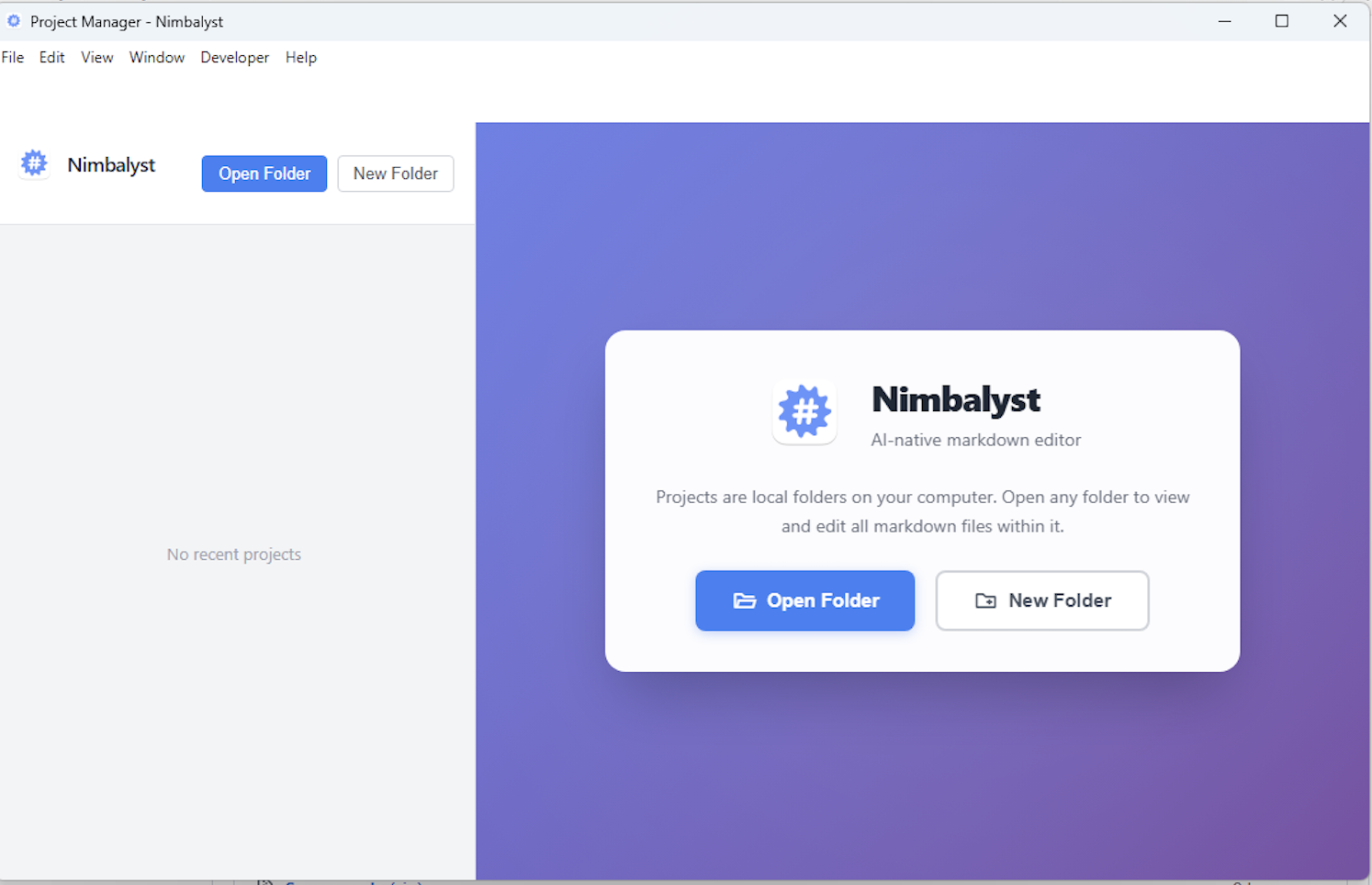
Each project is backed by a folder on your filesystem.
Connect an Agent
The standard Claude Agent and OpenAI Codex integrations are included with Nimbalyst. You do not need to install Git for Windows or a separate CLI for either one.
- Open Settings > Application > AI Providers.
- Select Claude Agent or OpenAI Codex and enable it.
- Authenticate with a supported subscription login, or choose the API-key option and enter your own key.
- Return to the workspace, create a session, and select that provider in the composer.
Claude plan login opens a terminal for the OAuth flow and may ask you to type /login; return to Settings and click Refresh when authentication finishes. Codex plan login opens the ChatGPT sign-in flow in your browser.
Git for Windows is still useful for Git repositories and is required by some optional CLI-based providers, but it is not required for Nimbalyst's standard bundled Claude Agent or Codex integrations. See AI Provider Setup.
Windows Spellchecker
Nimbalyst uses Electron's Windows spellchecker, which defaults to English. You can turn it off in Settings.
Start Working
Type a request in the agent panel. The agent can research, write and edit files, build mockups and diagrams, and work with the project context that you give it. You review file changes in Nimbalyst before accepting them.